*arr Features
Connect Sonarr and Radarr for item links, metadata tags, upcoming releases, and download monitoring. Bazarr adds subtitle-management links; Shoko adds anime events to Calendar.
Features
Who can use these features
Service links are available to Jellyfin administrators. Signed-in viewers can use tag links and enabled Calendar and Requests pages. What they see depends on library access, request ownership, section settings, and Seerr permissions.
Configure connections under Jellyfin Enhanced → *arr. Configure the pages under Pages. See *arr settings for every control and its default, or troubleshooting if results are missing.
ARR Links
Open a movie or series in Sonarr, Radarr, or Bazarr from its Jellyfin detail page. Sonarr and Radarr links appear only for servers that contain the title.
Setup
- Open Jellyfin Enhanced → *arr.
- Use + Add Sonarr instance or + Add Radarr instance and enter URL and API Key. The URL must be reachable from the Jellyfin server.
- Optionally enter Bazarr URL.
- Turn on Enable *arr Links on Detail Pages and choose the link presentation below.
- Click Save Settings, then reload the Jellyfin web client.
Usage
- Sign in as an administrator and open a movie or series detail page.
- Look beside the TMDB external link.
- Click a service icon, text link, or dropdown entry to open a new browser tab.
With Show links as text and Show status badge for single-instance on, a Sonarr link shows downloaded/total episode counts and a colored status border.
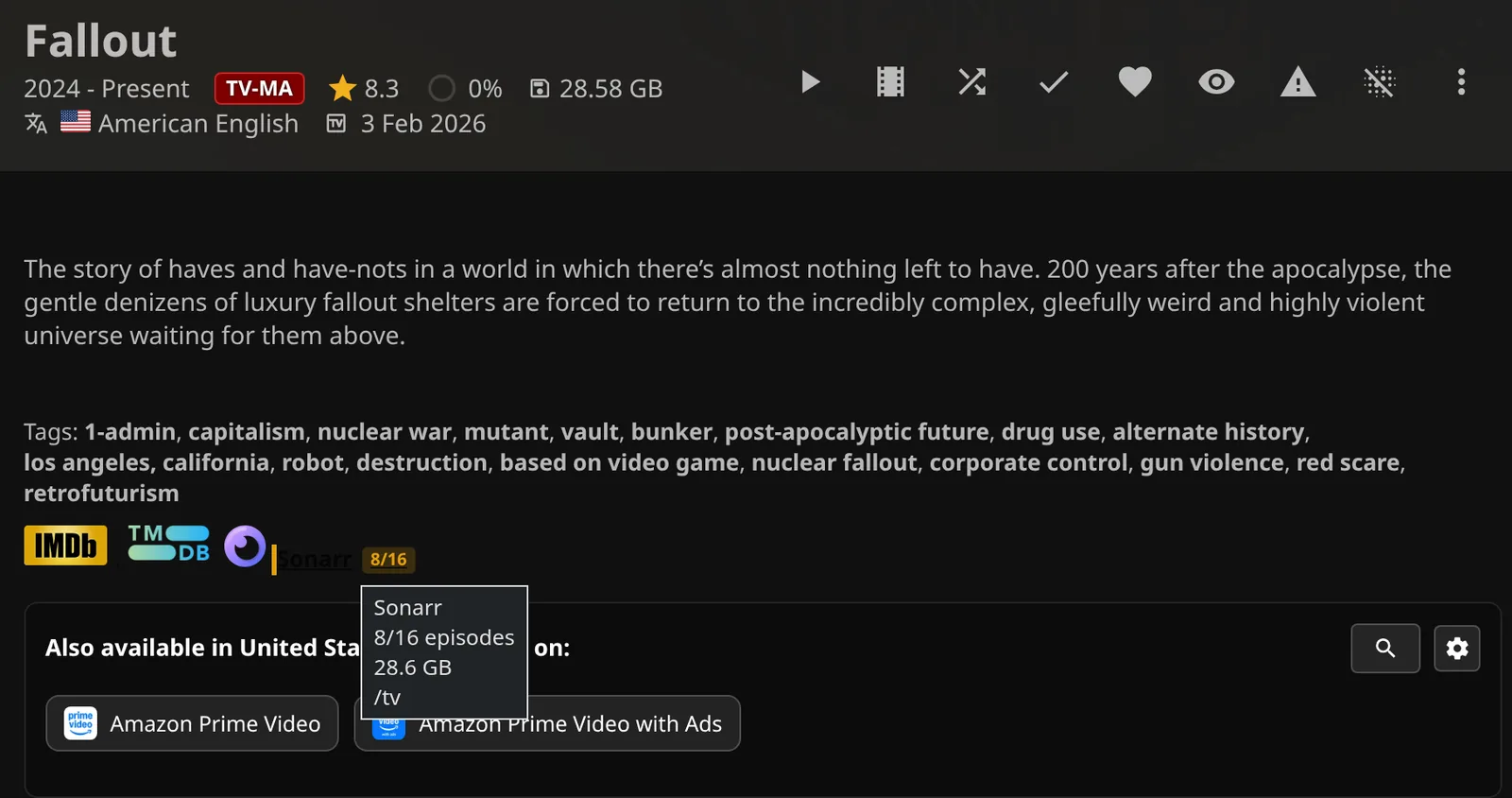
Detail-page requirements
The detail page must show a TMDB link. These service links do not appear on individual season or episode pages. Bazarr opens the series or movies overview rather than the specific title.
Link settings
These are admin (server) settings; every option and default is in *arr settings → Link Behaviour.
Metadata icons override text links
Enable Metadata Icons (Druidblack) under Extras forces service links into icon mode. It overrides Show links as text.
Title matching and request-card links
Sonarr also requires a TVDB provider ID; Radarr uses the movie's TMDB ID. Bazarr opens /series/ or /movies/.
Administrators can also get Open in Sonarr and Open in Radarr icons on Seerr request cards when Enable *arr Links on Detail Pages is on. Movie cards require TMDB; TV cards require both TMDB and TVDB. These use the first matching instance, with no dropdown or Bazarr link. See Seerr features for request-card actions and View on Seerr.
Shoko's Open in Shoko link is on anime Calendar events; see Anime Calendar Events (Shoko).
Multi-Instance Support
Add separate servers (instances) for TV, anime, HD, or 4K libraries. Give them distinct names so you can tell them apart. Each has its own connection and browser URL mappings.
Use the checkbox in a card's summary to enable or disable that instance. Click Save Settings after changing the checkbox, adding a card, or confirming Remove.
With one matching instance, you get a direct link. With multiple matches, click the service button to open a dropdown containing instance names, download status, and available sizes. Sonarr includes episode-file counts.
| Color | Meaning |
|---|---|
| Green | Sonarr's reported episode-file total is complete, or Radarr has a movie file. |
| Amber | Sonarr has some episode files, but fewer than its reported episode total. |
| Gray | The title exists in the instance, but reports no downloaded episode files or movie file. Missing Sonarr statistics also use this color. |
Instances without the title are omitted. For one match, turn on both Show status badge for single-instance and Show links as text to see the episode count or Downloaded/Missing badge.
Instance names, disabled connections, and status details
Names appear in links, Calendar badges, and tooltips on source icons for ordinary download cards. Grouped Season cards show only Sonarr.
Disabled instances keep their credentials. JE skips them for lookups, Calendar, queue/history retrieval, and tag sync.
If Sonarr reports no statistics, the badge reads 0/0 with gray status. Icon-mode tooltips retain available status details.
URL Mappings
Use mappings when the server connects to an internal service address but your browser needs a public address. The left side is the Jellyfin address used by the client; the right side is the service address to open.
- Open that instance's URL Mappings (optional).
- Enter one pair per line, as in the example below.
- Use Validate Mappings to check URL syntax and that the two addresses differ.
https://jellyfin.example.com|https://sonarr.example.com
http://192.168.1.10:8096|http://192.168.1.20:8989
How mappings are matched
Matching ignores case and trailing slashes, but otherwise compares the full Jellyfin server address, including its base path. The first matching pair wins. If none matches, the browser link uses the instance's URL. Each instance's mappings are independent; they do not inherit a global mapping.
Bazarr and Shoko have their own mapping fields with the same format.
Keep the server connection address
Mappings change browser links only. Keep URL reachable from Jellyfin, especially when the public address requires an interactive proxy login. Validate Mappings does not test connectivity or API authentication.
Legacy Single-Instance Fields
Keep a configuration backup if you may need to restore an earlier setup.
Compatibility and recovery
An explicitly empty instance list can fall back to the legacy connection fields. Saving cards copies the first complete card into the legacy URL, API key, and mappings, even if that card is disabled. Removing all cards and saving clears the legacy fields.
An unreadable instance list does not fall back to legacy fields; see instance recovery.
ARR Tags
Copy Sonarr and Radarr tags into Jellyfin metadata, then display them as clickable links on detail pages. Clicking a tag opens Jellyfin's list of items carrying that full prefixed tag.
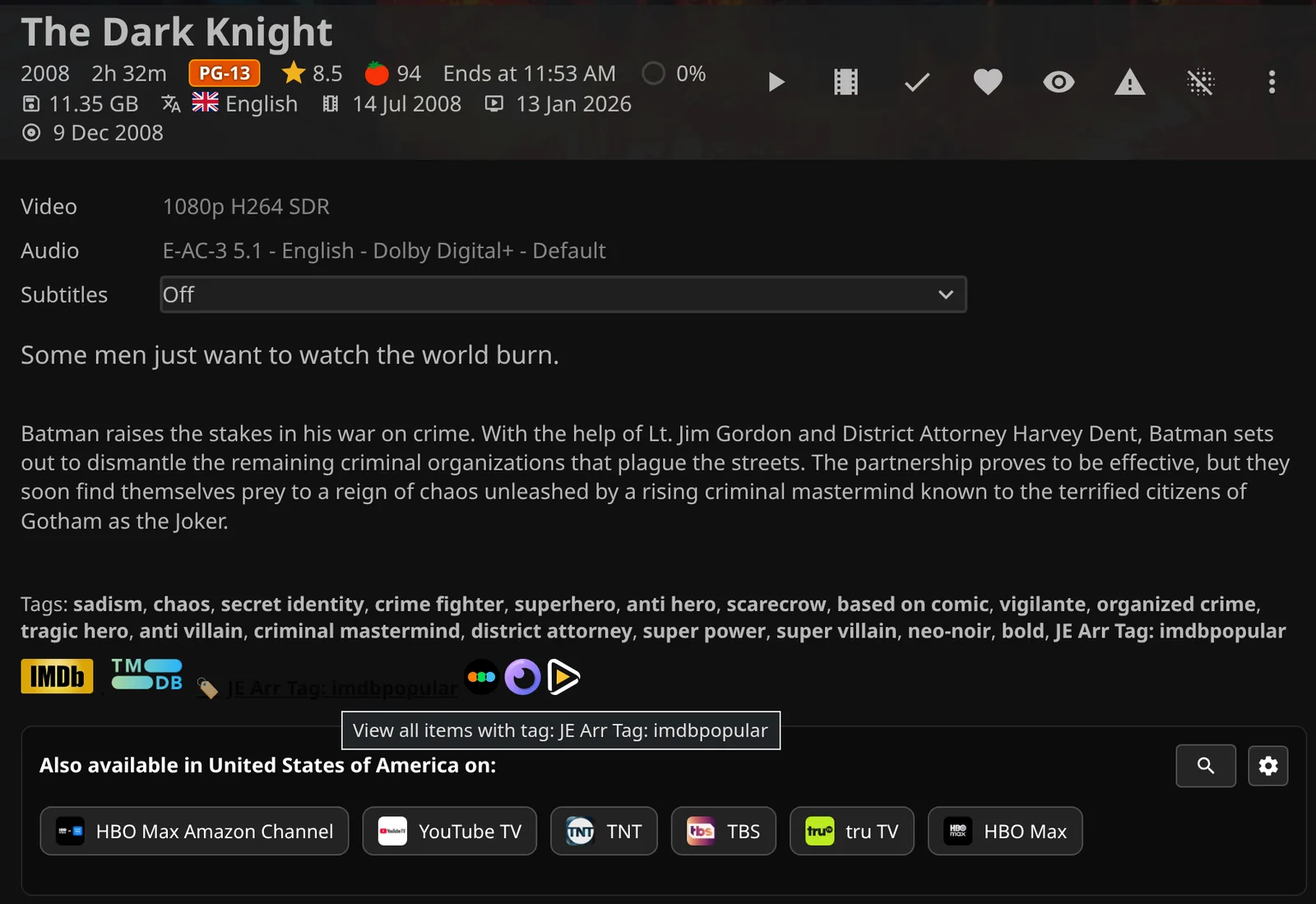
Setup
- Configure at least one complete, enabled Sonarr or Radarr instance under *arr.
- In Tags Sync, turn on Enable Tags Sync, choose a nonempty Tag Prefix, and review cleanup and filters.
- Click Save Settings.
- Open Jellyfin's Scheduled Tasks and run Sync Tags from *arr to Jellyfin, in the Jellyfin Enhanced category.
- Add a task trigger if you want recurring synchronization, then reload item pages to see the updated tags.
Run or schedule the task yourself
Saving does not run the task, and it has no default triggers. Tag sync does not require Enable *arr Links on Detail Pages.
Tag Settings
These are admin (server) settings:
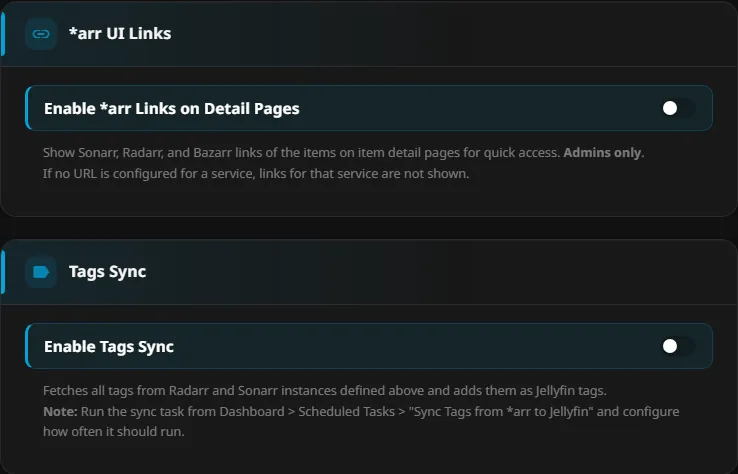
Every option and default is in *arr settings → Tag synchronization.
How tags are matched
Radarr matches movies by TMDB ID; Sonarr tag sync matches series by IMDb ID. Sync updates movies and series in your library, excluding virtual placeholders, combines tags from enabled instances, and avoids duplicates regardless of letter case. Bazarr and Shoko do not supply tags.
Cleanup can remove tags without replacements
Clear old tags before sync also affects unmatched items, and items whose service answered with no tags. When a Radarr or Sonarr instance cannot be read (unreachable, an error answer, an unreadable answer or a damaged instance list), that service's items (movies for Radarr, series for Sonarr) keep their tags for that run; tags from the instances that did answer are still added, and the run then shows as failed in Scheduled Tasks. Disable an instance you no longer use, or its service's tags are never cleaned. Turning cleanup off preserves stale tags; changing Tag Prefix leaves tags bearing the previous prefix in place.
Prefix behavior
Keep Tag Prefix nonempty and its spelling/case consistent. The factory default is JE Arr Tag:, and settings save a blank value as that default. When the stored prefix is blank or unset, sync and displayed tag links both use JE Arr Tag:. Links require matching prefix capitalization; cleanup ignores capitalization.
Tag Filtering
Choose which tags to sync or show as links. Link filters change what you see without changing stored metadata.
- Open Tag Filters under Tags Sync.
- Enter source tag names without the prefix. Matching is exact and ignores letter case.
- Use commas or semicolons for Sync to Jellyfin Filter, and one name per line for the two link filters.
Every option and default is in *arr settings → Tag synchronization.
For Sync to Jellyfin Filter, use:
Use commas or semicolons for the sync filter
The form says one per line, but putting each name on a new line does not work for Sync to Jellyfin Filter.
For Show as Links Filter, use:
For Hide Specific Links Filter, use:
Existing metadata tags
Existing prefixed tags can appear as links without enabling sync or running another task. The visible link text includes the prefix.
Custom Styling
Use custom CSS to rename a visible tag label, hide a link, or change its color. The examples below show the supported hooks.
CSS hooks and examples
Tag links expose .arr-tag-link, .arr-tag-link-text, and .arr-tag-link-icon, plus data-tag (full tag), data-tag-name (unprefixed name), data-tag-prefix, and data-id (slugified name).
Rename a visible label:
.itemExternalLinks a.arr-tag-link[data-tag-name="1 - n00bcodr"] .arr-tag-link-text {
  display: none !important;
}
.itemExternalLinks a.arr-tag-link[data-tag-name="1 - n00bcodr"]::after {
  content: " N00bCodr";
}
Hide a link or give it a service color:
.itemExternalLinks a.arr-tag-link[data-id="internal-tag"] {
  display: none !important;
}
.itemExternalLinks a.arr-tag-link[data-id="in-netflix"] {
  background: #d81f26;
  color: #fff;
}
See CSS customization for more recipes.
Calendar Page
See upcoming episodes and cinema, digital, and physical movie releases in one Calendar. Enabled Sonarr and Radarr instances and a configured Shoko server supply events independently. Spoiler Guard hides episode titles here for protected series until you play the episode; see What Spoiler Guard protects.
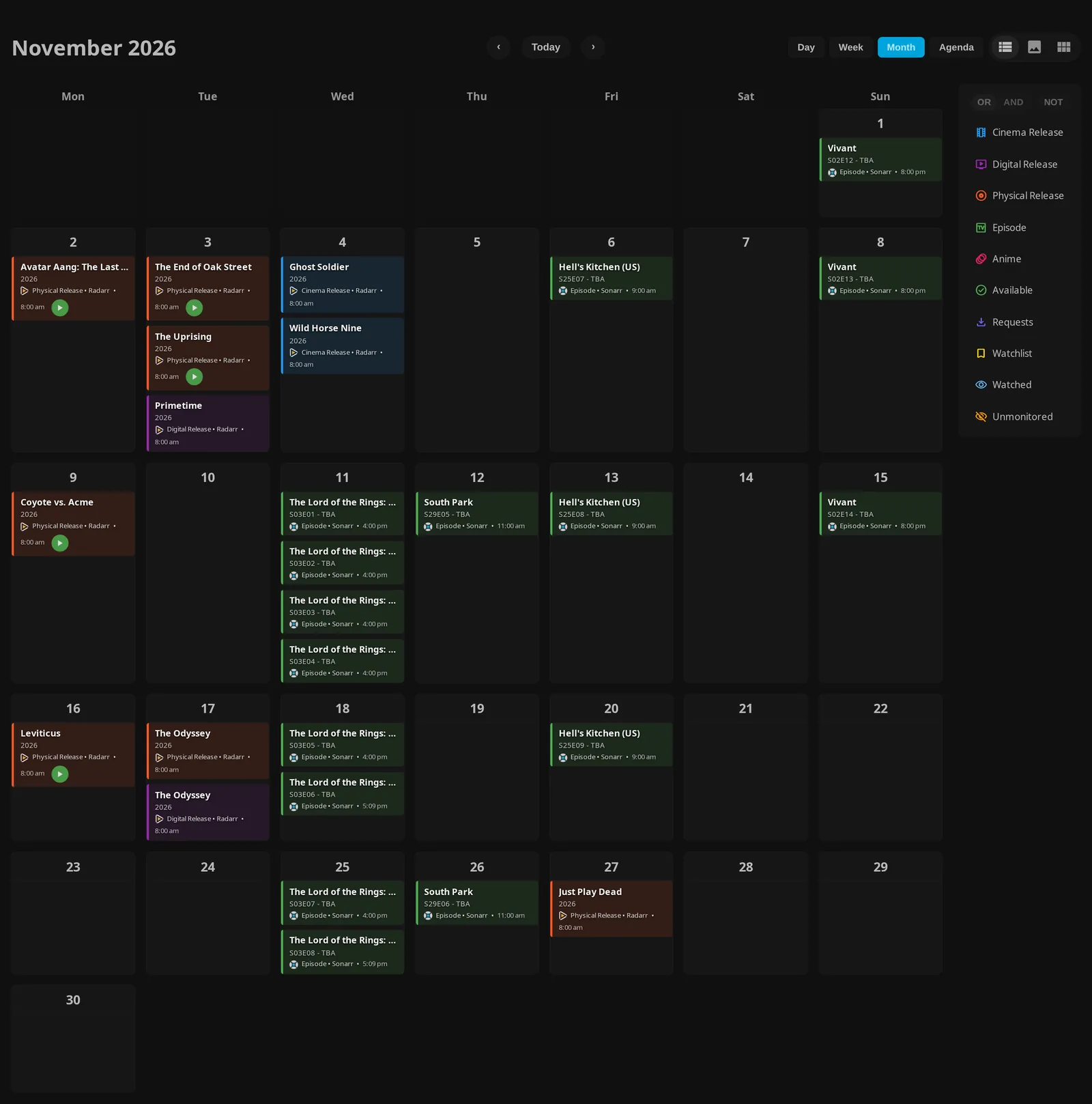 This example uses Month with Monday first; the default view is Agenda.
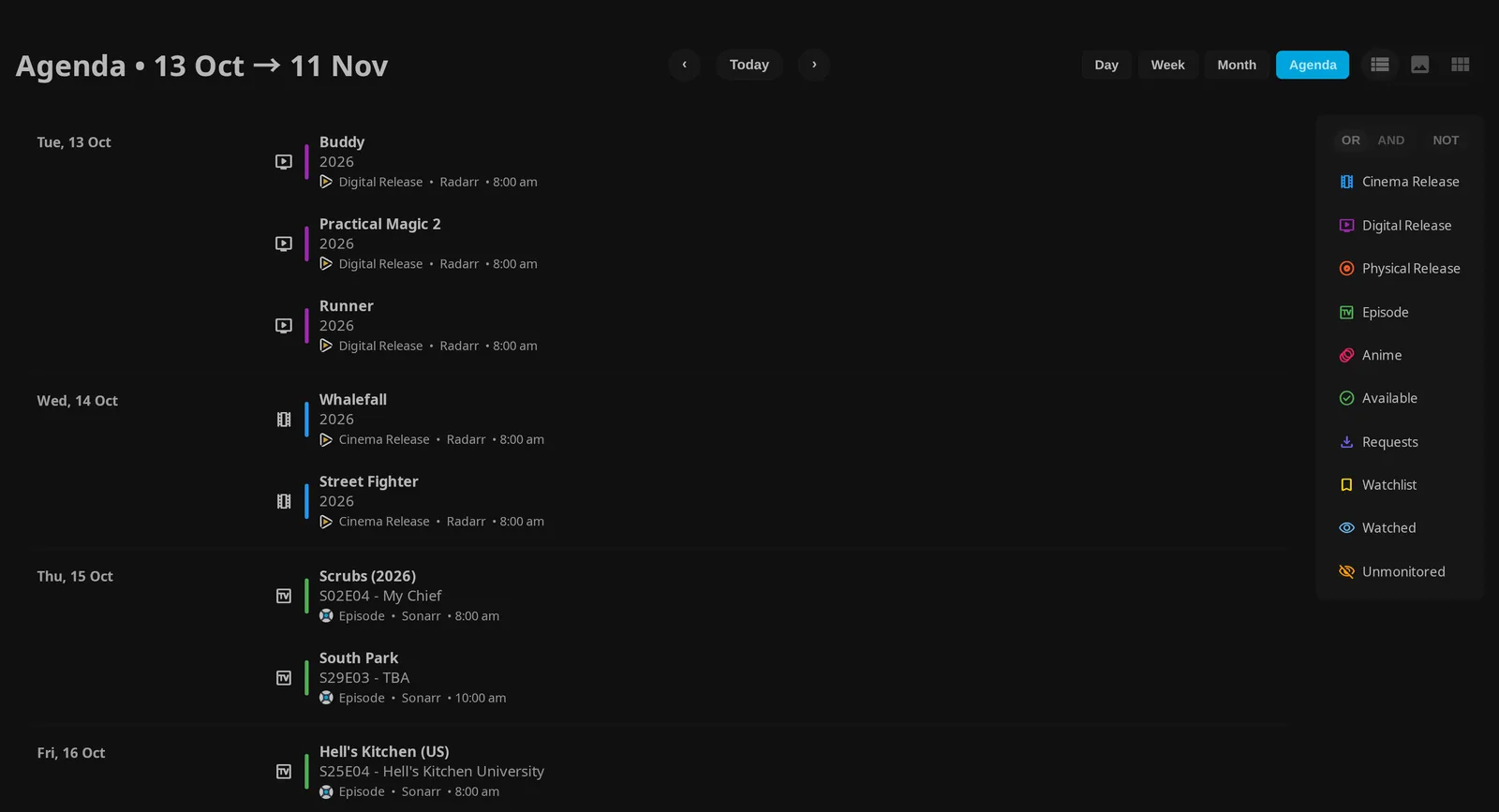
Agenda lists releases by date across a 30-day range. Use Today to start the range at the current date.
Setup
- Configure an enabled Sonarr or Radarr instance, or enter Shoko URL and Shoko API Key, under *arr.
- Open Pages → Calendar Page and turn on Enable Calendar Page.
- Choose a navigation mode, then click Save Settings and reload the web client.
Calendar data needs no companion plugin
Calendar data does not require Enable *arr Links on Detail Pages or a companion plugin. Placement through Plugin Pages or Custom Tabs requires the corresponding plugin.
Navigation and plugin requirements
By default, JE adds Calendar where its navigation section is available. With placement modes off, you can also open /web/index.html#/calendar, prefixed by your Jellyfin base path.
For a Home tab, enable Add Calendar as a native Home tab; this requires no companion plugin. Alternatively use Use Plugin Pages or Use Custom Tabs with the corresponding installed plugin. Native and Custom Tabs modes cannot both be enabled for Calendar. Use the generated navigation link rather than a fixed Home tab index. On Jellyfin 12's experimental layout, header access can open a tab whose tab-strip button is hidden.
Plugin Pages 3.0+ supports live registration on save; older versions or a failed live update need a server restart. When a detected Plugin Pages integration is selected, use its page entry instead of the standalone URL. Entry locations depend on layout and viewport; the Modern Layout sidebar is mobile-only. See JE pages and tabs for placement instructions.
Usage
- Open Calendar from your configured entry point.
- Choose Day, Week, Month, or Agenda.
- Use the previous/next arrows to move by a day, week, month, or 30-day Agenda period. Click Today to return to the current date.
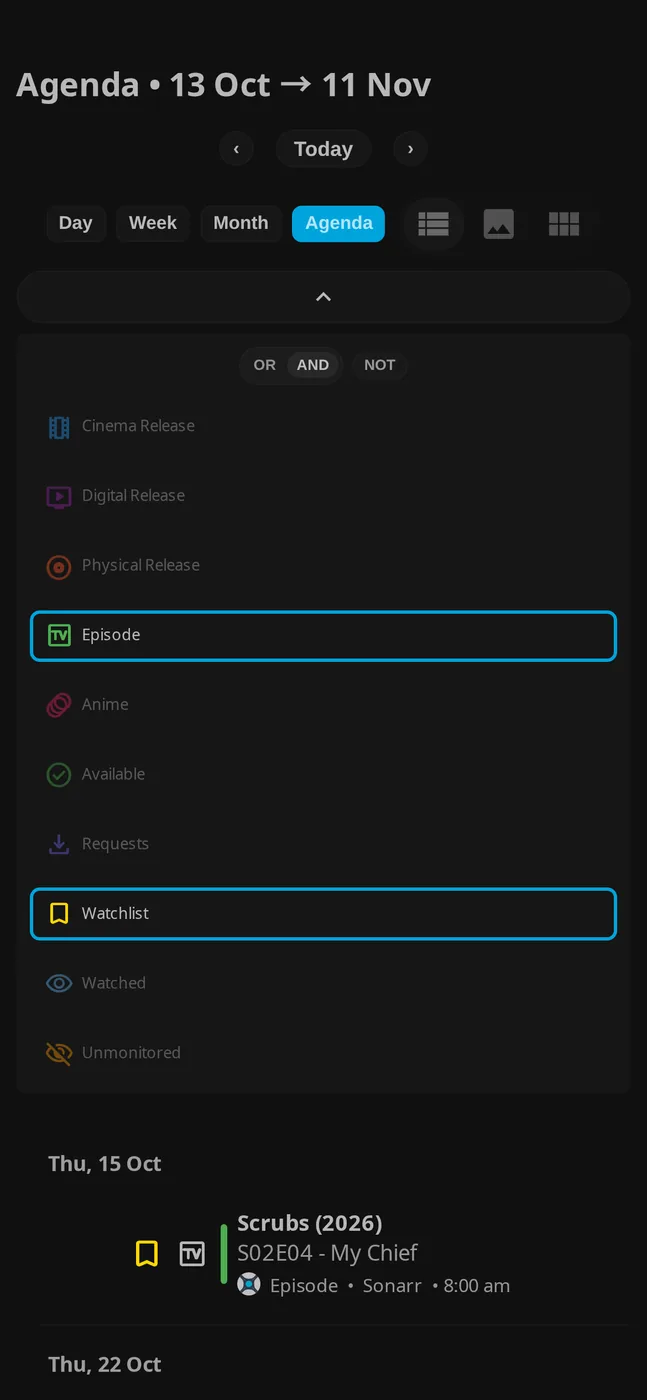
- Click legend chips to filter events. On phones, expand the initially collapsed filter panel to see the legend.
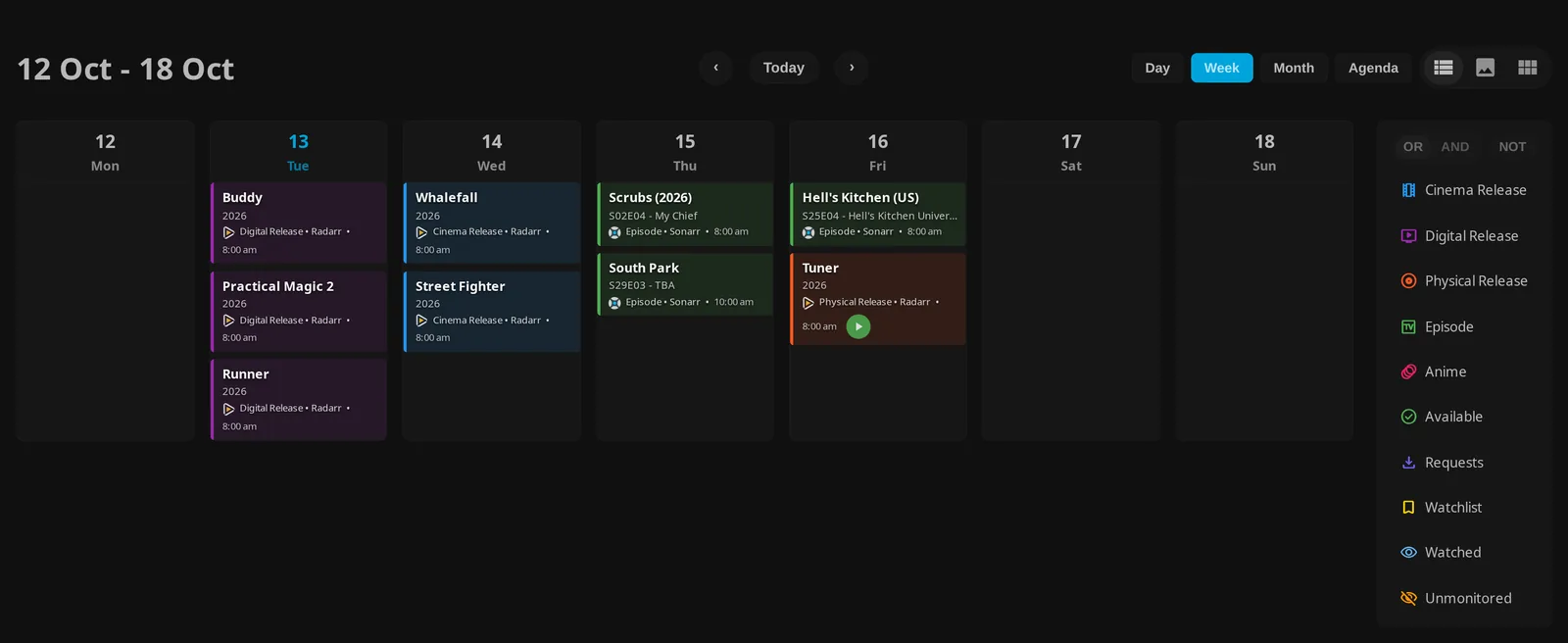
Week shows seven days of releases. Use the previous/next arrows to move one week at a time.
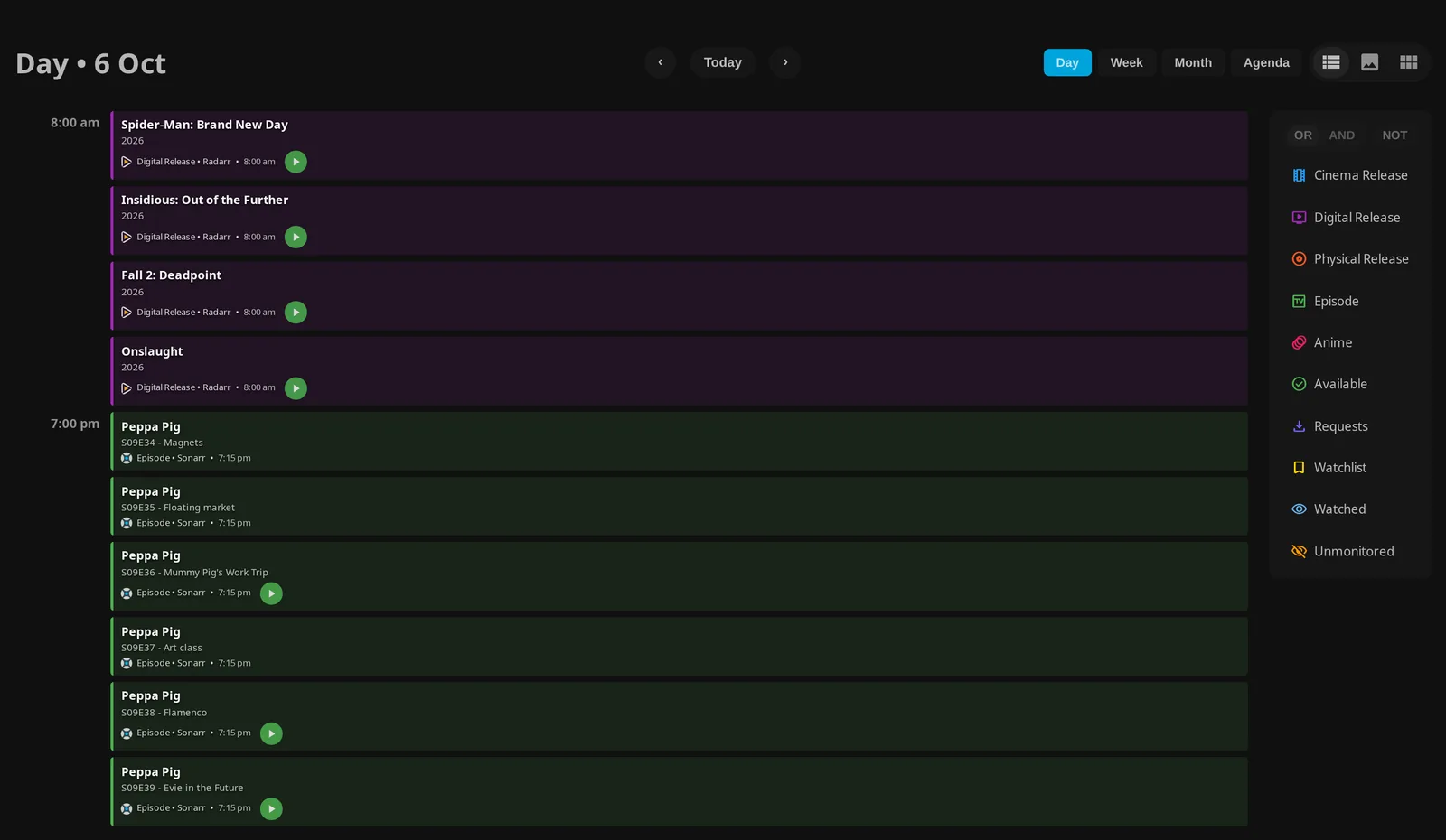
For one date, choose Day and use the previous/next arrows to change dates. In List and Backdrop presentation, timed releases are grouped by hour.
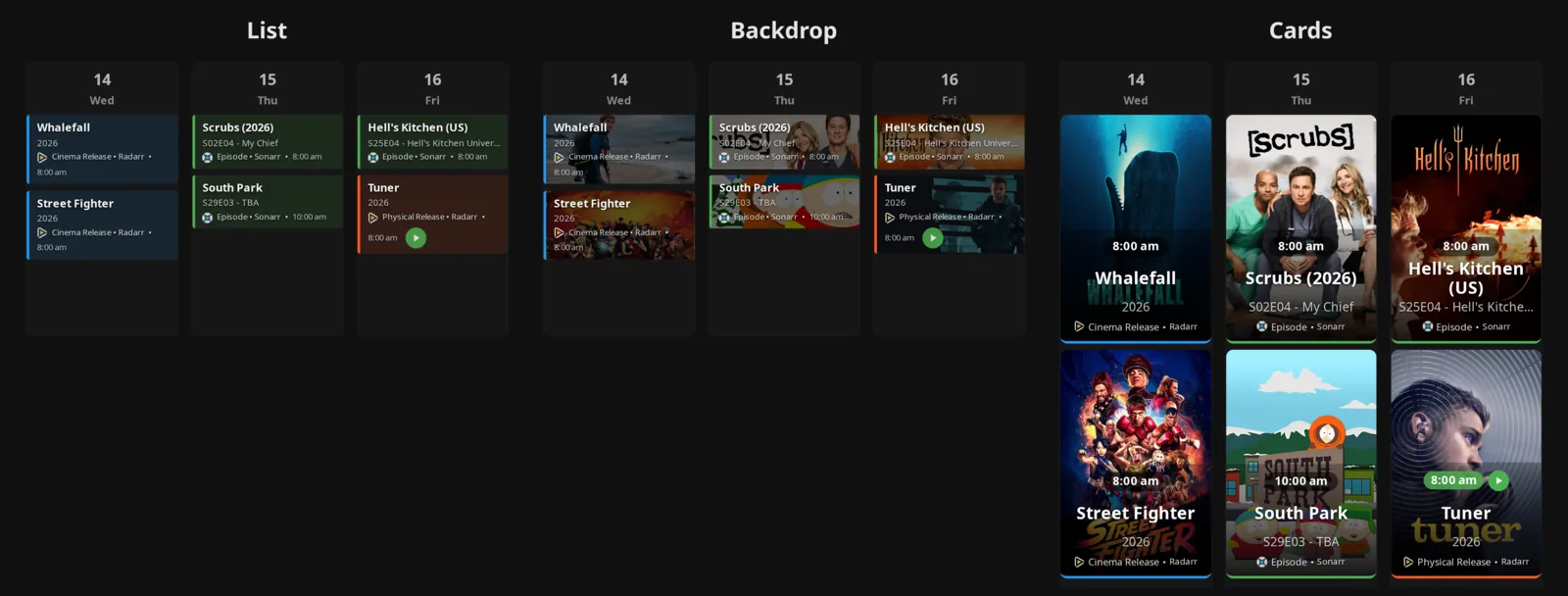
Choose List, Backdrop, or Cards to change presentation in Day, Week, or Month. These controls are disabled in Agenda.
Colors represent Cinema Release, Digital Release, Physical Release, Episode, and Anime. Badges identify service/instance names. There is no source-service selector or text search.
Click legend chips to select release categories or Available, plus Requests when Seerr is enabled. Watchlist and Watched appear when their highlight settings are on. With no selected chips, all otherwise eligible monitored events appear.
Event times use your browser's local timezone. Click a series event to open the matching series in Jellyfin. A movie event needs a file in Radarr before you can open it. The Available arrow and available time labels open episode or movie details without starting playback.
Your controls have personal defaults, saved through Calendar itself:
Every option and default is in *arr settings → Personal settings.
Combine Calendar filters
- OR matches any selected chip; AND requires every selected chip. These controls need at least two selected chips.
- NOT inverts the combined match and needs at least one selected chip.
- Unmonitored is a separate inclusion toggle. NOT does not override it, library access, or forced requested-only filtering.
For example, select Episode and Available, then AND to show available episodes. Selecting mutually exclusive release categories with AND can yield no events. Your selected filter chips are not saved as personal preferences.
Event availability and duplicate releases
Time labels have different styles for upcoming unavailable events, past unavailable events, and those at least 24 hours late. Available files have their own styling. A source file may exist before Jellyfin has scanned or matched it, so clicking may do nothing yet.
Duplicate Sonarr events merge by TVDB ID, season, episode, and UTC date; Radarr events merge by TMDB ID, release category, and UTC date. Titles are the fallback when provider IDs are missing. JE prefers an accessible match, then one with a file, and retains distinct instance names in the badge. Cinema/digital/physical releases stay separate, as do Shoko events from Sonarr events.
Calendar Settings
These are admin (server) settings; users cannot override them as personal defaults. Every option and default is in *arr settings → Calendar Page Settings.
To show watchlisted episodes on a phone, expand the filter panel, select Episode and Watchlist, then choose AND. The Watchlist chip requires Highlight Favorites/Watchlist.
Highlighting, library access, and requested-only limits
Watchlist highlighting uses Jellyfin's like (Likes) flag, not the favorite (heart) flag. Under Seerr, Add requested media to Watchlist and Sync Seerr Watchlist → Jellyfin set this flag for matching library items; see Seerr settings. Watching another episode of a series does not mark an upcoming episode watched.
Library filtering infers unmatched-title access from matched Calendar events sharing an upstream root folder. Unknown roots remain visible; unmatched Shoko events have no root folder for this inference. Turning the option off broadens Calendar results without granting playback access.
Requested-only modes need Seerr request data for your linked account, matched by media type and TMDB ID. Missing request data can leave an empty Calendar; Shoko events lack TMDB IDs and are excluded. These options only change what you see in Calendar; they do not restrict access to Calendar data from the server.
Anime Calendar Events (Shoko)
Shoko adds pink Anime events from its server collection. Use it to include anime in Calendar.
- Configure the one supported Shoko connection under *arr → Shoko.
- Enable Calendar under Pages.
- Under Episode Types to Show on Calendar, enable the types you want.
Every option and default is in *arr settings → Shoko.
Anime event limits, matching, and air dates
With all six off, no anime events appear. Missing and restricted Shoko content is excluded; selecting episode types does not include restricted content.
Jellyfin matches use the Shoko Series and Shoko Episode provider IDs, normally supplied by Shokofin. Matched events can use Jellyfin poster artwork. Unmatched events may lack artwork and cannot open a matched Jellyfin detail page, but administrators can use Open in Shoko on the source icon when a Shoko series ID and URL are available. This opens /webui/collection/series/<id> using Shoko URL and Shoko URL Mappings. These connection details and links are available only to administrators.
A Shoko event is Available when Shoko reports an episode file. Shoko air dates are converted to your browser's local time, so depending on your timezone an event can show a time or appear on the previous day.
Downloads Page
Downloads are part of the shared Requests page, alongside Seerr Requests, optional Issues, and History. Sonarr and Radarr provide queue/history data; see Seerr features for request lists, request actions, issues, and request statuses such as Coming Soon and Orphaned. Spoiler Guard hides episode titles here for protected series until you play the episode; see What Spoiler Guard protects.
Setup
- Configure complete, enabled Sonarr/Radarr instances under *arr.
- Open Pages → Requests Page and turn on Enable Requests Page.
- Keep Show Downloads in Requests Page on and review ownership and History controls below.
- Choose standalone, native Home tab, Plugin Pages, or Custom Tabs placement, then click Save Settings and reload.
Placement and connection requirements
With placement modes off, open Requests from JE navigation or /web/index.html#/downloads, including any Jellyfin base path. Add Requests as a native Home tab needs no companion plugin. Use Plugin Pages for Requests and Use Custom Tabs for Requests require their respective plugins. Native and Custom Tabs modes are mutually exclusive for Requests; Plugin Pages live registration/restart rules are the same as Calendar. See JE pages and tabs.
Enable *arr Links on Detail Pages is not required for queue/history data. Seerr is optional for administrator queue monitoring, but default viewer ownership filtering needs enabled/configured Seerr and a linked account. Configure the Seerr connection under Seerr; it does not create a second Requests page.
Features
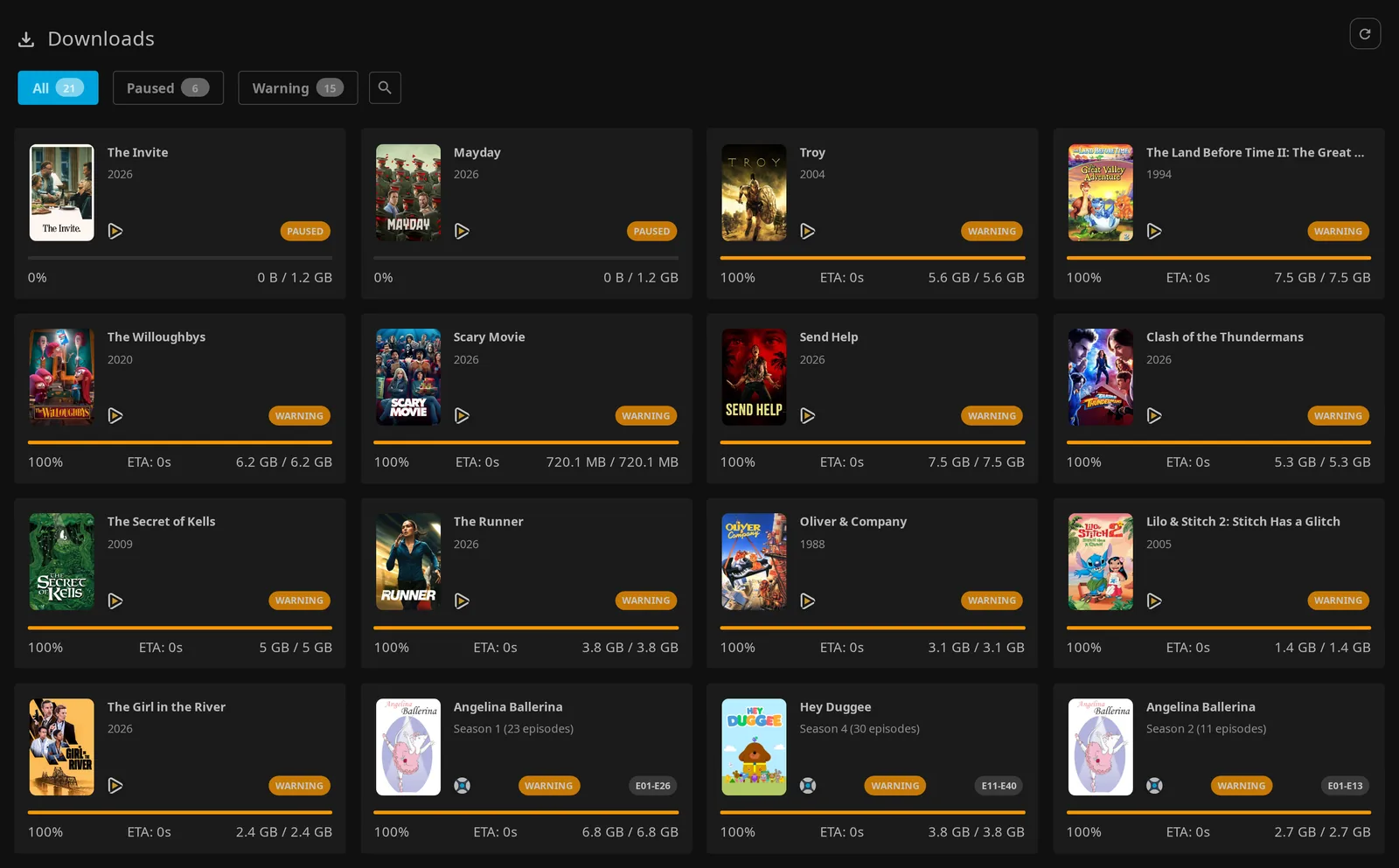
Download cards show title, progress, downloaded/total size, ETA where available, and status. Use them to follow a transfer through to import.
How to use
- Open Requests from your configured entry point.
- Check the cards under Downloads.
- When multiple statuses are present, use the status tabs or All. Click the search icon to search title, subtitle, and instance name; matching ignores letter case. The search toggle appears only in this multiple-status layout.
Statuses include Downloading, Queued, Paused, Importing, Completed, Warning, Failed, and Unknown.
Downloads settings
Admin (server) section and refresh settings; every option and default is in *arr settings → Requests Page Settings.
Card details, status priority, and queue limits
Hover the source icon on an ordinary card to see the instance name. Grouped Season cards show only Sonarr. Cards do not show quality.
An upstream tracked warning takes priority. Tracked import/failure states override transfer status. A completed transfer can still be importing or require intervention before Jellyfin can show it.
Three or more Sonarr entries sharing title, season, progress, and instance name collapse into a Season card. Grouped entries may still be separate downloads. Sizes are counted once only if every grouped entry has identical total and remaining sizes; otherwise they are summed. JE reads one queue page of up to 1,000 records per instance.
Download History
History shows recent import results so you can check what reached your library. Cards show source/instance, title, relative time, and Imported, Import Failed, or Partially Imported.
- Open History below the other sections.
- Use its pagination to browse recent results; History has no search control.
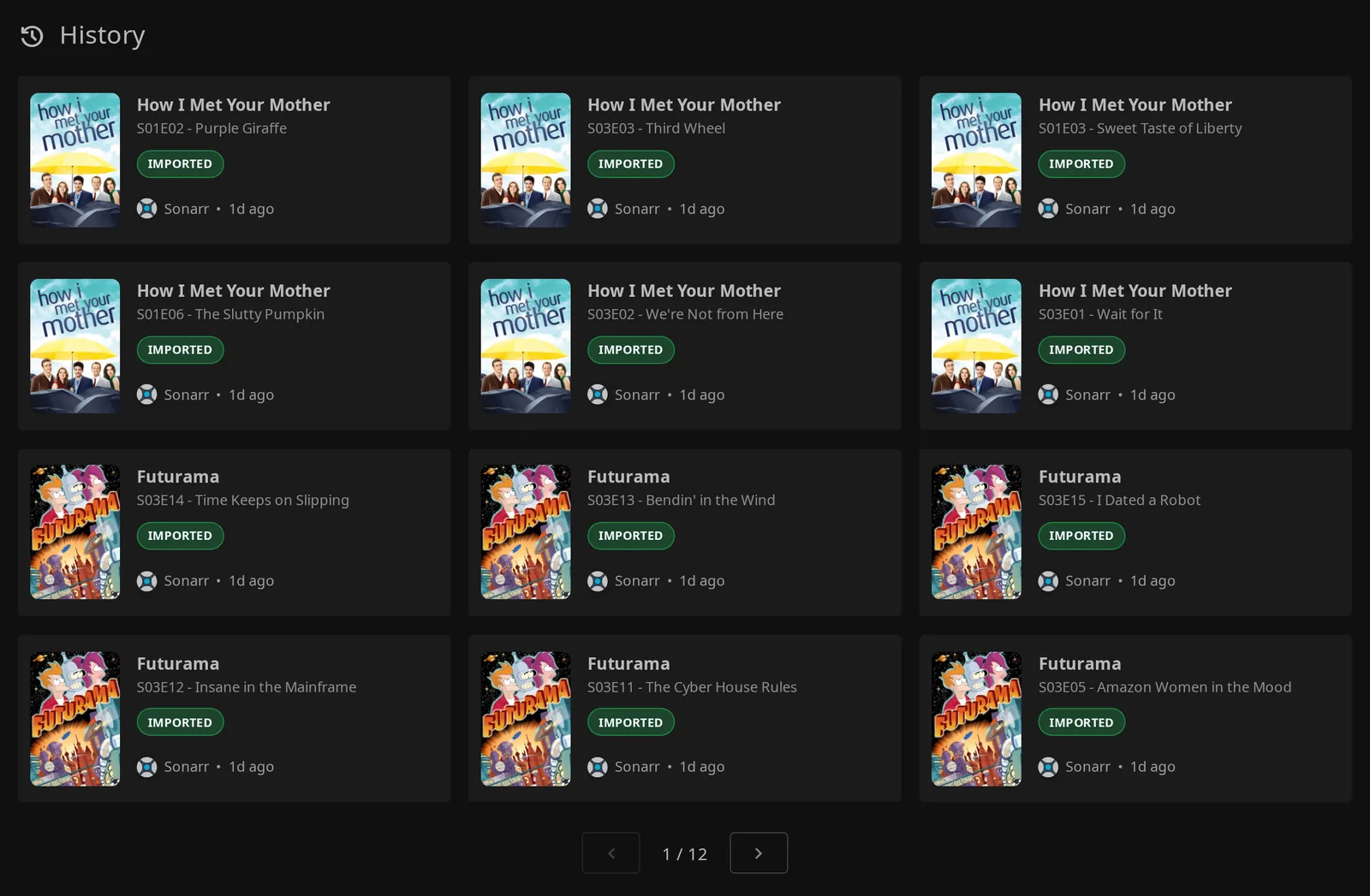
Mixed Sonarr groups include imported/total counts.
History limits
JE reads the latest 200 history records per enabled instance, keeps import/failure records, groups Sonarr records by download ID, and retains at most 200 merged cards before viewer filtering. Pagination covers this bounded pool, not the complete upstream archive. Other history events, such as grabs, renames, and deletions, are omitted. History errors appear in server logs rather than the named instance errors shown for the queue.
Who sees downloads
Administrators see downloads without request-ownership filtering. With Filter Downloads by User Requests on, other viewers see titles they requested through Seerr.
How request ownership is matched
Titles match by TMDB ID and media type. This is title-level filtering, not downloader ownership. Missing Seerr configuration, an unlinked account, no requests, or queue/history entries lacking usable TMDB IDs can yield no results.
Turning off ownership filtering shares download titles
Turning off Filter Downloads by User Requests exposes other users' queue/history titles to signed-in viewers, subject to the independent administrator-only History option.
Seerr request-list and issue permissions remain separate. For differences caused by hidden items, see Hidden Content filtering.
Refresh behavior
Requests loads data when you open it, even with auto-refresh off. Use the refresh icon beside Downloads to reload all enabled sections.
Polling and caching
Polling stops when you leave the standalone page or switch away from its native Home or Custom Tabs tab. With Plugin Pages, it can keep refreshing after you navigate away, until you reload or close the browser page. Hidden browser tabs are always skipped.
Queue and History use separate shared server caches. Their lifetime follows the configured poll interval, clamped internally to 5–300 seconds; even a manual refresh may return cached data.
If a transfer has finished but the item is missing from Jellyfin, check upstream import and library scanning. Reaching 100% progress does not mean the item is available in your library.