*arr Settings
Use Jellyfin Enhanced → *arr for connections, item links, and tag sync, and Pages → Calendar Page or Requests Page for page controls.
Administrator settings apply server-wide unless marked personal. For workflows, see *arr features; for missing links, data, or navigation, see troubleshooting.
Setup
Connect only the services your chosen features need; the table shows which.
- Configure your services under Jellyfin Enhanced → *arr.
- Choose the features you want to enable.
- Click Save Settings and reload the web client.
Back up your connections
Keep a configuration backup before replacing connections.
| Feature | Connection needed |
|---|---|
| Item links | Enabled Sonarr/Radarr instance with URL/key, or a Bazarr URL; administrator account and detail-page metadata prerequisites. |
| Tag sync | Enabled Sonarr/Radarr instance with URL/key and a scheduled-task run. |
| Calendar | Enabled Sonarr/Radarr instance with URL/key, or both Shoko URL and key. |
| Downloads and History | Enabled Sonarr/Radarr instance with URL/key; default non-admin ownership filtering also needs Seerr and account linkage. |
How API keys are used
API keys are stored in Jellyfin's plugin configuration and used for server requests. Administrators can view and edit them in settings. JE's browser features receive Sonarr/Radarr connection details without the API keys.
CSS Customization
See tag-link styling and CSS customization for supported hooks and examples.
Multi-Instance Configuration
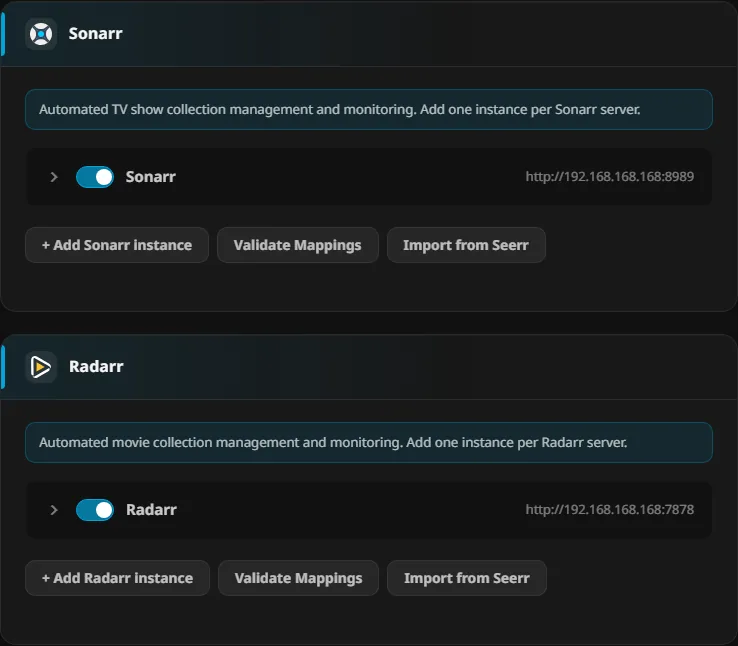
Add one card per Sonarr or Radarr server so you can manage each connection separately.
Adding an Instance
- Click + Add Sonarr instance or + Add Radarr instance.
- Expand the card and enter its name, URL, and API Key.
- Optionally add URL Mappings (optional).
- Click Test to check the current URL and API Key.
- Click Save Settings.
Complete both connection fields
Only cards with both URL and API Key are saved. Incomplete cards are omitted; a card with a URL but no key produces a warning.
Instance Fields
Use a distinct name to recognize each server in links and pages. The checkbox beside the collapsed card's name enables or disables the instance.
| Setting | Default | What it does |
|---|---|---|
| Instance name (unlabeled input) | Empty | Optional. Distinct names make sources easier to identify. |
| Summary enable checkbox | On | Includes the instance in service lookups, Calendar, queue/history, and tag sync. |
| URL | Empty | Required with the key to save a card. Server-side API address, including the service base path if needed. |
| API Key | Empty | Required with the URL. Get it from the service's Settings → General → Security → API Key. |
| URL Mappings (optional) | Empty | Maps Jellyfin access addresses to this instance's browser address. |
Instance defaults and connection testing
Both instance lists default to empty ([]). Saving a blank name substitutes Sonarr or Radarr. The summary checkbox's accessible label is Enable <name> instance.
Test checks unsaved values against /api/v3/system/status without saving them. A successful test confirms that the service answered, but does not guarantee that queue, Calendar, or title lookups will work.
Import from Seerr
Copy Sonarr/Radarr connections from Seerr to save entering them manually. This is a one-time copy, not ongoing synchronization.
Seerr key permission
The configured Seerr key needs Administrator permission to read service settings.
- Save an enabled, complete Seerr connection under Seerr. It needs Enable Seerr integration (default off), Seerr URL(s) (One per line) (default empty), and Seerr API Key (default empty). See Seerr settings.
- Under Sonarr or Radarr, click Import from Seerr.
- Select the instances and review the Internal and External Jellyfin addresses used for mapping rows.
- Click Import Selected, review the resulting cards, then click Save Settings. Cancel closes the picker without importing.
What the import copies
Import uses the first nonempty newline-separated Seerr URL. It copies name, hostname/port/base-path URL, API key, and mapping rows into enabled cards. Exact URL duplicates are marked already imported and cannot be selected.
Disabling an Instance
Disable an instance to skip it while keeping its connection.
- Uncheck the summary checkbox.
- Click Save Settings.
Editing and removing a disabled instance
The card body becomes disabled. Re-enable the checkbox to edit it or use Remove. Removal asks for confirmation and takes effect only after Save Settings.
URL Mappings (per-instance)
Use mappings when your browser needs a different service address from the Jellyfin server.
- Open URL Mappings (optional) on the instance.
- Enter one
jellyfin_url|service_urlpair per line. Put the Jellyfin address on the left and the browser-facing service address on the right. - Click Validate Mappings, then Save Settings.
For example:
https://jellyfin.example.com/jellyfin|https://sonarr.example.com
http://192.168.1.10:8096|http://sonarr:8989
Mapping rules and validation
The left side must match the Jellyfin server address used by the client, including the base path. Matching ignores case and trailing slashes; the first match wins. If nothing matches, the instance's URL becomes the browser address. Mappings are independent per instance, with no inherited global mapping.
The server continues using URL for API calls. Validate Mappings checks syntax and that both sides differ; it does not test network access or credentials. See URL mapping usage.
Link Behaviour
Add service links so you can open a title in Sonarr, Radarr, or Bazarr from Jellyfin. These links are for administrators.
- Turn on Enable *arr Links on Detail Pages and choose icons or text.
- Click Save Settings and reload the web client.
| Setting | Default | What it does |
|---|---|---|
| Enable *arr Links on Detail Pages | Off | Adds administrator-only Sonarr/Radarr/Bazarr links on Movie/Series detail pages and Sonarr/Radarr icons on request cards. |
| Show links as text | Off | Uses text instead of service icons. |
| Show status badge for single-instance | Off | Adds status styling for a single Sonarr/Radarr match. Visible badges also require Show links as text. |
Title-matching requirements
The detail page must show a TMDB external link. Sonarr additionally needs TVDB; Radarr uses the movie's TMDB ID. Unmatched titles have no Sonarr/Radarr link.
Single Instance
One matching instance opens directly. Enable Show status badge for single-instance and Show links as text to see Sonarr episode-file counts or Radarr Downloaded/Missing badges.
Hover the link for its instance name, status, file size, and root folder when supplied, even with Show status badge for single-instance off.
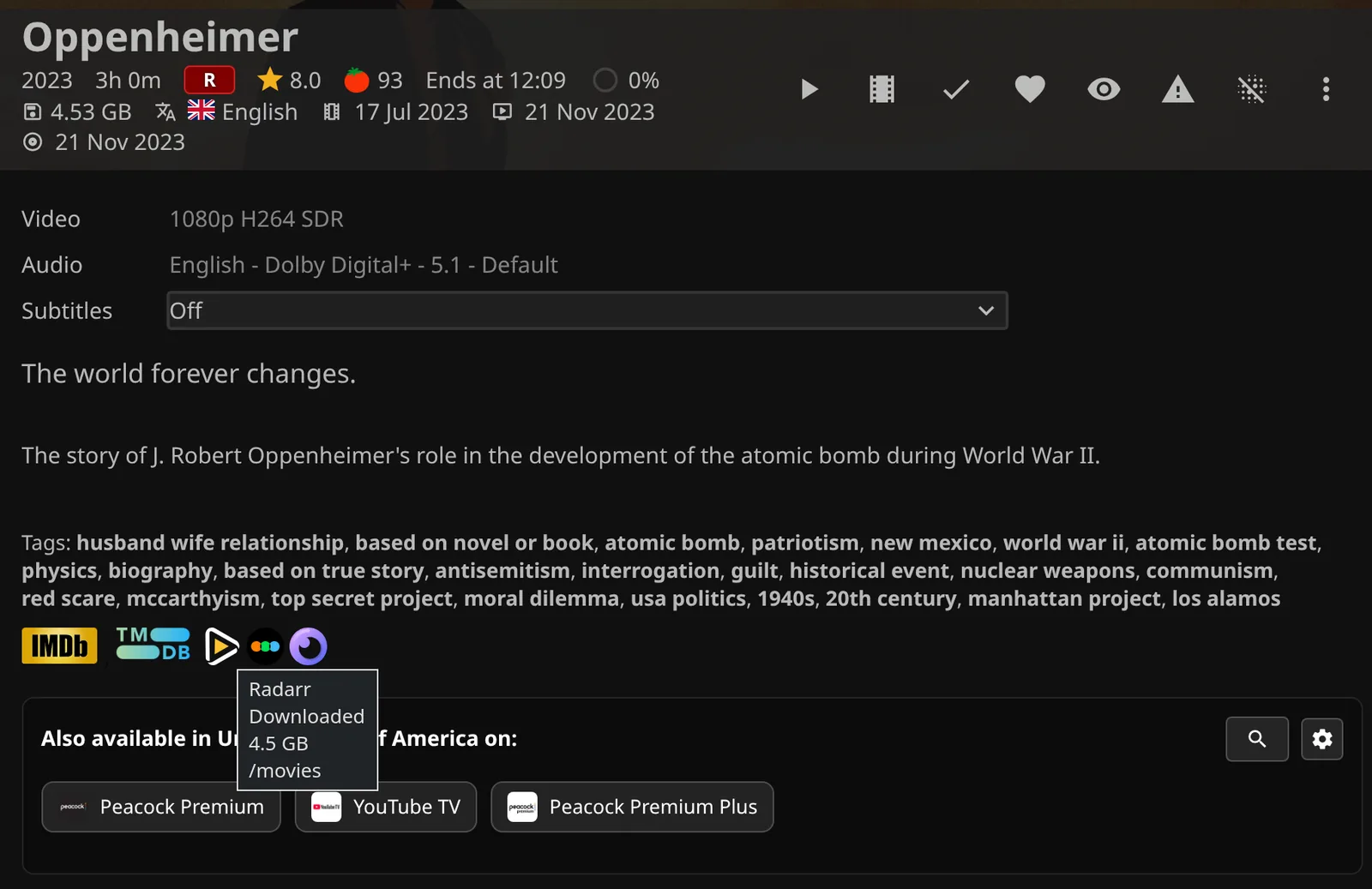
Icon mode and missing statistics
Icon-mode tooltips retain available details. If Sonarr reports no statistics, the badge reads 0/0 with gray status.
Multiple Instances (Dropdown)
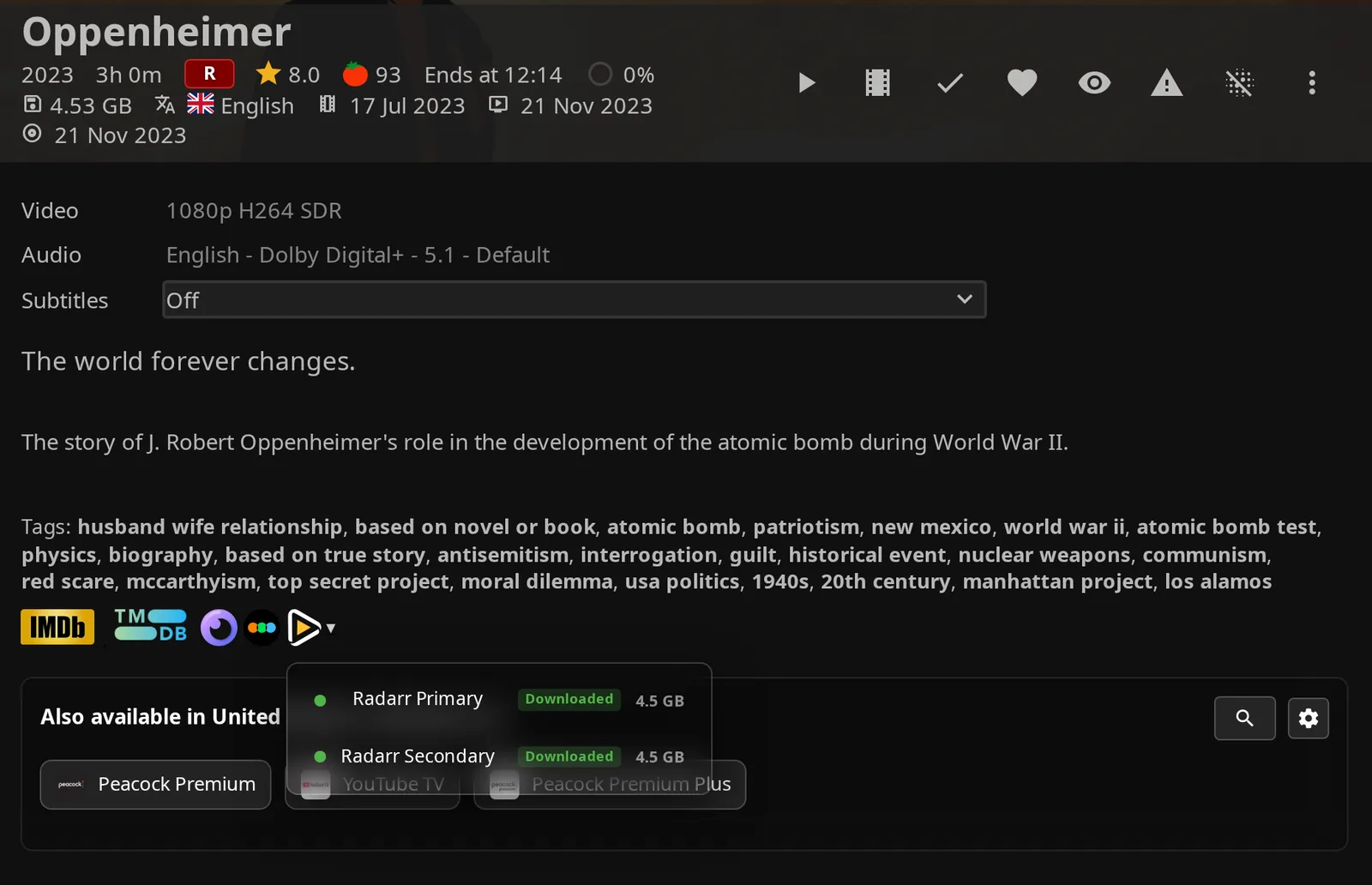
Multiple matching instances produce a dropdown with names, status dots, counts/download status, and file sizes when supplied. Green means complete, amber means partially downloaded Sonarr episodes, and gray means a matching title with no downloaded files. Instances that do not contain the title are omitted.
Metadata icons override text links
Under Extras, Enable Metadata Icons (Druidblack) defaults off. Turning it on forces Show links as text off. It is a server setting, not a personal service-link override.
Legacy Single-Instance Fields
JE keeps older connection fields for compatibility. Restoring an older configuration requires a backup; downgrading alone does not restore it.
Stored fields and compatibility
Legacy SonarrUrl, SonarrApiKey, SonarrUrlMappings, RadarrUrl, RadarrApiKey, and RadarrUrlMappings all default empty. These are stored compatibility fields, not separate controls in the current tab.
Explicitly empty instance lists can use complete legacy URL/key pairs. Saving a readable list mirrors its first collected instance into the legacy fields, including a disabled first instance. Saving no instances clears them. Unreadable stored lists and their legacy fields are preserved on ordinary save, without legacy fallback.
Bazarr
Bazarr adds links to its movie and series overviews so you can manage subtitles. You can configure one Bazarr connection.
- Enter Bazarr URL and, if needed, Bazarr URL Mappings.
- Click Save Settings.
| Setting | Default | What it does |
|---|---|---|
| Bazarr URL | Empty | Base browser address for Movie/Series overview links. |
| Bazarr URL Mappings | Empty | Uses the same Jellyfin-address-to-service-address format as instance mappings. |
Bazarr link requirements and limits
Bazarr has no API-key input, tag sync, Calendar source, queue, or History integration. Its detail links require administrator service links and a visible TMDB link. They open /movies/ or /series/, not a specific item.
Shoko
Connect Shoko to include anime events in Calendar. You can use Shoko as the only Calendar source.
Enter both Shoko connection fields
Both Shoko URL and Shoko API Key must be present. Partial configuration produces a Calendar error.
Generating a Shoko API Key
- In Shoko's web UI, open Settings → API Keys → Add API Key.
- Copy the key into Shoko API Key.
Setup
- Open *arr → Shoko and enter Shoko URL and Shoko API Key.
- Optionally configure Shoko URL Mappings.
- Click Save Settings.
- Enable Calendar under Pages. No Sonarr/Radarr connection is needed for a Shoko-only Calendar.
Instance Fields
| Setting | Default | What it does |
|---|---|---|
| Shoko URL | Empty | Server-side Shoko address; also the browser-link fallback. |
| Shoko API Key | Empty | Key for Shoko API v3 requests. |
| Shoko URL Mappings | Empty | Browser-link mappings under Advanced URL Mappings. |
| Episodes | On | Includes regular anime episodes on Calendar. |
| Specials | Off | Includes special episodes. |
| Credits (OP/ED) | Off | Includes opening/ending credits. |
| Trailers | Off | Includes trailers. |
| Parodies | Off | Includes parodies. |
| Other | Off | Includes other AniDB episode types. |
The six type switches are under Episode Types to Show on Calendar.
Shoko matching and event limits
Shoko supports one server and has no instance-name or enable-checkbox control. Connections use Shoko API Key and time out after 15 seconds. With all six episode types off, no anime events appear. Missing and restricted Shoko content is excluded; selecting episode types does not include restricted content.
Matching uses Shoko Series and Shoko Episode provider IDs, normally supplied by Shokofin. Unmatched anime may lack Jellyfin artwork and navigation, but administrators can still get Open in Shoko on the Calendar source icon. See anime event limits.
Tag synchronization
Copy Sonarr/Radarr tags into Jellyfin metadata and show them as clickable links. Run the scheduled task to sync them.
- Turn on Enable Tags Sync.
- Choose a nonempty Tag Prefix and review cleanup. Filters are under Tag Filters.
- Click Save Settings.
- Run Sync Tags from *arr to Jellyfin from Scheduled Tasks.
- Add your own trigger for recurring runs; there are no default triggers.
| Setting | Default | What it does |
|---|---|---|
| Enable Tags Sync | Off | Permits Sync Tags from *arr to Jellyfin to update Movie/Series metadata. It does not run or schedule the task. |
| Tag Prefix | JE Arr Tag: |
Prepended to source tags; preserve the trailing space and use a nonempty value. |
| Clear old tags before sync | On | Removes tags starting with the current prefix before adding replacements. |
| Show synced tags as links | On | Shows existing prefixed metadata tags as links for viewers, independently of sync and administrator service links. |
| Sync to Jellyfin Filter | Empty | Comma/semicolon-separated unprefixed names to sync; empty syncs all. |
| Show as Links Filter | Empty | Newline-separated unprefixed names to show; empty shows all tags with the prefix. |
| Hide Specific Links Filter | Empty | Newline-separated names to hide; hiding wins over the show filter. |
Review cleanup and filter format
Clear old tags before sync also removes tags on unmatched items and on items whose source answered with no tags. A Radarr or Sonarr instance that cannot be read leaves that service's movies or series as they are for the run, and the run shows as failed in Scheduled Tasks; disable an instance you no longer use. Use commas or semicolons for Sync to Jellyfin Filter, even though the form says one per line.
Prefix and matching details
Settings save a blank Tag Prefix as the default, JE Arr Tag:. When the stored prefix is blank or unset, sync and displayed tag links both use JE Arr Tag:. Avoid blank prefixes. Changing the prefix leaves previously prefixed metadata in place.
Filters ignore capitalization in tag names, but displayed links require matching prefix capitalization. Movies match by TMDB, series by IMDb. See ARR Tags for cleanup limits, working filter examples, and styling.
Calendar Page Settings
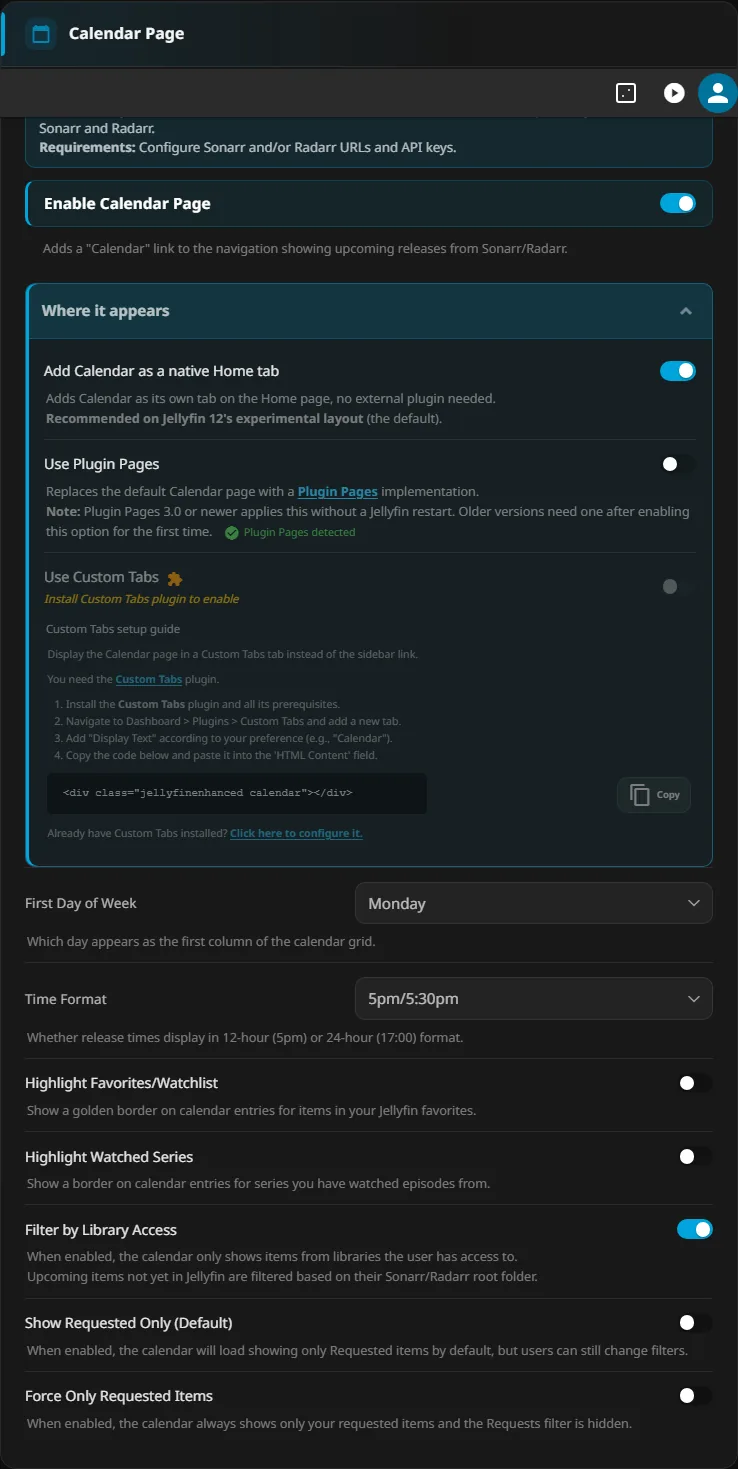
Choose how Calendar looks and which releases it shows. These are admin (server) settings.
- Turn on Enable Calendar Page.
- Choose page placement and display options.
- Click Save Settings and reload the web client.
| Setting | Default | What it does |
|---|---|---|
| Enable Calendar Page | Off | Enables the Calendar surface using configured Sonarr/Radarr/Shoko sources. |
| Add Calendar as a native Home tab | Off | Adds a Home tab without a companion plugin. |
| Use Plugin Pages | Off | Uses the installed Plugin Pages integration. |
| Use Custom Tabs | Off | Embeds Calendar in a Custom Tabs tab. |
| Add the Custom Tabs entry for me | Off | Creates a matching entry on save when the page and Custom Tabs mode are also enabled. |
| First Day of Week | Monday | Selects any weekday as the grid's first column. |
| Time Format | 5pm/5:30pm | Chooses 12-hour or 17:00/17:30 24-hour format; times use the browser timezone. |
| Highlight Favorites/Watchlist | Off | Adds watchlist indicators and a Watchlist filter. |
| Highlight Watched Series | Off | Marks the event's matched played/started episode (movie events also use played/started state) and adds a Watched filter. |
| Filter by Library Access | On | Filters releases by your library access, with best-effort checks for future titles. |
| Show Requested Only (Default) | Off | Initially selects Requests; viewers can change filters. |
| Force Only Requested Items | Off | Always limits the displayed Calendar to your requested titles and hides the Requests chip. |
Highlighting and access limits
Watchlist highlighting uses Jellyfin's like (Likes) flag, not the favorite (heart) flag. Library filtering checks matched-item access and infers unmatched-title access from Calendar root folders. Unknown roots remain visible.
Under Seerr, Add requested media to Watchlist and Sync Seerr Watchlist → Jellyfin set the like flag for matching library items; see Seerr settings.
Requested-only display requires Seerr data for the linked viewer and matches TMDB ID plus media type. It excludes Shoko events and can be empty when request data is unavailable. These options only change what you see in Calendar; they do not restrict access to Calendar data from the server. Library filtering is best-effort for future titles; unmatched Shoko events have no root folder to check. Broader Calendar visibility does not grant playback access.
Standalone address: /web/index.html#/calendar, including your Jellyfin base path. Use the Plugin Pages entry when that installed integration is selected. See Calendar usage and page placement.
Requests Page Settings
Use one shared Requests page to follow downloads, requests, and import results. Sonarr/Radarr supply Downloads and History; Seerr supplies Requests and optional Issues.
- Turn on Enable Requests Page.
- Choose sections, access rules, placement, and refresh options.
- Click Save Settings and reload the web client.
These are admin (server) settings:
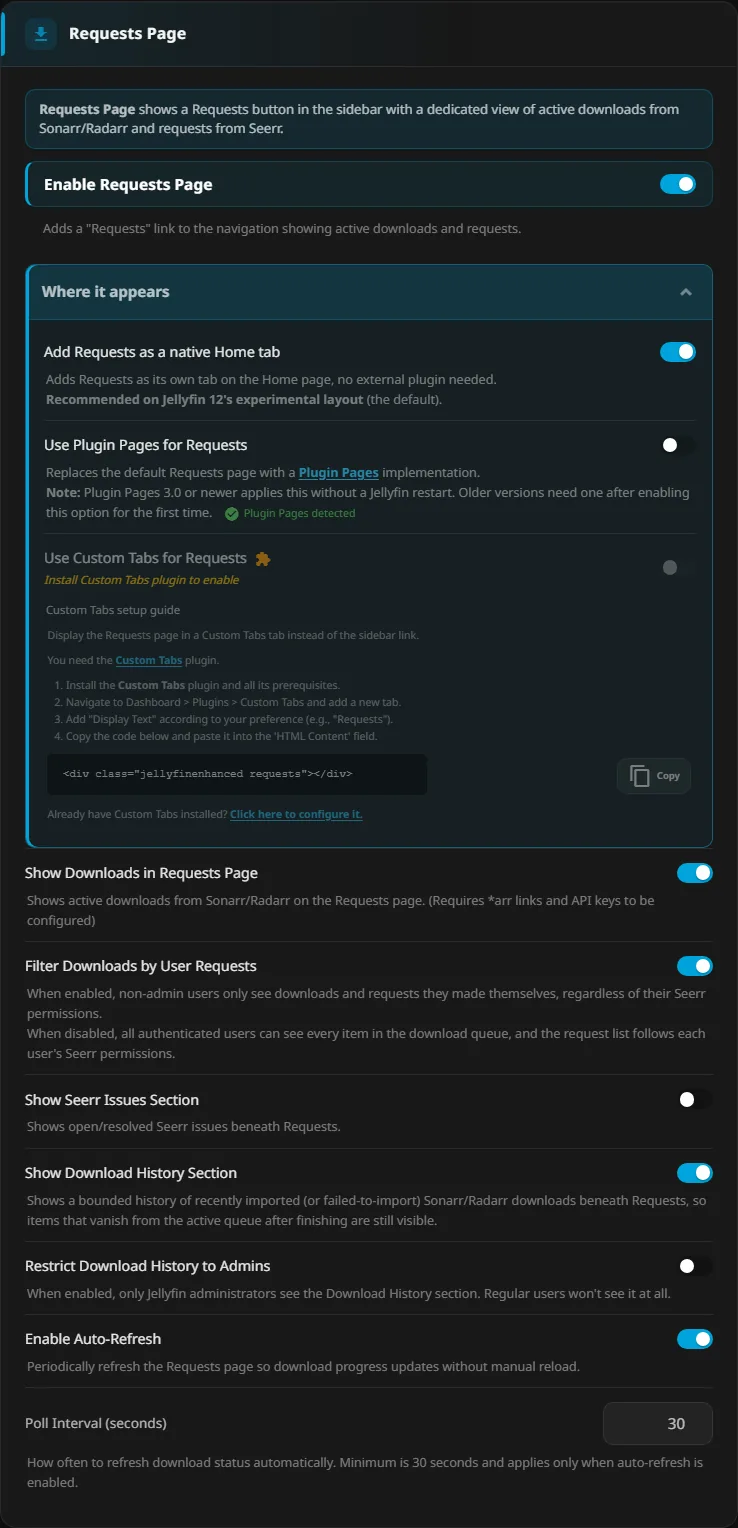
| Setting | Default | What it does |
|---|---|---|
| Enable Requests Page | Off | Enables the shared Requests surface. |
| Show Downloads in Requests Page | On | Shows the queue; turning it off also hides History on the page. |
| Filter Downloads by User Requests | On | Filters non-admin queue/history results to titles they requested through Seerr. Administrators bypass it. |
| Show Seerr Issues Section | Off | Adds Issues when Seerr is enabled. |
| Show Download History Section | On | Shows recent import/failure results. |
| Restrict Download History to Admins | Off | Hides History from non-admins, enforced on the server. |
| Add Requests as a native Home tab | Off | Adds a Home tab without a companion plugin. |
| Use Plugin Pages for Requests | Off | Uses the installed Plugin Pages integration. |
| Use Custom Tabs for Requests | Off | Embeds Requests in a Custom Tabs tab. |
| Add the Custom Tabs entry for me | Off | Creates a matching entry on save when the page and Custom Tabs mode are also enabled. |
| Enable Auto-Refresh | On | Refreshes enabled sections; hidden browser tabs are skipped. |
| Poll Interval (seconds) | 30 | Editable when Enable Auto-Refresh is on; form range 30–300 seconds. Save enforces a minimum of 30. |
Download sources and viewer access
Queue/history require complete enabled Sonarr/Radarr credentials, not Enable *arr Links on Detail Pages. Default viewer filtering also requires enabled/configured Seerr, a linked account, and matching requests. Without them, viewers can receive empty results.
Turning off ownership filtering shares download titles
Turning off Filter Downloads by User Requests exposes all queue/history titles to authenticated viewers, subject to the History administrator restriction.
Opening the page loads data independently of polling. Use the Downloads refresh icon to reload enabled sections.
Ownership, refresh behavior, and History limits
Ownership matches use TMDB ID and media type. History retains at most 200 merged cards before user filtering and pagination.
Auto-refresh stops when you leave the standalone page or switch away from its native Home or Custom Tabs tab. Plugin Pages can keep refreshing after navigation until you reload or close the browser page. Hidden browser tabs are skipped.
Queue and History have separate shared caches whose lifetimes follow the interval, clamped to 5–300 seconds internally. Manual refresh may return cached results.
Standalone address: /web/index.html#/downloads, including your Jellyfin base path. Use the configured integration entry in Plugin Pages mode. See downloads and History, Seerr features, and page placement.
Page placement
Choose where you open each enabled page. Native Home tabs need no companion plugin; Plugin Pages and Custom Tabs need their corresponding plugins.
Native Home tabs
Use Add Calendar as a native Home tab or Add Requests as a native Home tab for navigation without a companion plugin. See JE Pages & Tabs for setup, layout behavior, and generated Home links.
Plugin Pages
Use Use Plugin Pages for Calendar or Use Plugin Pages for Requests with the companion installed. Follow Plugin Pages setup and fallback for registration, restart requirements, and navigation.
Custom Tabs
Use Use Custom Tabs for Calendar or Use Custom Tabs for Requests to embed the page on Home. Follow Custom Tabs setup for prerequisites, managed entries, manual HTML markers, and detection recovery.
Personal settings
Choose your preferred Calendar view and presentation directly in Calendar. These controls save personal preferences; they are not admin defaults or settings-panel toggles.
- Open Calendar.
- Choose a view and presentation, or turn on Unmonitored to include unmonitored events.
| Setting | Default | What it does |
|---|---|---|
| Day / Week / Month / Agenda | Agenda | Saves your preferred Calendar view in your personal settings. Agenda covers 30 days. |
| List / Backdrop / Cards | List | Saves your preferred presentation in your personal settings; unavailable in Agenda. |
| Unmonitored | Off | Includes unmonitored events; remembered for your account in this browser, without syncing to other browsers. |
What personal preferences cover
Your selected filter chips are not saved as personal preferences. Service connections, service-link settings, tag-sync settings, and Calendar access/highlight options are controlled by the administrator.
Hidden Content settings
Hide matching items from Calendar, Downloads, and Requests. The administrator sets starting values, and you can change your personal filters.
- As an administrator, enable Enable Hidden Content and review defaults under Pages → Hidden Content → More Settings.
- In your personal Hidden Content settings, enable Enable Content Hiding and choose the surface filters.
Admin (server) settings:
| Setting | Default | What it does |
|---|---|---|
| Enable Hidden Content | Off | Enables the feature server-wide, including personal filters. |
| Hidden Content enabled by default | On | Sets the starting personal hiding state for new users. |
| Filter Calendar | On | Sets the starting personal Calendar filter; users can override it. |
| Filter Requests page | On | Sets the starting personal Requests filter; users can override it. |
Both hiding switches must be on
Enable Hidden Content and your personal Enable Content Hiding must both be enabled for filtering. Ordinary saves preserve existing personal choices.
Personal controls in Hidden Content:
| Setting | Default | What it does |
|---|---|---|
| Enable Content Hiding | On | Enables your own hiding and surface filters when the server feature is enabled. |
| Filter Calendar | On | Starts with the admin default. Hides matching hidden items in Month, Week, and Agenda; hidden items remain visible in Day. |
| Filter Requests | On | Starts with the admin default. Hides matching hidden items in Downloads and Requests; History and Issues remain unchanged. |
See Hidden Content filtering for these surface differences and Enhanced features for the full Hidden Content workflow.