Elsewhere & Reviews
Find subscription streaming providers, read reviews, and see release or air dates on item detail pages in Jellyfin. These features work in compatible Jellyfin web clients.
Overview
You can set up provider lookup, TMDB reviews, release dates, and reviews from your Jellyfin users in the admin Elsewhere & Reviews tab. Start with Elsewhere & Reviews Settings for setup, defaults, and troubleshooting.
API key requirements
TMDB reviews and release dates need the TMDB API Key. Provider lookup uses the same key, or, if no TMDB key is set and the Seerr integration is enabled, Seerr's own streaming-provider data. Per-season providers need a TMDB key. User-written reviews stay on your server and need no API key.
Streaming Provider Lookup
See which subscription services carry a movie or series in your default search country. Provider badges let you scan the results, and manual searches let you compare other countries.
How to use
- After an admin completes setup, open a movie or series detail page with a TMDB external link.
- Find the provider panel, normally just below the external links.
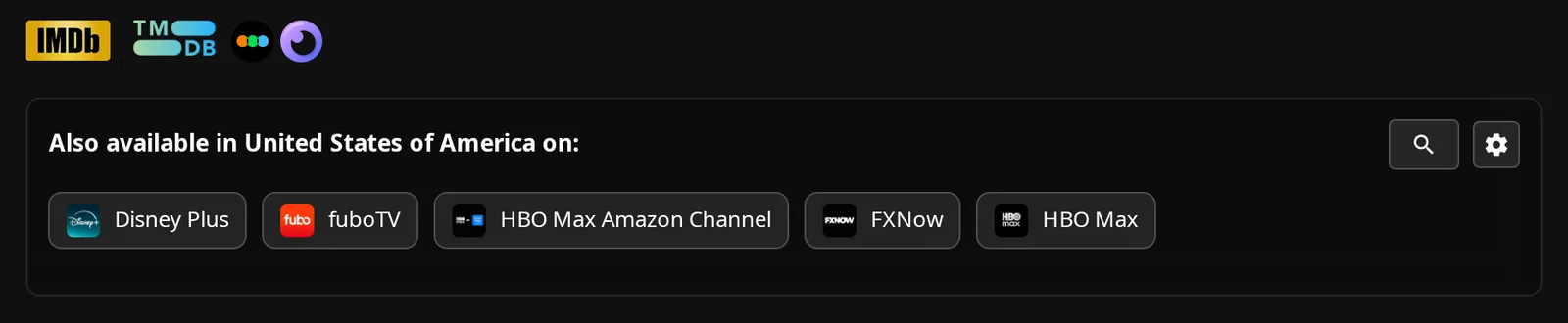
- Read Also available in {region} on: and its provider badges, or Not available on any streaming services in {region}. An admin can replace the unavailable heading with a custom message and optional icon.
- Use the gear icon to open Search Settings, choose countries and providers, and click Save. Reload or revisit the page to update automatic results.
- Use the magnifying-glass icon to search manually. Available countries get separate blocks; unavailable countries share one block. Use the close icons to dismiss blocks. Searching again replaces the previous manual results.
 An admin's Custom Branding Message replaces the unavailable heading; the red box is a manual search result.
Admin settings in Elsewhere & Reviews; every option and default is in Elsewhere settings → Configuration Options.
Provider badges show names and logos. Available headings open a regional availability link in a new tab when TMDB supplies one, with the JustWatch tooltip. These links and badges do not start playback or verify your subscriptions.
Subscription availability only
Rental, purchase, free, and ad-supported categories are not shown separately. An unavailable result means no matching subscription providers for the country and filters you used. It does not mean the title is exclusive to your server.
How automatic and manual results differ
Ignore Providers uses case-insensitive regular expressions after Default Providers. Automatic results use the admin provider filters and your Default Search Country. Manual searches use Search Other Countries (leave empty to use default), falling back to your default country only when that list is empty. They use your Providers (leave empty to show all available) selection and bypass both admin provider lists. See Search Settings and provider filtering.
Availability comes from TMDB's subscription (flatrate) category. If a badge logo fails to load, its name remains. Without an external-links container, the panel is added to the detail section.
Per-season providers
See which services carry each part of a series. When seasons have different providers, a series page groups them under labels such as Seasons 1–6 and Season 7; a season page shows its own providers.
How to use
- Open a series in its default aired order, or one of its numbered seasons, with a parent-series TMDB ID.
- Keep the admin Per-season providers setting on.
- In the panel's Search Settings, keep Show providers per season (when seasons differ) on. This personal setting appears only when the admin permits it.
Every option and default is in Elsewhere settings → Configuration Options.
Grouping and fallbacks
Grouping uses integer-numbered Jellyfin seasons returned for you. Admin filtering happens first. Regular seasons without matching providers fall back to filtered series providers; specials without matching providers are left out of grouping. If every considered season has the same provider set, the display stays at series level.
Alternate orders, manual searches, and Seerr cards use title-level availability. See Per-season providers for the requirements for showing the panel and its fallbacks.
Custom Branding
Give the unavailable-provider heading your own message and optional icon. It appears when no filtered automatic providers or season groups remain.
How to use
- As an admin, open Custom Branding in the Elsewhere & Reviews tab.
- Enter a message, then click Save Settings. For an icon, upload an image under Upload Icon or enter an image URL; an uploaded icon is used in place of the URL.
- Reload the detail page.
Every option and default is in Elsewhere settings → Configuration Options.
Country, filters, and controls
The message reflects the current country and filters. In this state, search and gear controls appear when you hover over the panel. See Custom Branding for image paths and touch-device considerations.
User Reviews
Share your thoughts and star ratings with other viewers on your Jellyfin server. You can review movies, series, and their numbered seasons and episodes.
How to use
- An admin opens Elsewhere & Reviews, turns on Enable User Written Reviews, and clicks Save Settings. Reload the client after changing the configuration.
- Open an eligible item and expand Reviews ({count}).
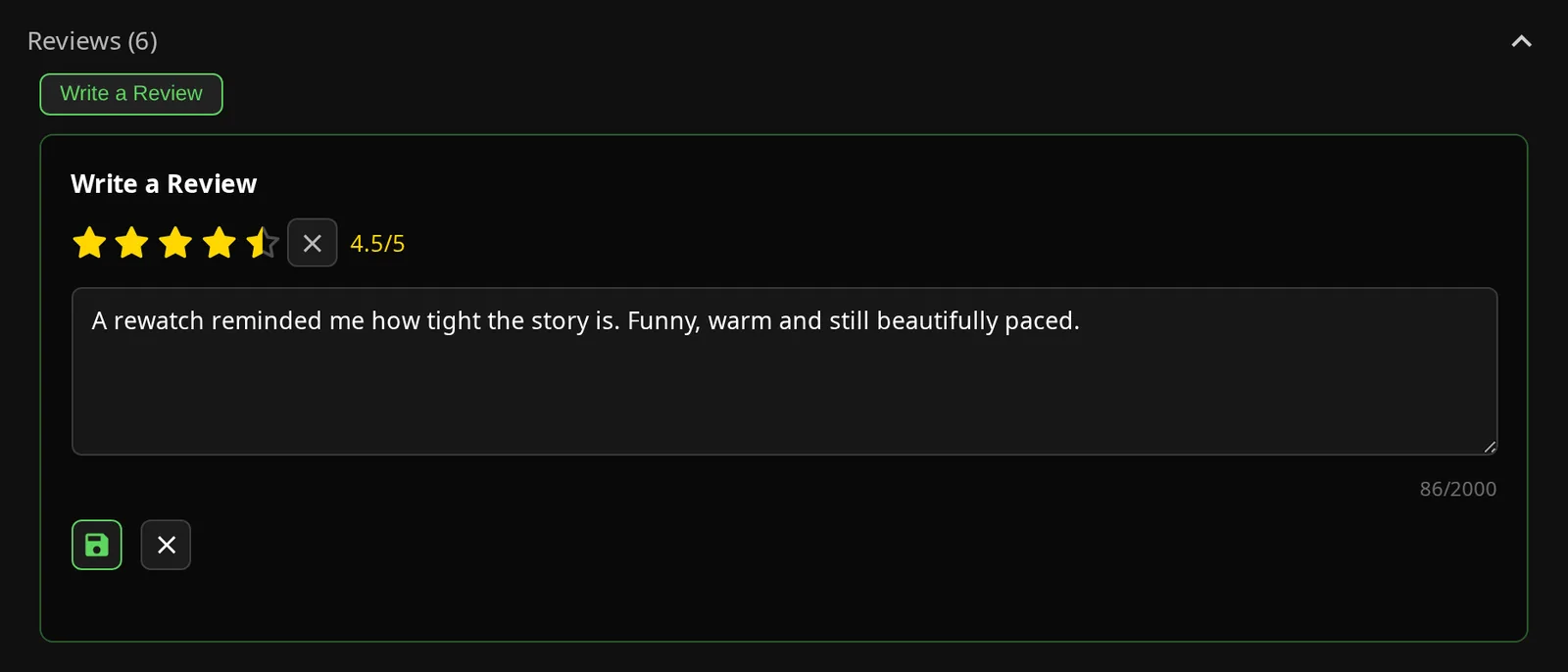
- Click Write a Review (shown only when you have no review for this item), enter text and/or choose a rating, then click the save icon. Click a star's left half for a half-star value or its right half for a full value. Use the close icon beside the stars to clear a rating, or the form's close icon to cancel.
- Use your card's Edit icon to update the review or Delete to remove it after confirmation. You have one review per movie, series, season, or episode; saving again updates it.
Admin settings in Elsewhere & Reviews:
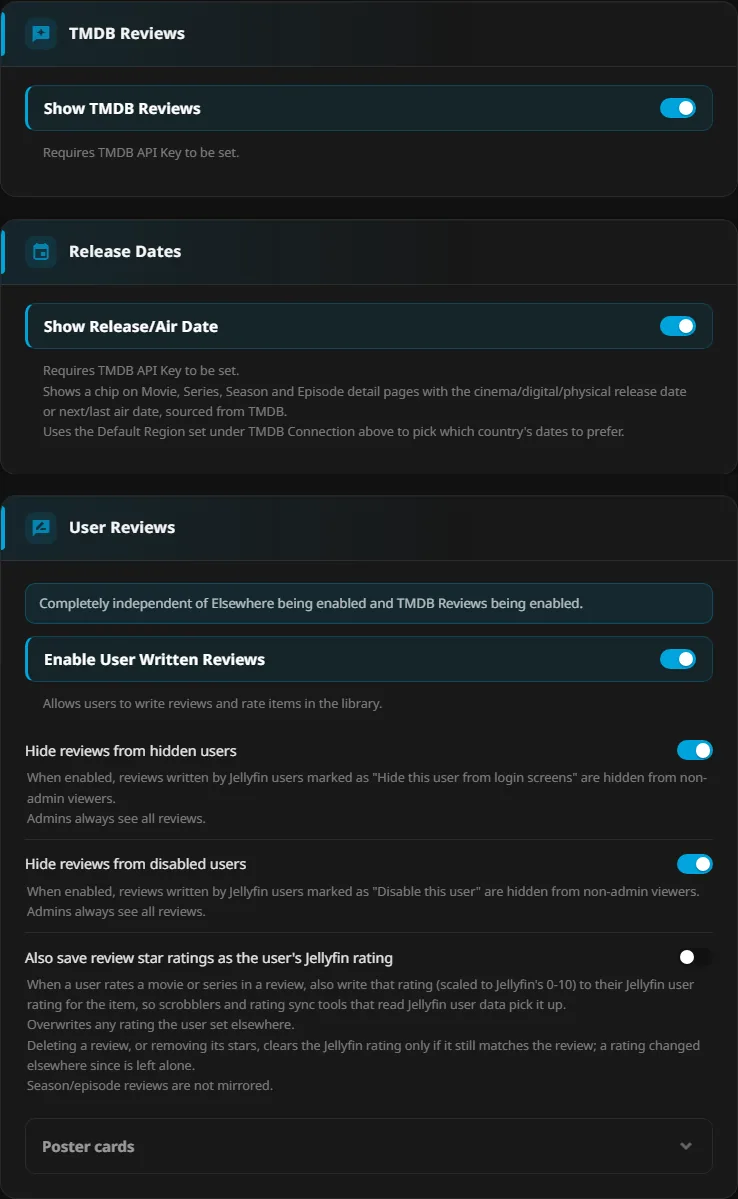
Every option and default is in Elsewhere settings → User Reviews.
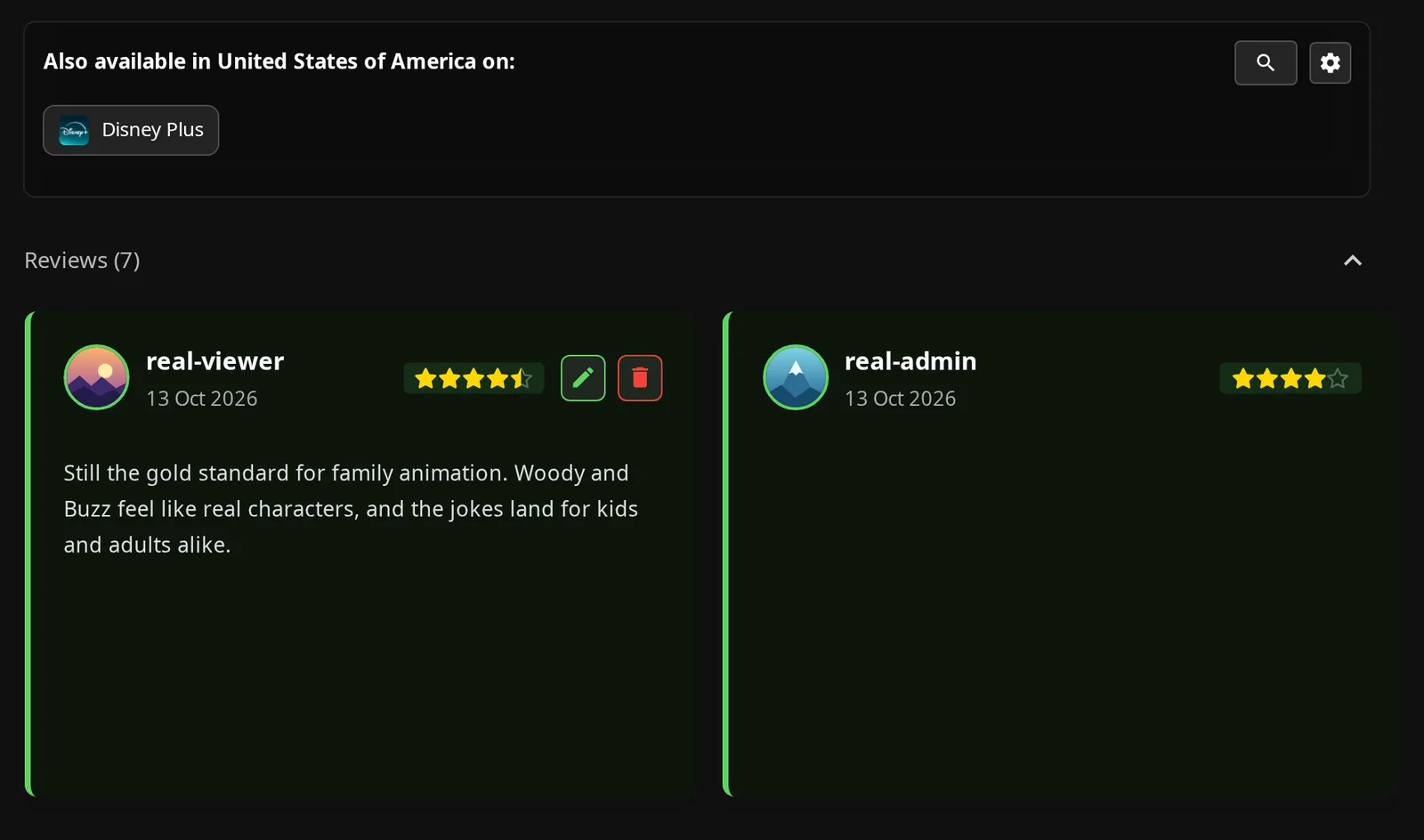
Your server's review cards appear before TMDB cards. They have green borders, author names and avatars, update dates, and star ratings when supplied. Use Read More and Read Less for long text.
Review requirements and limits
Movies and series need TMDB IDs. Season and episode pages need the parent series' TMDB ID and the relevant season/episode numbers. Reviews accept up to 2,000 characters and/or a rating from 1–5 stars in half-star increments.
Choose at least 1 star
The picker offers 0.5 on the left half of the first star, but the server rejects that value. Choose at least 1 star or clear the rating for a text-only review.
Visibility, moderation, and averages
Reviews are stored locally. The admin's author-visibility settings and your Spoiler Guard settings control which reviews you see. Existing authors see their own reviews even when author filters apply; admins bypass those filters. Deleted-author reviews are hidden from non-admins while either filter is on. Filtering keeps reviews stored and also applies to averages.
Admins can use Delete as admin on other authors' cards. The web UI does not let them edit another author's review. Failed deletions show feedback. Each review is stored under its movie, series, season, or episode key. Duplicate library items with the same TMDB identity and child numbering share reviews. Hidden authors are identified by Jellyfin account policy, independently of your Hidden Content list; these author filters also apply to stored Activity Feed entries.
Detail pages show the average of visible rated local reviews out of ten. Poster averages also need effective Show Rating Tags; a stored personal value overrides the admin Enable Rating Tags default. Rating-tag type and row exclusions also suppress review chips; see Tags. See User Reviews settings for visibility, poster controls, and the effects of copying ratings to Jellyfin.
TMDB Reviews
Read TMDB community reviews on movie and series detail pages. You can browse the cards alongside reviews from your own server.
How to use
- Open Dashboard → Plugins → Jellyfin Enhanced, then the Elsewhere & Reviews tab.
- Enter and test the shared TMDB API Key. Keep Enable Elsewhere on to edit the TMDB-review controls in the admin UI.
- Turn on Show TMDB Reviews, optionally turn on Expand reviews by default, and click Save Settings.
- Reload the client, open a movie or series with a TMDB ID, and expand Reviews ({count}). Scroll horizontally through the cards; use Read More or Read Less for long text.
Admin settings in Elsewhere & Reviews; every option and default is in Elsewhere settings → Configuration Options.
TMDB cards have blue borders and show the author, review date, supplied rating, and a TMDB logo that links to the original review. Text over 350 characters starts as a preview. Opening or closing the section saves your preference for future pages; opening a writing form also opens the section. There is no separate expansion toggle in the personal Enhanced panel.
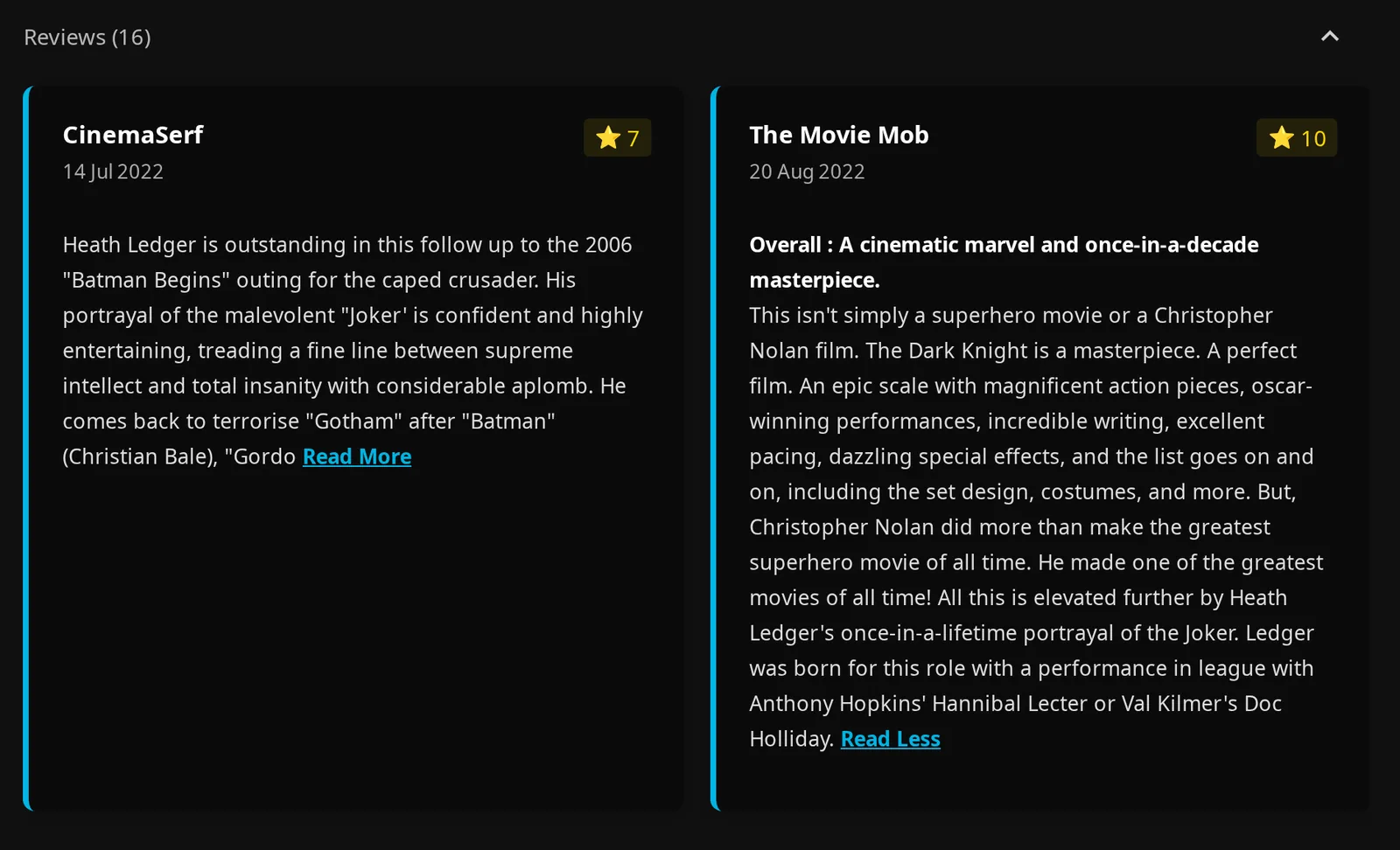 With local reviews disabled, the panel has no Write a Review button.
How TMDB reviews load
Jellyfin Enhanced retrieves reviews through your Jellyfin server and caches the responses. Your browser does not call the TMDB API directly. Your expansion preference is stored in your account's settings.json.
Requests fetch the first page in en-US, and the panel shows at most ten TMDB cards. Reviews ({count}) counts fetched TMDB reviews plus visible local reviews, so the count can exceed the TMDB cards shown. Empty or failed lookups can leave Reviews (0). Seasons and episodes support local reviews only.
Loading TMDB reviews needs the key and Show TMDB Reviews, independently of Enable Elsewhere. The admin controls have the extra UI dependency described in TMDB Reviews settings.
Spoiler Guard and reviews
Spoiler Guard can hide both review sources on guarded movies, series, and child pages in the web client. See Spoiler Guard settings.
Spoiler Guard defaults and overrides
Enable Spoiler Guard is off by default; Hide reviews on Spoiler Guard series is on by default. The personal Reviews override inherits the admin policy until changed. Turning it off allows reviews after Spoiler Guard state loads successfully. If state loading fails, reviews are hidden before that override is checked.
AniList Reviews
Read the top AniList user reviews for anime on movie and series detail pages. The cards appear in the same Reviews ({count}) section, after any TMDB reviews.
How to use
- Make sure AniList is a metadata provider for your anime library (for example with the Jellyfin AniList plugin), so each item has an AniList ID.
- Open Dashboard → Plugins → Jellyfin Enhanced, then the Elsewhere & Reviews tab, turn on Show AniList Reviews, and click Save Settings.
- Reload the client, open an anime movie or series that has an AniList ID, and expand Reviews ({count}).
Every option and default is in Elsewhere settings → AniList Reviews.
AniList cards have a lighter blue border and show the author, review date, the reviewer's score out of ten, the AniList logo and a link to the original review. The review summary appears in bold above the text. Text over 350 characters starts as a preview with Read More and Read Less.
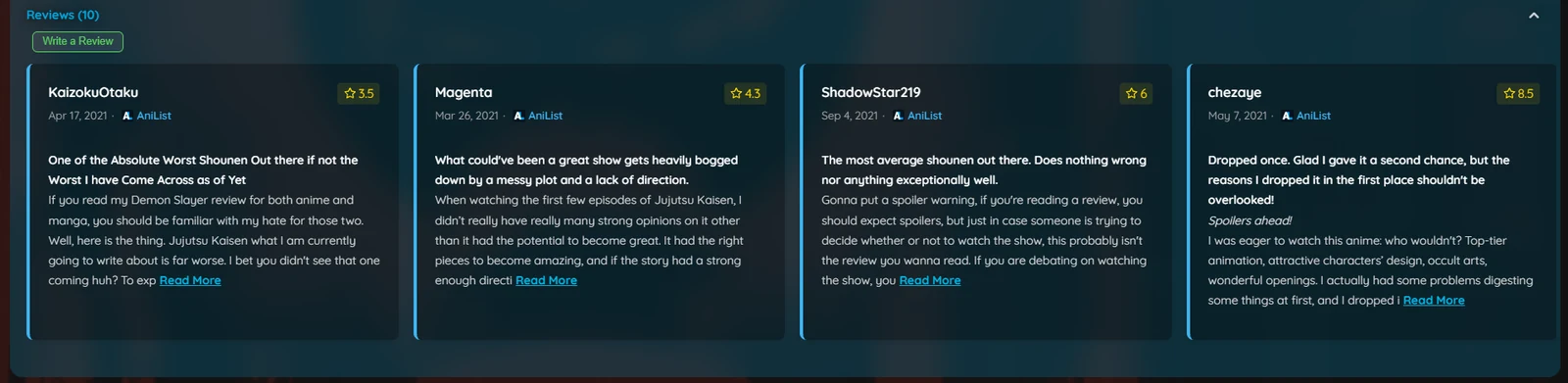
Requires AniList as a metadata provider
Items are matched by their AniList ID, so this only works for items that have one. Items without an AniList ID show no AniList cards. No API key is needed.
How AniList reviews load
Jellyfin Enhanced retrieves reviews through your Jellyfin server from AniList's public API, so your browser does not call AniList directly. The server keeps results in memory for 12 hours (2 hours when an anime has no reviews) to stay well inside AniList's rate limit.
The panel shows up to ten reviews, ordered by how many AniList users found them helpful. Spoiler sections of a review are replaced with "[spoiler hidden]", and embedded images and videos are removed. Seasons and episodes support local reviews only. Reviews ({count}) includes the AniList cards.
Spoiler Guard hides AniList reviews on guarded series the same way it hides TMDB and local reviews.
Review Translation
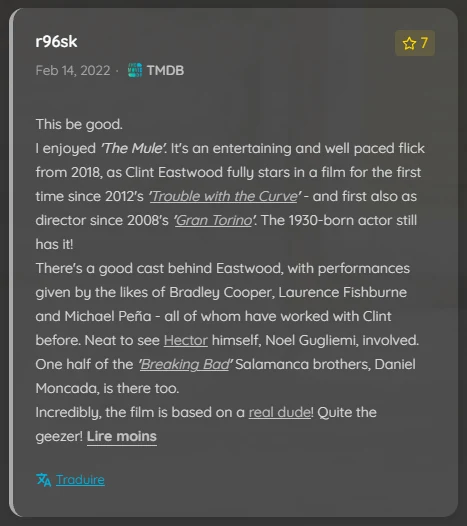
Translate English TMDB and AniList reviews into your Jellyfin language. Each review gets a Translate button with a translate icon under its text. Click it to read the translation, and click Show original to switch back.
Only shown when your display language is not English
The Translate button appears only for users whose Jellyfin display language is not English. With an English display language there is nothing to translate into, so the button is never shown, even when the setting is on. To try it, switch your own display language to another language (for example French) and reload.
| Original review (English) | After clicking Translate (French display language) |
|---|---|
 |
 |
How to use
- Open Dashboard → Plugins → Jellyfin Enhanced, then the Elsewhere & Reviews tab, turn on Enable Review Translation, and click Save Settings.
- Optionally set a LibreTranslate URL so browsers without a built-in translator can translate too.
- Make sure your Jellyfin display language is not English (the button never shows for English), then reload the client and expand Reviews ({count}) on a title that has reviews.
Every option and default is in Elsewhere settings → Review Translation.
Only English reviews, into your Jellyfin language
Reviews are translated from English only. The target is your Jellyfin display language, so the button never shows when your language is English. It also hides itself when neither translator offers your language. Local user reviews are not translated.
Limits of the browser's built-in translator
The browser translator is an experimental browser feature, so it is only used where it exists:
- Browser: desktop Chromium browsers only, such as recent Google Chrome (138 or newer) and Microsoft Edge. Firefox, Safari, most mobile browsers, the Jellyfin mobile and TV apps and other embedded web views do not have it.
- Secure page: it needs HTTPS or
localhost. On a plainhttp://address (for examplehttp://server:8096) the browser does not offer it. - Language pair: English to your language must be one the browser supports. A first translation into a language may download a language model, so the button can take a while the first time and needs free disk space on that device.
- Quality: translations come from a small on-device model and can be rougher than LibreTranslate's.
Where the browser translator is not available, the button falls back to your LibreTranslate instance. Without one, users in those browsers see no button.
How translation works
Jellyfin Enhanced tries your browser's built-in translator first (Chrome and Edge, over HTTPS or localhost). It runs on your device, nothing is sent anywhere, and the browser may download a language model the first time. If the browser cannot translate, or fails, the review text goes to the LibreTranslate instance you set. If neither is available, the button is not shown.
Translations are done live and are never stored. The server keeps only a small in-memory cache of recent translations for one hour, which is cleared on restart. Reviews over 20,000 characters are not sent to LibreTranslate. A paragraph over 2,000 characters is sent in pieces, split between sentences, because hosted LibreTranslate plans reject longer text.
The translator receives plain prose, because translators mangle links and formatting. Links in the review are kept where they can be matched: each link is put back on its translated label, or on its original wording when that still appears in the translation (titles and names usually do). A link that matches neither shows as plain text, and italics are not kept in the translation. Show original restores the full formatting.
Release Dates
See movie release dates or television air dates beside the item's other metadata. Each date chip has an icon and uses your locale's date format.
How to use
- In Elsewhere & Reviews, configure the shared TMDB API Key.
- Under Release Dates, turn on Show Release/Air Date and click Save Settings.
- Reload the client and open a movie, series, season, or episode with the required TMDB metadata. Hover over a movie chip to see Cinema Release, Digital Release, or Physical Release; television chips use Episode.
Admin settings in Elsewhere & Reviews; every option and default is in Elsewhere settings → Configuration Options.
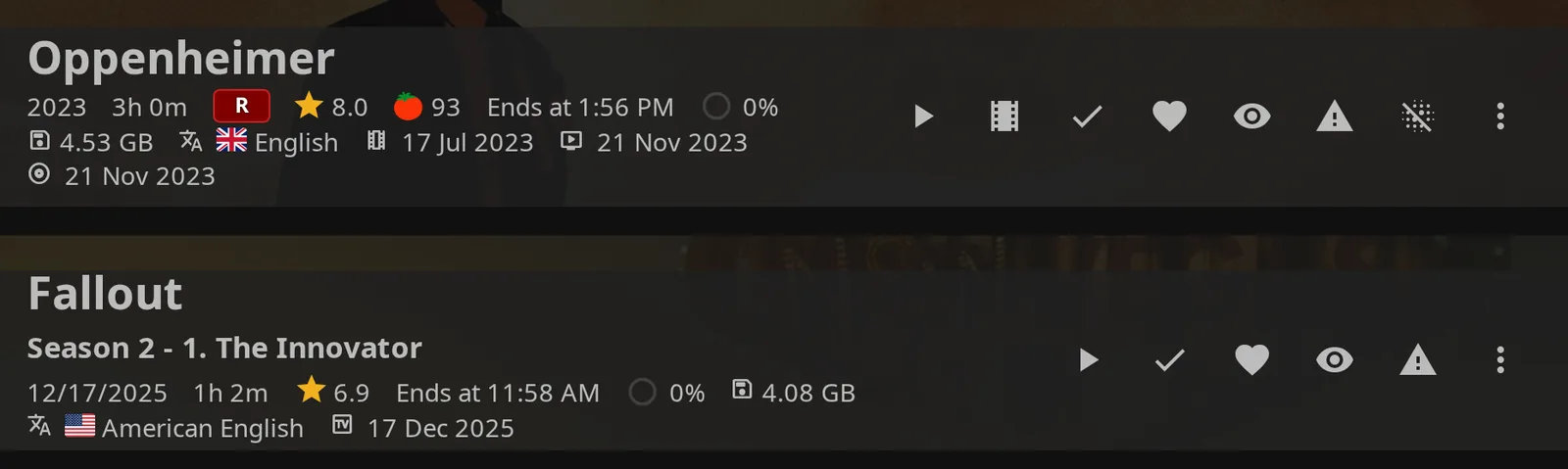
No available date means no chip. Spoiler Guard's Hide air date setting also removes these chips from protected titles. There is no personal enable switch. This feature does not require Enable Elsewhere. See Release Dates settings.
Which dates are shown
| Item | Date selection |
|---|---|
| Movie | Separate cinema, digital, and physical dates. Each category prefers the admin country, then US, then the first other region containing that category. It uses the earliest date within the chosen country/category. |
| Series | Next episode's air date, falling back to the last episode's air date. |
| Season | First dated episode in TMDB response order airing today or later, falling back to the last dated episode in that response. |
| Episode | Jellyfin's episode premiere date when present, otherwise its TMDB air date. |
Movies and series need their own TMDB IDs. Child pages need the parent series' TMDB ID and numbering for TMDB lookups. Even an episode using Jellyfin's premiere date needs that parent ID. Your personal Default Search Country does not change movie release-date preference.
Integration with Seerr
Provider logos on Jellyfin Enhanced's Seerr cards help you check subscription availability before requesting a title. These cards appear inside Jellyfin, including Seerr results in Jellyfin search.
How to use
- Complete Seerr connection setup.
- Configure the shared TMDB API Key in Elsewhere & Reviews.
- Open Seerr, turn on Show Streaming Providers on Posters, and click Save Settings.
- Reload the client and browse JE's Seerr cards.
Every option and default is in Elsewhere settings → Integration with Seerr.
Requirements
Provider logos need working Seerr cards and a TMDB key. They do not require Enable Elsewhere. See Integration with Seerr settings for all prerequisites.
Country, filters, and logos
Cards use the admin Default Region and provider filters, with title-level data. They can differ from personal or season-specific detail-page results and have no personal country-search controls.
Logos have provider-name tooltips. Failed images are removed.