Spoiler Guard Settings
Admin configuration for the Spoiler Guard section of the Jellyfin Enhanced plugin. All toggles here are server-wide policy — users opt into Spoiler Guard for individual shows / movies / collections per-user, but the admin decides what protection looks like once they do.
Where to find it
Jellyfin Dashboard → Plugins → Jellyfin Enhanced → scroll to the Spoiler Guard section.
Master switch
Enable Spoiler Guard
Default: Off. When off, the per-user opt-in has no effect and no user-facing UI appears anywhere. Turn on once you want users to be able to opt their shows in.
This is the only switch that requires explicit admin opt-in. Everything below it is the default policy that applies when a user enables Spoiler Guard for one of their shows.
Image Replacement Mode
How an unwatched card looks once a user has opted into Spoiler Guard for it.
Show stock cards (default)
The episode-specific image is replaced with a parent-level placeholder picked so the aspect ratio matches the card slot:
| Item type | Replacement |
|---|---|
| Episode thumbnail (16:9) | Series Backdrop |
| Season poster (2:3) | Series Primary |
| Movie via opted-in Collection (2:3) | Collection Primary |
| Movie directly opted in / no safe parent | Blurred version of the original image |
When no safe parent art exists (a movie opted in directly, a series without a Backdrop), the original image is blurred at the configured intensity instead — the card still renders something rather than a blank tile. A pre-encoded flat dark JPEG remains as the fail-closed last resort, served only if the blur step itself fails, so original bytes are never leaked through this path.
Useful when partial-blur feels like a tease — the user sees a consistent grid of "this show" / "this franchise" art instead of mystery boxes.
Blur images
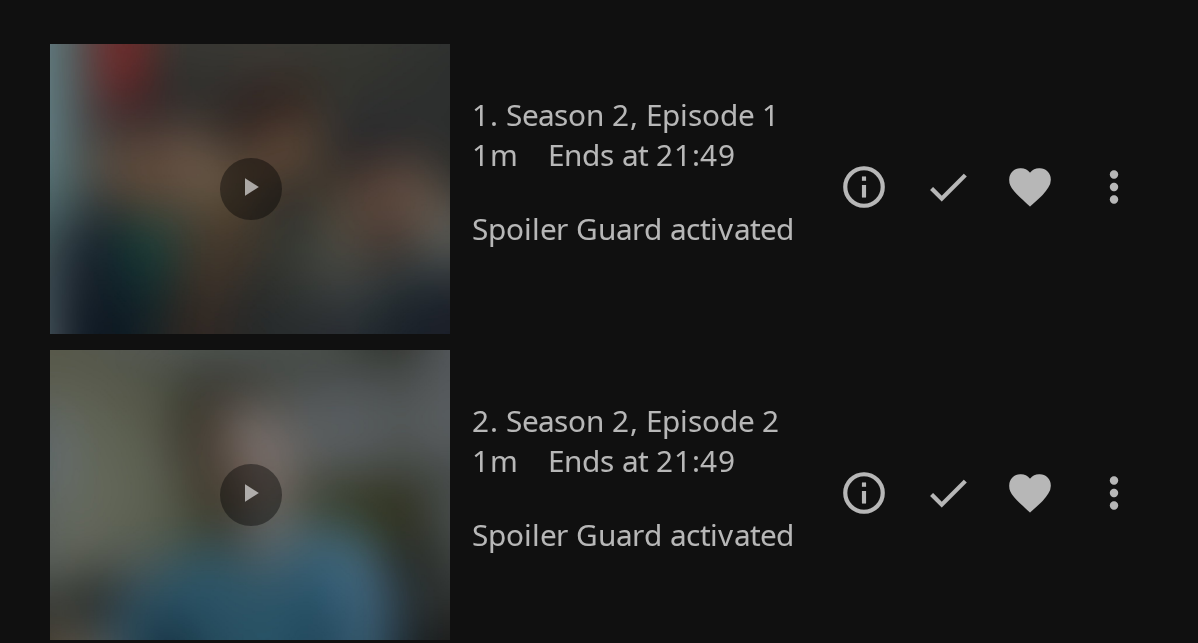
The original image runs through SkiaSharp's CreateBlur (a separable Gaussian, native code, ~130 ms on a 1280×720 frame). Silhouettes and dominant colours stay visible — useful for users who prefer a softer "something is there" hint over a clean placeholder.
The Blur intensity field (5-100, default 40) controls the sigma. 5 is mild, 40 hides scene content while keeping silhouettes and dominant colours visible, 100 is a solid blob. The value also applies in Show stock cards mode — it sets the intensity of the fallback blur used when no safe parent art is available.
Also blur Backdrop / Art
Default: Off. When off, only Primary / Thumb / Screenshot images get replaced — the wider Backdrop / Art images shown on detail pages and in collections pass through unblurred. Turn on for the strictest mode.
Most spoilers live in the per-episode thumbnails and per-season posters; backdrops are usually less plot-specific (curated cinematography rather than reveal stills), so the default scopes protection to the surfaces with the highest spoiler risk.
Show movie posters even when Spoiler Guard is on
Default: On. A Spoiler-Guard-listed movie's Primary (poster) and Thumb images pass through unblurred. Movie posters are typically curated marketing art that doesn't reveal plot, while the per-chapter scene-thumbs inside the movie's detail page (plus the synopsis, chapter names, cast) are the real spoiler vector. Turn off for maximum obscurity — protected movies will also have their posters hidden until each one is marked watched.
What's still protected when this toggle is on:
- Chapter thumbnails — the "Scenes" rail on the movie detail page. Progressive-strip rules still apply (chapters before the user's resume point pass through; chapters at-or-after the resume point are protected).
- Screenshot images.
- Backdrop / Art — only if "Also blur Backdrop / Art" is also on.
What passes through clear:
- The movie's Primary poster — visible on home rails, search results, the movie detail page header, everywhere a Primary is fetched.
- The movie's Thumb image (the Primary-variant used in some surfaces).
Series and Episodes are unaffected by this toggle — they have their own per-aspect logic (Episode → Series Backdrop, Season → Series Primary).
Automatic per-user image identity tags (reverse-proxy safe)
Whenever Spoiler Guard is enabled, the plugin automatically appends a small per-user identity marker to image tag values inside each user's API responses. Every client (web, Android TV, iOS, Roku, etc.) echoes that tag back when it fetches the image, letting Spoiler Guard apply exactly that user's protection state without relying on the request IP address. This keeps per-user protection precise behind reverse proxies, VPNs, and shared/NAT networks.
There is no separate setting to disable identity tags. The marker is not a credential: a hand-crafted request can at most opt itself into another user's protection policy, not bypass authentication.
Requests without a marker, such as a native client replaying an image URL cached before this feature, automatically fall back through the existing single-user, cookie, and shared-IP identity ladder.
Auto-enable on first play of a new show
Default: Off. When on, the first time a user plays S1E1 of a series they've never watched before, the plugin automatically adds that series to their Spoiler Guard list. They don't have to remember to toggle it before starting.
Rewatches won't trigger it (Spoiler Guard is checked against per-user watched history, not just the current play). Jumping in at later episodes also won't trigger — only a fresh S1E1 play does.
Applies to all users on the instance.
Auto-enable on Seerr request
Default: Off. When on, every successful Seerr request a user submits via JE also registers a pending Spoiler Guard entry. When the content lands in the library, Spoiler Guard is already on for that user.
Users can also manually opt in via the Enable Spoiler Guard button in the Seerr More Info modal (always available regardless of this toggle), which is useful when another user has already requested the title.
Auto-enable when new titles are added to the library
Default: Off. When on, every new show or movie that lands in the library — from a scan, a Seerr download, a manual copy, anything — is added to the Spoiler Guard list of every user who can see that library. Protection is in place before anyone presses play, which neither of the two modes above guarantees (first play is too late; Seerr only covers titles requested through Seerr).
Details worth knowing:
- Only brand-new titles count. A title is armed once, when Jellyfin first creates it; a user who later switches Spoiler Guard off for it is not re-armed by metadata refreshes or rescans. (If Auto-enable on first play is also on, starting S1E1 of a show you haven't watched any episode of still arms it again, as it always has.) Titles already in the library when you turn this on are not armed by it (a rescan doesn't count as new), while adding a whole new library arms every title in it. To guard what's already there, see Guarding titles already in the library.
- It applies to every user who has access to the title's library (per the user's library-access policy), including disabled accounts, so titles added while maintenance mode has accounts switched off are still protected when those users come back. Users created after a title was added don't get it. There is no per-user opt-out, same as the first-play mode.
- Library scans are batched: the titles a scan adds are collected and written in a single settings update per user about ten seconds after the first one appears (a long scan flushes every ten seconds), never one write per title.
Auto-enable scope (content type and libraries)
Shared by all three auto-enable options above. Default: TV shows and movies, all libraries — an install that never touches the scope keeps its previous auto-enable behaviour.
- TV shows / Movies — untick a type to leave it out of every auto-enable mode. The request in #801 — on for all shows, off for all movies — is "TV shows" ticked, "Movies" unticked.
- Libraries — tick the libraries auto-enable should cover; leave every library unticked to cover all of them. Applies to the first-play and library-add modes, and to the apply-to-existing-titles action below. It cannot apply to a Seerr request, because the title isn't in any library at request time.
Guarding titles already in the library
Auto-enable on library add only arms titles when Jellyfin first creates them. Rescanning an existing library does not arm its titles, on purpose: a rescan (or a metadata refresh) looks exactly the same for a title a user deliberately switched Spoiler Guard off for, and re-arming on every scan would undo that choice again and again.
To guard a library that already exists, use Apply to existing titles now… under the scope settings (Display tab, Spoiler Guard section), or run the Spoiler Guard: apply to existing titles task from Dashboard → Scheduled Tasks. Both do the same thing:
- Scope — the saved auto-enable scope (TV shows / Movies and the library list above). It works whether or not "Auto-enable when new titles are added" is on, so you can do a one-time pass without ongoing auto-arming. Save any scope changes first.
- Who — every user who can see the title's library, including disabled accounts, exactly like library add. Users without access to that library get nothing.
- What is skipped, per user — titles the user already has in their Spoiler Guard list (so running it twice changes nothing), and titles the user has fully watched (a played movie; a show whose episodes on disk, specials included, are all played). A show the user is part-way through is armed by default, since that is where spoilers matter most; tick Also skip titles a user has already started watching to leave shows with any watched or in-progress episode, and in-progress movies, alone.
- Preview first — the button counts everything first (a dry run that writes nothing) and shows how many titles would be armed for which users before you confirm. The scheduled task has no default triggers, reports progress and can be cancelled from the dashboard; a run from the dashboard uses the defaults (started titles are armed). A cancelled run keeps what it finished (each user's list is written in one go) and a re-run picks up the rest.
- Re-running — there is no record of titles a user removed, so running it again later re-arms a title a user has since switched off, unless they have watched it (or started it, with the option ticked). Rescans never do.
Strict refresh mode
Default: Off. Controls what happens visually on the user's screen after they toggle Spoiler Guard for a series / movie:
| Mode | What runs after a toggle |
|---|---|
| Off (default) | In-place image refresh only. Card images flip blur ↔ clear straight away with no page flash. Page-rendered text (Overview, episode titles, ratings) stays as-is until the user's next navigation. |
| On | Same in-place image refresh plus a full page reload so DOM text re-renders with the new server-side strip state straight away. |
Recommended off for smoother UX (no jarring page-flash); turn on if you'd rather pay the page-flash cost to see everything update at once.
The in-place refresh is also what runs automatically when a user marks an episode watched / unwatched — that path is always soft regardless of this setting (a reload mid-playback is too jarring).
Hide metadata on protected content
A collapsible sub-section of per-field hide toggles. When the master switch is on all of these default to on — that's the strict-by-default posture a user opted into when they enabled Spoiler Guard for a show. Admins can relax anything they don't want.
Hide TV show descriptions
Default: On. Replaces the overview on a protected TV show's own detail page with the configured placeholder. This is independent from episode descriptions, so admins can keep a show's general premise visible while still hiding episode plots.
Hide episode descriptions
Default: On. Replaces the episode synopsis with the placeholder text below. The single biggest spoiler vector.
Placeholder text
Default: Spoiler Guard activated. Shown in place of a protected TV show or episode description so the client doesn't render an empty section header. The text is server-side-sanitized (HTML tags + angle brackets stripped, capped at 200 chars) whenever it is served — so even an admin who edits the plugin XML directly gets the same defense-in-depth at render time.
Hide tags
Default: On. Hides both the TMDB Tags array (phrases like "Death of a main character") AND the Jellyfin Enhanced card overlays (genre, quality, language, rating tags drawn over thumbnails) on cards for unwatched episodes of Spoiler Guard series.
Hide chapter names (keep timestamps)
Default: On. Strips chapter names like "X reveals Y" but keeps the timestamp markers — the seek bar still shows chapter dividers, the user can navigate via timestamp without the spoiler text. Chapter thumbnails are stripped too.
For movies, this is a progressive strip: only chapters whose start position is after the user's current playback position are hidden. Already-watched chapter names and thumbnails stay visible so a half-finished movie shows scenes up to the user's resume point, then hides everything after.
Hide taglines
Default: On. TMDB taglines like "Everything changes tonight" are pure spoiler bait. Hidden via empty array (not null) to match what Jellyfin returns for an item legitimately without tags.
Hide ratings
Default: On. Hides both the community/TMDB rating and the critic rating — a 9.8/10 rating on a specific episode implies a major event ("the one where X dies"). Hidden by null so clients don't render "0/10", and the Jellyfin Enhanced card rating overlay is suppressed too on the series, season, and unwatched-episode cards of a guarded show (it won't fall back to the parent series' rating). Watched episodes keep their rating, and if you turn this toggle off — or a user unchecks the Ratings override — the overlay renders normally again.
Hide air date
Default: On. A multi-month gap before an episode can imply "season finale" or "long-anticipated reveal" via release-date scheduling. Hidden by null.
Replace episode titles
Default: On. Episode names become Season X, Episode Y instead of leaking the actual title (e.g. The Death of Optimus). Affects every surface where the title appears — list views, Next Up, Continue Watching, search results, the player's "now playing" overlay.
Some clients use the title in navigation tooltips and breadcrumbs where the synthesized title can look jarring. Turn off if that's a deal-breaker for your users.
Hide cast on unwatched episodes
Default: On. Strips the cast list on unwatched episodes of Spoiler Guard series. Has a sub-option:
Cast hiding scope
| Mode | What's hidden |
|---|---|
| Guest stars only (default) | Only Type=GuestStar entries are removed. Regular cast stays — they appear in every episode anyway, so they don't reveal anything new about this episode. |
| All | Strict mode. Every People entry (regular + guest + crew) is removed. Use for shows where the regular cast appearing or not appearing in a given episode is itself a spoiler (e.g. a recurring villain return). |
In both modes the character name (Role) is also stripped from any surviving People entries — a role like "Resurrected Optimus" is a major spoiler regardless of cast strip mode.
Hide reviews on Spoiler Guard series
Default: On. Suppresses the JE Reviews panel on series detail pages where the user has Spoiler Guard enabled. TMDB reviews routinely contain plot spoilers from arbitrary points in the show, and user-written reviews share that risk. Recommended on.
Advanced per-category reveals
By default every unwatched episode of a guarded series gets the same uniform strip. Advanced per-category reveals (its own section under Spoiler Guard, off by default) splits unwatched episodes into three categories and gives the first two their own reveal masks:
- Next episode — the user's first unwatched regular episode, in season/episode order (specials in Season 0 never count). By default this is the only thing advanced mode changes: its real title shows while everything else stays hidden — you can see what you're about to watch, and nothing more.
- Current season — the other unwatched episodes in the same season as the next episode. Fully stripped by default, with optional per-field reveals.
- Everything else — later seasons, skipped earlier seasons, and specials always keep the full uniform strip. So do search results, card rating overlays, and every other protected surface: the reveals apply to the episode metadata itself (episode lists, Next Up, detail pages) plus, for the next episode only, its own poster image — never to the stricter surfaces.
| Setting | Default | What it does |
|---|---|---|
| Enable advanced per-category reveals | Off | Master switch for the category logic. Off = today's uniform strip, byte for byte. |
| Next episode: keep title hidden | Off | Unchecked means the next episode's real title shows instead of "Season X, Episode Y". |
| Next episode: keep description hidden | On | Untick to also show the next episode's synopsis. |
| Next episode: keep ratings hidden | On | Untick to show community/critic ratings on the next episode. |
| Next episode: keep image hidden | On | Untick to show the next episode's own Primary/Thumb poster - e.g. on the Next Up row - instead of the usual blur/stock-card replacement. Chapter and scrubbing-preview thumbnails always stay hidden regardless. |
| Current season: keep titles hidden | On | Untick to show real titles across the current season. |
| Current season: keep descriptions hidden | On | Untick to show synopses across the current season. |
| Current season: keep ratings hidden | On | Untick to show ratings across the current season — useful when you want to know which episodes of the season you're in are fan favourites without reading anything about them. |
A reveal can only relax a strip that's enabled above it — if you turned off Replace episode titles globally, titles already show everywhere and the category toggles for titles have nothing to do. The boundary follows each user's watched-state (marking the next episode watched promotes the following one immediately in the common case, and within five minutes at the very worst), and every ambiguous situation — an episode with no season/episode numbers, a fully-watched series, a resolver fault — falls back to the full strip, never a reveal.
Each user can opt back out of advanced mode entirely: an Advanced per-category reveals checkbox appears in their own Spoiler Guard settings (see Per-user overrides) and restores the uniform full strip for that account only.
Per-user overrides
The metadata toggles above set server-wide policy, but individual users can opt back out of any strip category for themselves. The JE user settings panel (gear icon → Jellyfin Enhanced → Spoiler Guard) has a "Show me this even with Spoiler Guard on" area with one checkbox per category: TV show descriptions, Episode descriptions, Episode titles, Chapter names, Cast list, Ratings, Air date, Taglines, Tags, and Reviews.
The gating is one-directional — the admin still decides what's available:
- A category row only appears in the user panel when the admin has that strip enabled. Users can relax the policy for themselves; they can't re-enable a category the admin turned off.
- Unchecking a box writes an opt-out (
false) into thePrefsof that user'sspoilerblur.json. It applies only to that user — everyone else keeps the admin default. - Image replacement is not user-overridable; how unwatched cards look stays admin policy.
When Advanced per-category reveals is enabled, one more checkbox appears in the same area: Advanced per-category reveals. It works in the opposite direction from the rest — unchecking it makes things stricter for that user, restoring the uniform full strip (including hiding the next episode's title again) instead of the category reveals the admin configured.
The same panel section also holds a per-user "Don't ask me to confirm when turning Spoiler Guard off" preference, which permanently skips the disable-confirmation dialog (the dialog itself only offers a 15-minute snooze).
Health: spoiler-state corruption recovery
Each user's Spoiler Guard preferences are stored in a per-user spoilerblur.json file on the server. If that file gets corrupted (truncated by a power loss mid-write, mangled by a backup tool, etc.), the plugin backs the corrupt file up to spoilerblur.json.corrupt-{timestamp}, resets the on-disk state to defaults, and records the event so the affected user knows to re-enable their items.
This is automatic and doesn't need configuration. The corruption events are exposed through a diagnostic JSON endpoint — GET /JellyfinEnhanced/spoiler-blur/health — that an admin (or a user, for their own events) can query to check whether their Spoiler Guard preferences were reset after a corrupt-file backup, without shell access. A companion DELETE /JellyfinEnhanced/spoiler-blur/health/{userId} endpoint acknowledges (clears) an event. The scoping is per-user: non-admins see only their own corruption events, while admins see all so they can advise affected users. There is no in-UI banner yet — the surface is the endpoint, not a management-UI notification.
What gets logged
For diagnostics, the plugin logs (rate-limited) to /config/log/JellyfinEnhanced_{date}.log:
- Spoiler Guard auto-enable events:
SpoilerAutoEnable: enabled Spoiler Guard for series '<name>' (...) on first-play of S1E1 by user <id> - Library-add auto-enable batches:
SpoilerAutoEnableOnLibraryAdd: enabled Spoiler Guard for <n> new series and <m> new movie(s) for user <id> in one write (batch of <k> library add(s)) - Apply-to-existing-titles runs: one line per user (
SpoilerApplyExisting: enabled Spoiler Guard for <n> existing series and <m> existing movie(s) for user <id> ('<name>') in one write (...)) and a summary line with the run time and totals - Seerr pre-acquisition records:
Spoiler Guard pending recorded tv:<tmdbId> for <user> - Promotion events when a pending entry lands as a real library item:
SpoilerSeerrPromoter: promoted tv:<tmdbId> -> series <id> for user <id> - Per-(user, scope) cache-eviction failures when watched-state changes (successful evictions are not logged)
- Any unexpected response shape from a Jellyfin upgrade (rate-limited to one warn per key per hour)
- Any corruption event with the backup path
Most logs are at INFO; corruption + unexpected shapes log at WARNING.
Defaults summary (for a fresh install)
| Setting | Default |
|---|---|
| Enable Spoiler Guard | Off (admin must opt in) |
| Image Replacement Mode | Show stock cards |
| Blur intensity | 40 |
| Also blur Backdrop / Art | Off |
| Show movie posters even when Spoiler Guard is on | On |
| Auto-enable on first play | Off |
| Auto-enable on Seerr request | Off |
| Auto-enable when new titles are added to the library | Off |
| Auto-enable applies to: TV shows / Movies | On / On |
| Auto-enable libraries | All (none ticked) |
| Strict refresh mode | Off |
| Hide TV show descriptions | On |
| Hide episode descriptions | On |
| Placeholder text | Spoiler Guard activated |
| Hide tags | On |
| Hide chapter names | On |
| Hide taglines | On |
| Hide ratings | On |
| Hide air date | On |
| Replace episode titles | On |
| Hide cast on unwatched episodes | On |
| Cast hiding scope | Guest stars only |
| Hide reviews on Spoiler Guard series | On |
| Enable advanced per-category reveals | Off |
| Next episode: keep title hidden | Off |
| Next episode: keep description hidden | On |
| Next episode: keep ratings hidden | On |
| Next episode: keep image hidden | On |
| Current season: keep titles hidden | On |
| Current season: keep descriptions hidden | On |
| Current season: keep ratings hidden | On |
The strict-by-default posture means once an admin flips the master switch and a user opts a show in, every spoiler surface is protected without further configuration. Admins who want a looser setup can untick anything they don't need.