Enhanced Features
Use Jellyfin Enhanced's shortcuts, browsing tools, and player controls to make Jellyfin fit the way you watch. You can also catch up on unwatched titles, see server activity, and add information to detail pages.
Client requirements
These controls need a client running JE's injected web scripts. Server-side hidden-content filtering can also affect supported list responses in native clients. See Compatibility.
Open your personal settings:
- Press ? outside a text field to open the Enhanced panel. You can also choose Enhanced Panel under the Jellyfin Enhanced drawer heading, Jellyfin Enhanced in Jellyfin 12's avatar menu, or Jellyfin Enhanced - User Settings in user preferences. During playback in mobile or TV web layouts, use the tune button titled Jellyfin Enhanced when the player controls are available. Desktop layouts hide this button.
- Use Search settings… or select the section named in the feature below. On phones, use the back arrow to return to the section list. On desktop, use Default / Large / Fill in the header or drag the bottom-right corner to resize the panel; see Enhanced Panel.
- Close with ×, Esc, or ?.
Open admin settings: Go to Dashboard → Plugins → Jellyfin Enhanced. Tables below show stock defaults for a new installation.
Personal defaults and saving changes
Where an admin setting supplies a personal default, existing users keep their saved choices. Personal settings and shortcut overrides save automatically on the server for each account. Reload another open client to load changes.
See Enhanced Settings and Settings Overview for the default/override workflow, including Overview → Quick Actions → Apply all plugin settings to every user.
Choose where JE pages appear
Choose either a native Home tab or Custom Tabs; Plugin Pages can coexist with either. Native tabs need no companion plugin and are recommended for Jellyfin 12's experimental layout. Plugin Pages and Custom Tabs require their respective plugins.
Plugin Pages 3.0+ applies integration changes without a server restart. Older versions need a restart after first enabling integration.
Native Home links combine an allocated tab index with jeTab=bookmarks, jeTab=hidden-content, jeTab=activity, or jeTab=catchup. Use JE's generated links rather than a fixed tab number. See JE Pages & Tabs for complete placement instructions.
Header Shortcuts
JE shortcuts share a single header row with Jellyfin's controls, so you can reach common actions quickly. Shortcuts that do not fit move into a menu and return as you widen the window.

How to use:
- Click the ••• button, More from Jellyfin Enhanced, to open More from JE.
- Choose a labeled action. On short screens, use Previous page and Next page to see the remaining actions.
- Close with the close button, by choosing an action, clicking outside, or pressing Esc.
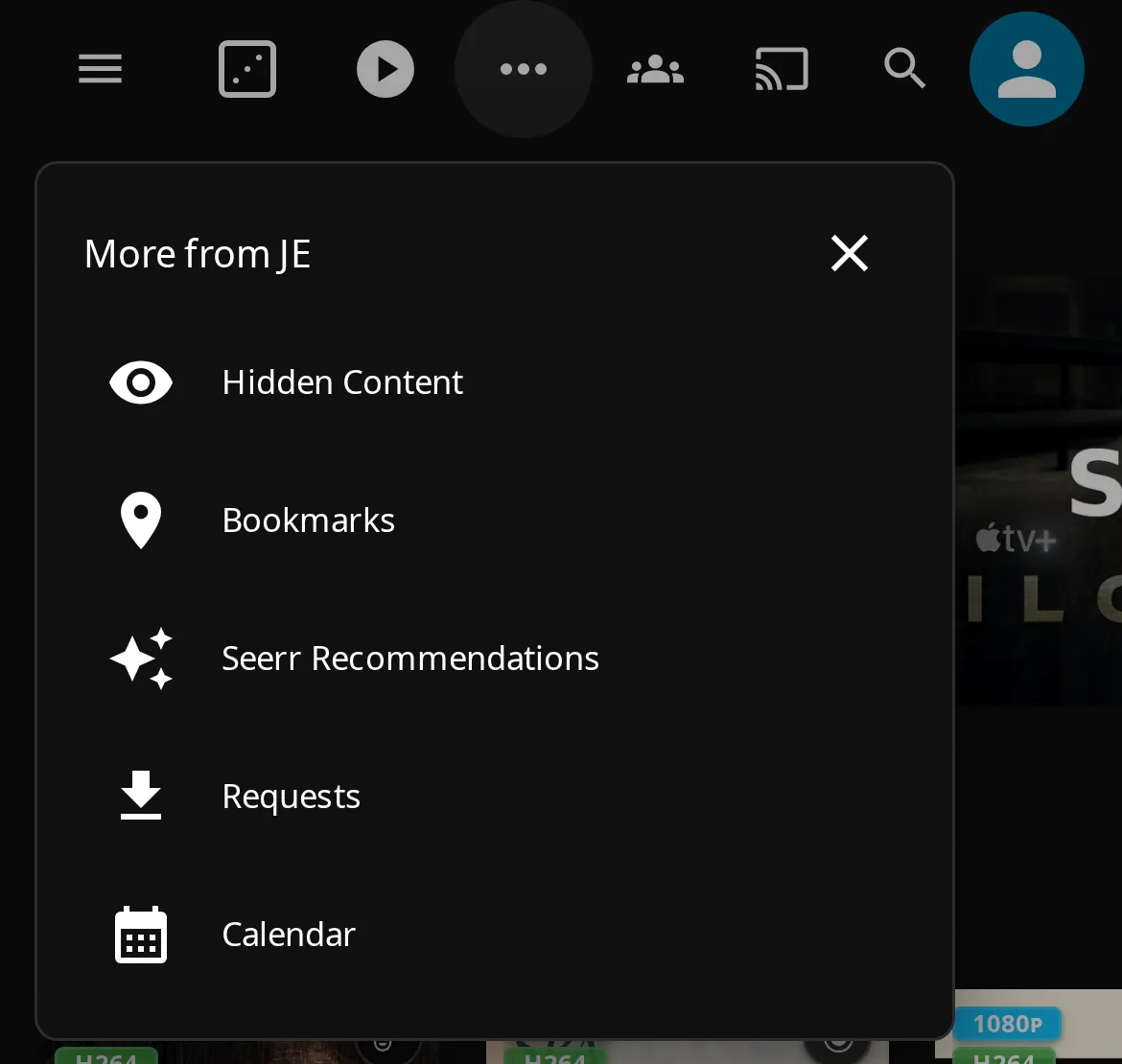
There is no separate setting for this automatic layout. Each shortcut follows its feature's availability. Random gets first priority; other enabled shortcuts stay visible while there is room.
Random Button
Use the dice button to pick a random title when you cannot decide what to watch. It opens the title's detail page without starting playback.
How to use:
- Open Random Button Settings to choose item types and a source. Keep at least one of Movies and Shows selected.
- Click the dice button or press the stock R shortcut outside the player. Inside the player, R resets playback speed.
Personal settings in Random Button Settings:
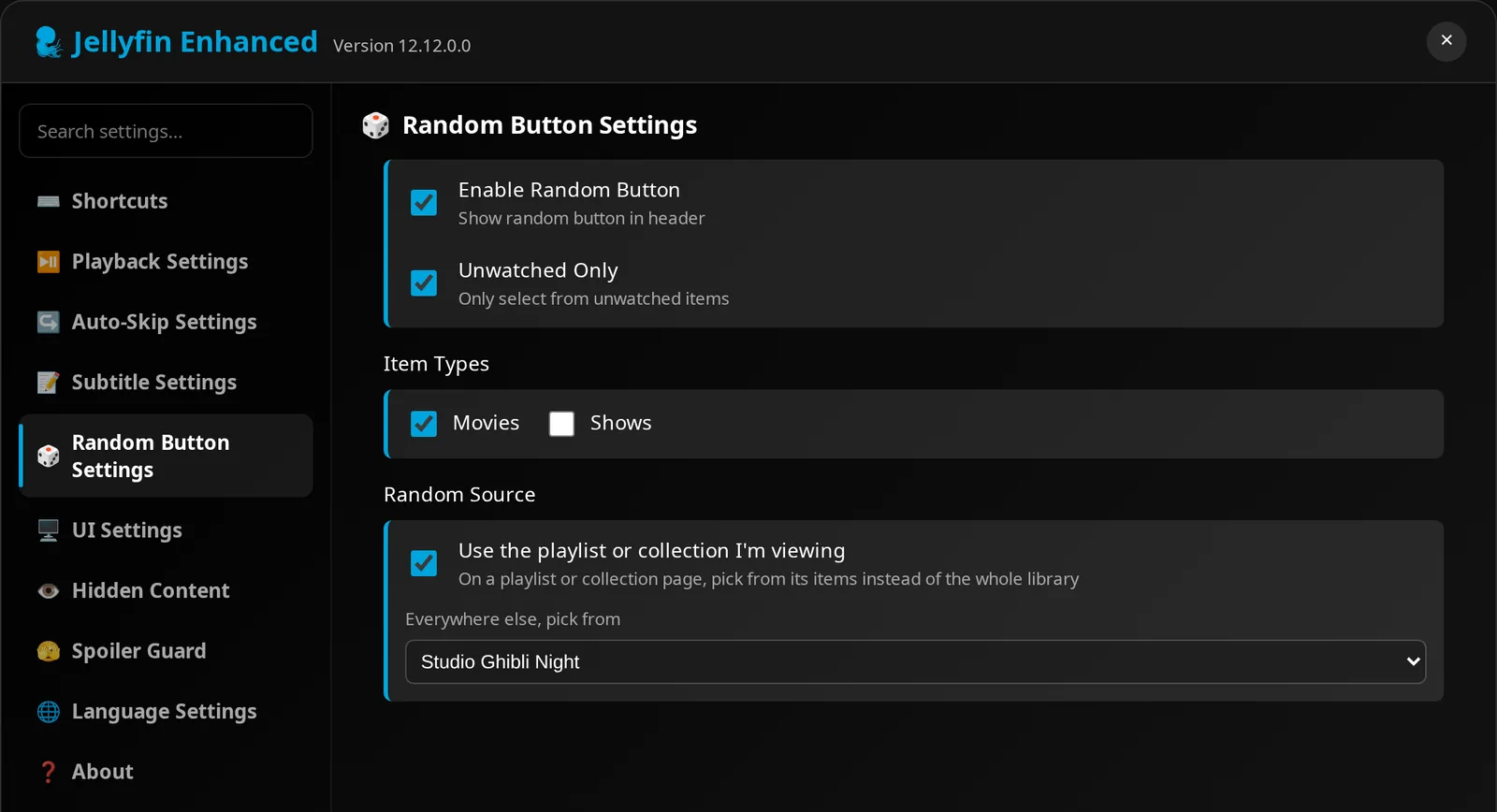
Every option and default is in Enhanced settings → Random Button Settings.
Matching initial defaults are under admin Display → Random Button; every option and default is in Enhanced settings → Random Button Settings.
How random selection works
JE samples up to 100 randomly ordered candidates, then applies the unwatched filter. Playlists and collections supply only their direct children; the whole-library query includes nested items.
If a pinned source is unavailable or a playlist/collection sample has no eligible titles, JE falls back directly to the library and shows a toast. It bypasses any other pinned source. An empty eligible library sample shows an error. An empty sample does not mean every item in the source is ineligible.
Content Management
Keep titles you do not want to see out of your browsing lists, or clear individual home rows without changing your playback progress.
Hidden Content System
Hide titles from the browsing lists whose filters you enable. Your hidden list follows your account across devices.
Hiding does not restrict access
You can still open hidden titles directly and play them. “Everywhere” means only the browsing areas whose filters are enabled.
How to hide:
- Ask an administrator to enable Pages → Hidden Content → Enable Hidden Content.
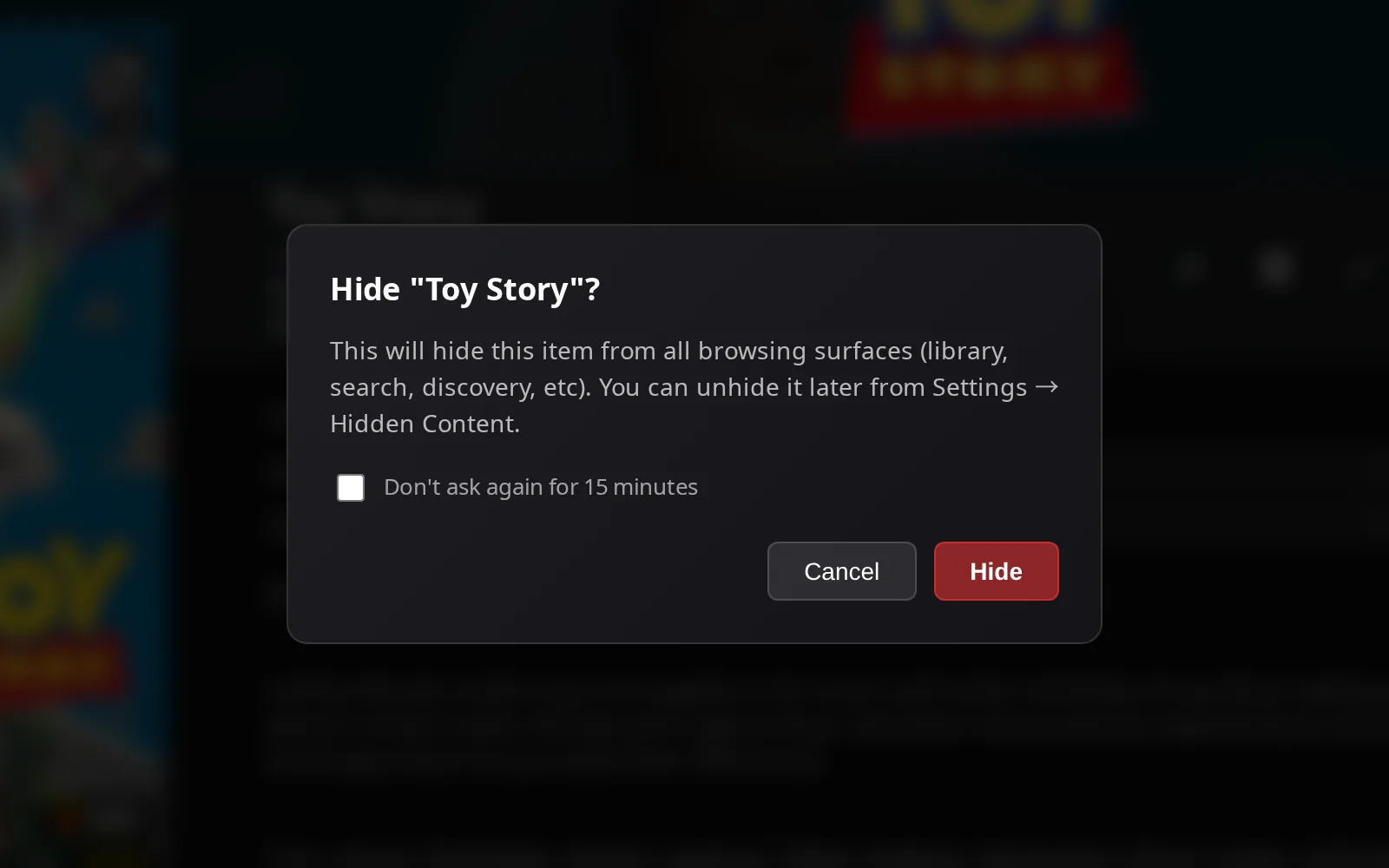
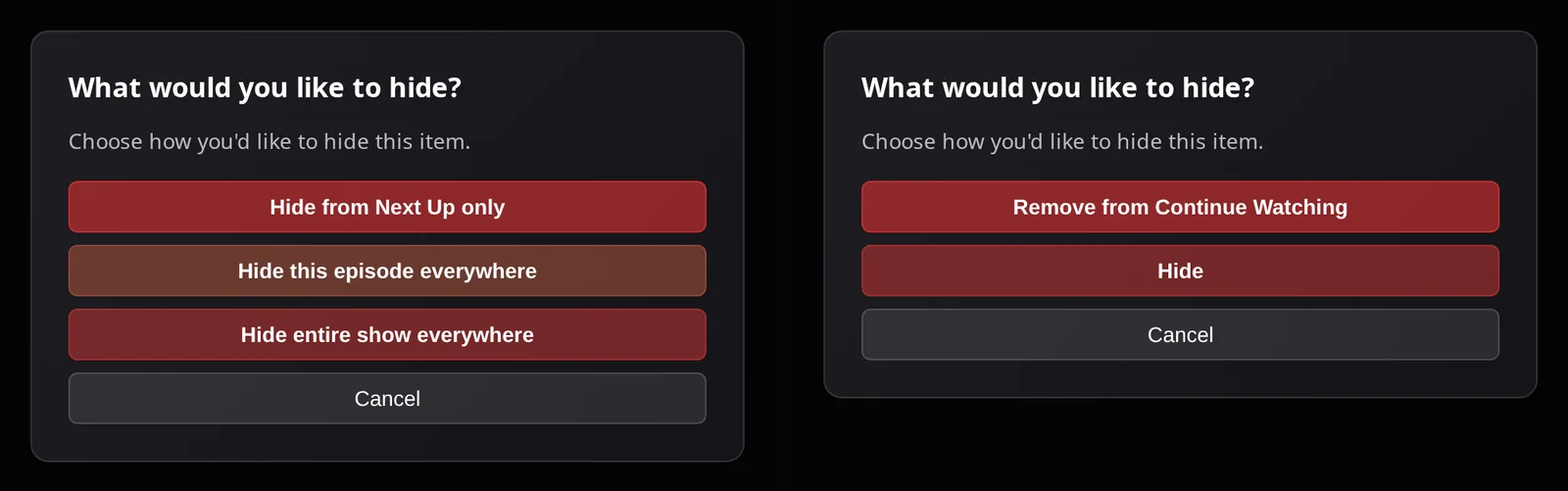
- Open a movie, series, season, or episode detail page and click the open-eye Hide button. Movies, series, and seasons use a standard confirmation. An episode with a known series offers Hide this episode everywhere or Hide entire show everywhere.
If Show in Library Views is on, you can also use card eye buttons. In Continue Watching or Next Up, their choice dialog can limit a hide to that row: Remove from Continue Watching or Hide from Next Up only. These choices are separate from detail-page hiding.
An already-hidden item shows a crossed-out eye; use it to Unhide. After a hide, the Undo toast lasts eight seconds. A new hide replaces the previous toast.
How to manage: Open Hidden Content through its configured entry, or choose Manage Hidden Content in the personal section. The page presents Movies, expandable Series groups, and Cast / Actors. When the page is placed as a native Home tab, a Custom Tabs tab or a Plugin Page, Manage Hidden Content opens a searchable list of your hidden items in a dialog instead.
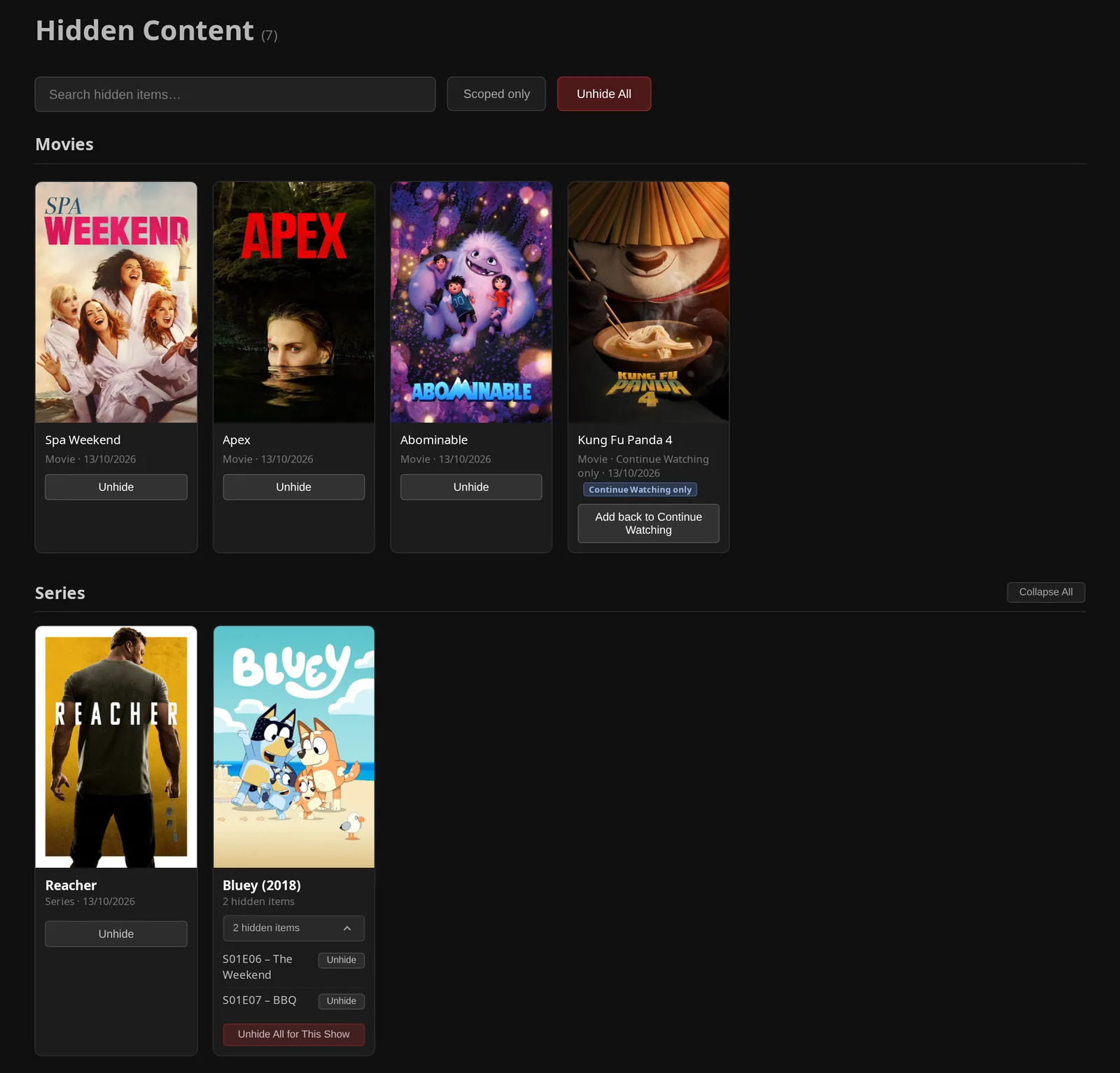
- Search hidden items… matches item and series names.
- Scoped only shows non-global entries, rather than selecting a particular scope. Badges distinguish Continue Watching only, Next Up only, and Home sections only.
- Expand All / Collapse All opens or closes series groups.
- Unhide restores an entry; Add back to Continue Watching restores a Continue Watching-only entry. Unhide All for This Show clears a series group.
- Unhide All clears every entry on the page, even if search or Scoped only currently shows a subset. Entries hidden elsewhere since the page last loaded or saved your list stay.
Personal settings in the Enhanced panel's Hidden Content section start from admin Pages → Hidden Content defaults. Button visibility and filtering are separate settings. Every option, default and matching admin label is in Enhanced settings → Hidden Content.
Admin settings in Pages → Hidden Content; every option and default is in Enhanced settings → Hidden Content administration.
Hidden Content details
Plugin Pages uses /JellyfinEnhanced/hiddenContentPage. For manual Custom Tabs setup, use:
Standard confirmation offers Don't ask again for 15 minutes. This preference is local to your browser and specific to your account. Show Confirmation Dialog controls the persistent preference. Episode/show and home-row choice dialogs still appear when you need to choose an action.
The other filter labels are identical in the personal and admin interfaces. Hidden Content preferences are saved with your per-account list on the server in hidden-content.json, separately from ordinary personal settings. If your list could not be loaded when the page opened, nothing shows as hidden and hides, unhides and preference changes are refused with a message until you reload, so the stored list is never replaced. Each change is saved onto your list as it is stored at that moment, so hides, unhides and preference changes made meanwhile on another device or by an administrator, and Continue Watching hides removed when you resumed playback, are kept; the page then shows the saved list. The standalone #/hidden-content route opens only with native Home tab and Custom Tabs placement off and no detected Plugin Pages integration for Hidden Content. See the standalone-route table for navigation conditions.
Cast hiding saves the person as a hidden item; it does not hide every movie or show featuring that person. A series hide can suppress its episodes and seasons through their series ID.
Server filtering also affects clients consuming covered Jellyfin list endpoints, even if they cannot show JE's eye buttons. Native filtering matches Jellyfin item/series IDs; Seerr filtering matches TMDB IDs. A Seerr-only hide does not guarantee hiding a later-added library item.
Calendar filtering also matches normalized names, which can collide. Deleting a library item removes entries for its Jellyfin ID. Home Screen Sections' synthetic discovery/upcoming results are not equivalent to JE's integration results.
Remove from Continue Watching / Next Up
Remove an item from a home row while preserving its playback position and watched state. Row-specific hides are stored server-side for your account.
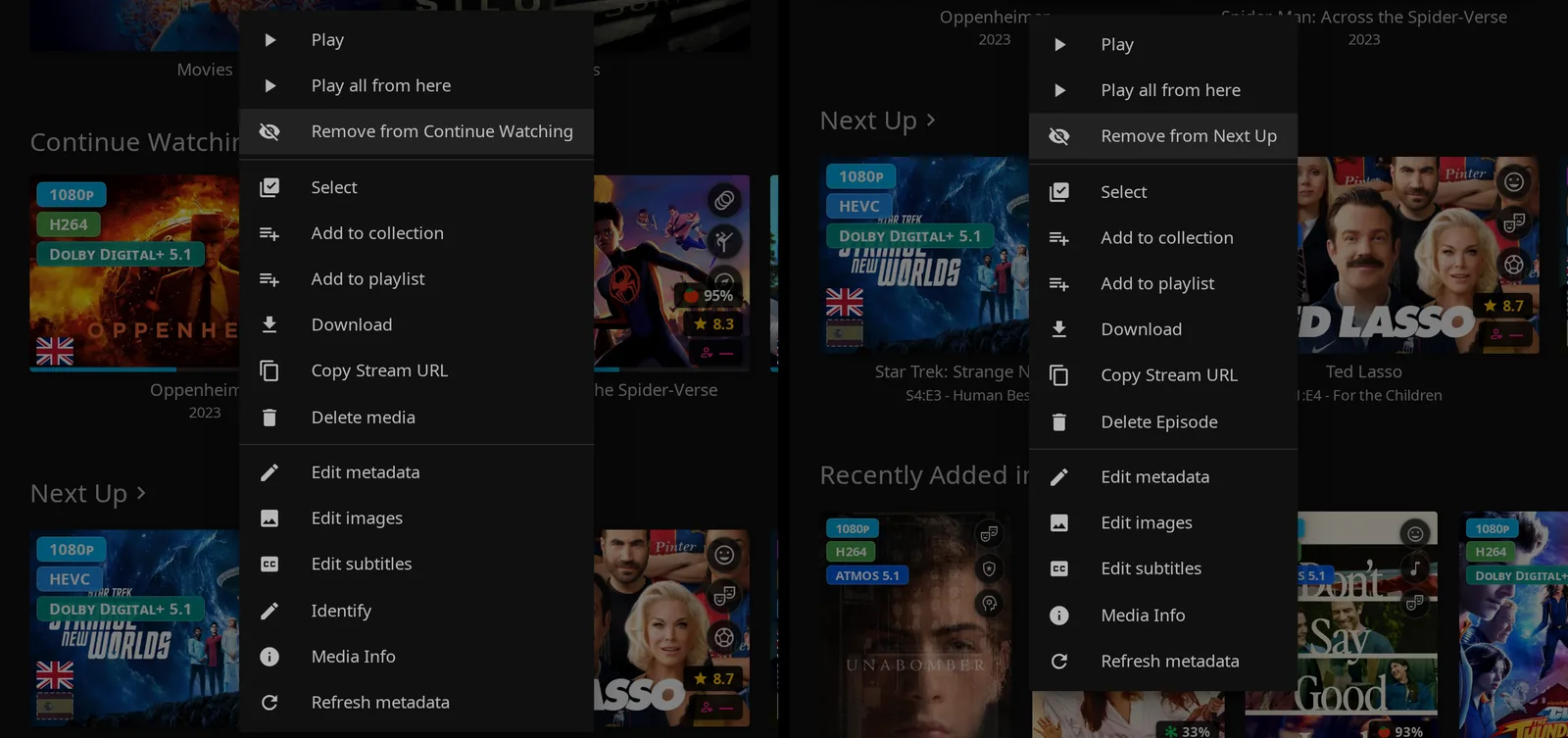
How to use:
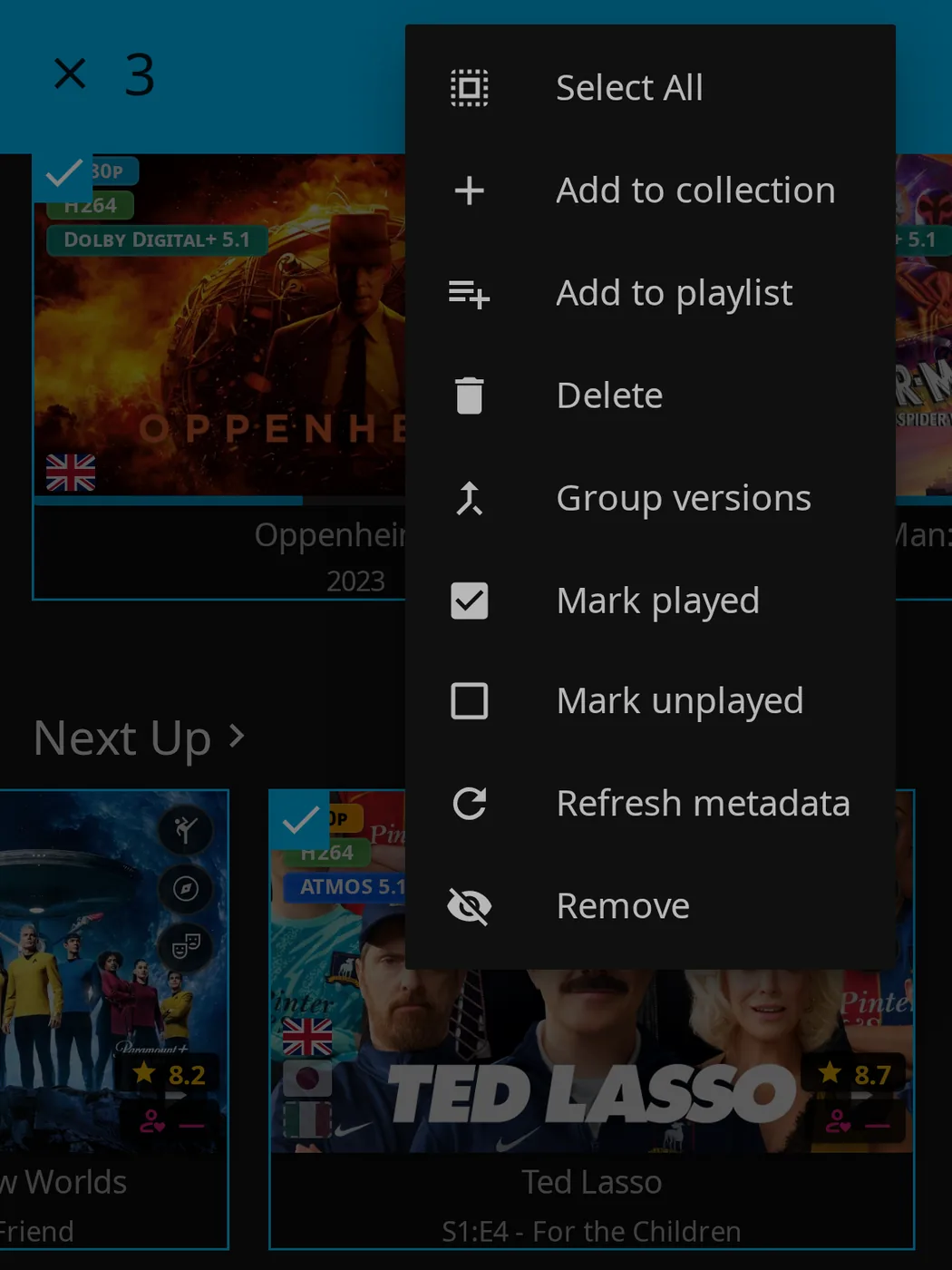
- Open an item's ⋯ menu, right-click menu, or long-press/multi-select menu in Continue Watching or Next Up.
- Choose Remove from Continue Watching or Remove from Next Up. Mixed selections from removable rows use Remove; selections from one row use its specific label.
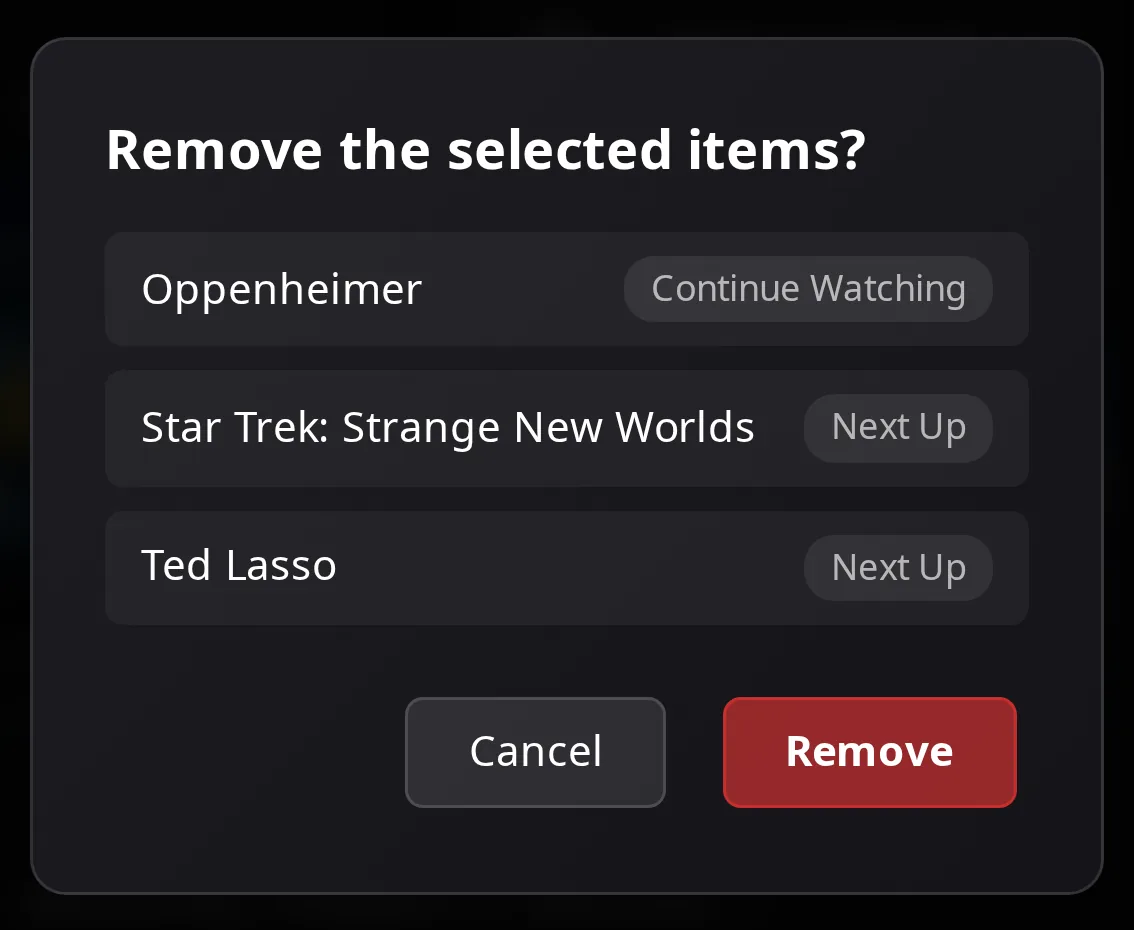
For multiple removable items, confirm the list of titles and rows. A single removable item needs no bulk confirmation.
| Setting | Default | What it does |
|---|---|---|
| Enable "Remove from Continue Watching" — admin Display | Off | Enables server row filtering and supplies the initial personal removal-button default. |
| Add Remove from Continue Watching & Next Up Buttons — personal UI Settings | Off | Adds the menu actions. Turning it off retains earlier hides. |
To restore entries manually, enable the full Hidden Content feature and use its management page: Add back to Continue Watching for Continue Watching-only entries, Unhide for Next Up or combined entries. Confirm with Unhide in the dialog.
Keep removed items out of the row
Lasting filtering needs the server's removal setting or Enable Hidden Content, plus personal Enable Content Hiding and the relevant Filter Continue Watching / Filter Next Up setting.
Row removal and restoration
With both server features off, a personal button can save the hide and remove the current card, but later server responses are not filtered. First-time removal enables personal filtering; existing Hidden Content preferences are retained.
Items outside removable rows are ignored, although a card carrying a playback position can be recognized as Continue Watching. Requests run separately, so a batch can partly succeed. Canceling or total failure preserves the selection. Successful removals also hide empty home sections. Home Screen Sections rows, including its combined Continue Watching/Next Up row, are supported.
Removing the same item from both rows combines the hide; global and already-combined hides are preserved.
Resuming clears a matching Continue Watching-only hide. A combined hide becomes Next Up-only, restoring Continue Watching visibility. Next Up-only and global hides remain until removed manually. Episode playback can also match a hide saved against its series.
Admin: Other Users' Hidden Content
As an administrator, you can review and manage other users' hidden lists from the same Hidden Content page.
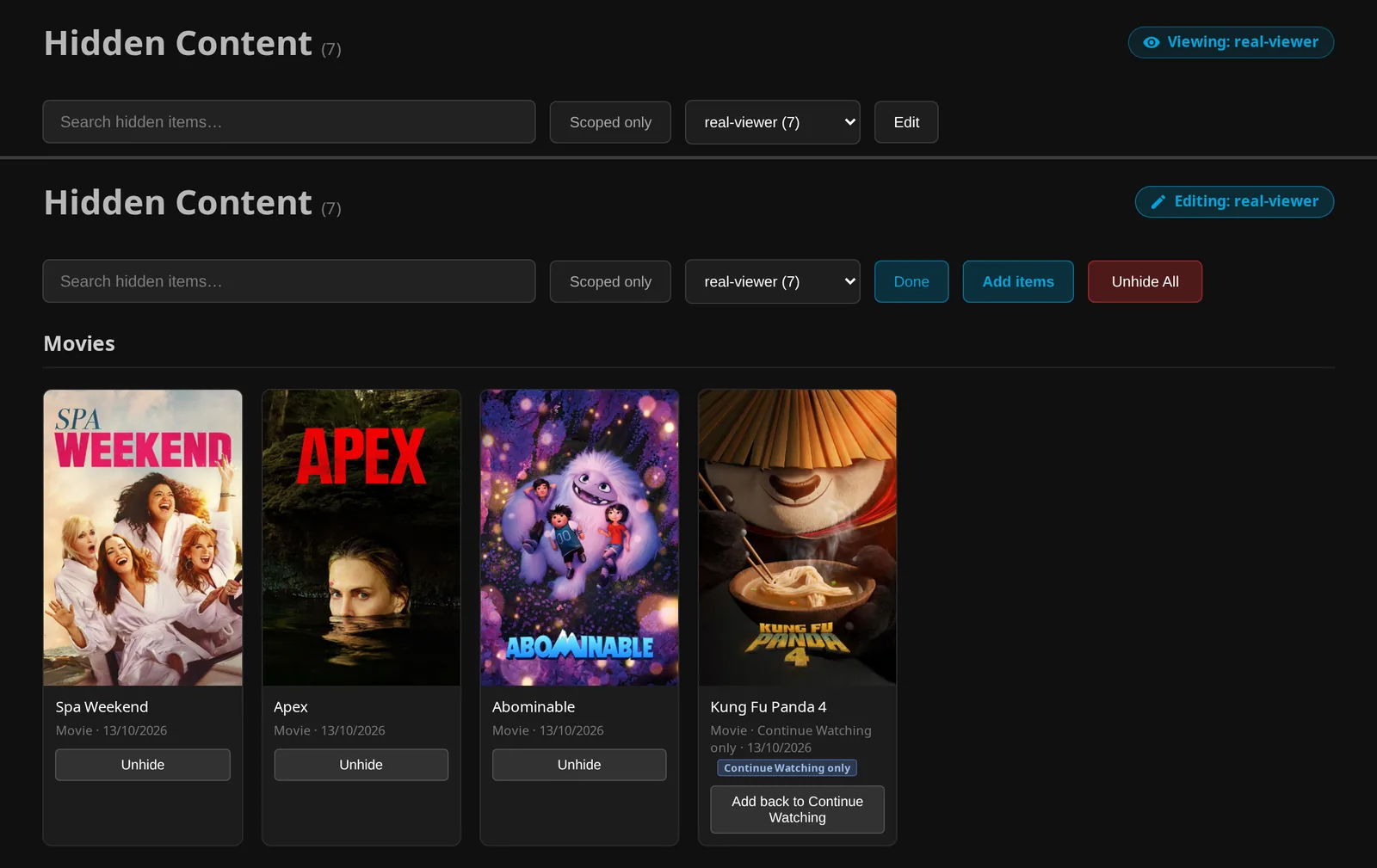
How to use:
- Select a user from View user's hidden content. The picker appears when another user has hidden entries. My hidden content returns to your own list.
- Choose Edit to restore entries, or Add items to search for titles. Enter at least two characters. In library and Discover distinguish sources.
- Click Hide to add a global hide. Already hidden entries are skipped, preserving the user's existing hide.
- Choose Done to return to read-only mode. Unhide All in edit mode clears the selected user's entire list.
Admin Pages → Hidden Content → Admin Controls; every option and default is in Enhanced settings → Hidden Content administration.
Cross-user access and search
Access is checked server-side. Switching users clears search/scoped filtering and opens a read-only list with Viewing: {userName}.
JE requests up to 24 library matches using the admin's library access and also searches Seerr when available.
Playback & Controls
Use shortcuts, bookmarks, and player preferences to make watching more comfortable.
Advanced Keyboard Shortcuts
Navigate Jellyfin and control local video playback without opening menus. Admin bindings supply defaults; you can override or disable individual JE actions for your account.
How to use: Press the keys below outside text input fields. To customize them:
- Open Shortcuts in the Enhanced panel.
- Click or focus a binding to show Waiting…, then press a key combination.
- While listening, use Backspace to restore the current admin default, or Del or the disable control to mark the action Disabled. Re-enabling restores the admin default.
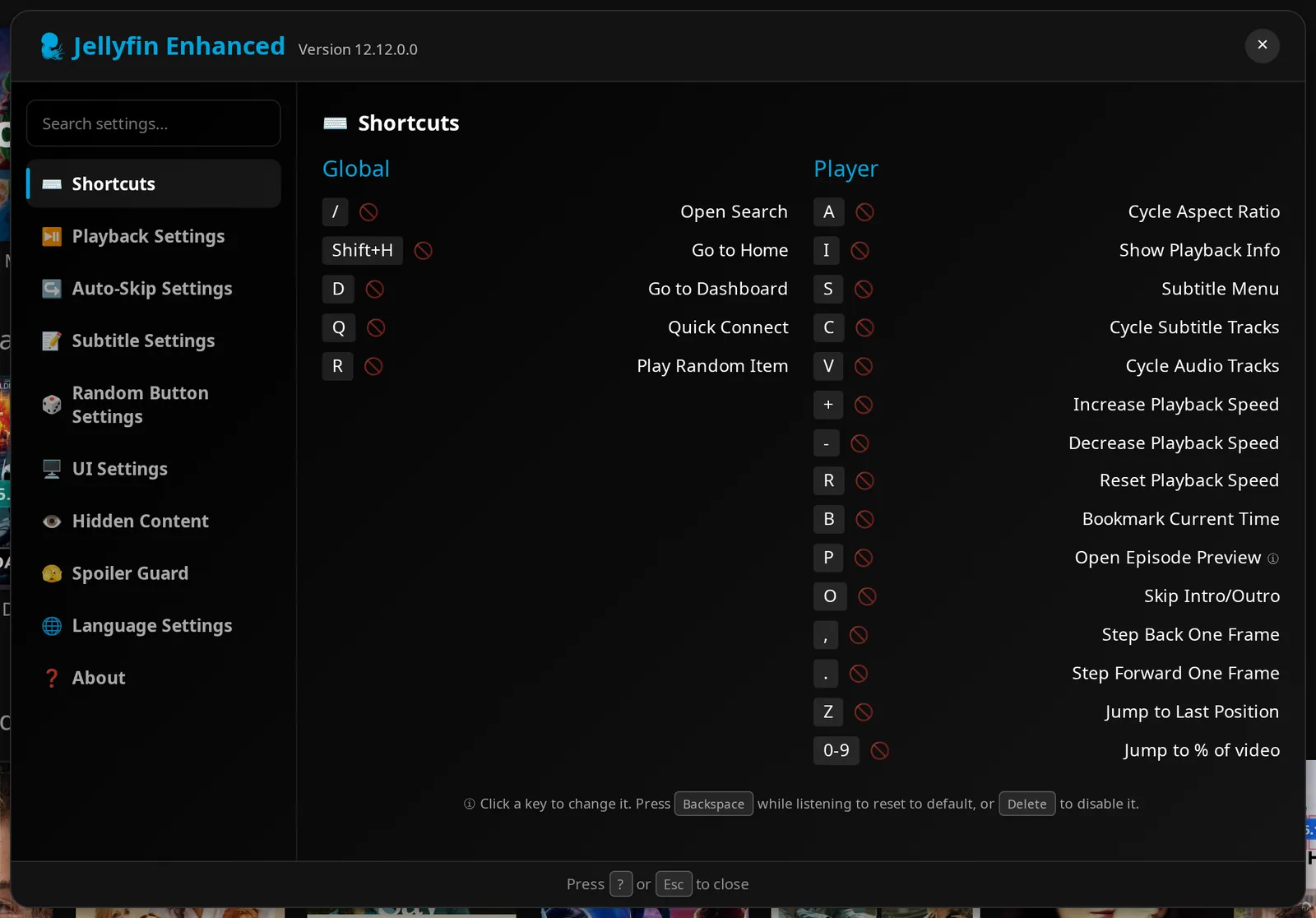
The full list of stock keys, with what each does, is in Enhanced settings → Shortcuts.
Jellyfin Desktop and Jellyfin Media Player
These apps play video with their built-in mpv player instead of in the page, so JE works through Jellyfin's own player controls there. Jump to Last Position, Jump to %, Skip Intro/Outro and bookmarks use the position bar. Speed and aspect ratio go through the player's settings menu, so they step through the speeds and aspect ratios that player offers. Frame stepping and Subtitle Sync aren't available, and say so when pressed.
| Setting | Default | What it does |
|---|---|---|
| Disable Keyboard Shortcuts — admin Keyboard | Off | Disables ordinary JE shortcuts and hides Shortcuts. The ? panel shortcut still works outside text fields. |
| Shortcuts Panel Autoclose Delay (ms) — admin Playback | 15000 | Closes the panel after the configured delay while the pointer is outside it. |
Shortcut behavior and admin bindings
Modifier-only presses are ignored. Conflicts and reserved native player bindings are rejected with a red shake; a dot marks personal overrides. Changes save in your server-side shortcuts.json. If your overrides could not be loaded when the page opened, the keys are shown read-only until you reload.
Administrators can set server bindings in Keyboard → Keyboard Shortcuts using its recorder, then Save Settings. While recording there, Del disables an action and Backspace restores its stock binding. Existing personal overrides still take precedence.
Held C or V does not repeatedly cycle tracks. Frame stepping uses media frame-rate metadata. When it is missing, JE falls back to 24 fps and shows a notice.
Cycle Aspect Ratio stores Jellyfin's aspect ratio in this browser and adjusts graphical-subtitle canvases. Show Playback Info refreshes the statistics overlay every second while open. Skip Intro/Outro seeks past the segment containing the current position, including other segment types, and falls back to an available native skip button. It is independent of auto-skip settings.
Smart Bookmarks
Save moments in a video and return to them from timeline markers or a library-wide page. Your bookmarks are personal and stored on the server.
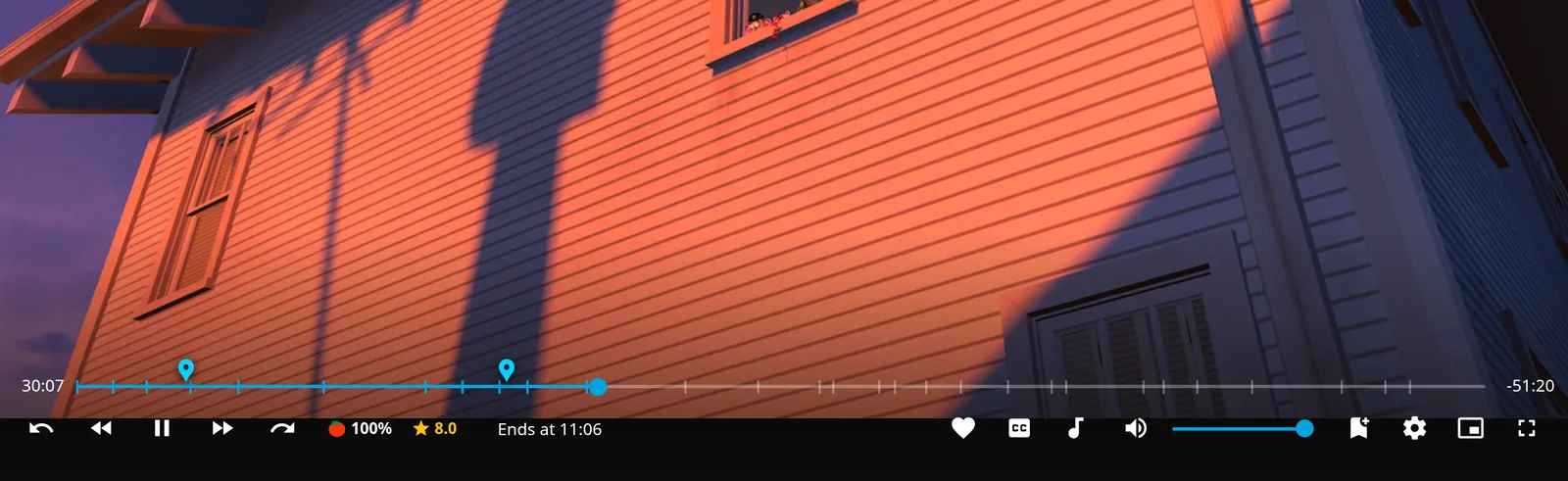
How to use:
- During playback, press B or click the bookmark-add player button.
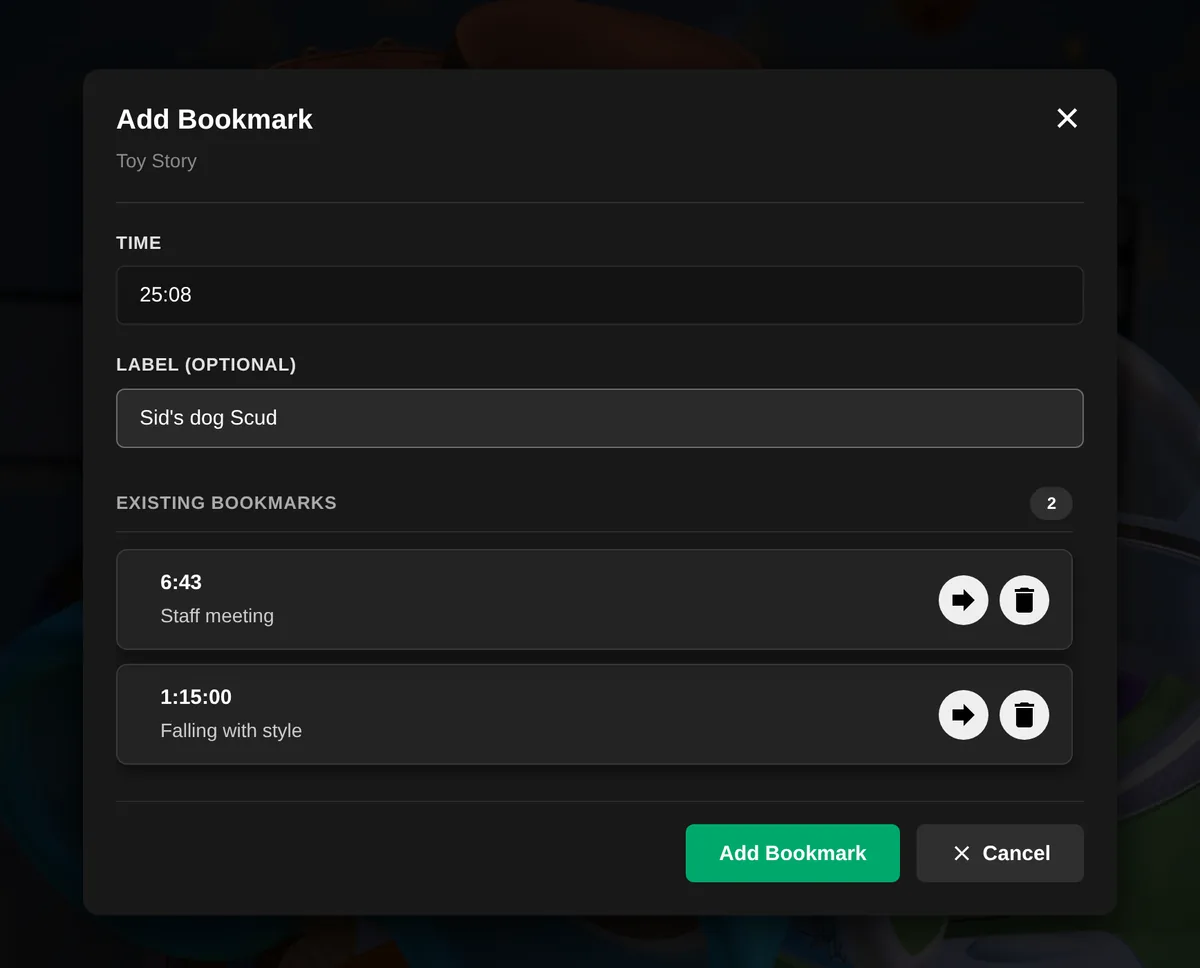
- In Add Bookmark, Time is captured when opening begins and is read-only. Enter Label (optional), up to 100 characters.
- Click Add Bookmark to save. Click its timeline marker to jump there. Existing Bookmarks also offers jump and delete controls.
- Open Bookmarks through its navigation entry. Use Movies, Series, or Others; the last group covers items outside Movie/Episode groupings. Click a timestamp/play icon to start there. Edit a time in seconds or
HH:MM:SSand change its label.
Admin Pages → Bookmarks; every option and default is in Enhanced settings → Bookmarks.
Bookmark storage and matching
Plugin Pages uses /JellyfinEnhanced/bookmarksPage. For manual Custom Tabs setup, use:
Your bookmarks are stored in bookmark.json. The standalone #/bookmarks route opens only with native Home tab and Custom Tabs placement off and no detected Plugin Pages integration for Bookmarks. See the standalone-route table for navigation conditions.
Markers for the exact item are cyan. If that item has no exact bookmarks, matching TMDB/TVDB IDs can provide orange fallback markers with File may have changed since bookmark was created.
Episode matching checks saved season/episode identity when present. Legacy records without it can match by provider ID alone. Timestamps are reused without adjusting for different edits of the video.
Merge duplicates, adjust timing, or recover a replaced file
Find Duplicates → Merge to Primary copies matching bookmarks to the first item key in the stored duplicate group. “Primary” is not a detected preferred Jellyfin version. Originals remain; repeated merges can create copies. Episode duplicate/replacement matching preserves available season/episode identity.
On the resulting item, use Adjust Offset, enter positive or negative Time Offset (seconds), then Apply Offset. Only copied records still marked as synchronized are shifted, with times clamped at zero. Successful updates clear their synchronization markers; a zero offset clears markers without shifting times.
For an Orphaned item, use Find Replacement, select a matching library item, then Migrate Bookmarks. Migration moves records and removes the old ones after a successful save. The replacement button needs a saved TMDB ID; matching can also use TVDB. Search checks at most the newest 500 candidates, so an older replacement may not appear.
Failed saves show feedback and roll back changes; a failed migration preserves the original records. Bookmark writes are serialized within the client.
Warning
Individual deletion is immediate. Delete All asks for confirmation and has no undo. Recover replacements before Cleanup Orphaned: cleanup treats failed item lookups as missing, so network or access failures can cause unintended deletion. There is no bookmark export/import control.
Custom Pause Screen
After you pause and stop interacting, JE can display artwork and media information over the video.
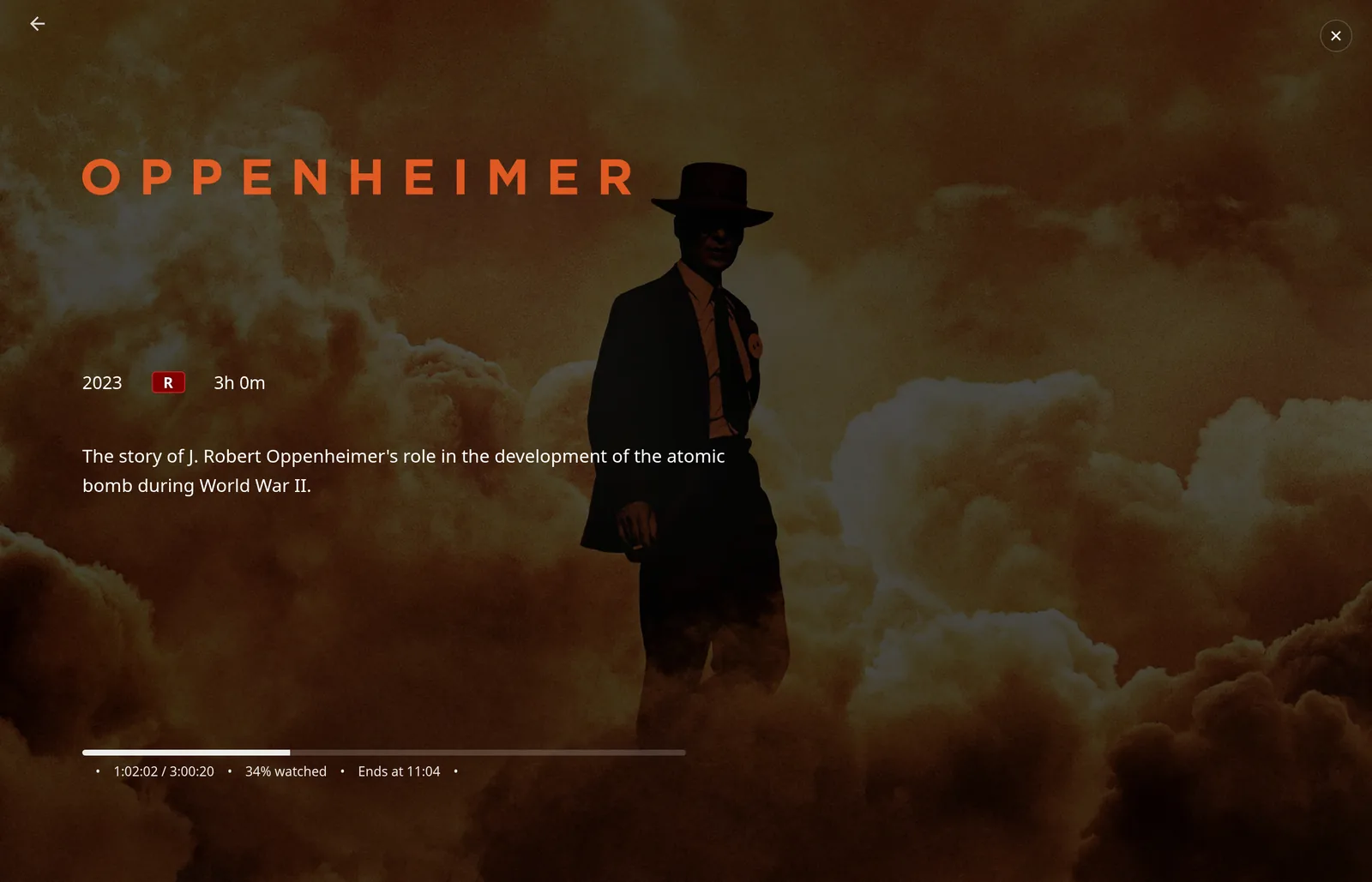
How to use:
- Enable Custom Pause Screen in Playback Settings.
- Pause and wait for the idle delay. Interaction postpones its appearance; moving the pointer after it appears leaves the overlay visible.
- Press Space / Enter or click/tap the background to resume. × dismisses without resuming and prevents another overlay during that pause.
| Setting | Default | What it does |
|---|---|---|
| Enable Custom Pause Screen — admin Playback → Player Behaviour | On | Supplies the initial personal default. |
| Custom Pause Screen — personal Playback Settings | On | Enables the overlay; reload after changing enablement. |
| Delay before showing (seconds): — personal Playback Settings | 5 | Idle delay while paused; accepts integers from 1–60 and updates the running delay. |
The overlay shows the year, official age rating, runtime, description, elapsed/total time, watched percentage, and estimated Ends at time. See CSS Customization for styling.
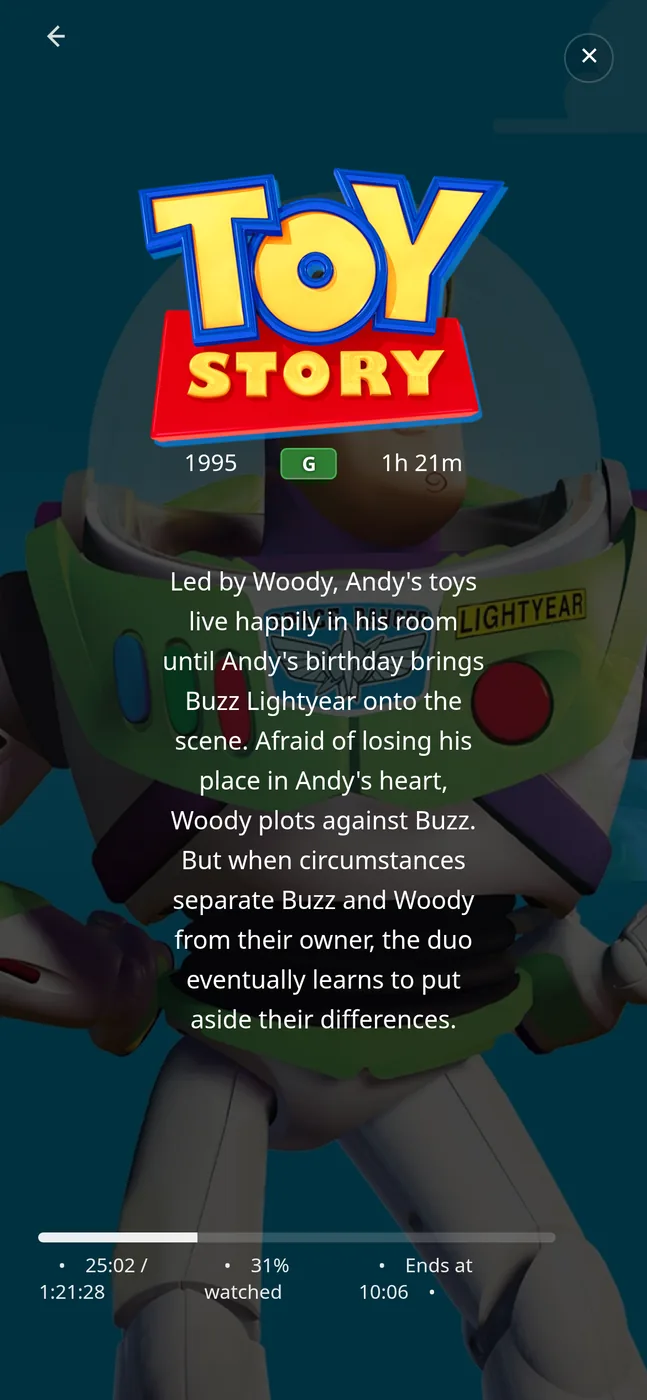
Pause-screen artwork and layout
Logo, disc, and blurred backdrop depend on available item/parent/series artwork. A missing logo does not guarantee a text-title fallback. Disc art hides on narrow layouts, can return in short landscape layouts, and stops rotating with reduced-motion preferences.
Smart Playback
Manage tab-switch playback, temporary speed boosts, and automatic intro/outro skipping in the browser player.
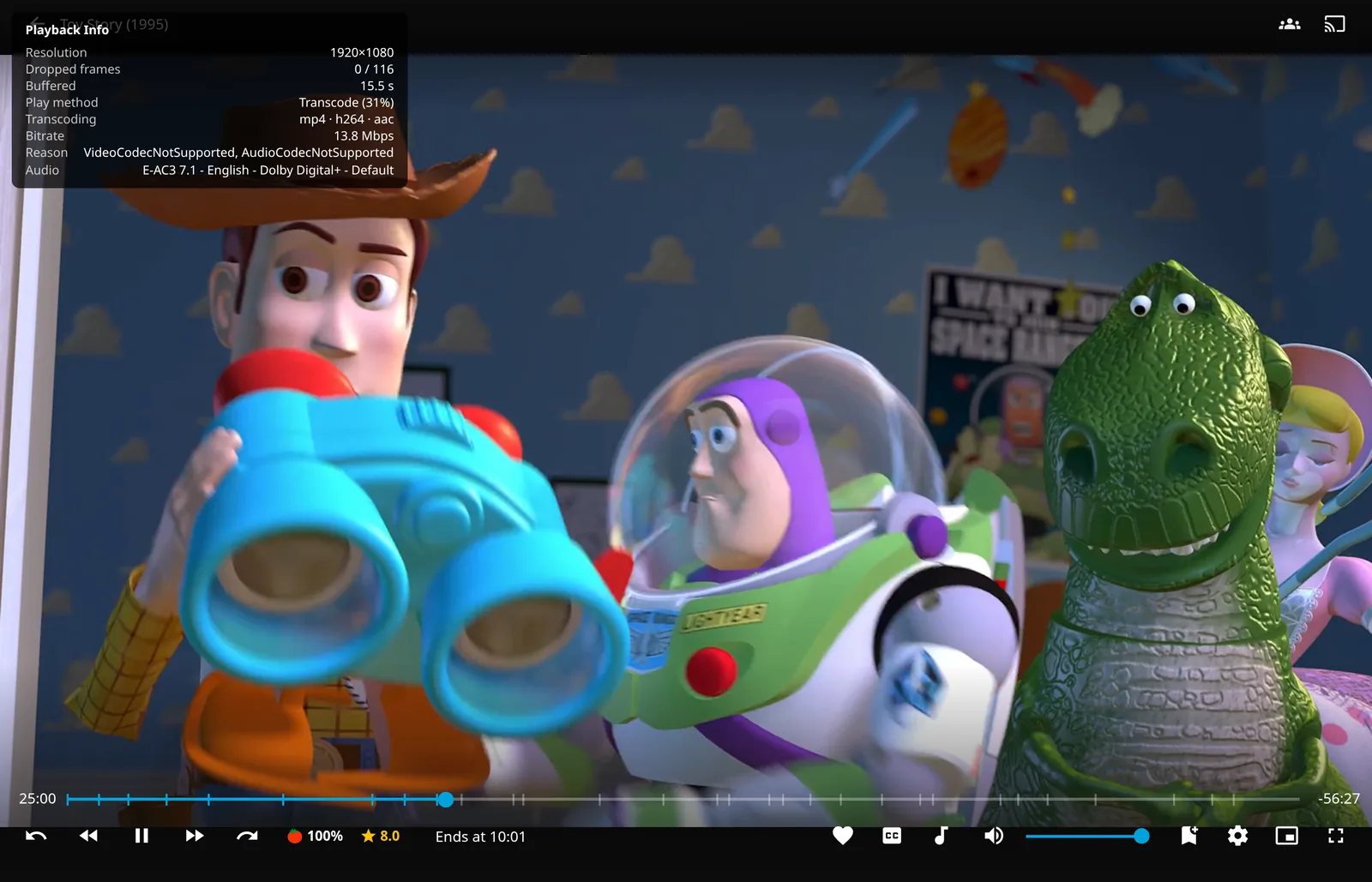 The player also shows rating chips, a bookmark button, and the optional Playback Info overlay.
How to use: Open Playback Settings for tab-switch and hold controls, or Auto-Skip Settings for intros/outros. Admin defaults are under Playback → Player Behaviour and Playback → Auto-Skip.
- For continuous Picture-in-Picture playback, turn off Auto-pause.
- For temporary 2× speed, hold the video background with the left mouse button or touch for 500 ms. Release or cancel to restore the previous speed. Hold only on the video background.
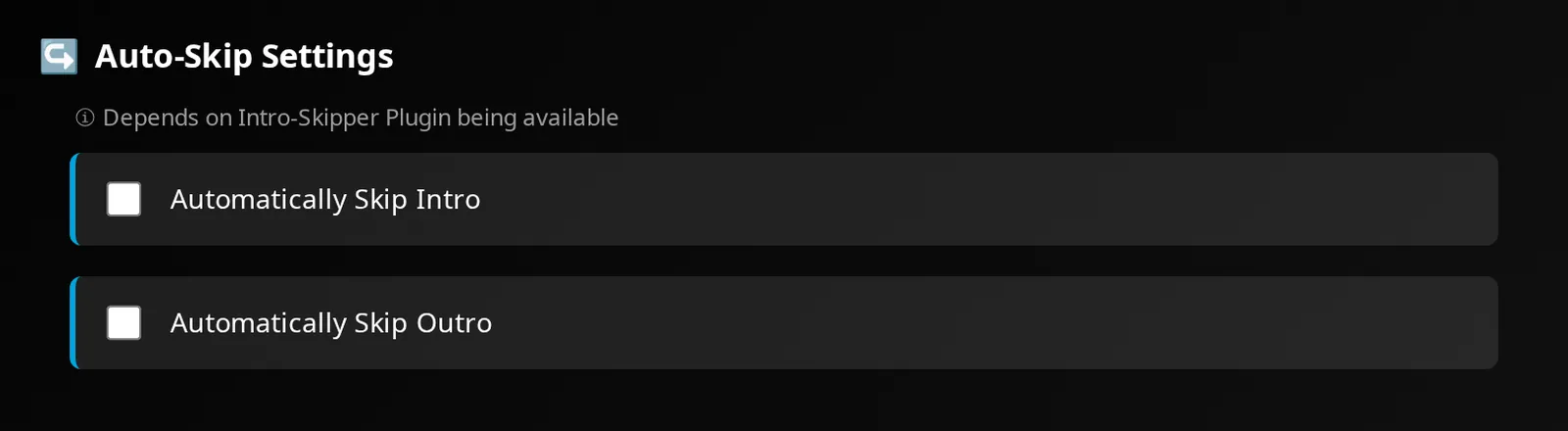
For auto-skip, you need Jellyfin's stored media segments from a provider such as Intro Skipper.
| Setting | Default | What it does |
|---|---|---|
| Auto-pause — personal; Auto-pause on tab switch — admin | On | Pauses playing video when the browser tab is hidden. |
| Auto-resume — personal; Auto-resume on tab switch — admin | Off | Resumes only when JE recorded that it paused on leaving; does not resume a video already paused manually. |
| Auto Picture-in-Picture — personal; Auto Picture-in-Picture on tab switch — admin | Off | Requests PiP when leaving and closes the PiP window JE opened when returning. |
| Long Press for 2x Speed (β) — personal; Long press/hold for 2x speed β — admin | Off | Temporarily boosts speed while holding. Reload after first enabling. |
| Automatically Skip Intro — personal; Auto-skip Intro — admin | Off | Seeks to the end of stored Intro segments. |
| Automatically Skip Outro — personal; Auto-skip Outro — admin | Off | Seeks to the end of stored Outro segments. |
Playback behavior and limits
Picture-in-Picture: Auto-pause pauses playing video when the document is hidden. Auto-pause and PiP can run on the same visibility change. PiP needs browser support, loaded video metadata, and browser permission/activation. A request can be refused. Edge/Chrome may open their own automatic PiP; JE closes only the window it opened itself.
Temporary 2× speed: A speed indicator appears during the boost. Activation on a paused video attempts playback. Moving more than ten pixels before activation cancels the pending hold. OSD controls and the pause overlay are excluded, but the Enhanced panel is not reliably excluded.
Auto-skip: JE seeks to the exact stored segment end. It does not depend on an English button label or require Jellyfin's segment action to display a skip button. Segments need start/end boundaries and must last at least one second.
Seeking back inside a segment just skipped leaves you there. Seek before its start and play through it to skip again. Recap, Preview, and Commercial actions remain Jellyfin's responsibility; JE's automatic toggles cover only intros/outros. Outro skipping does not implement a separate auto-next feature; Jellyfin controls next-episode autoplay.
Failed segment retrieval or ambiguous playing-item identity can leave skipping inactive. Jellyfin stores segments per item, so multiple versions with different timings can use boundaries from the primary version.
Auto-skip uses a local seek
Direct play/direct stream and HLS are suitable. Progressive transcoding can stall beyond produced data, and SyncPlay peers do not follow this local seek.
Customizable Subtitles
Style text subtitles with presets, colors, effects, and a live position preview. These preferences do not change Jellyfin's saved subtitle appearance settings.
How to use:
- During playback, open Subtitle Settings.
- Choose presets or edit Text / Background, and preview the result. Changes apply to supported text tracks.
- For positioning, set Jellyfin's Subtitle styling to Custom in user subtitle preferences, then click or drag the Position grid.
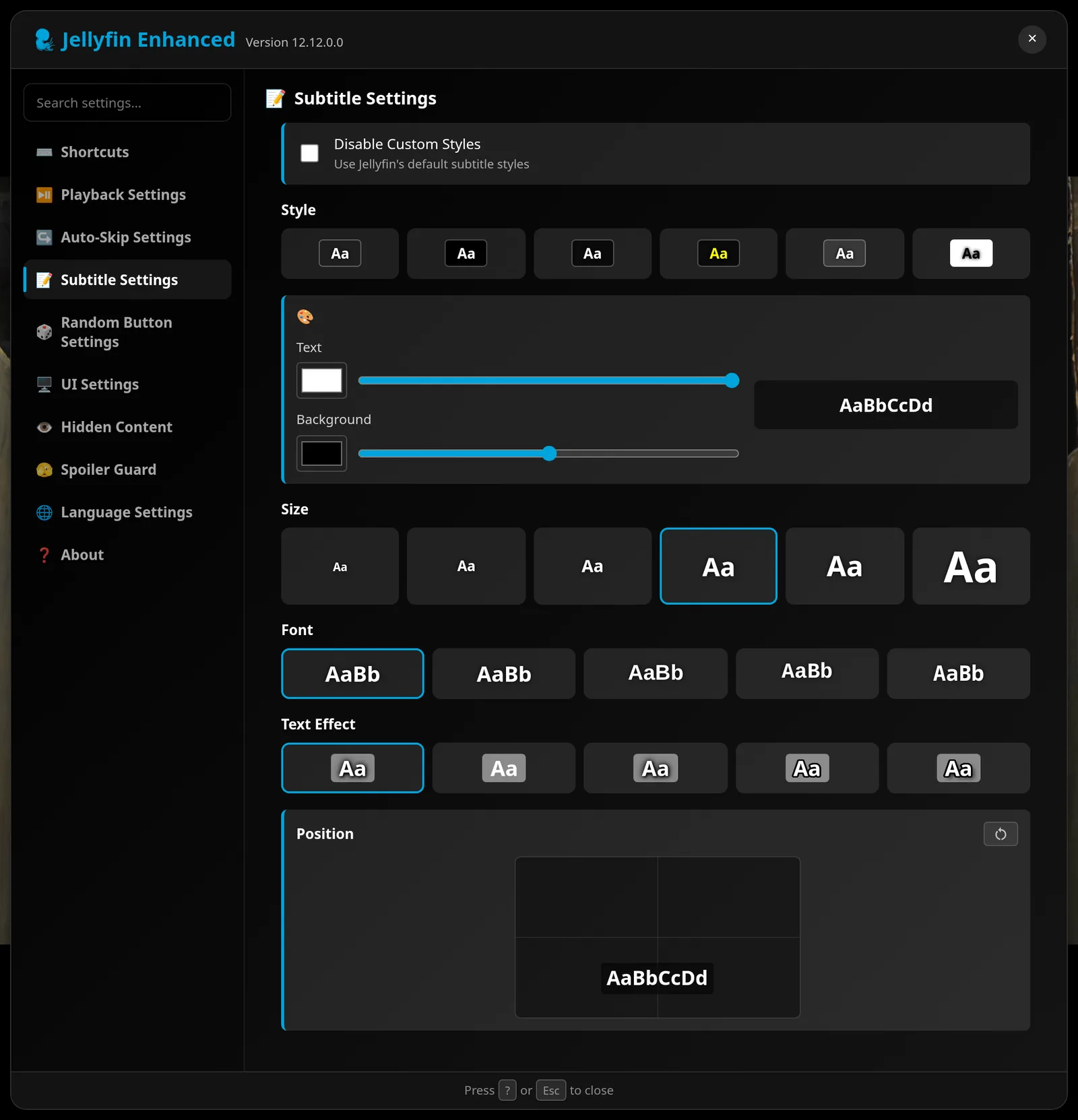
Personal Subtitle Settings, with initial defaults from admin Playback → Subtitles:
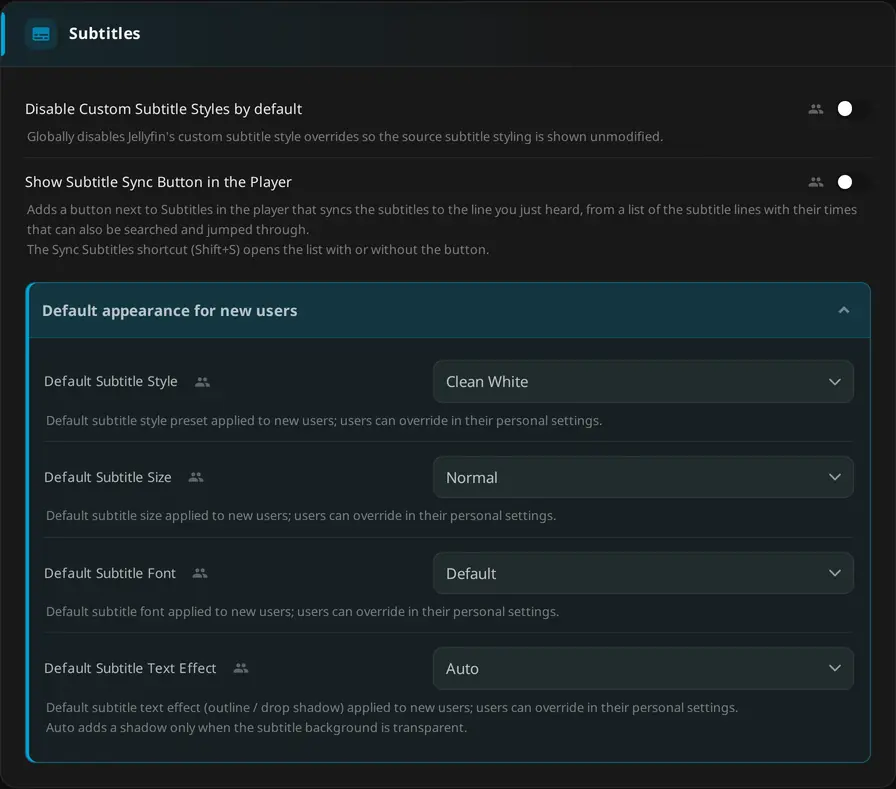
Every option and default is in Enhanced settings → Subtitle Settings.
- Style: Clean White, Classic Black Box, Netflix Style, Cinema Yellow, Soft Gray, High Contrast.
- Size: Tiny, Small, Normal, Large, Extra Large, Gigantic.
- Font: Default, Noto Sans, Sans Serif, Typewriter, Roboto (Roboto Mono).
- Text Effect: Auto, None, Shadow, Outline, Outline + Shadow.
For white text on a semi-transparent black box like the example below, set Text to #FFFFFFFF and Background to #00000080. The last two digits set opacity.

To stop styling, turn on personal Disable Custom Styles and reload. To change the starting preference for everyone, save admin Disable Custom Subtitle Styles by default. Use Apply all plugin settings to every user only if you intend to replace existing personal preferences.
Choose a supported text track
ASS / SSA, PGS, VobSub / DVD, DVB bitmap, and burned-in subtitles do not pass through the text element JE can restyle. Choose a text track such as SRT if you need these controls.
Subtitle colors, positioning, and support checks
Color alpha spans 0–255 using #RRGGBBAA. Editing colors enables custom colors. Choosing Style replaces both colors and returns to preset colors. Clean White stores its preset background as transparent. JE's custom text styling resets weight, italics, small-caps, and primary-track margins.
The position grid's client fallback and reset use (50,95).
| Renderer | Supported styling |
|---|---|
| Jellyfin custom text element | Color, background, size, font, effect, and position. Primary/secondary tracks share a position and stack together. |
| Browser native captions | Color, background, size, font, and effect. No position grid, custom padding, or rounded box. |
The panel checks format when opened, using the first controllable session with a playing item and its primary subtitle stream. Reopen after changing tracks. It may reflect another session or miss a secondary track, so no warning is not proof of support.
Subtitle Sync
Sync the subtitles to what you hear: open the list of the playing subtitles' lines, find the one you just heard, and choose it. You can also search the lines and jump to any of them.
How to use:
- Turn on Subtitle Sync Button in personal Subtitle Settings, or use Shift+S during playback.
- Right after a line is spoken, click the Sync subtitles button next to Subtitles or press Shift+S. Playback pauses and the list opens at the line on screen.
- Type a few of the words you heard and choose the line. The subtitles shift so that line shows at the moment you opened the list, and playback resumes.
- To go to a line instead, use the arrow button at the end of its row.
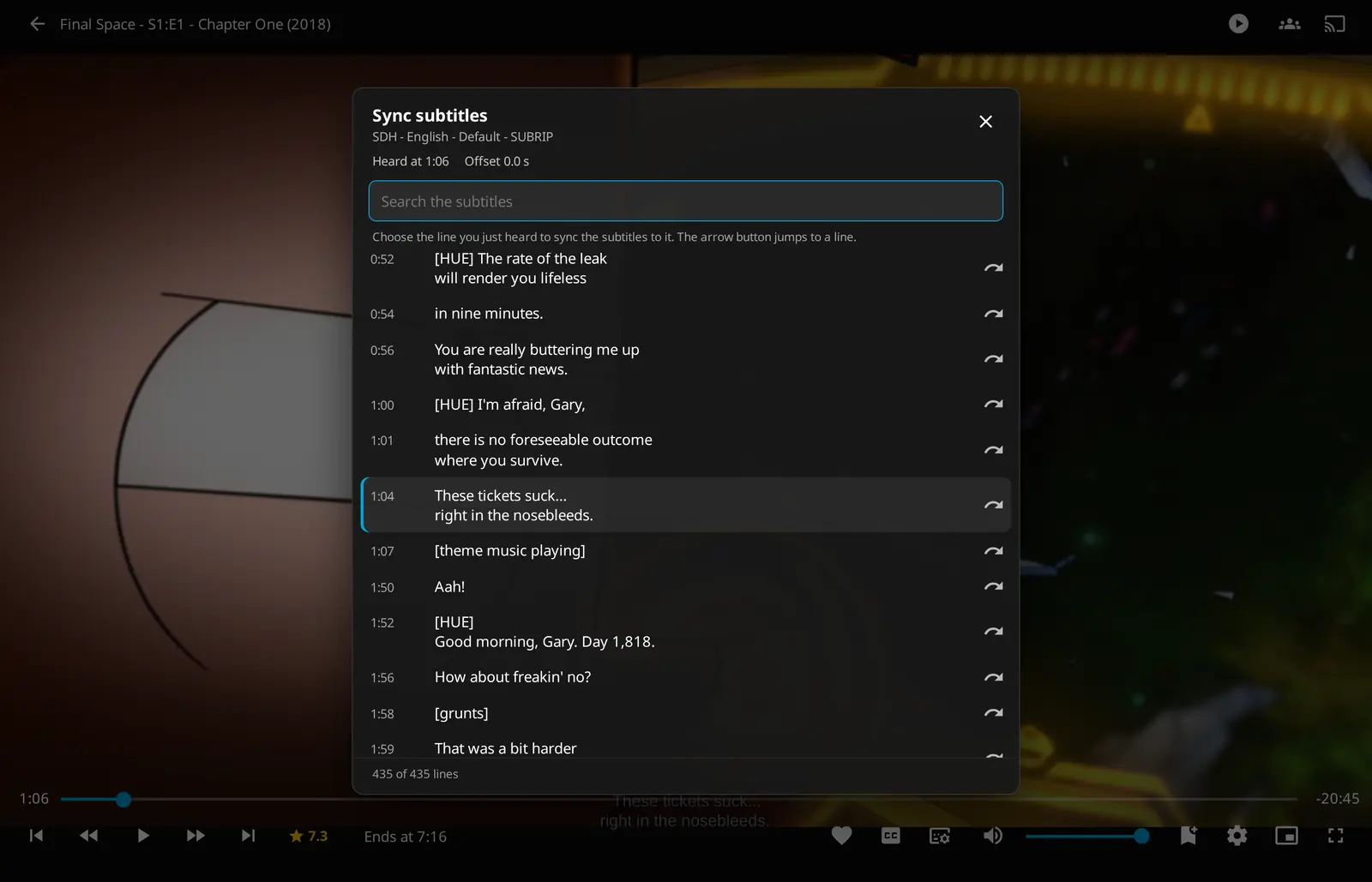
| Part | What it does |
|---|---|
| Heard at | The playback position when the list opened. Choosing a line syncs it to this moment. |
| Offset | The subtitle offset in use. Reset offset sets it back to 0. |
| A line | Syncs the subtitles so this line shows at Heard at, then closes the list. |
| Arrow button | Jumps to where this line shows, then closes the list. |
Search ignores case, accents and punctuation; a line must contain every word you type. Down moves from the search box into the list, Up and Down move between lines, Enter chooses one, and Esc (or a TV remote's Back) or Shift+S closes the list. Remote D-pads and gamepads move and choose the same way. Playback resumes on close only if the list paused it, and JE's pause screen stays away while the list is open.
| Setting | Default | What it does |
|---|---|---|
| Subtitle Sync Button — personal; Show Subtitle Sync Button in the Player — admin | Off | Shows the button next to Subtitles; it is hidden whenever Jellyfin hides its Subtitles button. Shift+S works either way. |
What can be synced
Syncing sets Jellyfin's own subtitle offset, the same one as Subtitle offset in the player settings and the ++left-bracket++ / ++right-bracket++ shortcuts. It reaches 30 seconds either way; a line further away is refused and the list says how far it is.
- Text subtitles (SRT, ASS/SSA, WebVTT, and text tracks inside the file) are listed and can be synced.
- Image subtitles (PGS, VobSub, DVB) have no text to list.
- Burned-in subtitles (Jellyfin's Burn in subtitles setting, or when the server has to) are listed but can't be shifted, so choosing a line jumps to it.
Details
The lines come from the server's copy of the track. Jellyfin's player tells the server which track it shows when it pauses and every ten seconds, so right after you change track the list can take a few seconds to load. If the track changes while the list is open, it says the lines no longer match and offers Reload.
Jellyfin's offset belongs to the current track: it goes back to 0 when you change track or video. Jumps are local seeks, like Auto-Skip's, so SyncPlay peers do not follow them. On a progressive (non-HLS) transcode the list can only jump within the part of the video the server has prepared so far, and says so for a line outside it.
Player Ratings
See Jellyfin's community/critic scores in the player or briefly show age-rating information when playback starts. These are admin controls, independent of poster-tag switches.
How to use: Start playback to see the optional startup badge; reveal the player controls to see score chips beside the time information.
Admin Display → Media Tags and Playback → Player Behaviour, respectively; every option and default is in Enhanced settings → Playback defaults.
Rating metadata and visibility
Available metadata determines what appears. Episodes can use series data for missing age rating/genres and incorporate series advisory tags. These controls have no personal-panel toggle. Spoiler Guard can suppress protected information.
Discovery & Integration
Find missing media through connected services, share reviews, and see what others are watching.
Seerr Search Integration
Search and request missing media from Jellyfin with Seerr.
How to use:
- Turn on admin Seerr → Enable Seerr integration (off by default).
- Configure and Test the connection, then link/import users.
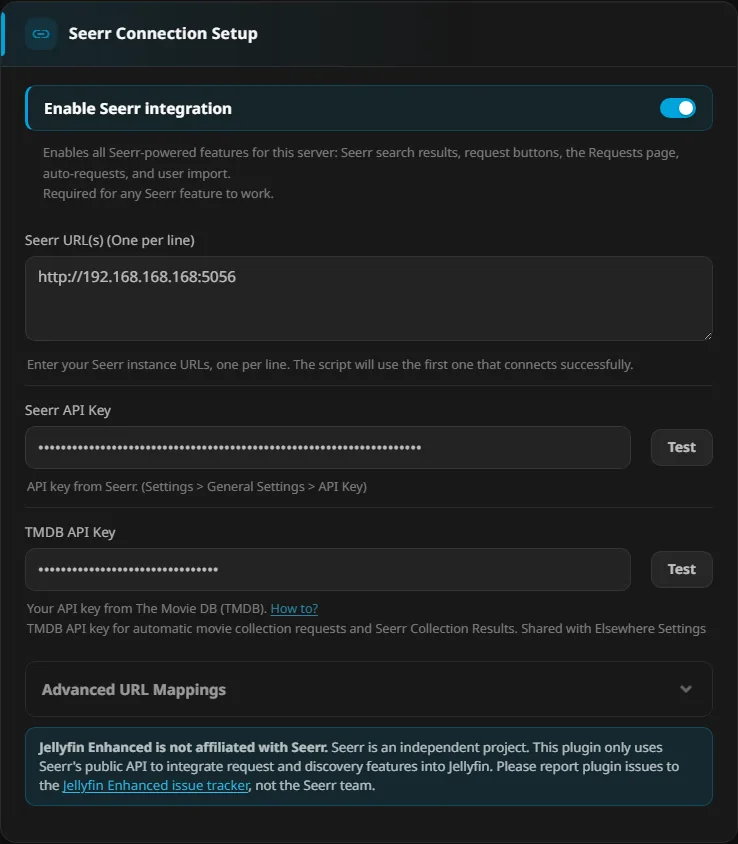
Follow Seerr Features, Seerr Settings, and Permission Audit for requirements, search, request permissions, quotas, and watchlist options.
Existing setup illustrations
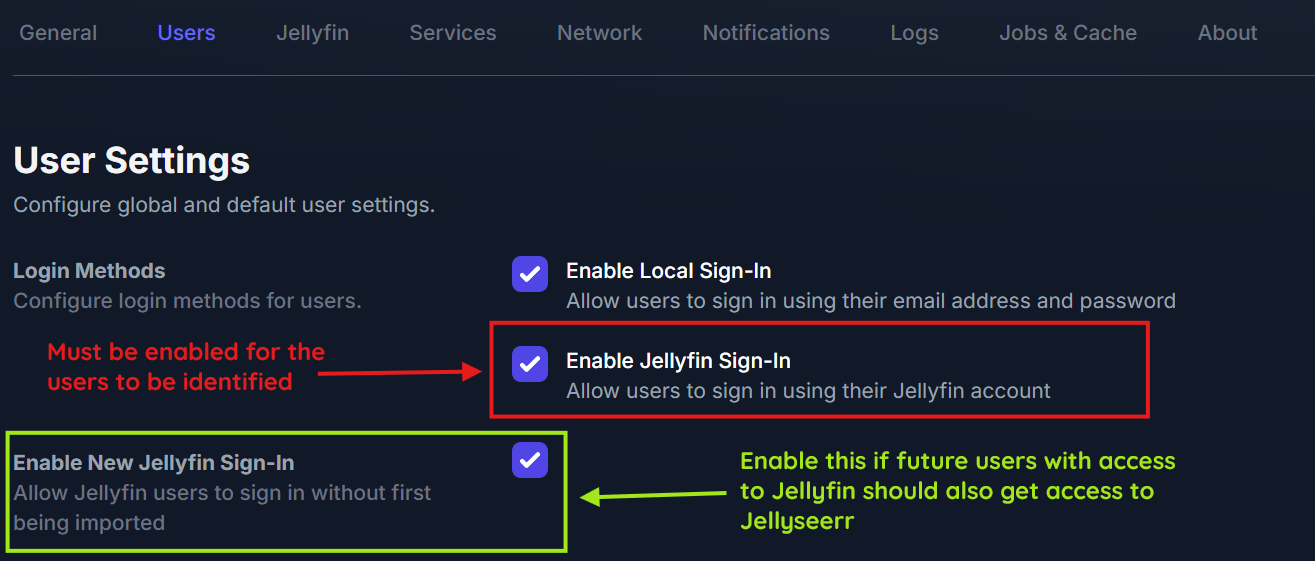 Illustrative external settings capture; its version is unknown. Its annotations do not establish JE's current account-import requirements.
These external icon illustrations show active, unlinked-user, and disabled styling. JE loads its own icons through its asset service; an active connection still requires request permission for request actions.

Seerr Item Details
Seerr adds similar/recommended rows, discovery, request actions, and a More Info modal. You can control these features separately.
How to use: See Seerr Features and Seerr Settings for detail-page controls, collection discovery, exclusions, the standalone Recommendations page, and setup.
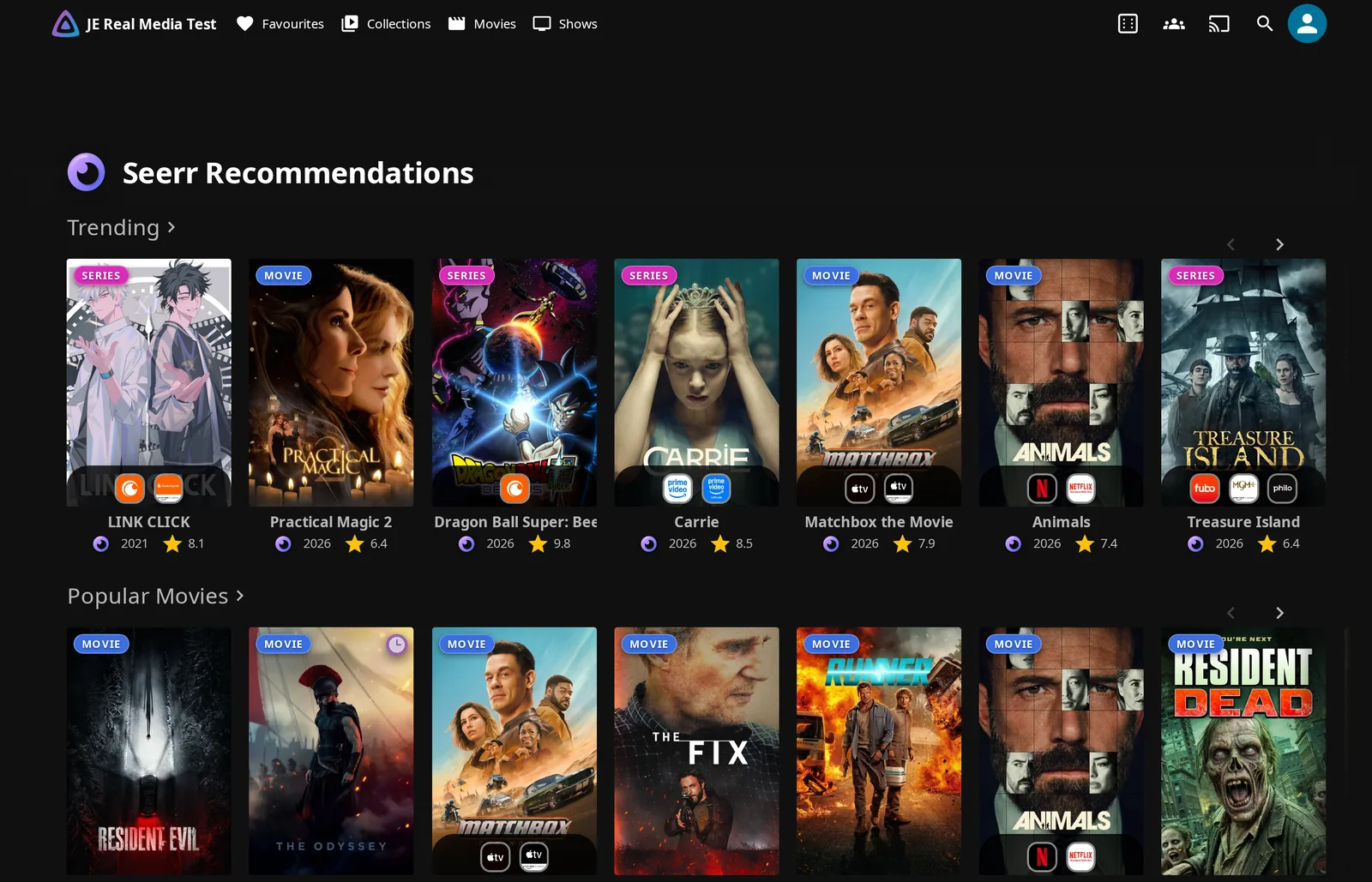 The standalone page is separate from similar/recommended rows on item details.
.arr Links Integration
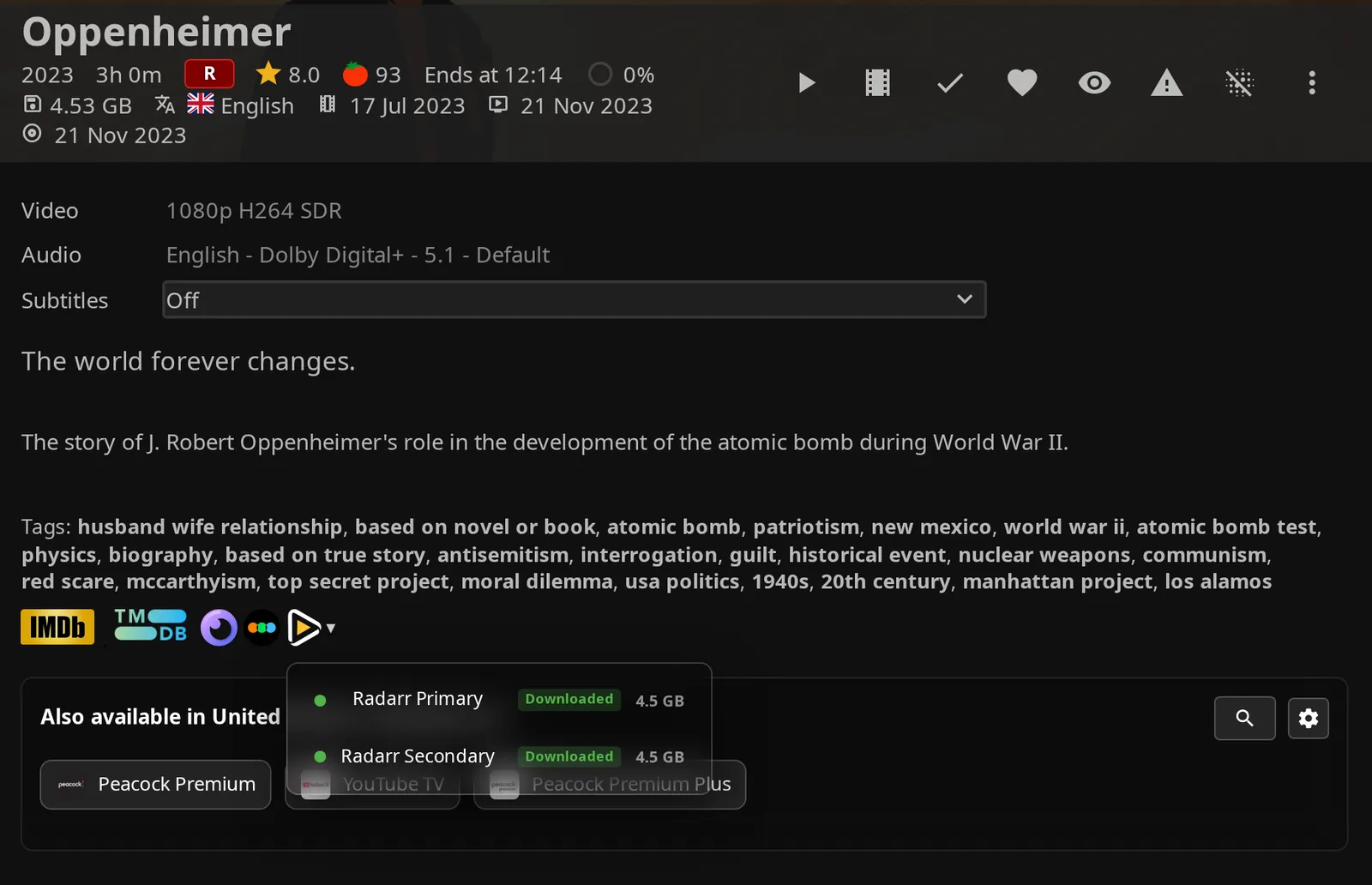
As an administrator, you can open matched titles in Sonarr, Radarr, or Bazarr. Synced Jellyfin tag links are a separate feature.
How to use: See *arr Features and *arr Settings for service setup, multiple instances, status badges, tag filters, and synchronization tasks.
Streaming Provider Lookup
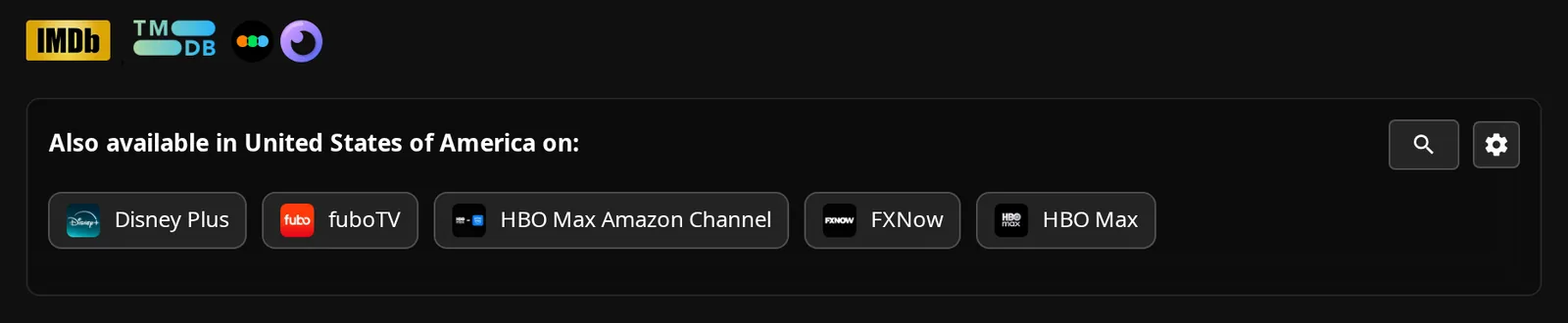
Elsewhere shows subscription streaming providers for a title in your region, including supported per-season lookups.
How to use:
- An administrator configures Enable Elsewhere and TMDB API Key under Elsewhere & Reviews.
- Choose regions/providers in a title's Elsewhere controls.
See Elsewhere & Reviews Features and Elsewhere & Reviews Settings for defaults and limits.
User Reviews
Share text reviews and star ratings for movies, series, seasons, and episodes with viewers on your server. See User Reviews for writing and moderation, and User Reviews settings for author visibility, poster averages, and Jellyfin rating mirroring.
Activity Feed
See recently watched, favorited, and reviewed titles across the server, with an optional live session section.
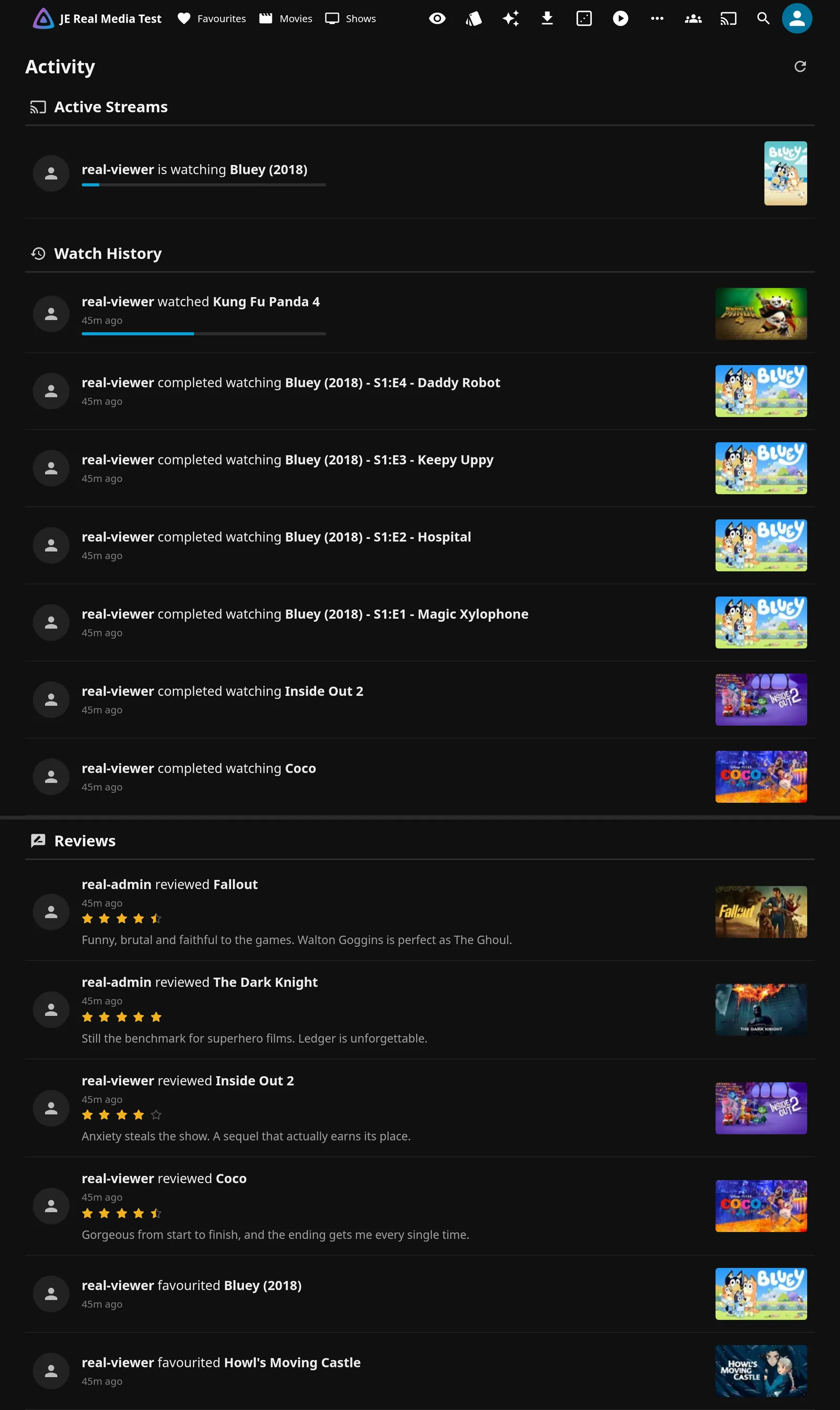
How to use:
- Open Activity through the configured Home tab or Plugin Pages entry.
- Click titles/artwork to open details, or read stars/text previews. Watch History shows progress for partial watches and completed watching for completed ones. Favorites and reviews share the Reviews section.
- Use Refresh for an update.
Admin Pages → Activity Feed; every option and default is in Enhanced settings → Activity Feed.
The live section also requires admin Extras → Active Streams → Active Streams Header Widget. Non-admins need Show widget to non-admins.
Activity collection, access, and refresh
Plugin Pages uses /JellyfinEnhanced/activityPage. For manual Custom Tabs setup, use:
Watch History includes playback stopped at a position of at least 5% of known runtime, plus playback Jellyfin marks completed. This measures position, not time spent watching.
Only the live section polls every 15 seconds while visible, skipping hidden browser tabs. Stored history/review/favorite entries respect viewer library access and the review-author filters, with admin/self author exceptions. Live sessions use the separate Active Streams permission policy and can include titles outside the viewer's library access.
On Jellyfin 12, a play or favorite of an alternate version that Jellyfin lists under its title shows as that title, to viewers who can open both. One person's plays of a title's versions make one row, like rewatches: the newest time, the highest progress, and completed if any was. Favorited people, genres, studios and music artists or genres also appear, under Jellyfin's own access rule for them: viewers with library or parental restrictions only see those behind an item they can reach, and viewers limited to allowed tags only see people, as Jellyfin's own pages allow. On 10.11 neither changes.
A standard feed request returns up to 50 merged entries without UI pagination. Watched/favorite storage in activity.json is capped at 500 entries, one per user/item/type. Rewatches update time while preserving highest progress and completion. Unfavoriting removes its entry.
Turning the feed off hides it and stops watched/favorite collection without deleting history. User Reviews continues independently, so reviews written while the feed is off can appear after re-enabling it.
Leaving Soon
See what is about to be removed from the library, and when, without leaving Jellyfin. The page shows the movies and shows the removal tool (Maintainerr or Reclaimerr) has scheduled, soonest first, each with a Leaves in 5d style chip. Everyone sees only items they can access.
- Filter Movies or Shows; click a poster or title to open it.
- With Reclaimerr, a regular user also sees their own removal requests and whether each is waiting, approved or denied. Requests are made from an item's ⋮ menu (Request removal).
- Administrators get Keep and Change removal date on each card, and with Reclaimerr the waiting requests as cards with Approve and Deny. Approving asks you to confirm and when to delete: after Reclaimerr's grace period (none by default, so at once), now, or on a day you pick.
Open it through the configured Home tab, Plugin Pages entry or Custom Tabs entry. Placement and options are in Enhanced settings.
Leaving soon row in KefinTweaks
KefinTweaks builds its home sections from Jellyfin queries, and its section editor can point a query at any path that answers like /Items. JE answers at /JellyfinEnhanced/leaving-soon/items with the titles that are leaving, soonest first, limited to what the signed-in user can see.
In the KefinTweaks configuration, go to Enhanced Home Screen → New Section → Advanced, then use either way:
- Import: paste the JSON below into Import. JE's admin settings have a Copy KefinTweaks section button next to the Leaving soon home row option that copies it for you.
- By hand: keep Item Source on Jellyfin Server, set the query's Endpoint to Custom and Custom Endpoint Path to
/JellyfinEnhanced/leaving-soon/items, then name the section, pick a card format and save.
{
  "id": "leaving-soon",
  "type": "home",
  "name": "Leaving Soon",
  "enabled": true,
  "order": 72,
  "cardFormat": "Poster",
  "userConfigurable": true,
  "queries": [
    { "path": "/JellyfinEnhanced/leaving-soon/items", "queryOptions": { "Limit": 20 } }
  ]
}
The list needs a removal tool with an address set (Maintainerr, or Reclaimerr with its token). It stays current while something reads the leaving facts: the Leaving Soon page, the Maintainerr item menu actions, the home row, or the Leaving badge. It does not need the Home Screen Sections plugin.
Catch Up
Sort unwatched movies and shows with a card deck. Touch, mouse, and keyboard actions update your own Jellyfin account.
How to use:
- Open Catch Up through the configured Home tab or Plugin Pages entry.
- Choose Movies or Shows.
- Use the gestures or keys below to sort your deck.
| Gesture/control | Keyboard | What it does |
|---|---|---|
| Swipe right | Right | Marks watched. |
| Swipe left | Left | Dismisses from your deck in this browser. |
| Swipe up | Up | Adds to your watchlist using Jellyfin's Likes flag. |
| Swipe down | Down | Opens details. |
| Rewind (Backspace) | Backspace / Z | Reverses the last watched, dismiss, or watchlist action in the current deck. |
For a show with at least two regular seasons, swiping right opens a season picker. Selecting a later season selects earlier ones; select a selected season again to untick just that season. Choose Mark {n} season(s) watched to confirm. Specials are not listed. Fewer regular seasons mark the whole series directly.
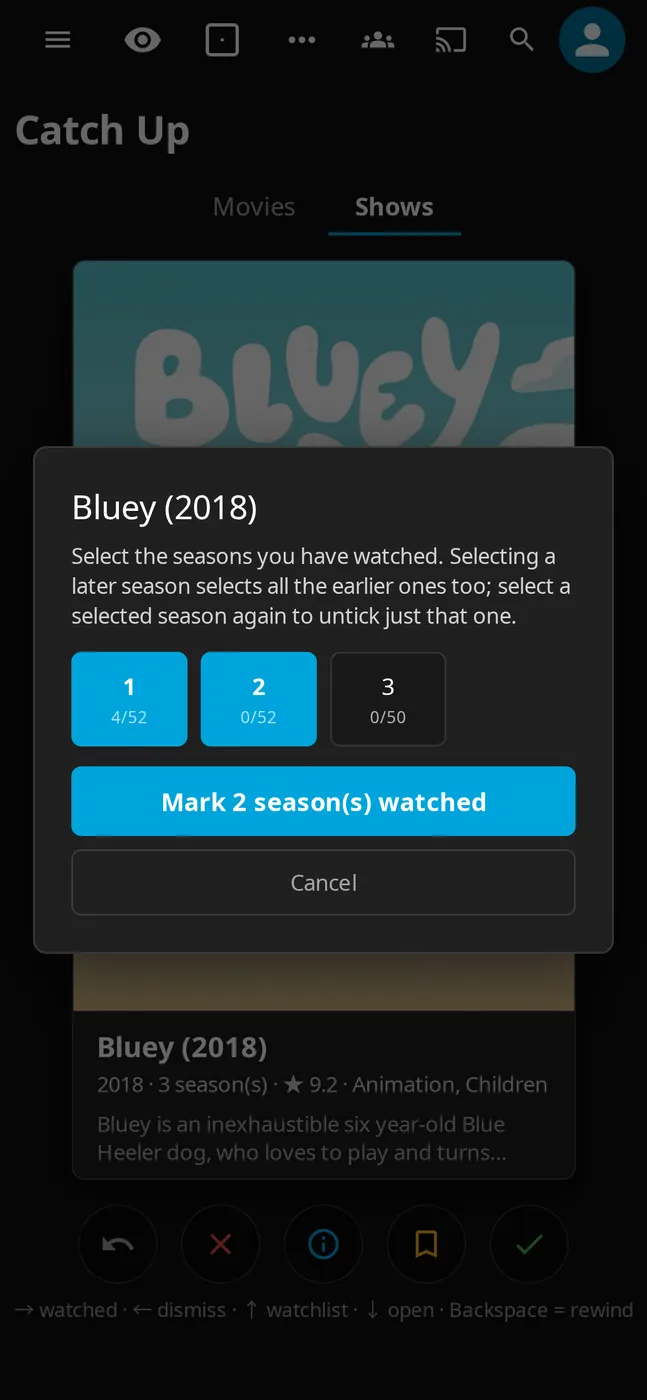
Admin Pages → Catch Up; every option and default is in Enhanced settings → Catch Up.
Rewind does not restore earlier ratings or watched state
Rewind reverses the action rather than restoring a saved snapshot. It does not preserve previous watched/liked/disliked state. A failed action can still remove the card and show Failed: {error}; rewind can also fail.
Deck selection, browser preferences, and rewind
Plugin Pages uses /JellyfinEnhanced/catchUpPage. For manual Custom Tabs setup, use:
Decks use random batches of 40 unwatched accessible items, filtering dismissed, already-seen, and imageless cards. Nothing more to show here. can mean the sample yielded no new eligible cards.
Dismissals and the Movies/Shows choice are browser-local per-user preferences, separate from Hidden Content. Reloading retains dismissals; rewind or clearing the relevant browser storage removes them. Switching/restarting a deck clears its queue, seen set, and undo history.
The swipe-up Likes flag is the watchlist flag used by Seerr watchlist sync. Swiping down does not add an undo-history entry. Selecting all regular seasons writes the series ID; a subset writes selected season IDs.
Watched undo removes PlayedItems state, and watchlist undo removes the Likes rating.
For administrators:
- Open Activity, then Feed or Summary.
- In Feed, choose All users or a user, select action chips, or enter Search titles. No selected action chips means all actions. The feed shows up to 300 matching events.
- Use Refresh or Hide to update or close the panel.
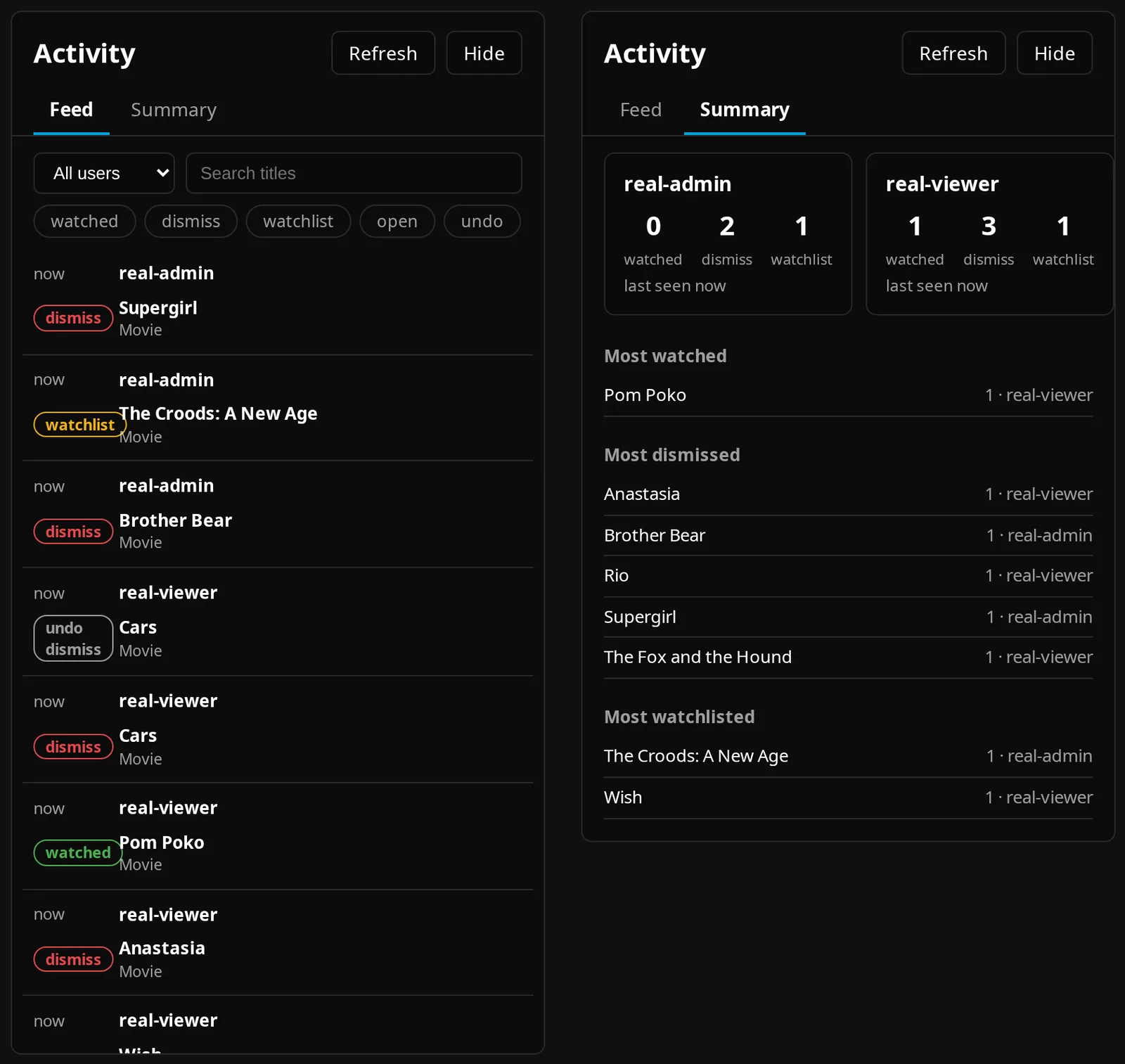 On wide screens, Activity docks beside the deck; on narrower screens, it opens as a modal.
Catch Up admin activity
Summary counts distinct successful user/title actions after corresponding recorded undos. Most watched, Most dismissed, and Most watchlisted each show up to 15 titles. Feed filters do not affect Summary.
The open panel refreshes every ten seconds. It docks beside the deck at widths of at least 1100 pixels and opens as a modal on narrower screens. Non-admins cannot read these endpoints.
Logs include open, undo, and failed actions. They are client reports, not proof of viewing. Item names are resolved server-side. catchup-log.jsonl is bounded to about 5 MB per file with two files retained.
TMDB Reviews
Read TMDB reviews alongside local reviews on movie and series detail pages. See TMDB Reviews for setup, expansion, ordering, and fetching limits.
Visual Enhancements
Add quality, genre, language, score, age-rating, and people information to cards with optional tags. All six tag families start off; detail-page information and awards are independent features.
How to use: See Tags for controls, prerequisites, caches, styles, native poster rendering, and audio-language tag synchronization.
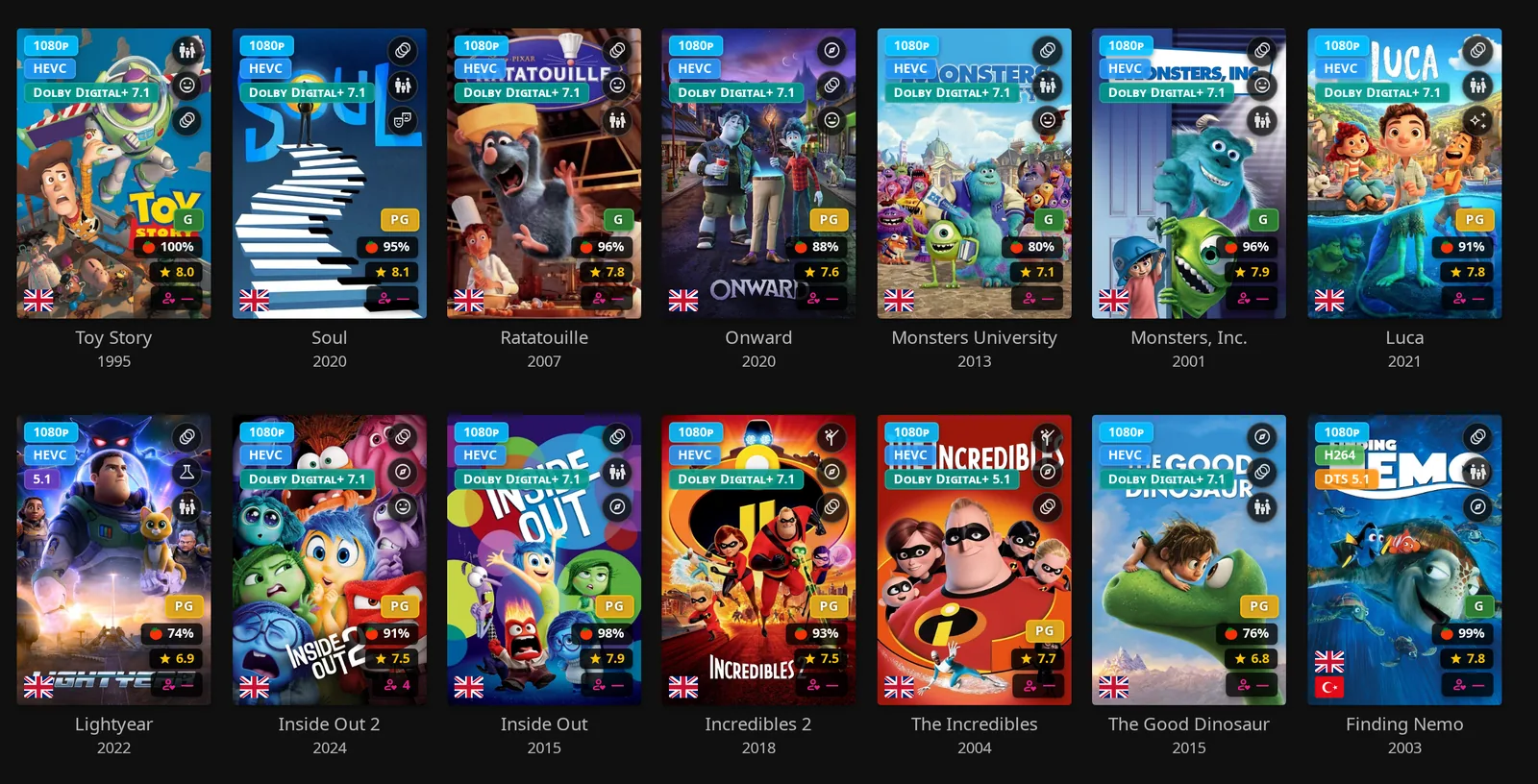 This example enables all poster tag groups.
Watch Progress
See how much you have watched on a title's detail page. You can check movies, series, seasons, episodes, collections, and playlists.
How to use:
- Enable Show Watch Progress in UI Settings.
- Open details and click the progress chip to cycle Percentage → Time Watched → Time Remaining. The selected mode saves for your account.
| Setting | Default | What it does |
|---|---|---|
| Show watch progress — admin Display; Show Watch Progress — personal UI Settings | Off | Shows the detail-page chip. |
| Watch Progress Default — admin Display | Percentage | Initial mode: Percentage, Time Watched, or Time Remaining; personal choices are in UI Settings. |
| Watch Progress Time Format — admin Display | h:m | Initial duration format; personal h:m / y d:h:m choices are in UI Settings. |
Watch-progress calculation
For containers, progress adds together accessible leaf items. It depends on runtime metadata and ignores media-version selection.
File Size and Audio Languages
See total file size and available audio languages in a title's detail information. These controls are independent of poster tags.
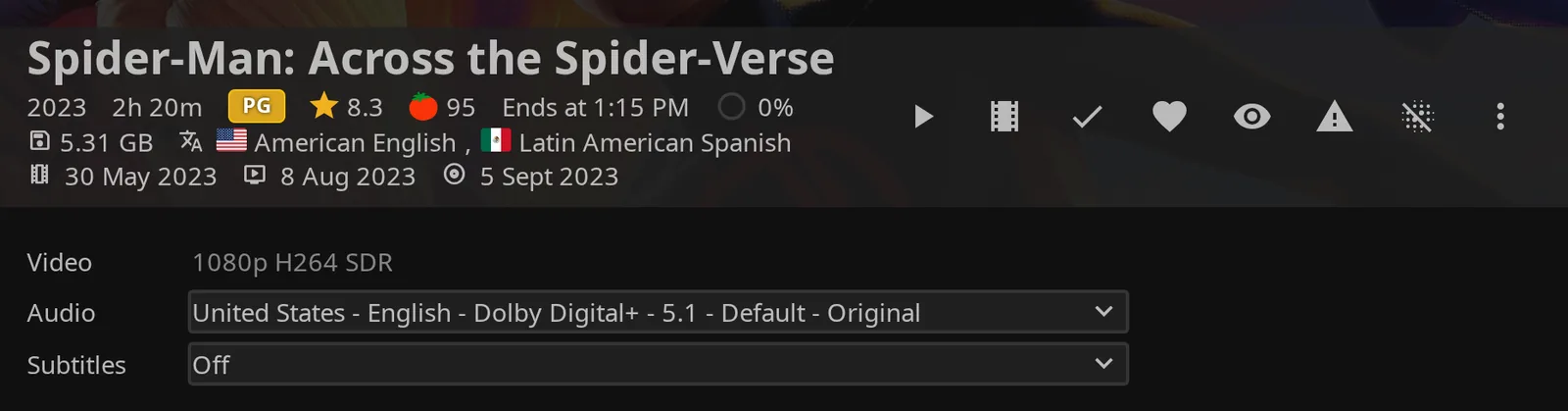
How to use:
- Enable Show File Sizes in UI Settings or Show Audio Languages in Media Tags (Layout tab).
- Open a detail page. Selecting another media version changes its size and audio-language data.
| Setting | Default | What it does |
|---|---|---|
| Show file sizes — admin Display; Show File Sizes — personal UI Settings | Off | Shows total file size. |
| Show available audio languages on item detail page — admin Display; Show Audio Languages — personal Media Tags | On | Shows detail-page audio-language chips. |
Supported items and audio-language links
File size supports movies, series, seasons, episodes, collections, and playlists. Container sizes add together accessible leaf items. Audio languages supports movies, series, seasons, and episodes. Missing usable values display a dash.
When audio-language tag synchronization/linking is configured, a chip can open its matching Jellyfin tag page: regional tag first, base-language tag second, otherwise plain text. See Tags for that separate admin setup and task.
Release and Air Dates
See movie cinema, digital, and physical release dates or television air dates beside the item's metadata. See Release Dates for setup, region fallback, and date-selection rules.
Awards
Expand an awards banner on detail pages to see Wikidata wins and nominations with categories, years, and recipients.
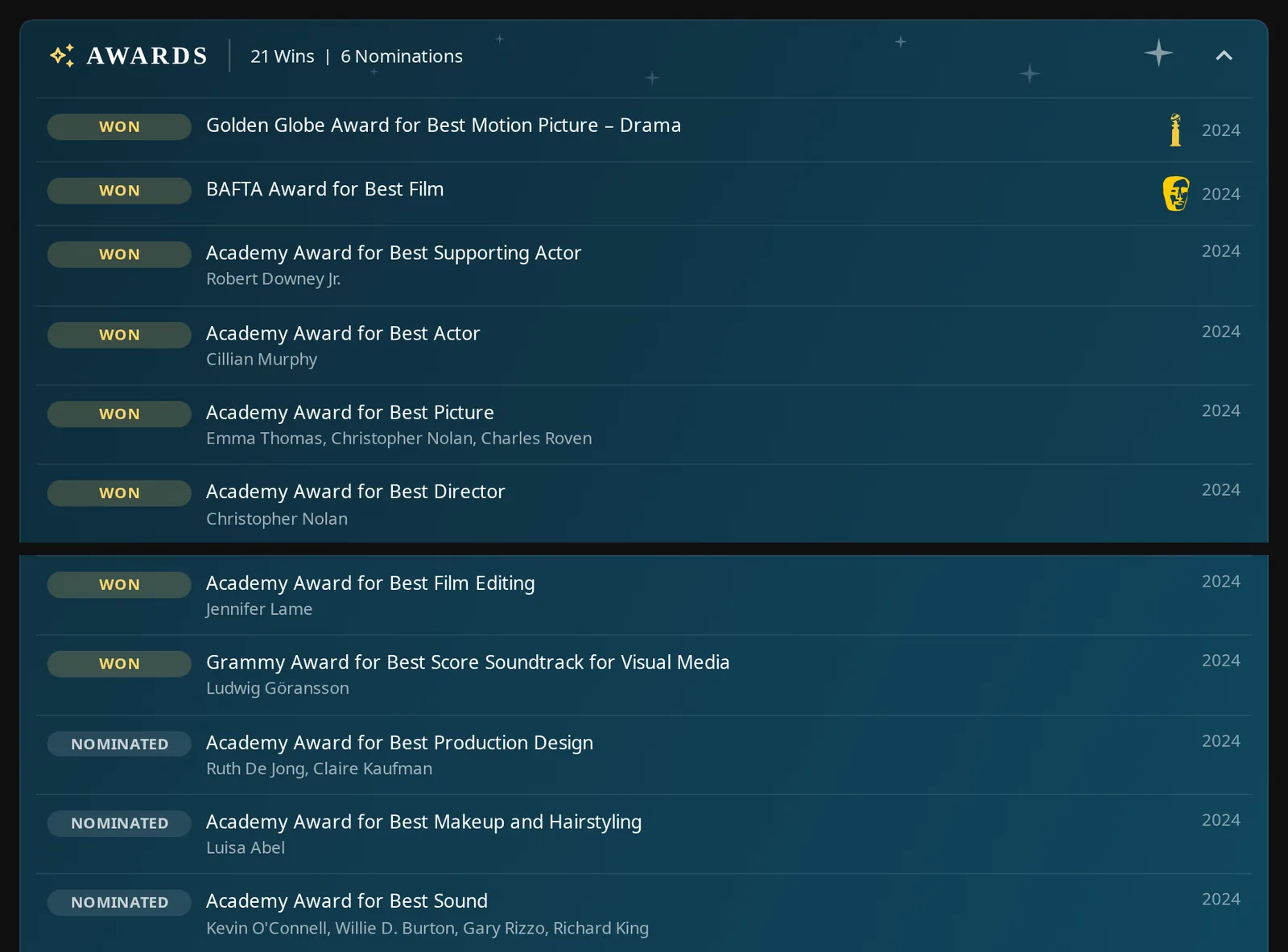
How to use:
- Enable Show Awards Banner in admin Display → Awards, save, and reload.
- Click the banner to expand it. Reviews do not need to be enabled.
Admin Display → Awards:
| Setting | Default | What it does |
|---|---|---|
| Show Awards Banner | Off | Enables Wikidata award lookups and display. |
Award sources, grouping, and caching
Movies and people use their own TMDB identity. Series use their series identity; seasons/episodes show their parent series' awards.
Entries sort newest year first, with wins before nominations within a year. Redundant nominations for a winning category/year are merged with recipients/work. Totals therefore count grouped entries rather than raw statements.
Wikidata coverage varies and is not exhaustive. No banner may mean no data or a failed lookup. The server's awards.json caches successful results for 180 days, confirmed empty results for 30 days, and failures for one hour.
Personal Scripts
These optional extras are bundled with Jellyfin Enhanced, so you do not need a separate script installation. Despite this section's name, they are server switches.
How to use: As an administrator, enable them under Extras → UI Tweaks, save, and reload. See Other Features and Other Settings for the broader extras guide.
Active Streams Widget
Check playing and paused sessions from the header, and send a broadcast message as an administrator. See Active Streams Widget for setup, session details, refresh behavior, non-admin access, and broadcasts.
Colored Activity Icons
Add predefined colors and icons to the Activity list on Jellyfin's dashboard home to make events easier to scan.
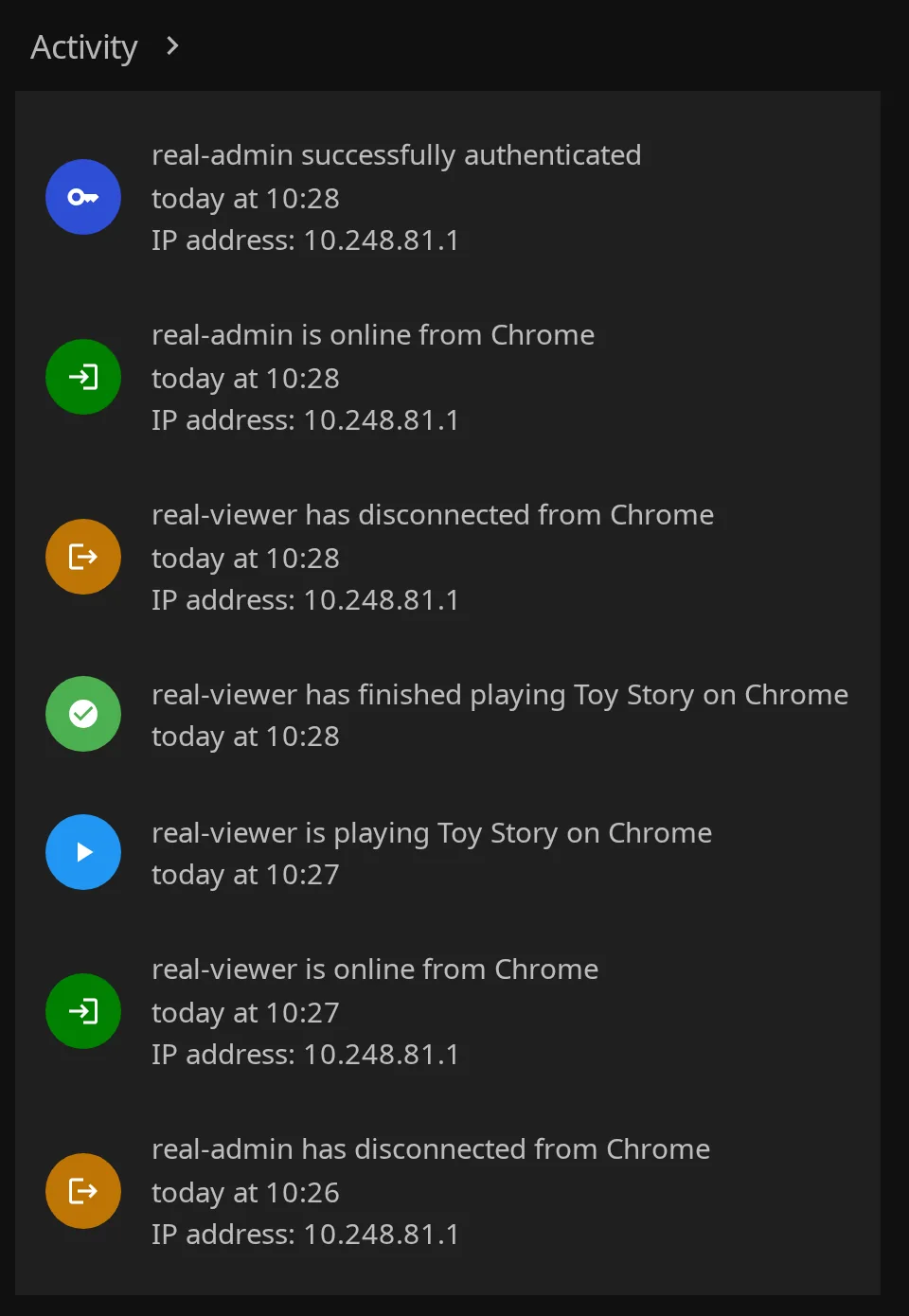
How to use: Enable Colored Dashboard Icons, save/reload, and open the dashboard.
| Setting | Default | What it does |
|---|---|---|
| Colored Dashboard Icons — admin Extras → UI Tweaks | Off | Styles supported dashboard events. |
Dashboard icon limits
Unmatched events keep their existing appearance. There is no color editor. This feature is separate from JE's Activity Feed.
Colored Ratings
Color official parental/age classifications on detail pages, including supported international boards, US TV descriptors, and ESRB labels.
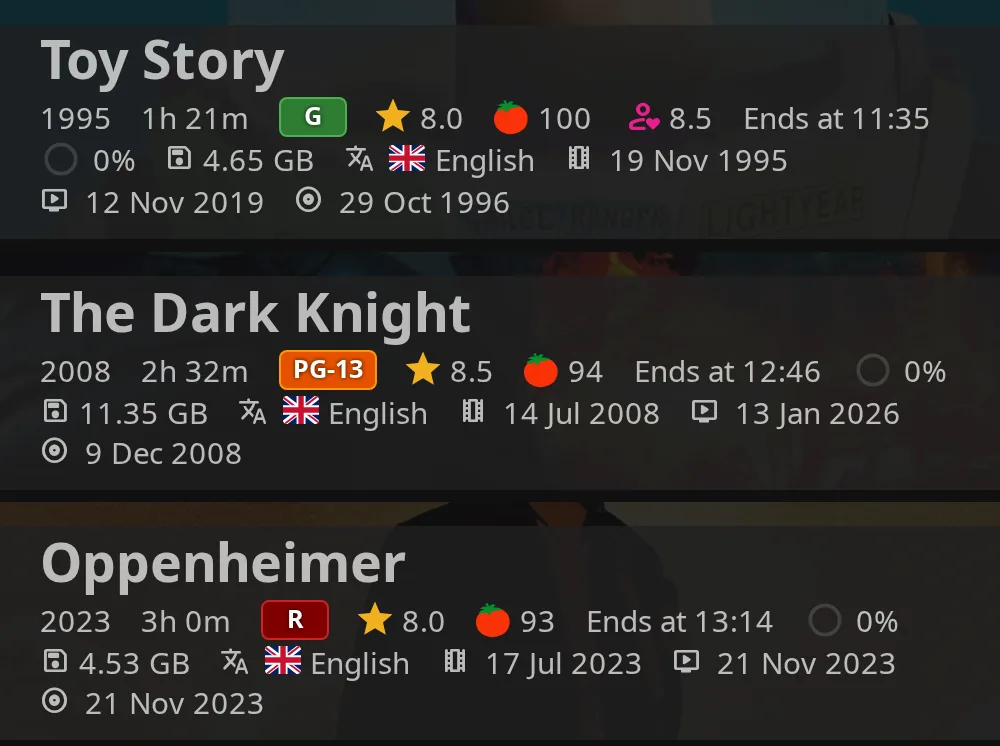
How to use: Enable Colored Ratings Backgrounds, save/reload, and open a classified title.
| Setting | Default | What it does |
|---|---|---|
| Colored Ratings Backgrounds — admin Extras → UI Tweaks | Off | Applies predefined classification colors. |
Classification colors
The capture shows colored G, PG-13, and R badges on Toy Story, The Dark Knight, and Oppenheimer detail pages. Supported classifications extend beyond these examples. This feature does not style numeric review scores.
Login Image Display
Show a public user's avatar above the password field on the manual-login form. When the avatar is available, the name input is visually hidden.
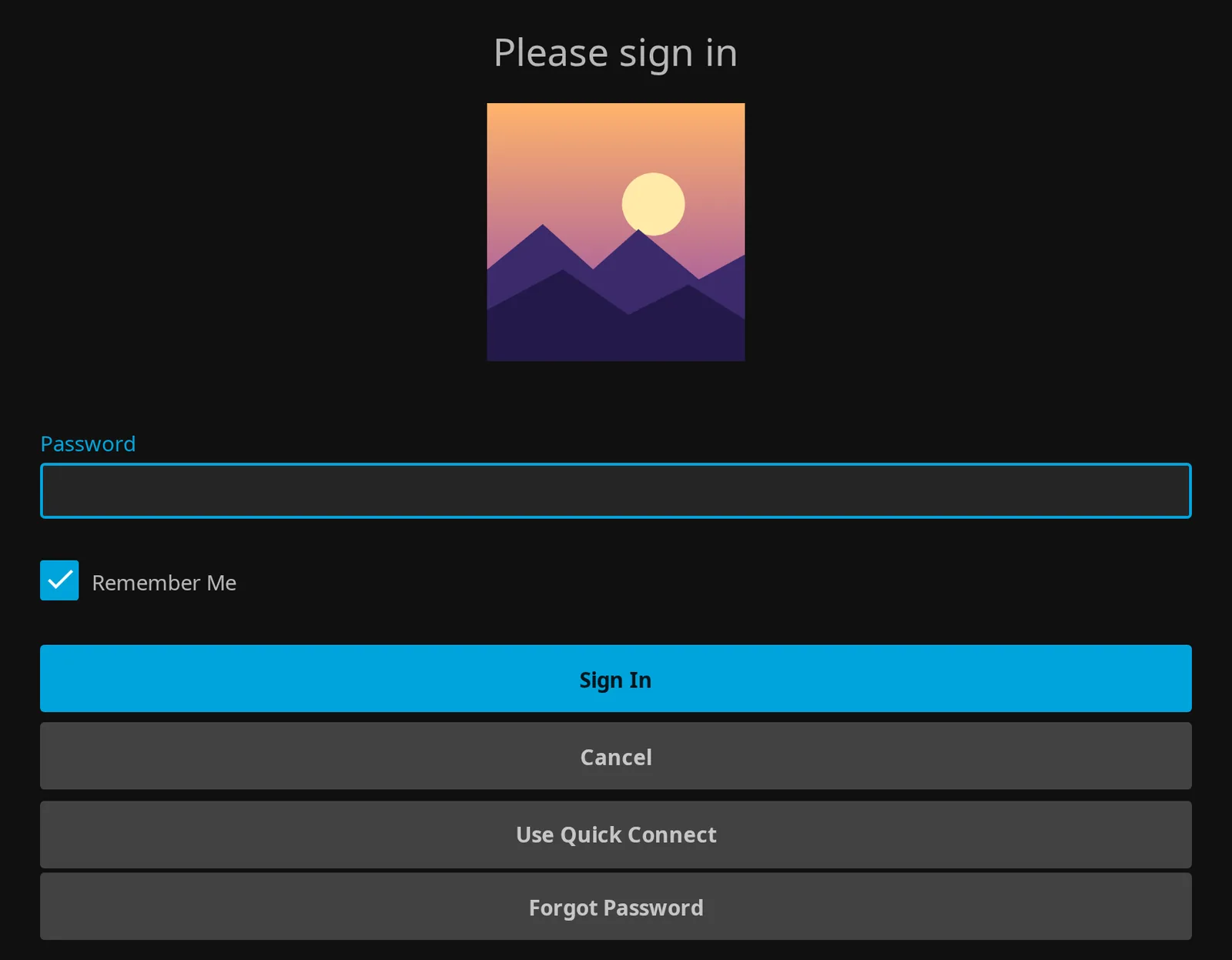
How to use:
- Enable Profile Picture on Login.
- Select a public user on the login page, or enter a name matching an existing public user card.
| Setting | Default | What it does |
|---|---|---|
| Profile Picture on Login — admin Extras → UI Tweaks | Off | Adds the avatar to the manual-login form. |
When no avatar appears
No matching card/image or an image-load failure leaves or restores the name input. This does not discover hidden accounts through another lookup.
Plugin Icons
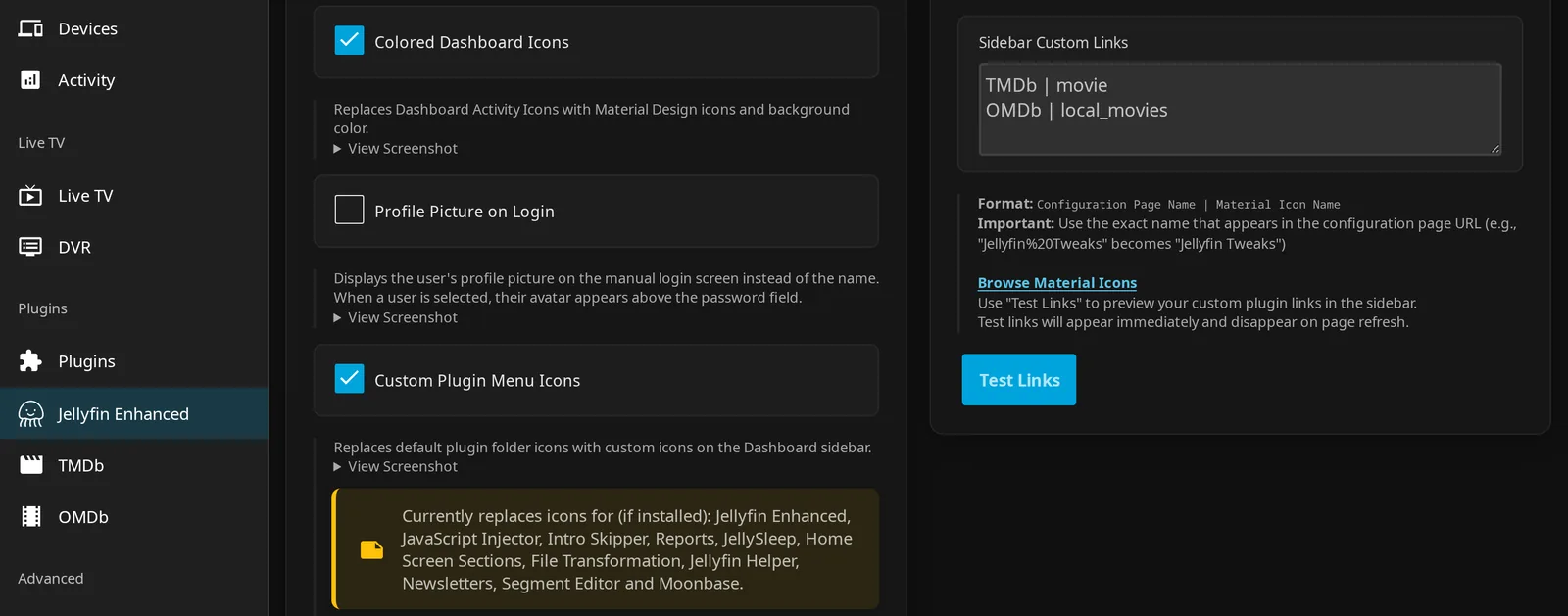
Add Material icons and image logos to supported dashboard plugin links, plus optional links to other configuration pages.
How to use:
- Enable Custom Plugin Menu Icons and save/reload.
- For additional links, fill in Sidebar Custom Links using the format below.
- Use Test Links to preview temporary sidebar entries until refresh. Save Settings persists them.
| Setting | Default | What it does |
|---|---|---|
| Custom Plugin Menu Icons — admin Extras → UI Tweaks | Off | Enables bundled plugin icon mappings and custom links. |
| Sidebar Custom Links — admin Extras → External Links | Empty | Adds configuration-page links using the format below. |
Custom sidebar link format
Enter one decoded exact configuration-page name and Material icon per line, for example:
Preview requires the icon script to have initialized after enabling it.
See Other Features for supported plugin mappings.
Theme Selector
Choose a Jellyfish color variant from the Theme row in Jellyfin user preferences.
Jellyfish installation required
Jellyfish must be installed natively. The admin guidance excludes the KefinTweaks installation method.
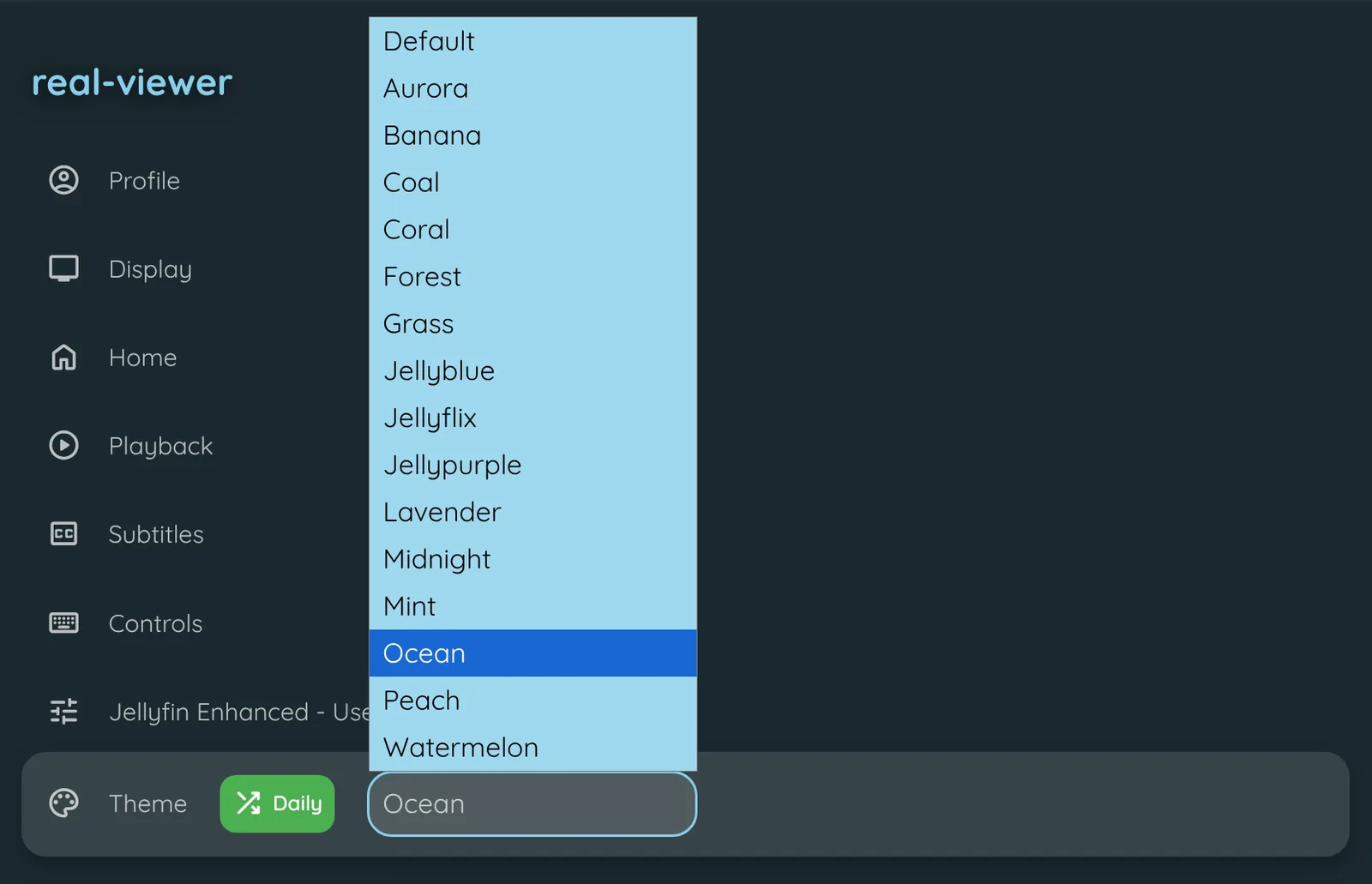
How to use:
- After an administrator enables the selector, open Jellyfin user preferences.
- Select a variant. Selection fades and reloads the page. Default removes the variant override.
- To enable Daily, click the shuffle button titled Random daily theme.
| Setting | Default | What it does |
|---|---|---|
| Theme Selector (Jellyfish) — admin Extras → UI Tweaks | Off | Adds the Theme row. |
| Random daily theme — user preferences Theme | Off | Enables daily variant selection. |
Theme storage and daily timing
Variant/daily choices are stored per user in this browser, rather than in server-synced Enhanced settings. Daily mode chooses a variant during initialization when the saved UTC calendar date differs. It is not a midnight timer.
Customization
Adjust Jellyfin's appearance and choose the language for JE's interface.
Custom Styling with CSS
Customize the pause screen, Enhanced panel, player score chips, tag overlays, and synced *arr tag links with Jellyfin custom CSS.
How to use: See CSS Customization for selectors and examples, and Tags for JE's built-in Tag Styles controls.
Custom Branding
Replace Jellyfin's logos, banners, favicon, and touch icon with your own uploads, or show your logo during startup. See Custom Branding for uploads and storage, Splash Screen for the loading overlay, and branding settings for asset slots and filenames.
Internationalization
Open Language Settings → Display Language and choose a language or Auto; your choice saves and reloads the page. Use Clear Translation Cache in the same section to clear this browser's translations and reload. See Internationalization for language precedence, loading, and server invalidation, and language settings for defaults.