Seerr Settings
Configure the connection, user access, requests, discovery, and server automations here. For the workflows, see Seerr features; for account and permission checks, see Permission Audit.
All settings here are admin (server) settings unless marked as per-user.
Seerr controls account access
Permissions and quotas belong to the linked Seerr account. Enabling a JE feature does not grant those permissions.
Setup
Seerr > Seerr Connection Setup
Before you start
You need a reachable Seerr instance, its API key, and Seerr accounts linked to your Jellyfin users. API calls need an address reachable from the Jellyfin server; browser-facing Seerr links need an address your users can reach.
How it works
JE sends API calls through the Jellyfin server, keeping the Seerr API key out of the browser and avoiding browser CORS requirements.
Step 1: Enable Jellyfin Sign-In in Seerr
Let Jellyfin users sign in to Seerr.
How to use:
- In Seerr's Settings → Users, enable Enable Jellyfin Sign-In and save.
- Configure Seerr's Jellyfin connection before importing users.
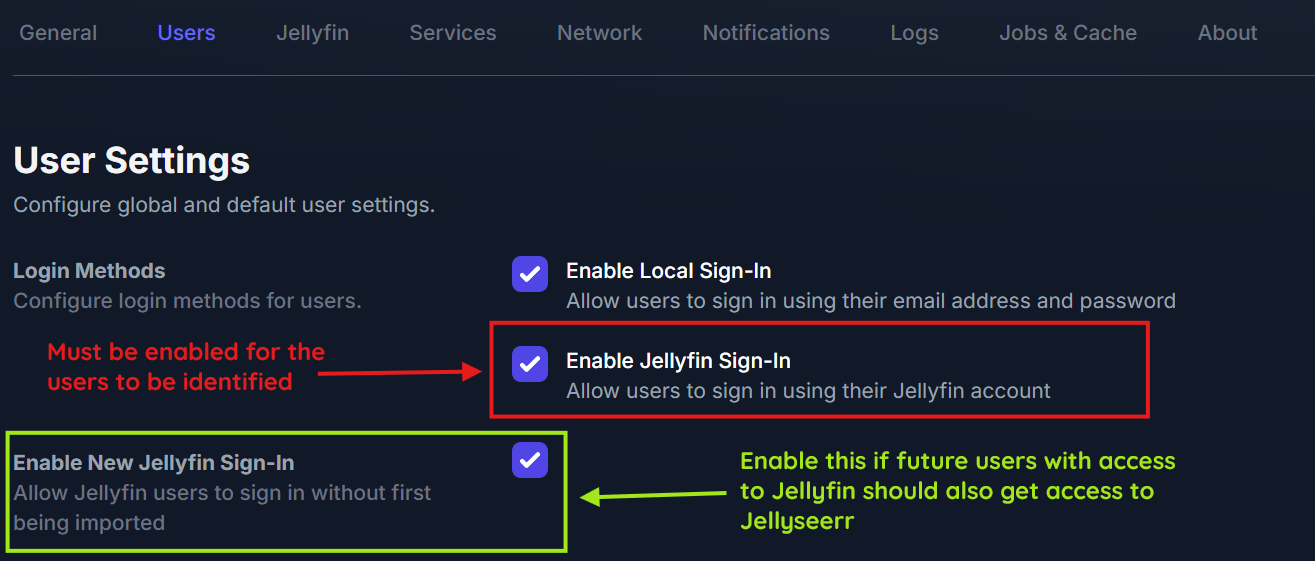 This upstream example includes a legacy Jellyseerr annotation. Allowing new users to sign in there is separate from JE's automatic import.
Details
The upstream interface can differ between Seerr versions.
Step 2: Import Jellyfin Users
Import the Jellyfin accounts you want to use with Seerr.
How to use:
- In Seerr's Users page, use Import Jellyfin Users.
- Select the accounts and press Import.
You can instead use JE's automatic or manual import.
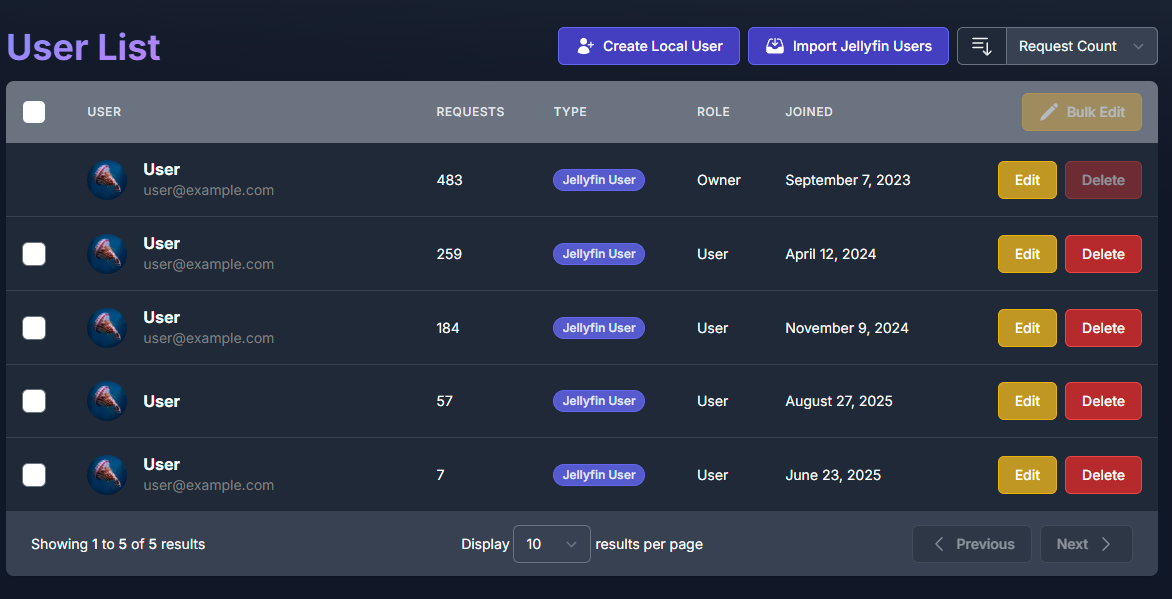 Imported accounts still need the appropriate Seerr permissions.
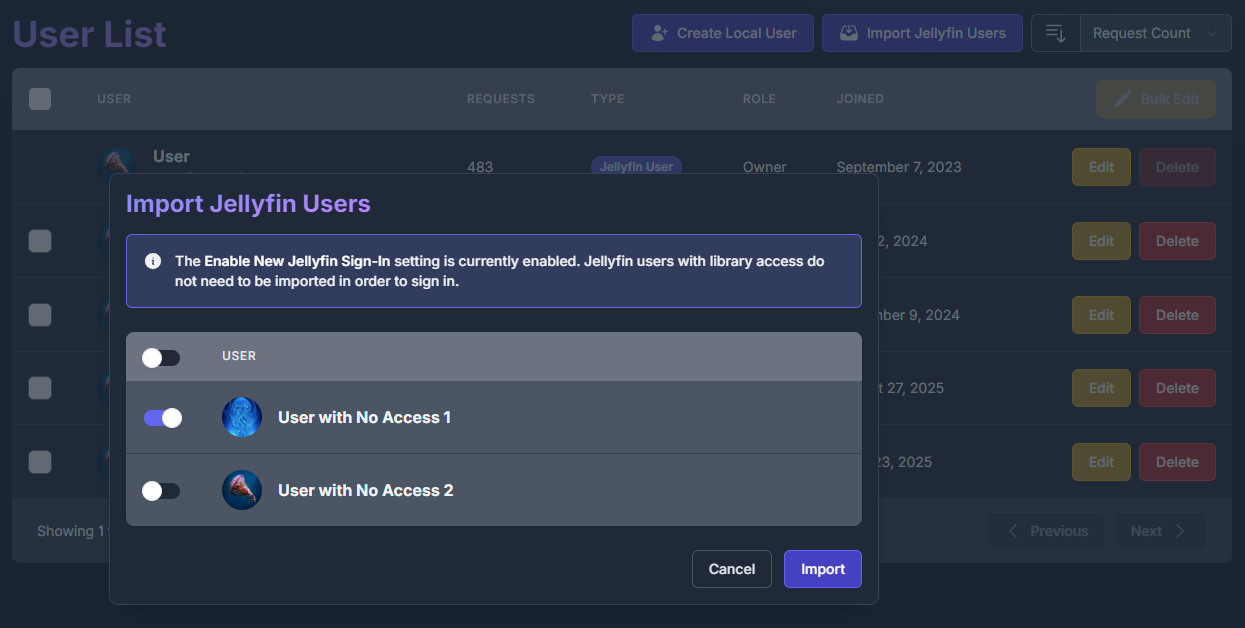 This is an import selection dialog. Sample usernames do not establish whether an account has request access.
How it works
JE links accounts by the normalized Jellyfin user ID stored in Seerr's jellyfinUserId. Matching usernames alone does not link accounts.
Step 3: Configure Plugin
Seerr > Seerr Connection Setup
Enter your connection details in JE to enable Seerr features.
How to use:
- Open Dashboard → Plugins → Jellyfin Enhanced → Seerr.
- Under Seerr Connection Setup, turn on Enable Seerr integration.
- Enter Seerr URL(s) (One per line) and Seerr API Key. The configuration help points to Seerr's Settings → General Settings → API Key for the key.
- Press Test beside the Seerr key.
- Leave Show Seerr Results in Search enabled if you want search integration. Add a TMDB API Key for the features that need it.
- Press Save Settings, then verify user access with Permission Audit.
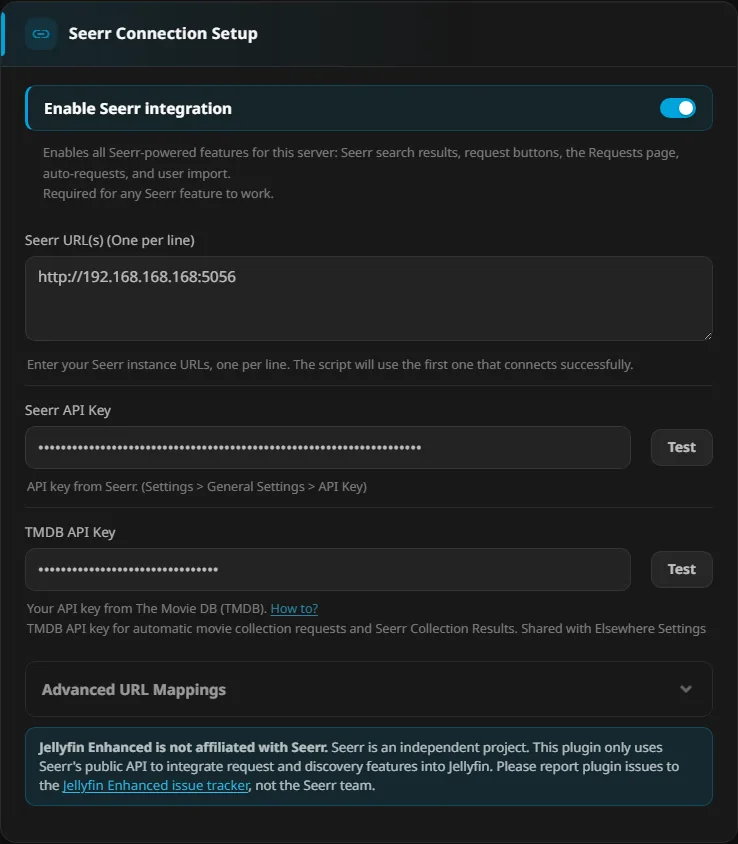
| Setting | Default | What it does |
|---|---|---|
| Enable Seerr integration | Off | Enables Seerr features independently of the search-results switch. |
| Seerr URL(s) (One per line) | Empty | Connection addresses for calls from the Jellyfin server. |
| Seerr API Key | Empty | Authenticates server calls to Seerr. |
| TMDB API Key | Empty | Shared with Elsewhere; enables the additional TMDB features listed below. |
| Seerr URL Mappings | Empty | Under Advanced URL Mappings. Maps the Jellyfin address used by a client to a browser-facing Seerr address; see URL Mappings. |
Testing and connection addresses
Test uses the entered values, including unsaved changes. It does not verify each user's linkage or permissions. Use an address reachable from the Jellyfin server or container. Multiple addresses should reach the same Seerr installation.
How it works
If a public proxy requires an interactive login, use an internal service address for API calls and a public address in the mappings.
Saved URL lines must parse as HTTP or HTTPS addresses; invalid lines are dropped. Proxy calls try configured addresses until one succeeds; some background tasks use only the first address.
The shared TMDB API Key is required for automatic movie requests, studio-produced TV discovery, and streaming-provider displays. It also provides fallback collection metadata. Ordinary Seerr search does not require a separate TMDB key.
Step 4: Configure User Import (Optional)
Let JE create missing Seerr accounts automatically, or import users when you choose.
How to use:
- For automatic import, enable Auto import Jellyfin users to Seerr and save.
- For an immediate import, press Import Users Now. This saves the current configuration and imports unblocked users.
- Read the imported/total counts and any returned errors. Reaching Seerr does not mean every account was imported.
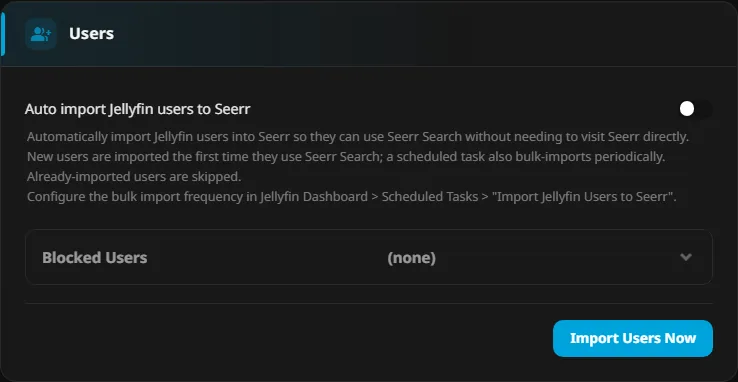
| Setting | Default | What it does |
|---|---|---|
| Auto import Jellyfin users to Seerr | Off | Imports missing accounts as needed and on a schedule. Already imported users are skipped. |
| Blocked Users | None | Excludes selected Jellyfin accounts from JE's Seerr user lookup and import, and from watchlist monitoring/sync. |
Import requirements and access
Import Users Now is an administrator action. It works with automatic import off, but the saved integration must be enabled and saved URLs/key must be nonempty. Importing an account does not grant all request permissions. Blocked Users is not a universal gate on direct server automations; see automation limits.
The Import Jellyfin Users to Seerr scheduled task runs every six hours by default when automatic import is enabled. Change its trigger under Dashboard → Scheduled Tasks.
Details
Just-in-time import can run during user resolution for search and other proxy operations.
The manual import endpoint, POST /JellyfinEnhanced/jellyseerr/import-users, rejects non-admins. Disabled integration returns HTTP 400 with Jellyseerr integration is not enabled; missing credentials return HTTP 400 with Jellyseerr URL or API key not configured. Imports normally have a 30-second throttle (HTTP 429: Import was run recently. Please wait before retrying.). If no users were imported and errors were returned, JE resets the throttle so you can fix the problem and retry.
For conflicting-email errors, inspect Seerr for an old or duplicate account before changing anything. Verify the account's stored Jellyfin user ID, then run Permission Audit.
Optional Features
Search and collection results
Add requestable titles and collections to Jellyfin search.
How to use: Choose the options below. See Search Integration and collection requests.
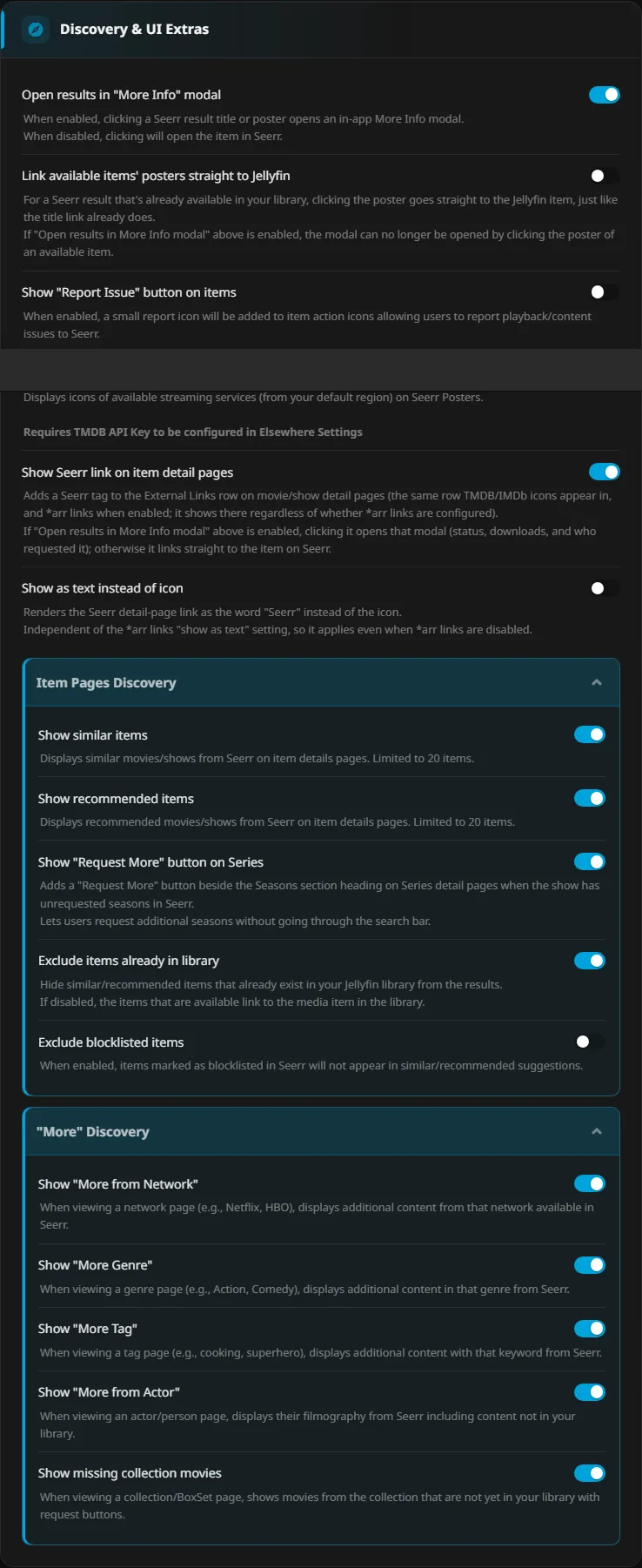
| Setting | Default | What it does |
|---|---|---|
| Show Seerr Results in Search | On | Adds Seerr results to Jellyfin search when integration and user access are working. |
| Exclude search items already in library | Off | Hides library matches from search, including partially owned series and lower-quality movie copies. |
| Show Collections in Seerr Results | On | Derives collection cards from matching movies. Depends on Show Seerr Results in Search. |
Search exclusions
Excluding library matches can hide opportunities to request missing seasons or 4K copies. Use a series' Request More action or Seerr directly if search exclusion hides something you want to request.
Details
The search exclusion is independent of Exclude items already in library, which controls discovery and recommendation cards.
Enable 4K Requests
Show 4K movie request actions.
How to use: Open Seerr → Search & Requests and turn on Enable 4K Requests.
| Setting | Default | What it does |
|---|---|---|
| Enable 4K Requests | Off | Exposes 4K movie requests. Needs a suitable Seerr 4K Radarr destination and permissions; Seerr still validates the request. |
4K movie requirements
Seerr needs a configured 4K Radarr destination and suitable permissions for 4K movie requests.
Enable 4K TV Requests
Show 4K season requests alongside normal-quality requests.
How to use: Open Seerr → Search & Requests and turn on Enable 4K TV Requests. See 4K TV Requesting.
| Setting | Default | What it does |
|---|---|---|
| Enable 4K TV Requests | Off | Exposes Request in 4K, opening the season dialog in 4K mode. Normal and 4K availability are tracked separately. Needs a suitable Seerr 4K Sonarr destination and permissions. |
4K series requirements
Seerr needs a configured 4K Sonarr destination and suitable 4K series permissions.
Show Advanced Request Options
Let authorized users choose Destination Server, Quality Profile, and Root Folder in request dialogs. Quota information shows their remaining request allowance.
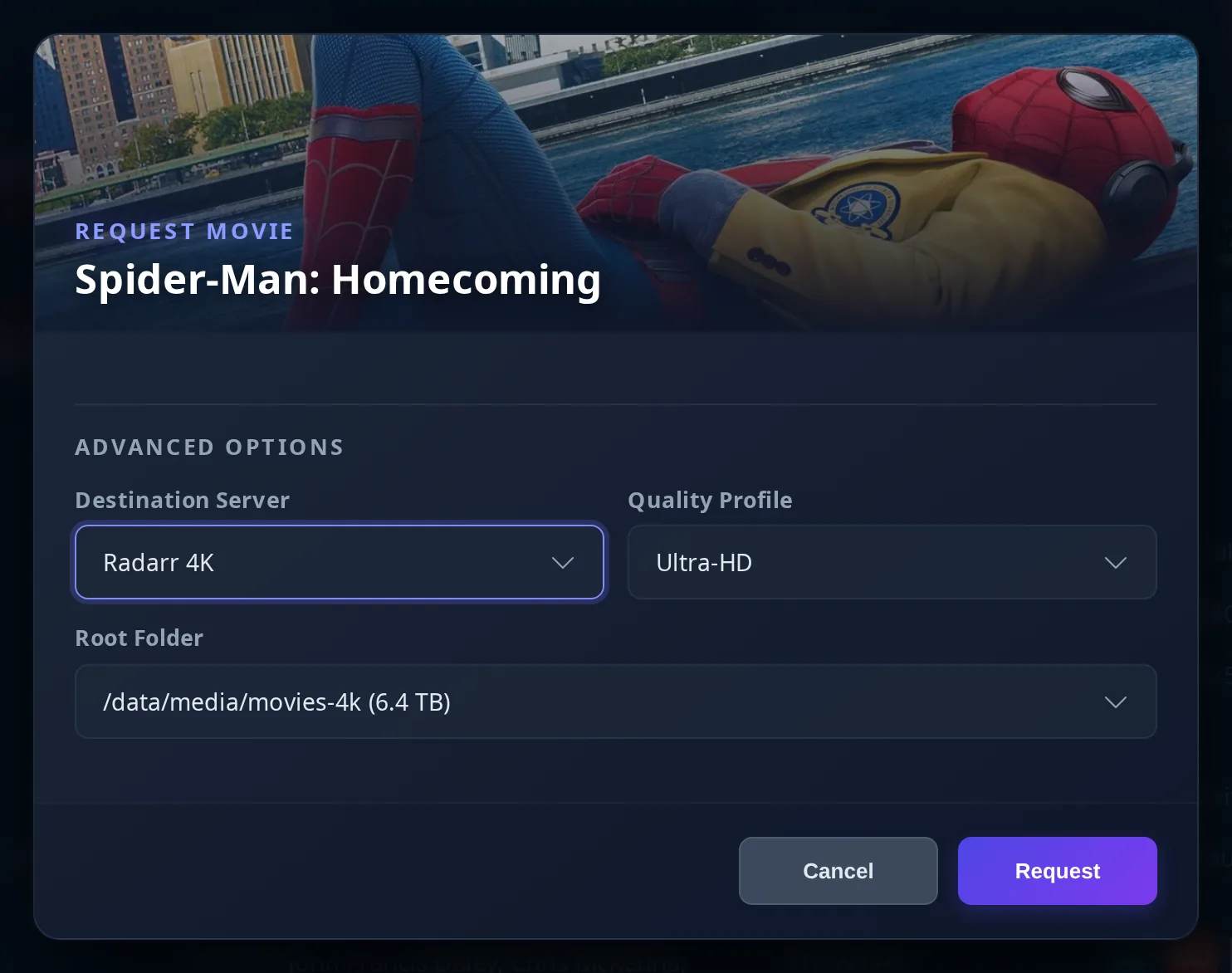
For movies, choose Request in 4K before opening the dialog; its title remains Request Movie, and matching 4K destination defaults are selected when supplied.
How to use: Open Seerr → Search & Requests and choose the options below. See advanced request options and request quotas.
| Setting | Default | What it does |
|---|---|---|
| Show advanced request options | Off | Shows destination choices to authorized linked users. |
| Show request quota info | On | Shows finite Seerr quota usage, its rolling window, and estimated next-slot availability when supplied. Enables detailed quota-error handling. |
Details
Linked Jellyfin/Seerr administrators and users with REQUEST_ADVANCED or MANAGE_REQUESTS can use advanced options. Unauthorized fields are hidden and stripped if submitted.
Unlimited quotas show no chip. One or two remaining slots show a warning; exhausted quotas show a restricted state. A recognized quota-exceeded HTTP 403 opens Request limit reached with retry guidance and advice to contact an admin. Turning quota information off uses simpler error handling; it does not remove the Seerr quota.
More Info and detail links
Choose how result posters and Seerr detail links open.
How to use: Open Seerr → Discovery & UI Extras and choose the options below. See More Info and Item Details.
| Setting | Default | What it does |
|---|---|---|
| Open results in "More Info" modal | On | Opens non-library result details in JE's modal instead of following an external Seerr link. Also controls the Seerr detail-page link. |
| Link available items' posters straight to Jellyfin | Off | Makes available posters open their Jellyfin item directly. Available title links already lead to Jellyfin. |
| Show Seerr link on item detail pages | On | Adds a Seerr link to the External Links row for TMDB-identified movies/series, independently of *arr links. |
| Show as text instead of icon | Off | Uses a text Seerr detail link. Depends on Show Seerr link on item detail pages. |
Details
Collection cards and membership badges use the collection request dialog. More Info's refresh button updates status and seasons manually; it does not continuously poll.
Show 'Report Issue' Button
Let users report media problems from Jellyfin detail pages.
How to use: Open Seerr → Discovery & UI Extras and enable the report button. See Issue Reporting for item eligibility, permissions, and the report form.
| Setting | Default | What it does |
|---|---|---|
| Show "Report Issue" button on items | Off | Adds reporting to eligible movie, series, season, and episode details. |
| Show open issue indicator | Off | Colors the report icon orange and shows the open-issue count, visually capped at 9+. Depends on the report-button switch. |
Issue permissions
Reporting needs a linked account and creation permission. Viewing existing reports and the count needs viewing permission. Manage issue status and conversations in Seerr.
Details
Both the modal and indicator fetch at most 50 global issue entries and filter them by title, so older matching reports can be absent. The modal shows existing reports/comments and submits new reports.
Streaming providers
Show subscription-provider icons on Seerr posters.
How to use: Open Seerr → Discovery & UI Extras and turn on Show Streaming Providers on Posters.
| Setting | Default | What it does |
|---|---|---|
| Show Streaming Providers on Posters | Off | Adds up to four subscription-provider icons from the admin's default Elsewhere region and provider filters (or each user's Seerr streaming region when that Elsewhere option is on) to Seerr posters; needs a TMDB key or the Seerr integration. |
Requires TMDB
Configure TMDB API Key to show streaming providers.
How it works
Poster icons use the server region (US by default), the server's provider selection (empty by default, meaning all), and provider exclusions (empty by default). Configure these under Elsewhere & Reviews Settings.
More Info's Streaming section is independent of this switch. With TMDB configured, it uses your per-user Elsewhere region, then the server region, then US. If that region is absent from supplied data, it tries US and then the first supplied region. It shows up to six unique subscription providers.
Item Pages Discovery
Add related titles and follow-up season requests to item detail pages.
How to use: Choose the options under Item Pages Discovery. See Item Details.
| Setting | Default | What it does |
|---|---|---|
| Show similar items | On | Adds a Similar row to eligible movie/series details (season and episode pages use their series). |
| Show recommended items | On | Adds a separate Recommended row. |
| Show "Request More" button on Series | On | Adds Request More beside seasons when additional regular seasons with episodes are requestable. |
| Exclude items already in library | On | Filters shared discovery/recommendation cards; separate from search exclusion. |
| Exclude blocklisted items | Off | Filters Seerr blocklisted media from those cards. Declined requests are a different state. |
Requirements
Similar and recommended rows require a TMDB ID and working Seerr user access.
Details
Each row has up to 20 items before filtering, without unlimited paging.
More discovery
Find titles beyond your library from genre, studio, tag, person, and collection pages.
How to use: Open Seerr → Discovery & UI Extras → "More" Discovery and enable the types you want. See Discovery Pages for routes and matching requirements.
| Setting | Default | What it does |
|---|---|---|
| Show "More from Network" | On | Adds network/production-company discovery to Jellyfin studio pages. Studio-produced TV needs the separate TMDB key. |
| Show "More Genre" | On | Adds genre discovery to Jellyfin genre pages. |
| Show "More Tag" | On | Adds discovery using a TMDB keyword matched from the Jellyfin tag. |
| Show "More from Actor" | On | Adds filmography discovery to person pages using a TMDB ID or name search. |
| Show missing collection movies | On | Shows missing movies with request buttons on BoxSet pages that have a TMDB collection ID. |
Discovery filters
Choose which filters the Filters button of a "More" section offers. A filter turned off is never offered, to anyone. Viewers have no per-user setting for these.
How to use: Open Seerr → Discovery & UI Extras → Filters in the "More" sections and turn off the filters you don't want. See Filters, sort and roles for how viewers use them.
| Setting | Default | What it does |
|---|---|---|
| Released | On | A range of years, months or days. |
| Score | On | A range of TMDB user scores, from 0 to 10. |
| Votes | On | A range for the number of TMDB user votes. |
| Runtime | On | A runtime range, in minutes. List pages only. |
| Genres | On | Genres a title must have, and genres it must not have. |
| Original language | On | Original languages a title must be in, and ones it must not be in. |
| Content rating | On | The ratings used in your Default Region (Elsewhere & Reviews tab). US ratings where TMDB has none for it. List pages only. |
| Streaming services | On | The services available in your Default Region (Elsewhere & Reviews tab). List pages only. |
| Keywords | On | Keywords a title must have, and keywords it must not have. List pages only. |
| Role (actor pages) | On | What the person did in a title: acting, or a crew department such as Directing or Writing. Person pages only. |
The tabs (All, Movies, Series) and the sort have no switch. The filters reach Seerr's discover feeds; series by a studio come from TMDB directly, which needs the TMDB key described under Show "More from Network".
Add Requested Media to Watchlist
Add requested titles to the requester's Jellyfin watchlist as they reach the library, or sync watchlist entries between Seerr and Jellyfin.
How to use:
- Enable the options you want.
- Save your settings.
- After enabling requested-media monitoring, restart Jellyfin or run Jellyfin Enhanced Startup once to start watching for library additions and updates.
See Watchlist Sync for schedules, limits, and additive behavior.
| Setting | Default | What it does |
|---|---|---|
| Add requested media to Watchlist | Off | Adds requested movies/series to the requester's Jellyfin watchlist when library additions or updates match them, including requests made outside JE. |
| Sync Seerr Watchlist → Jellyfin | Off | Enables incoming scheduled watchlist sync. That task also includes requests when the requested-media switch is on. |
| Sync Jellyfin Watchlist → Seerr | Off | Enables outgoing scheduled watchlist sync for linked accounts and TMDB-identified movies/series. |
| Prevent re-adding removed items | On | Remembers processed items so removing one from Jellyfin's watchlist does not cause it to be added again during incoming sync/monitoring. |
| Memory retention (days): | 365 | Keeps processed-item memory for this many days; input range 1–3650. Applies when re-addition prevention is on. |
Details
The KefinTweaks plugin provides the Jellyfin watchlist interface. Sync switches are checked when their scheduled tasks run. The two add syncs never remove anything; removals are handled by Sync Watchlist Removals (see Watchlist Removal Sync).
Sync Seerr Watchlist to Jellyfin
Bring Seerr watchlist entries into Jellyfin with a scheduled task. It runs daily at 03:00 by default.
How to use: Enable Sync Seerr Watchlist → Jellyfin, then adjust or run Sync Watchlist from Seerr to Jellyfin under Dashboard → Scheduled Tasks. See Watchlist Sync.
Sync Jellyfin Watchlist to Seerr
Bring Jellyfin watchlist entries into Seerr with a scheduled task. It runs daily at 03:30 by default.
How to use: Enable Sync Jellyfin Watchlist → Seerr, then adjust or run Sync Watchlist from Jellyfin to Seerr under Dashboard → Scheduled Tasks.
Watchlist Removals
Choose whose removals are copied to the other watchlist: Jellyfin decides (default), Seerr decides, Both stay in sync, or Never. Runs as Sync Watchlist Removals between Jellyfin and Seerr, daily at 04:00 by default. See Watchlist Removal Sync.
Only Allow Requesting One Season at a Time
- Removes Select All from the season modal and lets users tick only one season per request
- Applies everywhere the season modal opens (search, more info, item details)
- Needs Partial requests enabled in Seerr; otherwise Seerr requires all seasons and this setting has no effect
Auto Import Jellyfin Users to Seerr
Let JE create missing Seerr accounts for Jellyfin users.
How to use: Follow Configure User Import for the controls and manual action. Use Permission Audit after linking accounts or changing their permissions.
Automatic requests
Request the next season or collection movie based on playback. These server automations can also react to native-client playback events.
How to use:
- Enable Seerr and the relevant automation below.
- Save, then restart Jellyfin or run Jellyfin Enhanced Startup once.
See Auto-Request Settings for triggers and policy limits.
Auto Season Requests
Request the next numeric season near the end of the current one.
| Setting | Default | What it does |
|---|---|---|
| Enable Automatic Advance Season Requests | Off | Requests the next numeric season using the playback user's linked Seerr account when the threshold is met. |
| Require All Prior Episodes Watched | Off | Requires earlier episodes present in the current Jellyfin season to be watched or marked watched. Does not require the current or later episodes to be watched. |
| Episodes Remaining Threshold | 2 | Triggers when upstream season episode count minus current episode number is at most this value; input range 1–20. |
Season request requirements
You need a series TMDB ID and usable Seerr request access. Episode counts come through Seerr; a separate TMDB key is not required.
Auto Movie Requests
Request the next collection movie based on playback.
| Setting | Default | What it does |
|---|---|---|
| Enable Auto Movie Requests | Off | Considers the immediately following movie in Seerr's returned collection entries. Needs a TMDB ID, collection membership, JE's TMDB key and linked user access. |
| When movie starts | Off | Checks at most five minutes in and below 5% playback. |
| After X minutes watched | On | Checks after playback reaches the position threshold. Seeking or resuming can meet it. |
| Minutes Watched Threshold: | 20 | Playback-position threshold in minutes; input range 1–180. |
| Only request if released | On | Skips a movie with a valid future release date. Missing/unparseable dates do not block a request. |
| Quality Profile Mode: | Default | Default lets Seerr choose. Original copies settings from the watched movie's first Seerr request. Custom sends the configured selections below. A 4K Radarr server is requested as a 4K request. |
| Use default instead of 4K fallback | On | In Original, falls back to Seerr defaults when the copied request was 4K. Turn off to preserve those 4K settings. |
| Radarr Server: | Unset | Destination used only in Custom. A server marked (4K) is requested as a 4K request. |
| Quality Profile: | Unset | Profile used only in Custom. |
| Root Folder: | Empty | Folder used only in Custom. |
Movie request requirements
You need TMDB API Key, a TMDB-identified movie in a collection, and a linked account with usable request permissions.
How it works
Original uses Seerr request records, not the watched file's measured quality. It falls back to Default without usable original settings. Custom also falls back if no custom value is set. The service does not sort collection entries locally or search farther ahead when the next entry is already available/requested or is skipped by release checking.
Start-only stores OnStart; both trigger choices store Both. The default trigger mode is OnMinutesWatched.
The unset starting values are -1 for Radarr Server: and 0 for Quality Profile:.
Auto Request Removal
Delete a Seerr request once the user who made it has watched it.
How to use: Enable the feature. The Remove watched requests from Seerr scheduled task runs daily at 04:30 and removes each request on the first run after its requester has watched it; run it from Dashboard → Scheduled Tasks to apply it at once.
Destructive: use with caution
A deleted request cannot be restored, and its history is gone from Seerr. If request quotas are enabled in Seerr, removing a request also gives that quota back to the user, because Seerr counts quota from the requests that still exist. The same applies to the Remove request button on the Requests page.
| Setting | Default | What it does |
|---|---|---|
| Remove Watched Requests | Off | AutoRequestRemovalEnabled; deletes approved or completed requests once their requester has watched them. Only the request is deleted, never the media. |
See Auto Request Removal for how movies and series are judged watched.
Recently Added Sync to Seerr
Seerr > Recently Added Sync to Seerr
Help Seerr discover availability after Jellyfin library additions by triggering its recently-added scan.
For an administrator test, press Trigger scan now.
| Setting | Default | What it does |
|---|---|---|
| Trigger Seerr recently-added scan when new Jellyfin items are added | Off | Triggers a scan after movie, series, season, and episode additions. |
| Debounce (seconds): | 60 | Wait after the last addition; input range 5–3600 seconds. |
Scan limits
A scan does not complete downloading/importing or guarantee an immediate status update.
How it works
New additions reset a timer. After the final event, JE waits for Debounce (seconds):, then dispatches the automatic scan to every configured Seerr URL.
Trigger scan now uses the entered URLs/key, including unsaved values, and stops at the first successful URL. It is an administrator action, not a saved setting.
After startup initialization, changing the automatic scan switch requires no restart because its listener is always registered.
Requests Page Management
The shared Requests page brings Seerr requests and optional issues together with *arr downloads/history. Download connection and visibility details also appear in *arr settings.
Enable Requests Page
Choose how users open Requests in Jellyfin.
How to use:
- Open Pages → Requests Page and turn on Enable Requests Page.
- Choose a navigation option below, or leave the navigation modes off for built-in navigation.
- Save your settings.
| Setting | Default | What it does |
|---|---|---|
| Enable Requests Page | Off | Enables the shared page. Seerr requests require enabled/configured Seerr and linked viewers; download sections need configured *arr services. |
| Add Requests as a native Home tab | Off | Adds a native Home tab without a companion plugin. Recommended by the UI for Jellyfin 12's experimental layout. |
| Use Plugin Pages for Requests | Off | Uses the Plugin Pages plugin integration. |
| Use Custom Tabs for Requests | Off | Embeds Requests with the Custom Tabs plugin. Cannot be combined with the native Home tab. |
| Add the Custom Tabs entry for me | Off | When the page and Custom Tabs mode are enabled, creates the matching entry on save. Turning Custom Tabs mode off removes the managed entry; turning it on recreates it. |
For routes, layout limits, Plugin Pages restart rules, and Custom Tabs setup, see JE Pages & Tabs.
Show Downloads Section
Show active downloads and recent import history alongside requests.
How to use: Open Pages → Requests Page and choose the download visibility options below.
| Setting | Default | What it does |
|---|---|---|
| Show Downloads in Requests Page | On | Displays active *arr downloads. Also required to show the history section. |
| Filter Downloads by User Requests | On | Limits queue/history for non-admins to content they requested through Seerr. Without usable Seerr linkage or matching requests, their results can be empty. |
| Show Download History Section | On | Adds paginated recent import history. |
| Restrict Download History to Admins | Off | Restricts history to Jellyfin administrators, enforced by the server. |
Download visibility
Administrators bypass download-user filtering. Turning it off exposes other users' queue/history entries to authenticated viewers, subject to the separate admin-only history setting.
Request visibility has its own Seerr permission rules. For progress, import outcomes, history bounds, and download search, see *arr features.
Show Seerr Issues Section
Let authorized users browse Seerr issues on Requests.
How to use: Open Pages → Requests Page and turn on Show Seerr Issues Section.
| Setting | Default | What it does |
|---|---|---|
| Show Seerr Issues Section | Off | Adds Issues with Open/Resolved filters and pagination when Seerr is enabled. |
Details
Linked ordinary users need VIEW_ISSUES or MANAGE_ISSUES to load issue data; linked Jellyfin/Seerr administrators bypass that local check. Issues returned by Seerr are subject to parental filtering. See Issues on the Requests page.
Auto-Refresh Settings
Refresh Requests automatically while users browse.
How to use: Open Pages → Requests Page and choose whether and how often to refresh.
| Setting | Default | What it does |
|---|---|---|
| Enable Auto-Refresh | On | Refreshes the page's requests, enabled downloads, issues, and history. |
| Poll Interval (seconds) | 30 | Refresh interval when enabled; input range 30–300 seconds. |
How it works
Polling stops when you leave the standalone page or switch away from its native Home or Custom Tabs tab. With Plugin Pages, it can continue after navigation until you reload or close the browser page. Hidden browser tabs are skipped. An issue-read HTTP 403 suppresses repeated issue polling while that permission-denied state persists. The visible manual refresh/search controls belong to Downloads; request and issue lists use filters and pagination. Caching can still affect freshness.
Seerr Recommendations Page
Pages > Seerr Recommendations Page
Give users a dedicated page for discovering movies and series.
How to use:
- Enable the page and choose a navigation option below.
- Save your settings.
See Recommendations browsing for using the page.
| Setting | Default | What it does |
|---|---|---|
| Enable Recommendations Page | Off | Enables Seerr Recommendations. |
| Add Recommendations as a native Home tab | Off | Adds a native Home tab without a companion plugin. |
| Use Plugin Pages | Off | Uses Plugin Pages for Recommendations. |
| Use Custom Tabs | Off | Embeds Recommendations with Custom Tabs; incompatible with its native Home tab. |
| Add the Custom Tabs entry for me | Off | Creates the matching Custom Tabs entry on save when the page and Custom Tabs mode are enabled; disabling/re-enabling that mode removes/recreates the managed entry. |
Connection requirements
The page needs enabled/configured Seerr and a linked viewer.
For routes, layout limits, Plugin Pages restart rules, and Custom Tabs setup, see JE Pages & Tabs.
Details
Discovery exclusions apply to shared cards. Studio-produced series require the separate TMDB key; studio and network logos are bundled and need no key.
Debug and caching
Use these controls to investigate stale status or permissions.
| Setting | Default | What it does |
|---|---|---|
| Disable server-side response cache | Off | Fetches Seerr responses and account lookups without using the server cache. |
| Response Cache TTL (min) | 10 | Minutes to keep cached Seerr responses, such as search and discovery. |
| User ID Cache TTL (min) | 30 | Minutes to keep Jellyfin-to-Seerr account lookup results. |
How it works
Both TTL inputs have a minimum of 1 minute and no HTML maximum. Disabling the cache increases upstream calls; it does not clear every browser cache.
Saving JE configuration clears its Seerr server caches. Permission Audit bypasses user lookup caching independently. A refresh control does not guarantee every cached layer has been cleared.