Seerr Integration
Search, request, and discover media from Jellyfin using your Seerr instance. Start with Seerr setup, then check your accounts with Permission Audit.
Client and connection requirements
These interfaces run in the Jellyfin web client. Server playback automations can also react to native clients. External Seerr links need to be accessible from your device.
How it works
JE proxies API calls through the Jellyfin server, keeping the Seerr API key out of the browser and avoiding browser CORS requirements.
JE is independent of Seerr. Report integration problems to the Jellyfin Enhanced project.
Features
- Search and requests, including seasons, 4K, collections, advanced destinations, and quotas.
- More Info, item-specific recommendations, discovery, and the Recommendations page.
- Issue reporting and the shared Requests page.
- Watchlist sync and automatic requests.
Search Integration
Seerr adds movies and series you can request alongside Jellyfin's own search results. Cards show request and availability status; person results are excluded.
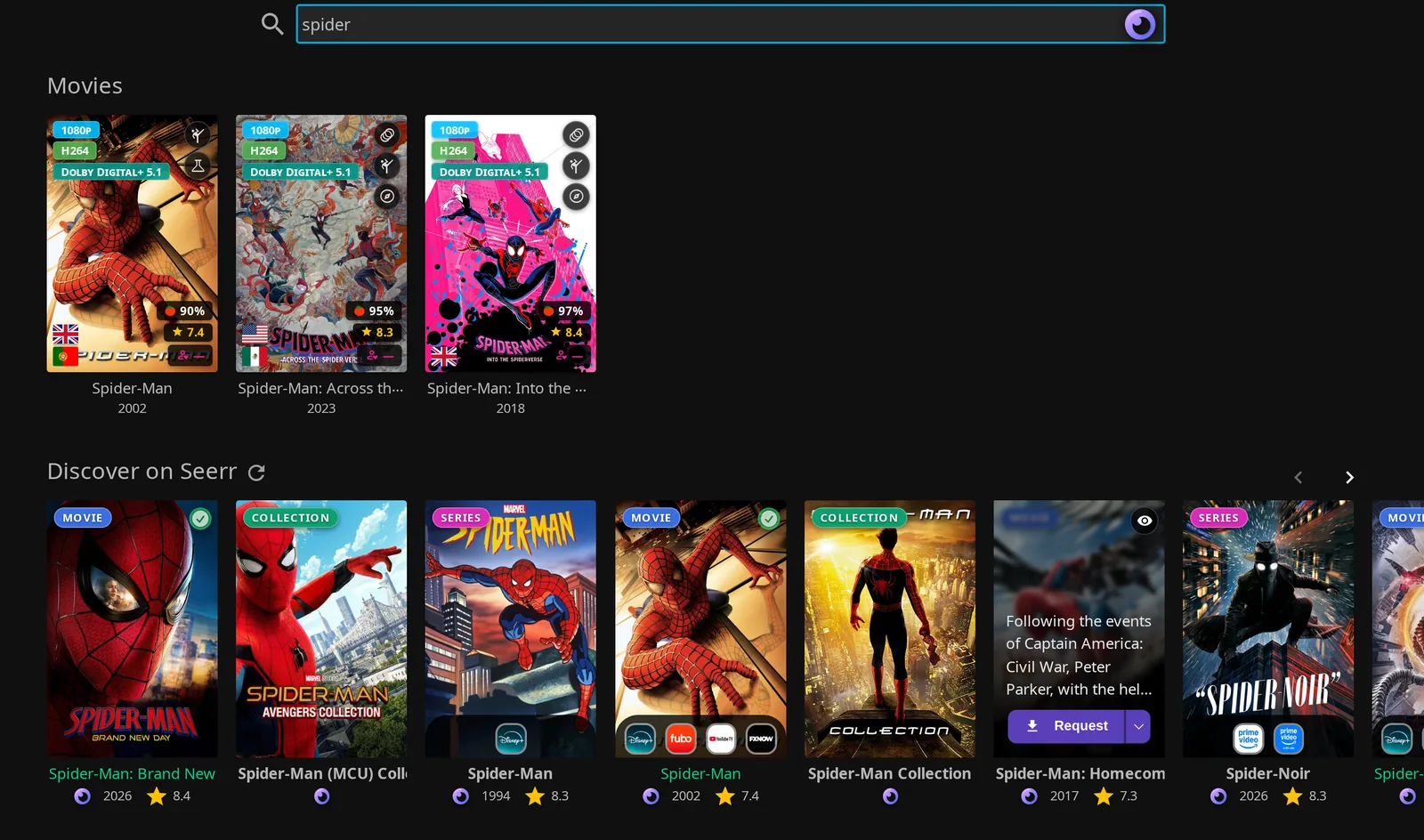
Requesting
How to use:
- Enter a query in Jellyfin search. Discover on Seerr appears alongside library results; Seerr-only mode uses Seerr Results.
- Hover a card on desktop, or use its touch/keyboard controls, to reveal the overview and request actions. Press Request for an unrequested title; TV opens season selection. Movie requests open Request Movie when advanced options are enabled for your account; otherwise they submit immediately.
- Open a poster for details. Title links for library matches open Jellyfin, including partially available series. Other results open More Info or Seerr, depending on the admin settings.
- Scroll the Seerr row sideways to load more results. Use the refresh icon beside its heading to reload the row.
To show only Seerr results, double-click or double-tap the active Seerr icon. With the active icon focused, you can also press Enter or Space to toggle this mode. You need a linked account.
To narrow results by year, search for Title (YYYY), including the closing parenthesis.
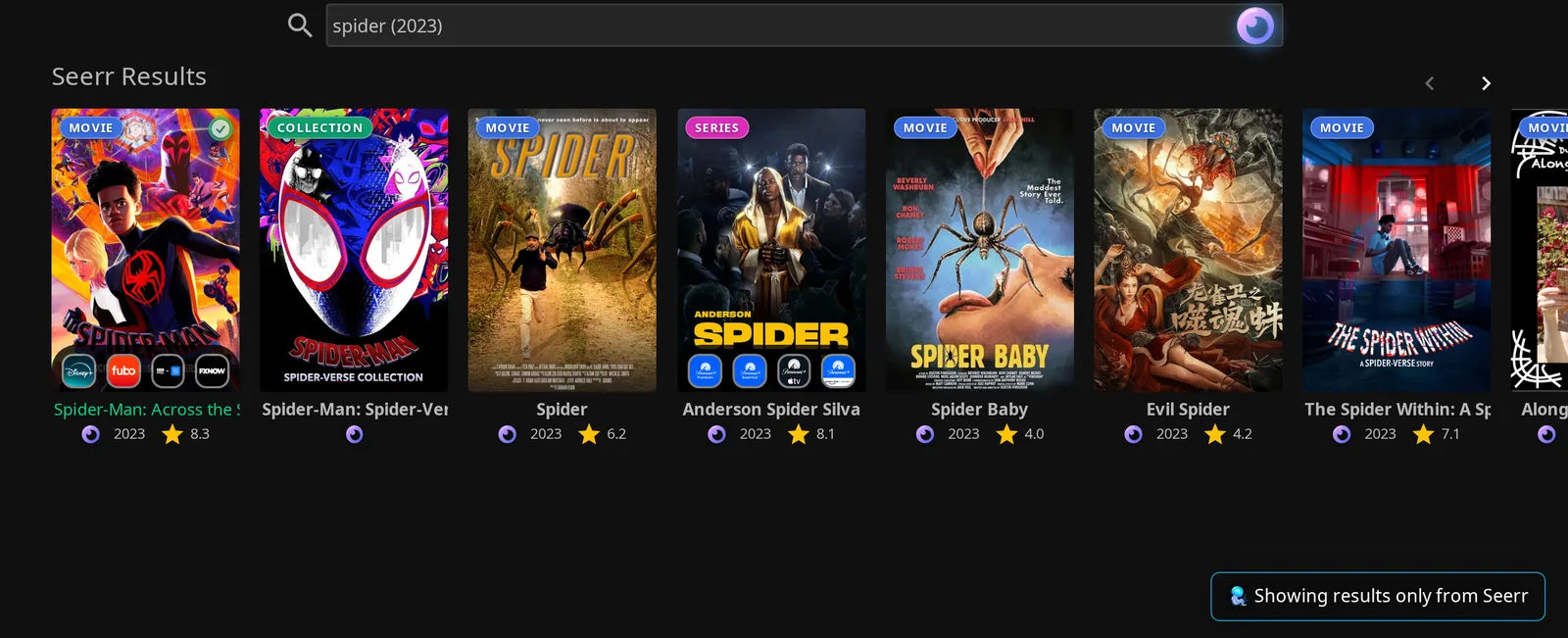
Admin settings under Seerr → Search & Requests; every option and default is in the full reference.
Search exclusions
Search exclusion can hide a movie you want in 4K or a series with missing seasons. Use Request More on the series detail page or request directly in Seerr. Discovery/recommendation exclusion is a separate setting. Hidden Content can also affect which cards you see.
How it works
A library match needs a Jellyfin media ID and available/partially available status, with TV season data also considered.
The year filter uses a movie's release year or a series' first-air year. Unknown or nonmatching years are excluded. Jellyfin's native results are unaffected.
Season selection
Choose which seasons to request when Seerr allows partial TV requests.
How to use:
- Open a TV request to see season selection.
- Choose requestable seasons or Select All Seasons. With Only Allow Requesting One Season at a Time on, Select All Seasons is removed and each request is limited to one season (needs partial requests enabled in Seerr).
- Press Request to submit your selection.
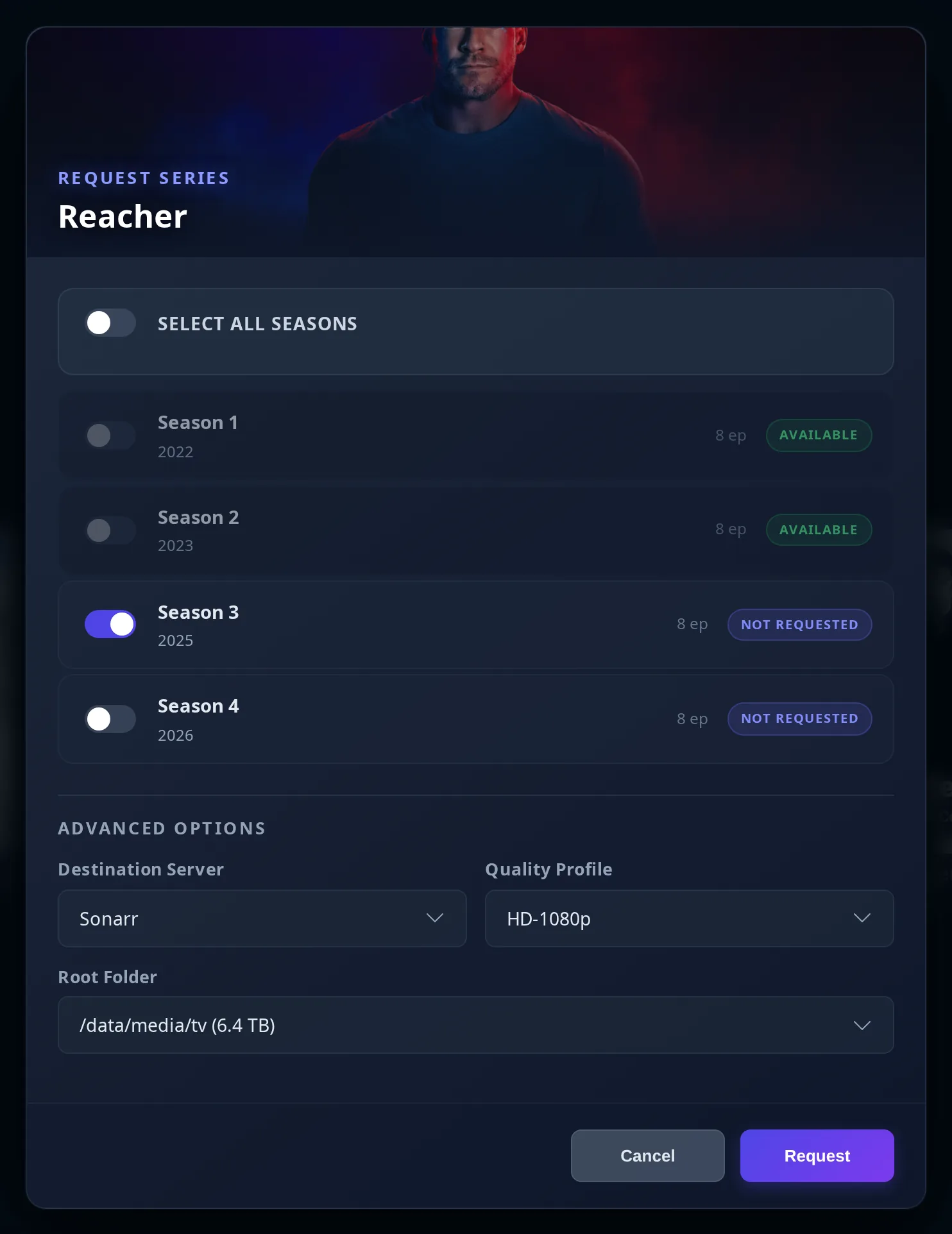
Seerr controls season selection
TV requests depend on Seerr's partial-request and special-episode settings. Without partial requests, the checkboxes are disabled, and submission requests every regular season number returned by Seerr, or the whole series if none are returned.
How it works
Specials appear only when enabled upstream and are excluded from Select All Seasons. Seasons with zero episodes are hidden. The request dialog refreshes status every ten seconds while retaining your selections.
If upstream settings cannot be read, JE uses its last successful settings. Without those, it treats partial requests and specials as disabled.
Library season-presence checks can make deleted seasons requestable again even while Seerr still reports them available. Request eligibility also depends on the selected quality's status and Seerr's authorization.
4K TV Requesting
Request series in 4K when your Seerr setup supports it.
How to use:
- Turn on the admin setting Enable 4K TV Requests.
- Choose Request in 4K from a TV request dropdown.
- In Request Series - 4K, choose seasons and submit with Request in 4K.
Movie cards also offer Request in 4K when Enable 4K Requests is on. Choose 4K from the dropdown before opening an advanced movie request dialog.
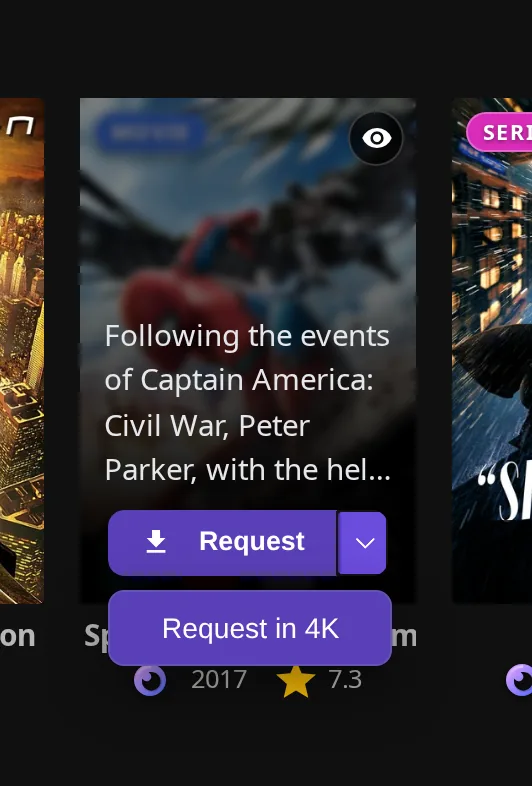
Admin settings under Seerr → Search & Requests; every option and default is in Seerr settings → Enable 4K TV Requests.
Normal and 4K statuses are separate. These switches expose actions; Seerr still decides whether a request is accepted. See 4K settings.
Details
In More Info, unrequested series can show Request, follow-up requests can show Request More, and Request in 4K can be a dropdown choice or a standalone button when normal requests are unavailable.
Series without a TVDB match
You can match a series manually when its TMDB metadata has no TVDB ID.
How to use:
- In the season dialog, select the correct series from the Sonarr search candidates.
- If needed, enter TVDB ID: the numeric ID in the series' thetvdb.com address.
- Request normally.
Details
When neither upstream metadata nor Seerr's stored media record supplies a match, the season dialog offers Sonarr search candidates. Manual entry also works when candidates cannot be retrieved or Sonarr is not configured in Seerr.
Series with an existing TVDB match do not show this block. This matching workflow has no separate JE setting.
Advanced request options
Choose where and how Seerr downloads a request when your account has access to advanced options.
How to use: In the request dialog, choose Destination Server, Quality Profile, and Root Folder. Fill every required choice before submitting.
Admin settings under Seerr → Search & Requests; every option and default is in the full reference.
How it works
Linked Jellyfin/Seerr administrators and users with REQUEST_ADVANCED or MANAGE_REQUESTS can use advanced options. Other users' advanced fields are hidden and stripped if sent.
Servers are sorted alphabetically. JE selects the matching normal/4K default and any supplied profile/folder defaults. Folder labels can include free space. Explicit selections bypass JE's client-side override-rule evaluation.
Request quotas
Quota information helps you see how many requests you have left and when another slot may become available.
How to use: Check the quota chip when requesting a title. It shows the movie or series quota for that title. A next-slot estimate can appear while you still have requests left.
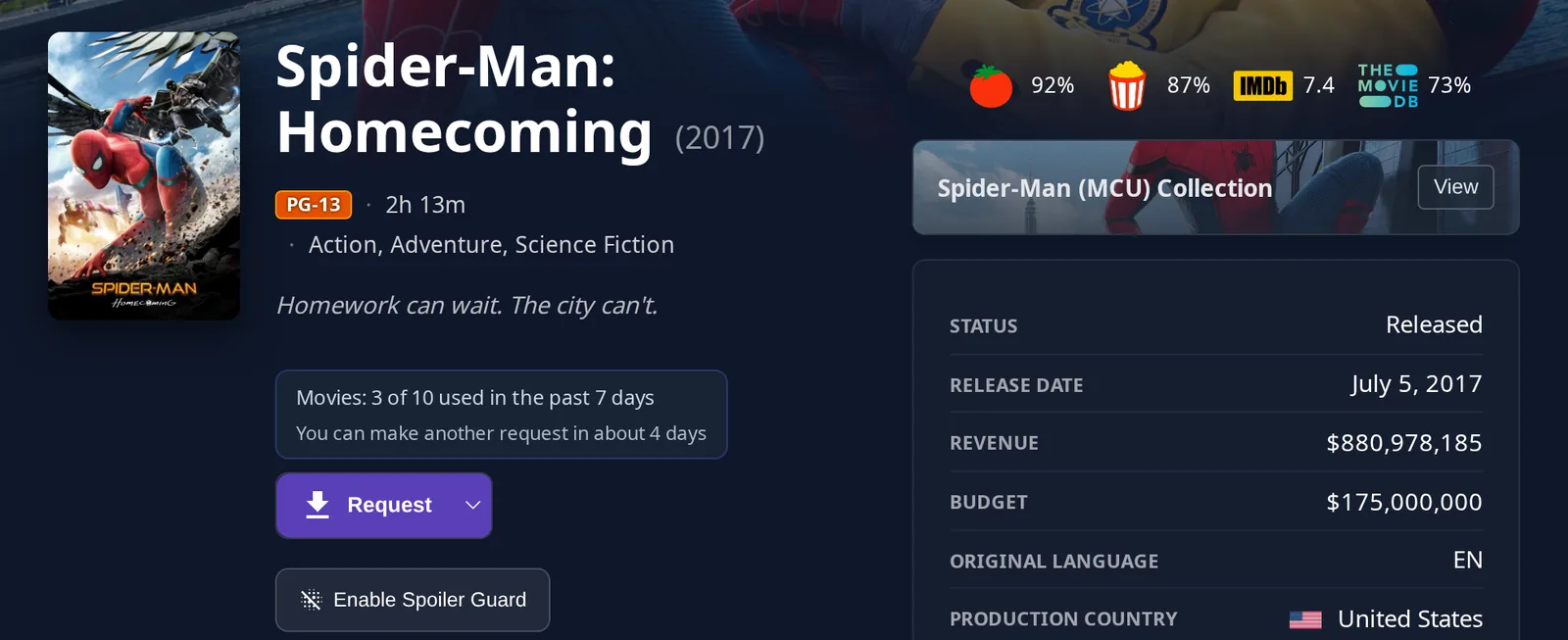
Admin settings under Seerr → Search & Requests; every option and default is in the full reference.
Details
Unlimited quotas show no chip. One or two remaining slots show a warning; exhausted quotas show a restricted state.
A recognized quota-exceeded HTTP 403 opens Request limit reached with recovery guidance. Turning quota information off gives simpler errors without changing the upstream limit.
Collection requests
Request several movies from a collection in one place.
How to use:
- Open a collection card or a movie's collection membership badge to use Request Collection.
- Choose movies individually or with Select All Movies.
- Press Request Selected Movies.
Admin settings under Seerr → Search & Requests; every option and default is in Seerr settings → Search and collection results.
Details
Available movies and entries with normal-quality Pending/Processing media status are disabled. Other entries start checked, including partially available or blocklisted entries whose requests may fail upstream. Requests are sequential and normal quality; feedback reports successful and failed counts. A quota error recognized while quota information is enabled stops the remaining batch. A separate TMDB key supplies fallback collection metadata if Seerr returns no collection.
Request Status Indicators
Status labels help you see whether a title is available or a request needs attention. Cards, More Info chips, season rows, and Requests cards summarize related but different Seerr states.
| Status | Meaning |
|---|---|
| Available | Seerr reports availability. |
| Partially Available | Some series content is available; season rows use Partial. |
| Pending Approval | A request is waiting for approval. |
| Requested | A request is in progress without active transfer information. |
| Processing | Active download activity on shared cards/season displays. The Requests page filter has the broader meaning described below. |
| Declined | The request was declined. This is separate from blocklisting the media. |
| Blocklisted | Seerr has blocked the media. |
| Deleted | Previously tracked media was removed; it can become requestable again. |
| Not Requested | No request recorded, used in season/collection displays. |
Details
These are fetched/cached snapshots, not a continuous live feed. Local checks can correct stale availability. An upgrade download can retain Available while showing activity. A pending request can coexist with partially available media. Season rows also use Requested for Pending/Processing media without active downloads.
Request, Request Missing, and Request More are actions, not status names. Series controls can include counts of available/requested seasons. More Info displays normal and 4K chips independently. Request actions update their interface; the season request dialog polls, the Requests page can auto-refresh, and More Info has manual refresh. See cache settings when a state looks stale.
Item Details
Find more to watch in Similar and Recommended rows on movie and series detail pages. Season and episode pages show the rows of their series. You can open details and request titles just as you do in search.
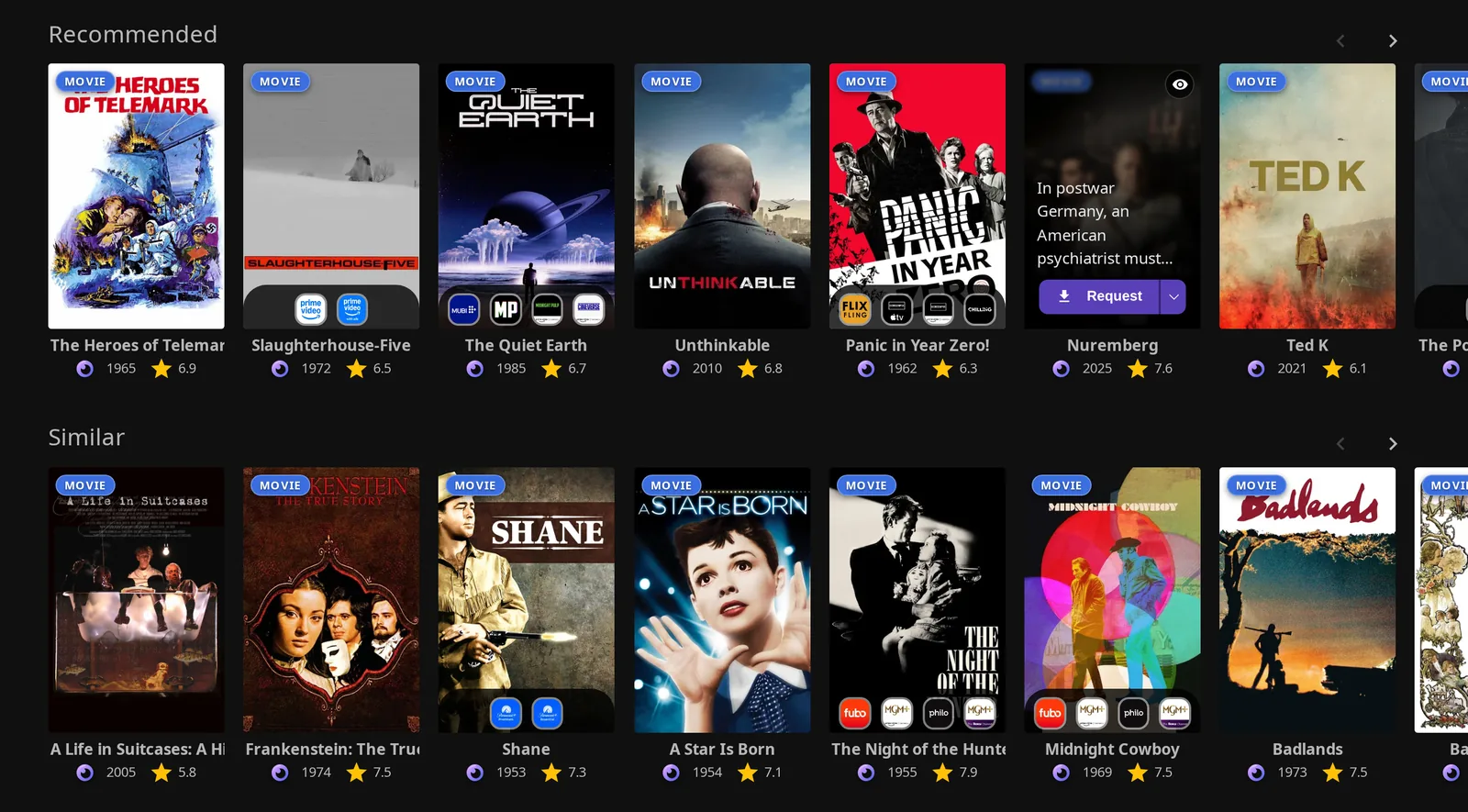
Configure
How to use:
- Turn on either row under Seerr → Discovery & UI Extras → Item Pages Discovery.
- Open an eligible movie or series detail page and browse the rows.
- To request more seasons, press Request More beside the season list when it is available. On Jellyfin 12, this list is headed Series. This opens season selection.
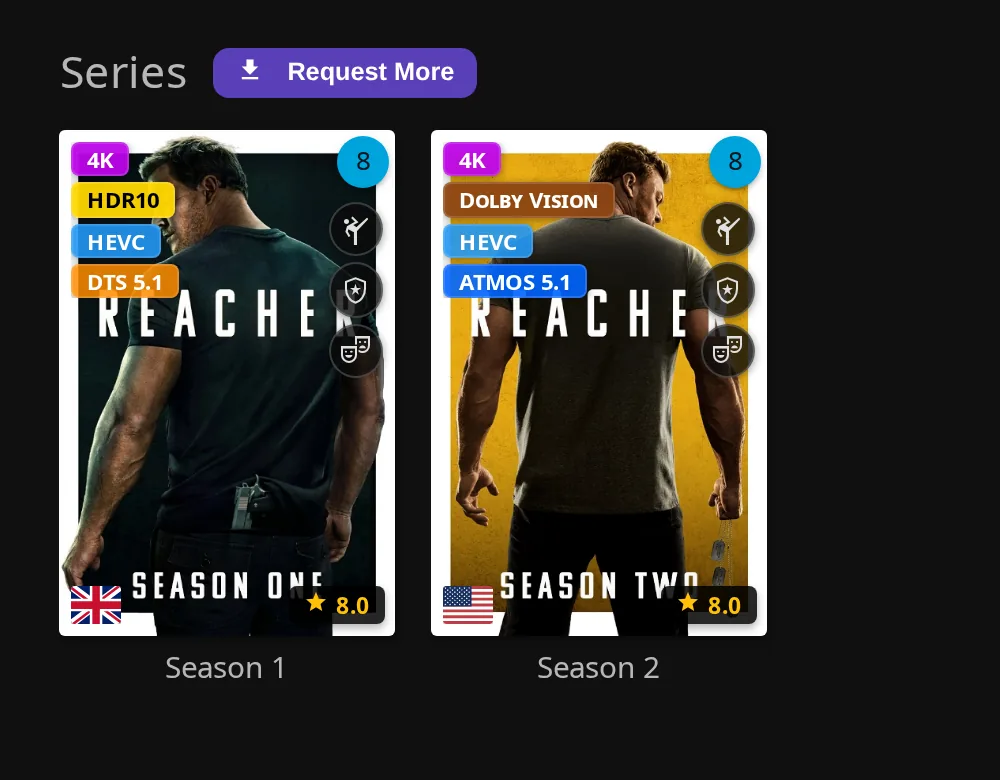
Admin settings; every option and default is in the full reference.
Requirements
The rows need a TMDB-identified movie or series and working Seerr user access.
How it works
JE places the rows after Jellyfin's More Like This region. Each row has up to 20 items before filtering, without unlimited additional pages.
Request More appears for requestable additional regular seasons containing episodes. Local season-presence and Seerr status checks can make deleted seasons eligible again.
JE also adds a Seerr link to the External Links row independently of *arr links. It opens More Info when enabled, otherwise Seerr in a new tab; the detail-link settings control its visibility and icon/text appearance.
More Info
More Info lets you read about a title, check its availability, and request it without leaving Jellyfin.
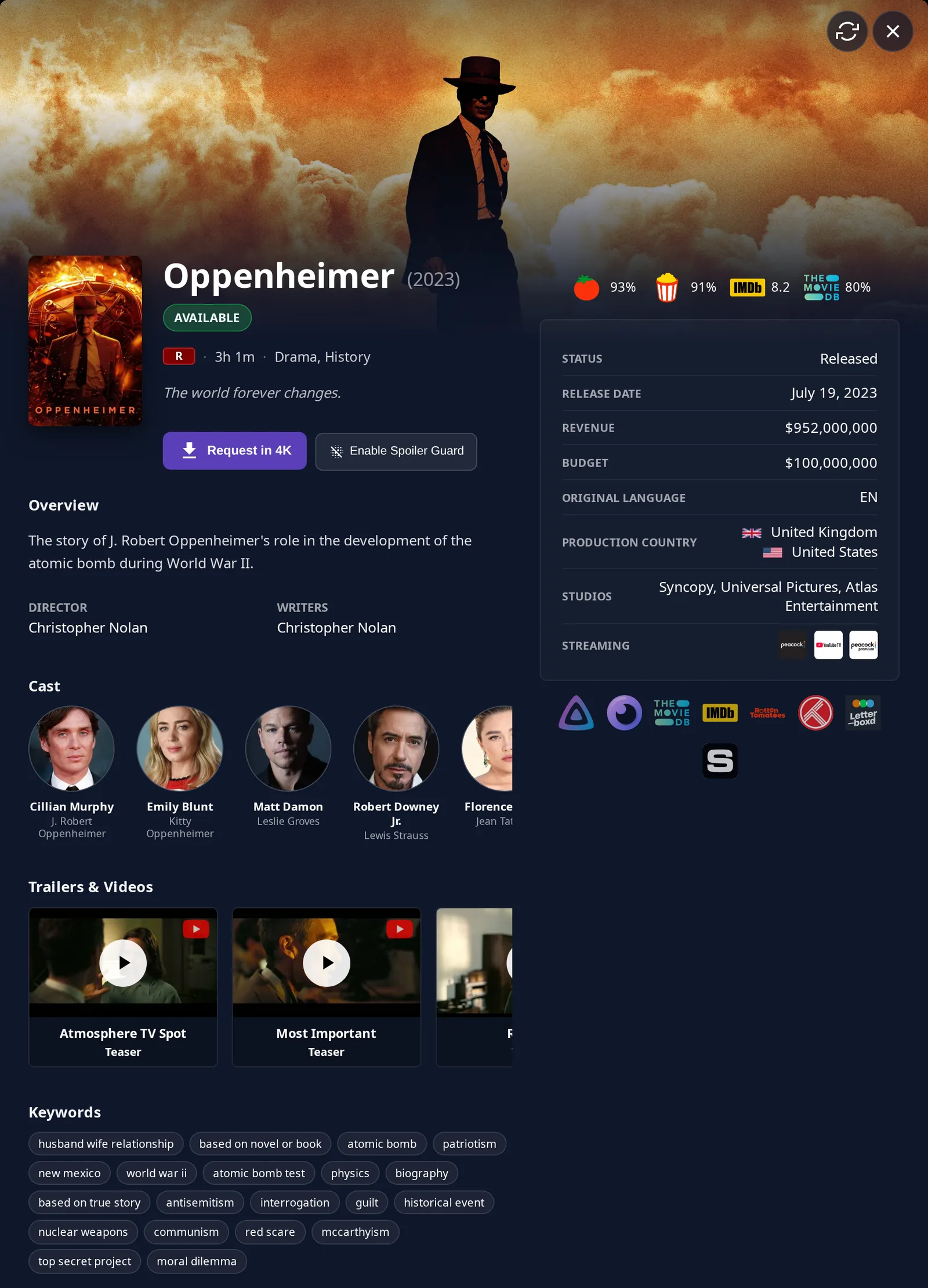
How to use:
- Open a result poster or the Seerr detail link.
- Choose a request action. Where a season availability badge links to Jellyfin, use it to open that library season.
- Press the refresh icon (Refresh status) to update request, status, download data, and seasons.
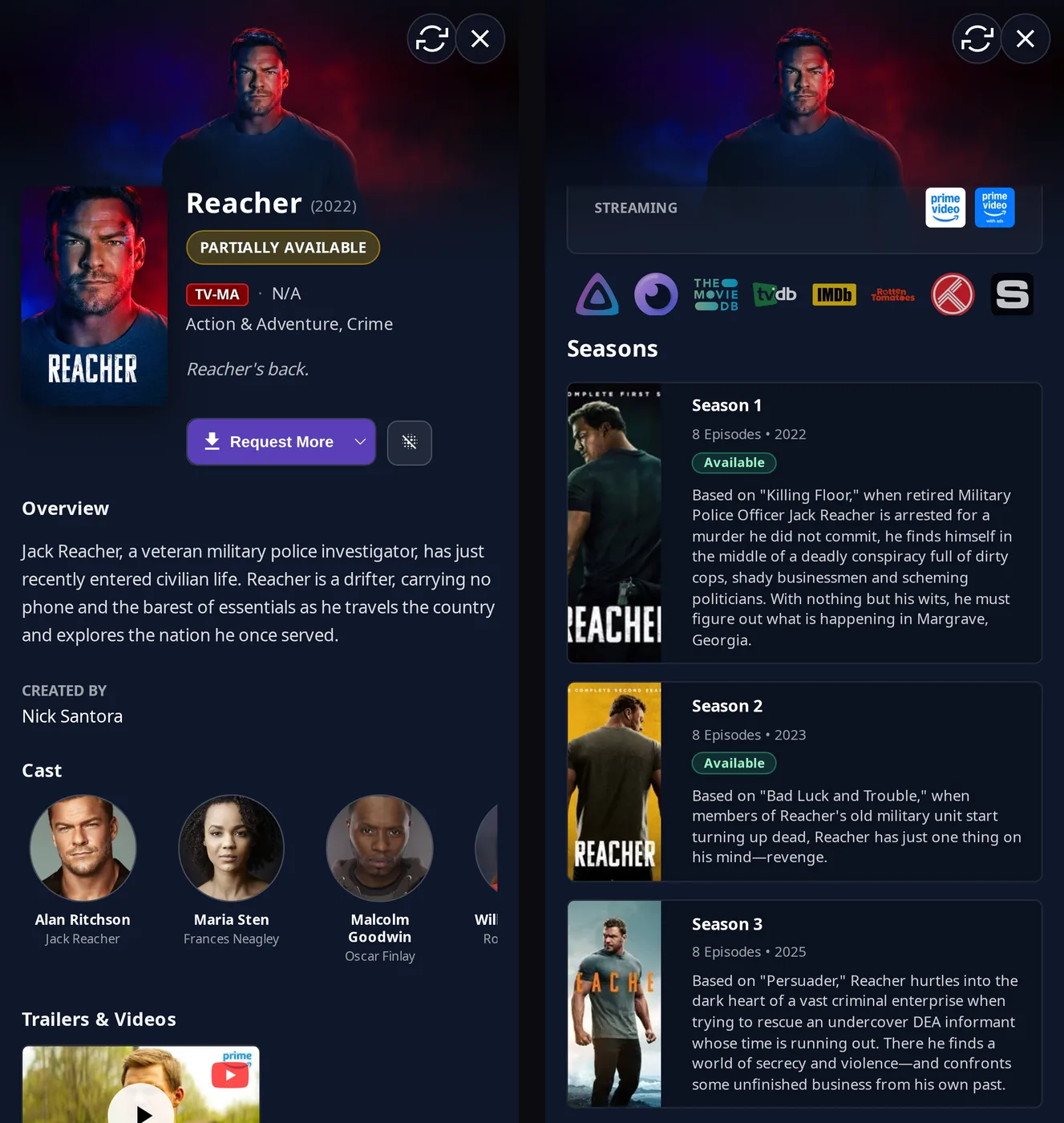
Admin settings under Seerr → Discovery & UI Extras; every option and default is in the full reference.
Details
More Info shows metadata, content rating, overview, requester names/avatars, and normal/4K status. Depending on upstream data, it includes download bars, cast/crew, trailers, keywords, collection membership, external links, and TV seasons with availability badges that link to the library when a Jellyfin season ID is resolved.
It does not continuously poll. It shows up to 20 cast entries, 20 keywords, and six trailers. View on SIMKL is available when an IMDb ID exists, with no separate switch.
On a title protected by Spoiler Guard, More Info and result cards follow your Spoiler Guard settings, wherever you open them from. External links in More Info, such as View on Seerr, lead to the unprotected pages on those sites.
The modal's Streaming section is independent of poster icons. With TMDB configured, it shows up to six unique subscription providers using your per-user Elsewhere region, then the server region (US by default). If the selected region is absent from supplied data, it tries US and then the first supplied region. See provider settings.
Spoiler Guard before library arrival
Protect a title from spoilers before it arrives in your library. This is a per-user choice.
How to use: Press Enable Spoiler Guard in More Info. The button becomes Spoiler Guard (pending), or Spoiler Guard: On if the title is already in your library, and More Info reloads with the protected details. You can disable it again from there. A movie protected through a collection shows Spoiler Guard: On without a way to change it here; change it on the collection.
Related admin settings (Spoiler Guard reference):
| Setting | Default | What it does |
|---|---|---|
| Enable Spoiler Guard | Off | Enables protection and the More Info toggle. |
| Auto-enable Spoiler Guard on Seerr request | Off | Arms successful JE requests for their requester, within the configured content-type scope. Manual arming does not require this switch. |
Requires Spoiler Guard
A server admin must enable Spoiler Guard. Your choice is stored with your pending protected titles.
Hidden Content on Seerr results
Hide a title for your Jellyfin account, even before it reaches your library.
How to use: Use Hide on an enabled Seerr card. Use Unhide or restore it through Hidden Content. See Hidden Content for management and its settings for personal overrides.
The server master switch is under Pages → Hidden Content. The following are admin defaults that users can override, except for the master switch:
| Setting | Default | What it does |
|---|---|---|
| Enable Hidden Content | Off | Server master switch; required for the feature. |
| Show "Hide" button on Seerr search results | On | Default visibility of Seerr hide buttons. Your personal Hidden Content enablement and hide-button visibility must also be on (both default on). |
| Filter Search results | Off | Default removal of hidden titles from search. |
| Filter Discovery | On | Default removal from discovery. |
| Filter Suggestions / recommendations | On | Default removal from recommendation rows. |
| Filter Requests page | On | Default removal from the Requests page. |
Details
These personal defaults also apply in new user configuration. Hiding a title and filtering it out of a particular surface are separate choices.
Discovery Pages
Find related movies and series beyond your library on Jellyfin genre, studio/network, tag, person, and collection pages. You can request them from the same cards used elsewhere in Seerr integration.
How to use:
- Enable the relevant discovery switch below.
- Open the corresponding page from your library.
- Where both media types are available, choose All, Movies, or Series. Choose the order with the sort button beside them: Popular, Top rated, Most votes, Newest, or Oldest.
- To narrow the list further, press Filters (the filter icon) and set what you want. See Filters, sort and roles.
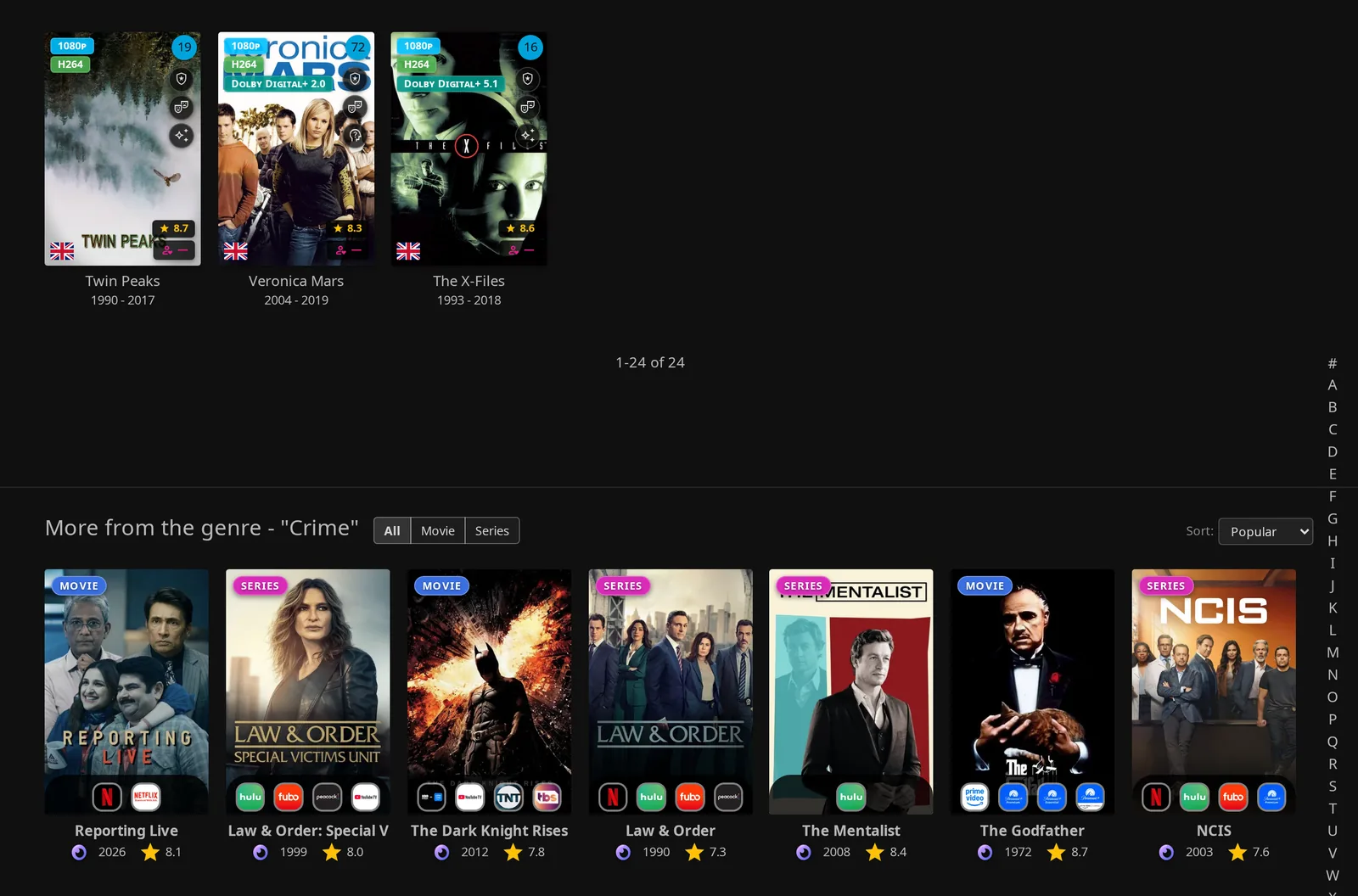
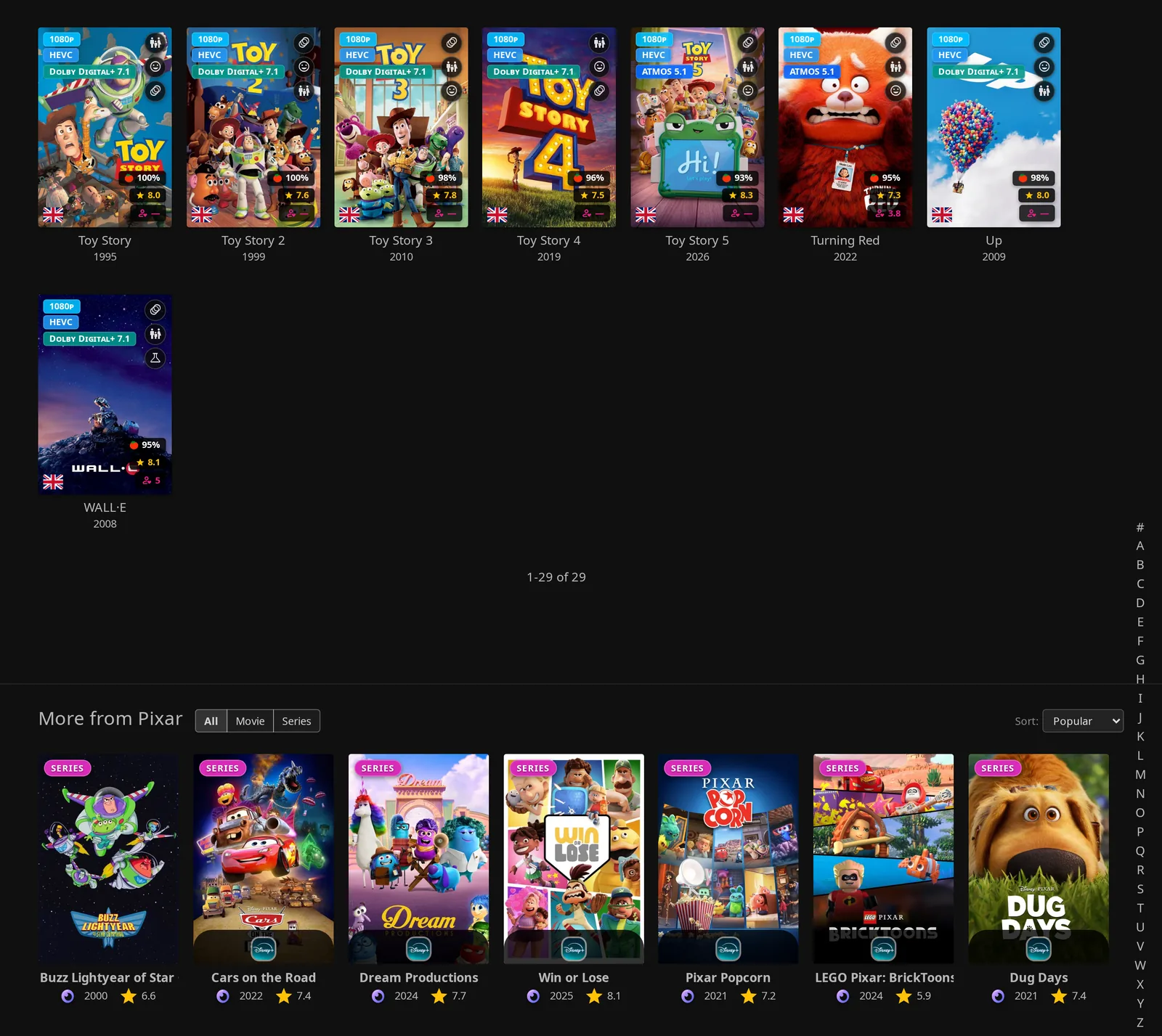
Available Discovery Types
Admin settings under Seerr → Discovery & UI Extras → "More" Discovery; every option and default is in the full reference.
Network/studio pages can combine movies and series. Studio-produced series come from TMDB and require the separate TMDB key; those cards initially show status only for series already in the library, so open a card for fuller status. Some networks have no matching movie-company feed. Seerr-backed genre, keyword, and person discovery do not require a separate TMDB key.
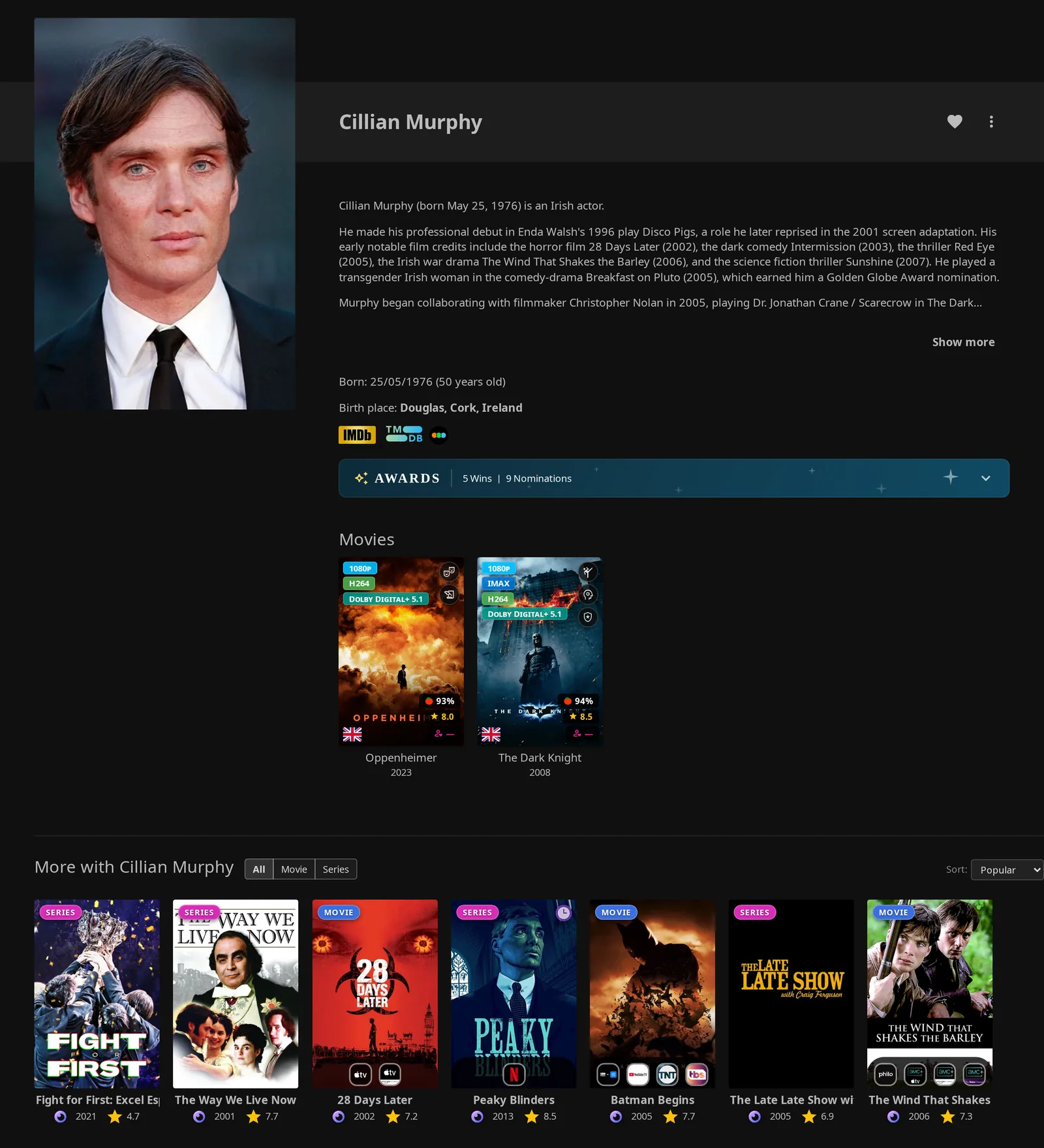
Open a person page to find more titles featuring that actor or crew member.
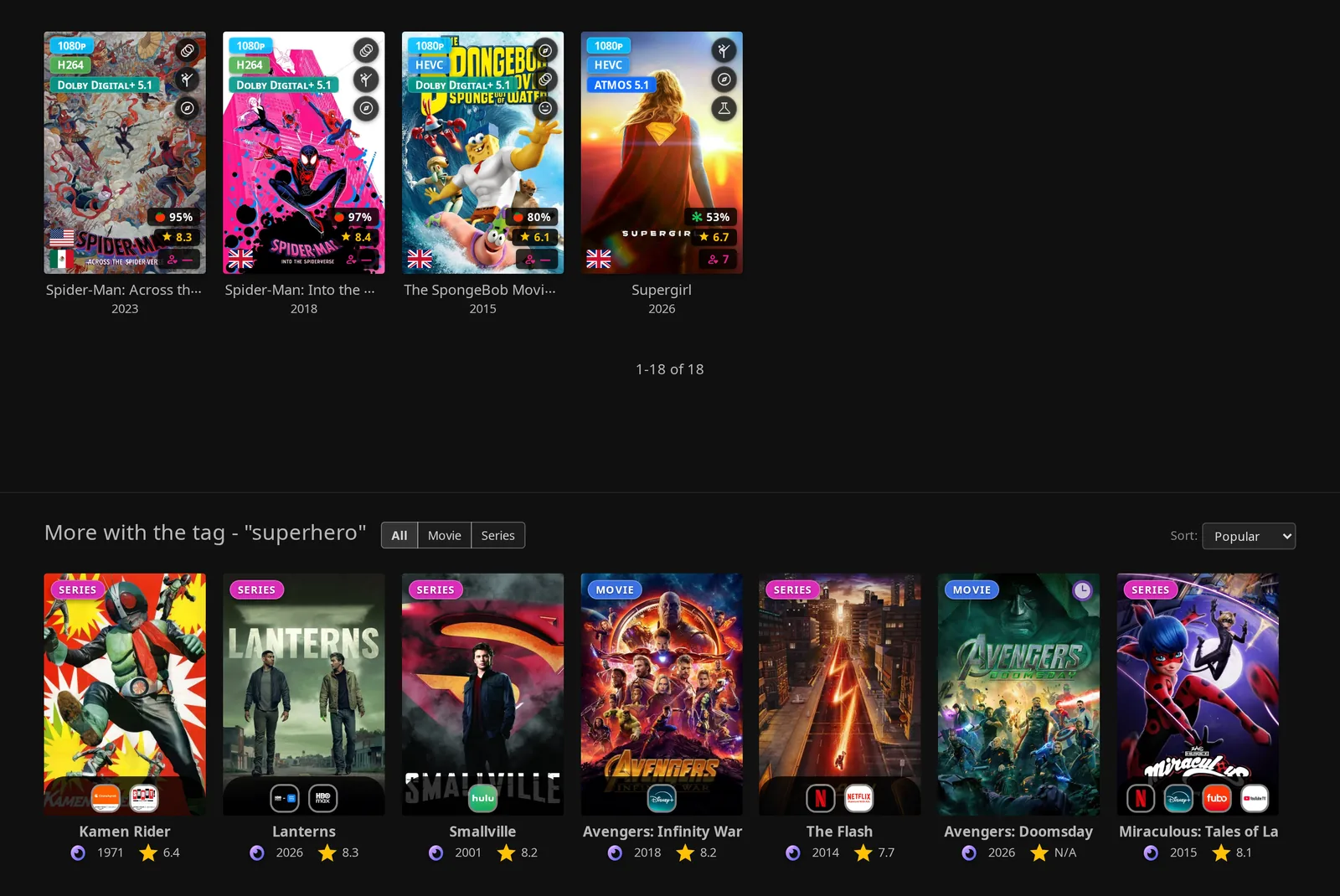
Tag discovery prefers an exact TMDB keyword match, otherwise the first keyword result. No match gives no discovery results; a non-exact match can represent a different keyword. Arbitrary Jellyfin tags do not automatically define TMDB catalogs.
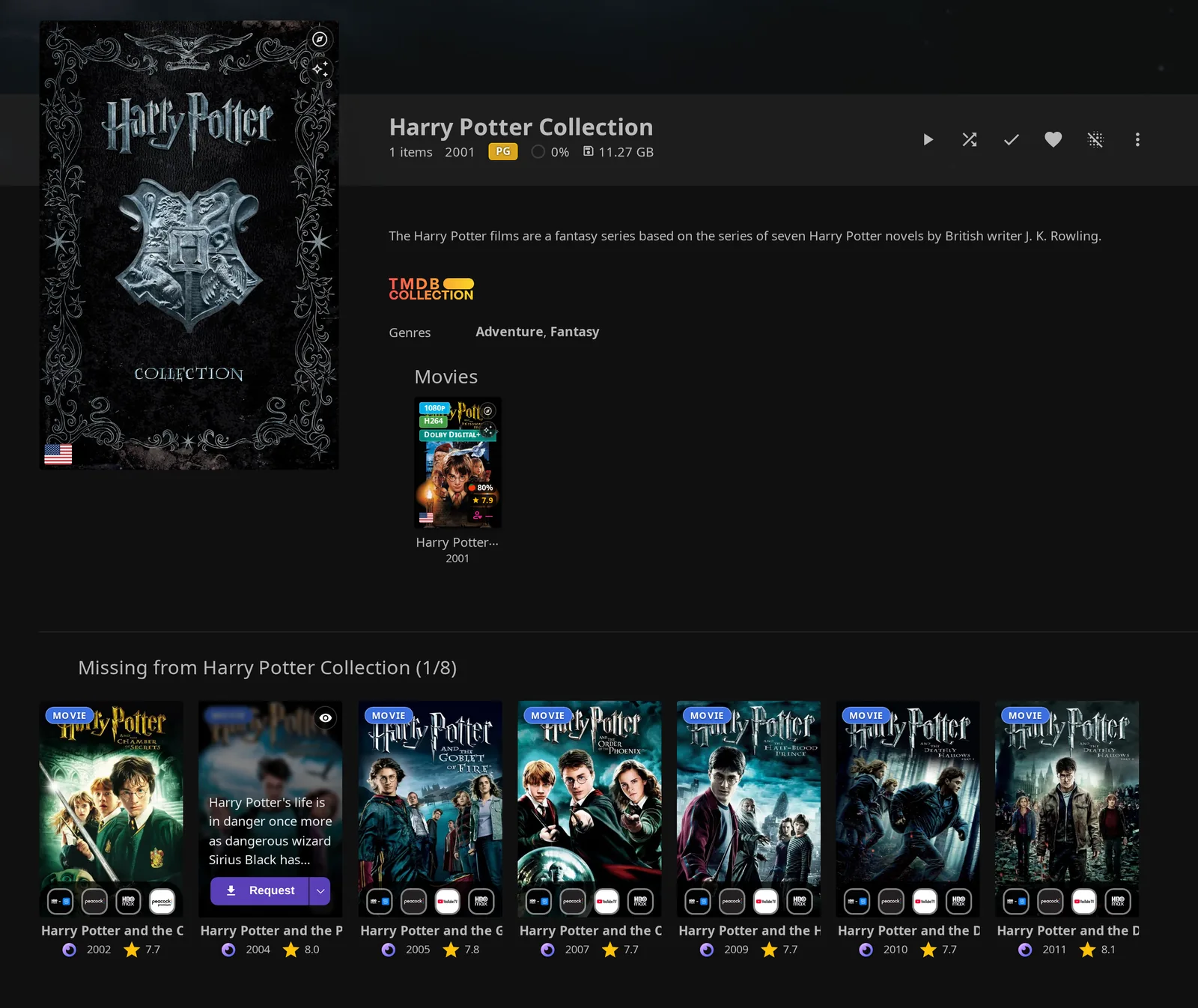
Collection details show Missing from followed by the collection name and availability counts. Fully available movies are excluded and remaining parts are sorted by release date. This is a fixed set without the general discovery filter/sort controls. Use its cards to request missing movies. Collection parts remain subject to shared exclusions, Hidden Content, and parental filtering.
Filters, sort and roles
The section's header holds its title, then one row: what the list shows, the All / Movies / Series tabs, the Filters button and the sort button, which names the current order. The sort button opens a menu with the current order ticked. Most votes puts the titles with the most TMDB votes first.
Filters opens a menu of groups. Each group's row says what is set in it; open a group to set it. A change takes effect at once and the menu stays open until you close it, so you can set several. While the new list loads, the old one stays on screen, dimmed, and a loading circle appears if it takes a moment.
| Filter | What you set |
|---|---|
| Released | A range: a year (2015), a month (2015-06) or a day (2015-06-30), for either end or both. |
| Score | A range of TMDB user scores, from 0 to 10, with one decimal at most. |
| Votes | A range for the number of TMDB user votes. |
| Runtime | A range in whole minutes. |
| Genres | Titles in all of the genres ticked, or in any of them (chosen under the list). On a genre page, that genre is always applied (its row says Included by this page), and the others ticked are added to it as all of them or any of them. |
| Without genres | Titles in none of the genres ticked (a genre page's own genre is not offered). Seerr can't leave genres out, so the titles it returns are narrowed in the browser by the genres each one has. |
| Original language | Titles originally in any of the languages ticked. |
| Without language | Titles originally in none of the languages ticked, narrowed in the browser like Without genres. |
| Content rating | Titles with any of the ratings ticked, from the ratings used in the admin's Default Region (US ratings where TMDB has none for it). |
| Streaming services | Titles on any of the services ticked, or on all of them (chosen under the list), in the admin's Default Region. |
| Keywords / Without keywords | Search TMDB keywords; titles must have all of the ones ticked under Keywords (or any of them, chosen under the list) and none of the ones under Without keywords. On a tag page, its keyword is already applied and the others are added to it as all of them. |
| Role | Person pages only: titles where the person did any of the roles ticked, Acting or a crew department such as Directing or Writing. |
What is set shows on a line under the header, each with a button to remove it (several of a list say their rule between them: and for all of them, or for any of them), and Clear filters removes them all. If nothing matches, the section says so and offers Clear filters.
Saved filters, the menu's first group, keeps sets of filters under a name: type a name and press Save to keep what is set now (the type, the sort, every filter and how each list matches), and choose a saved set to apply it at once, on any discovery page or the Recommendations page (each page takes the filters it offers). Each says what it sets under its name. The bin beside one deletes it, and Undo saves it again. They are your own, kept on the server, so they follow you to every device; you can keep up to 30.
The tabs, the sort and the filters are kept in the page's address, after a second # at its end (for example #/details?id=…&serverId=…#jeType=movies&jeScore=7..&jeSort=vote_average.desc, with &jeAny=keywords where keywords are matched by any of them), so reloading the page, coming Back to it or opening a copied link shows the same list. Jellyfin's own part of the address stays as it is, so it keeps the page as it was when a dialog or More Info closes. A link with the same pairs in the address's query (#/details?id=…&jeType=movies) works too. A change replaces the address rather than adding a step to Back. A page opened without them starts with no filters, on All and Popular.
On list pages (genre, studio/network and tag), Seerr applies the filters to its feeds. A person page already has the person's titles, so it filters them in the browser and offers only Role, Released, Score, Votes, Genres, Without genres, Original language and Without language. There, a title with no date is outside every period, and one with no score or votes is under every minimum.
On a person page, each card says what the person did in that title, on a line under its name: the part played (as the character) and the jobs held, each on its own line when the person did both. A line that does not fit the card drops whole parts or jobs from its end and says how many it left out (Director, Writer +1); hover the card for all of them. With Role set to a crew department, the jobs come first and the jobs in that department lead.
Spoiler Guard
For a title protected by Spoiler Guard, the part played is left out when titles or descriptions are hidden, and a hidden score or vote count still sorts the title under Top rated and Most votes without being shown. The Score and Votes filters treat a hidden score or vote count as missing.
Admin settings under Seerr → Discovery & UI Extras → Filters in the "More" sections (full reference) turn each filter off for everyone. All are on by default.
Configure
Discovery and recommendation cards share these admin filters under Item Pages Discovery; every option and default is in Seerr settings → Item Pages Discovery.
These are separate from Exclude search items already in library. Availability still depends on matching metadata, configured services, and linked user access.
Features
How it works
Sort scope varies: Recommendations categories sort fetched pages locally, rather than the entire upstream catalog. Person credits are deduplicated and shown in chunks of 40.
Discovery is added to these Jellyfin routes:
| Page | Route |
|---|---|
| Studio/network | #/list?studioId=<Jellyfin studio ID> |
| Genre | #/list?genreId=<Jellyfin genre ID> |
| Tag | #/list?type=tag&tag=<encoded tag> |
| Person | #/details?id=<Jellyfin person ID> |
| Collection | #/details?id=<Jellyfin BoxSet ID> |
Recommendations page
Browse trending, popular, and upcoming titles in Seerr Recommendations. This dedicated discovery page is separate from item-specific Similar/Recommended rows.
How to use:
- Open the configured Recommendations navigation entry.
- To narrow the whole page, use All / Movies / Series and Filters at the end of its title bar. They work as in the discovery sections; what is set shows on a line under the bar, and if nothing matches, the page says so and offers Clear filters.
- Select a row heading or tile to open a category. It opens with the page's filters and has the same controls, plus its sort; filters changed there are the page's too.
- Scroll for further pages, and use the category's own back arrow to return.
Admin settings under Pages → Seerr Recommendations Page; every option and default is in the full navigation reference.
Addresses
On the Home tab, the filters are in the page's address, and an open category has an address of its own with its filters and its sort, for example #/home?tab=2&jeTab=recommendations#jeCategory=trending&jeType=movies (&jeCategory=trending in the query works too). Back and Forward move between the tab and its categories, and a reload or a copied link opens the same view. Home's address names the tab only when it was opened from a link that does (?tab=2&jeTab=recommendations): reached by clicking it, the tab leaves Home's address as it is, so a reload opens Home on its first tab, and the Recommendations tab has its filters when you go back to it. On the page of its own (#/recommendations) the filters are in its address, but a category is not; with Plugin Pages, neither is.
Movies or Series leaves out the other kind's rows and tiles. Trending takes no filters from Seerr, so its titles are kept by what each one says of itself: its category offers only Released, Score, Votes, Genres, Without genres, Original language and Without language, and it shows nothing while a filter it can't check is set. With filters set, the upcoming rows are asked for titles from today on.
How it works
The built-in page URL is /web/index.html#/recommendations; preserve your web/base path.
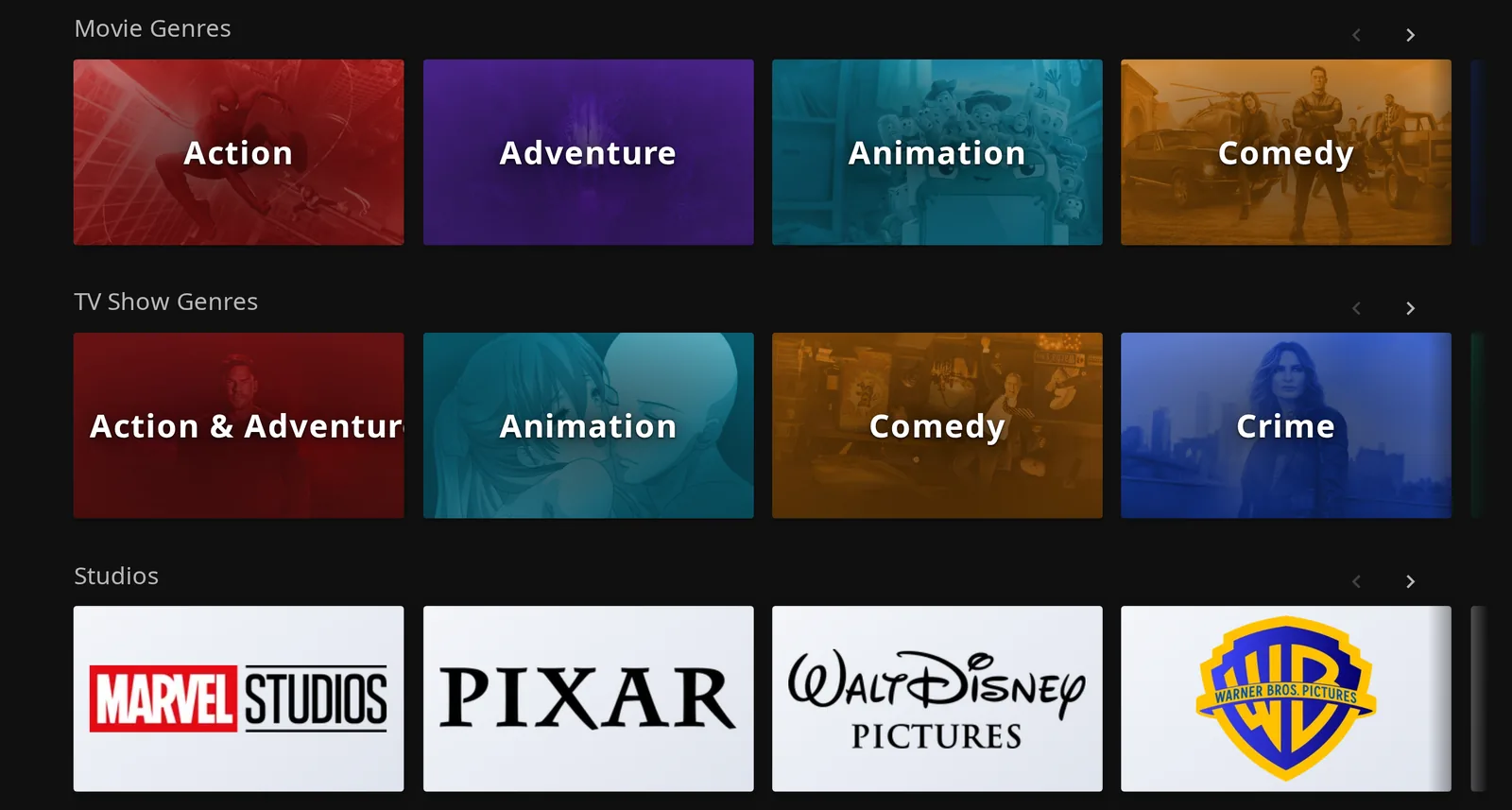
The landing page previews are Trending, Popular Movies, Popular TV Shows, Upcoming Movies, and Upcoming TV Shows. It also has Movie Genres, TV Show Genres, Studios, and Networks tiles.
Landing rows are page-one previews; only category views load further pages. Search and Recommendations insert results after their initial fetches complete. Studio and network logos are bundled, so they show with or without a TMDB key and fall back to the styled name if one fails to load; studio-produced TV requires the separate TMDB key.
Seamless Scrolling
JE loads results ahead to reduce gaps as you scroll, while keeping their feed order. This works in search rows, paged discovery sections, and Recommendations categories.
How to use: Scroll horizontally in search or down a category to load more. If loading pauses, press the circular-arrow button to continue or Tap to retry after a failed load.
There is no separate setting. Active search/discovery/page settings and their exclusions determine the feed.
How it works
Recommendations landing previews and item-detail rows do not gain unlimited paging.
- The client shows cards ahead and prefetches further pages; posters load as cards approach the screen.
- Empty filtered pages advance automatically. After 40 consecutive empty pages, loading pauses with a circular-arrow button. Press it to continue from the same position. Other stalled-buffer pauses can also occur.
- Failed loads retry with backoff, then offer Tap to retry.
- Upstream pagination limits apply, including TMDB's 500-page cap. Filtering, pauses, and failures can still produce gaps or fewer results.
Parental Ratings
JE applies your Jellyfin parental policy to protected Seerr browsing and request paths. You do not need a separate JE switch.
How to use: Configure the user's parental policy in Jellyfin.
How it works
These rules apply the current user's parental rating, movie/series unrated policy, and blocked/allowed tags. They filter search, discovery, recommendations, person credits/known-for entries, collection parts, request lists, watchlist responses, and issues. They also gate protected title details, seasons, requests, and TMDB helper access.
Users without a maximum rating, movie/series block-unrated preference, or blocked/allowed tags need no additional parental metadata lookups.
- A title's rating is picked the way Jellyfin's TMDB metadata picks it for library items: the server's metadata country (US when none is configured), else the US rating, and for a series else the first one listed. It is scored with Jellyfin's rating table for the server's country, so a US-only R film is refused for a child limited to 12 on a German server, as it would be in the library. More Info can display another region's rating through your Elsewhere preference without changing enforcement.
- Successfully fetched titles with no usable rating follow the user's unrated policy for that media type. Failed/unresolved lookups remain hidden until verified. Search/discovery can re-fetch once delayed lookups finish.
- Resolved ratings/keywords are cached server-wide for 24 hours; failed lookups retry after five minutes. With a TMDB key, certification lookups use TMDB; otherwise JE uses Seerr title details.
- Blocked tags match TMDB keywords and genre names. Allowed tags form an allow-list against keywords only; blocked tags win. Matches compare the full value, ignoring case:
Sci-Fimatchessci-fi, but notsci fi. Community keyword coverage can be incomplete. - Collection cards remain visible without a rating; their movies are filtered when opened.
Server automation boundary
Automatic movie/season requests go directly to Seerr. They bypass JE's parental-request checks and do not check the Blocked Users list. Scheduled watchlist matching is not limited to each user's library access. Review automation limits and watchlist access limits before relying on parental filtering for them.
Issue Reporting
Report video, audio, subtitle, or other media problems to Seerr without leaving an eligible Jellyfin detail page. The modal also shows existing reports and comments grouped by type.
How to Report
How to use:
- Open a movie, series, regular season, or episode detail page and press the report icon (Report issue).
- Select Issue Type. Optionally enter Description (Optional).
- For TV, use Season/Episode as appropriate. Selectors use local library entries; season/episode pages attempt to preselect and lock the corresponding fields.
- Press Submit Report.
Admin settings under Seerr → Discovery & UI Extras; every option and default is in the full reference.
Reporting requirements
You need a linked account and permission to create issues. Viewing reports needs viewing permission. Manage issue status and conversations in Seerr.
Issue Types
Choose Video, Audio, Subtitles, or Other in Issue Type.
How it works
Specials (season zero) and other item types are excluded. The item needs TMDB identification. Movies and series use their own TMDB ID. Season and episode pages always use the parent series' TMDB ID, because Seerr tracks TV media only by series, and send the selected season and episode numbers with the report. Submission also needs a Seerr media record (mediaInfo.id). Ordinary users need CREATE_ISSUES or MANAGE_ISSUES; reads need VIEW_ISSUES or MANAGE_ISSUES. Linked Jellyfin/Seerr administrators bypass those local permission checks.
Missing linkage can fail submission while the button remains visible. If Seerr is inactive at initialization, the reporter is not added; if availability fails later, an eligible identified item can show a disabled reporting button. Missing identification can also make reporting unavailable.
Existing-report and indicator fetches each inspect at most 50 global issue entries, filtered locally by title, so older matching reports can be absent. The modal has no resolve, reopen, delete, or comment-posting controls.
Requests Page
The shared Requests page combines Seerr requests and optional issues with *arr downloads/history. This page is the guide to its Seerr parts; see *arr features for download progress, search, import outcomes, and history. Spoiler Guard's Hide air date setting also hides dates here for protected titles.
Setup
Enable the shared page to browse requests in Jellyfin.
How to use:
- Open Dashboard → Plugins → Jellyfin Enhanced → Pages → Requests Page.
- Turn on Enable Requests Page.
- Press Save Settings.
Every option and default: Seerr settings → Requests Page Management.
These are admin settings under Pages, not Seerr. See Requests Page Management for navigation choices, manual Custom Tabs HTML, and download/history visibility settings.
Connection requirements
Seerr requests need enabled/configured Seerr and linked accounts. Only the download sections need *arr configuration.
Details
Native Home tabs and built-in navigation need no companion plugin. Plugin Pages 3.0 or newer applies integration on save. Older versions need a restart after first enabling it; failed live registration also needs a restart.
Polling Settings
Auto-refresh keeps the page updated while you browse.
Admin settings under Pages → Requests Page; every option and default is in Seerr settings → Auto-Refresh Settings.
How it works
Polling stops when you leave the standalone page or switch away from its native Home or Custom Tabs tab. With Plugin Pages, it can continue after navigation until you reload or close the browser page. Hidden browser tabs are skipped. An issue-read HTTP 403 suppresses repeated issue polling while the permission-denied state persists. Updates refresh sections in place; cached upstream state can still be stale.
Usage
Access Requests Page
Open the page to check your requests.
How to use: Open Requests in the configured navigation or Requests Home tab.
Details
The built-in URL is /web/index.html#/downloads; preserve your actual web/base path. Navigation placement depends on the selected integration, layout, and viewport. See page navigation.
Request browsing and management
Browse your requests by status and remove requests you no longer want. If you have management permission, you can also approve or decline pending requests.
How to use:
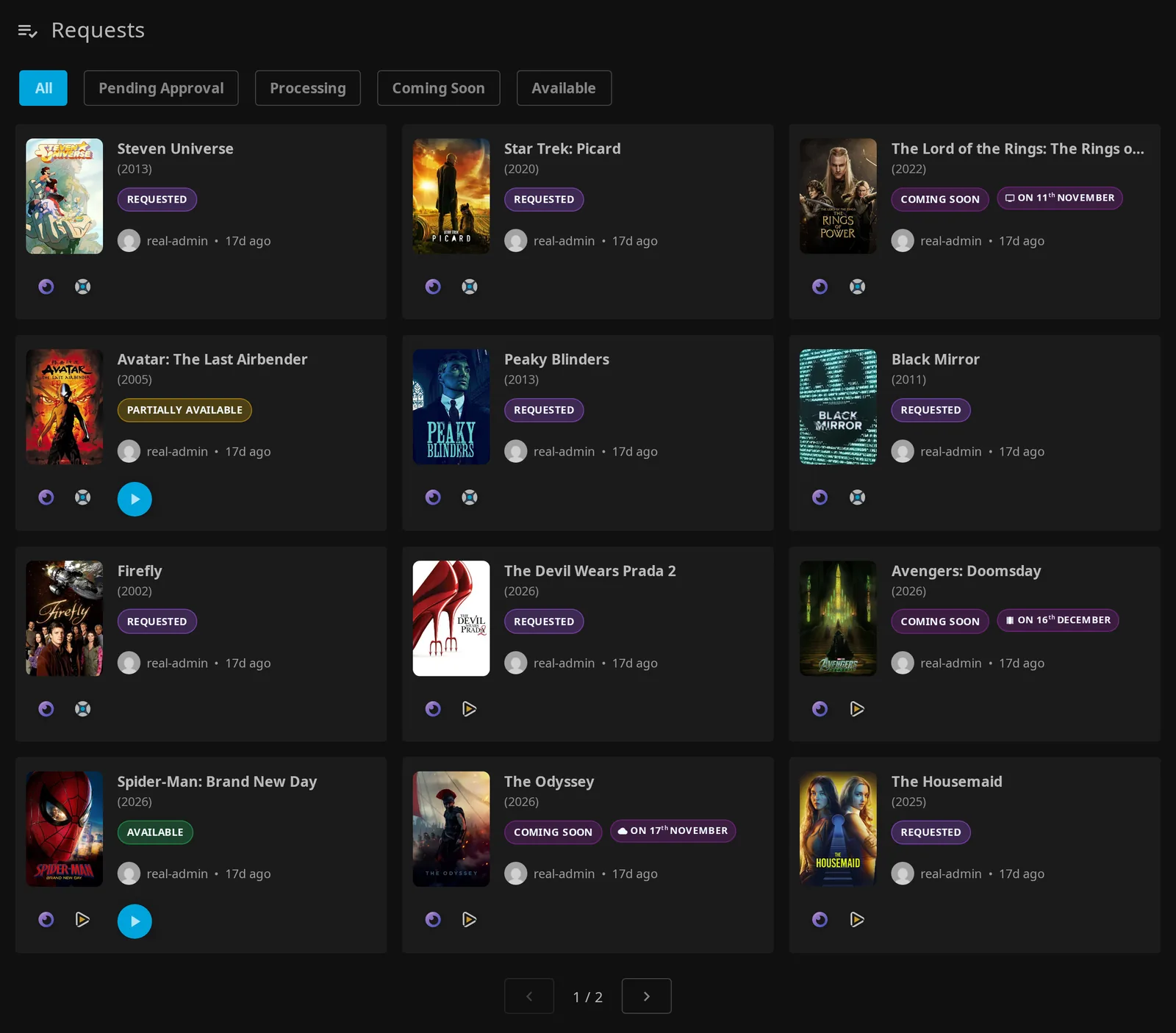
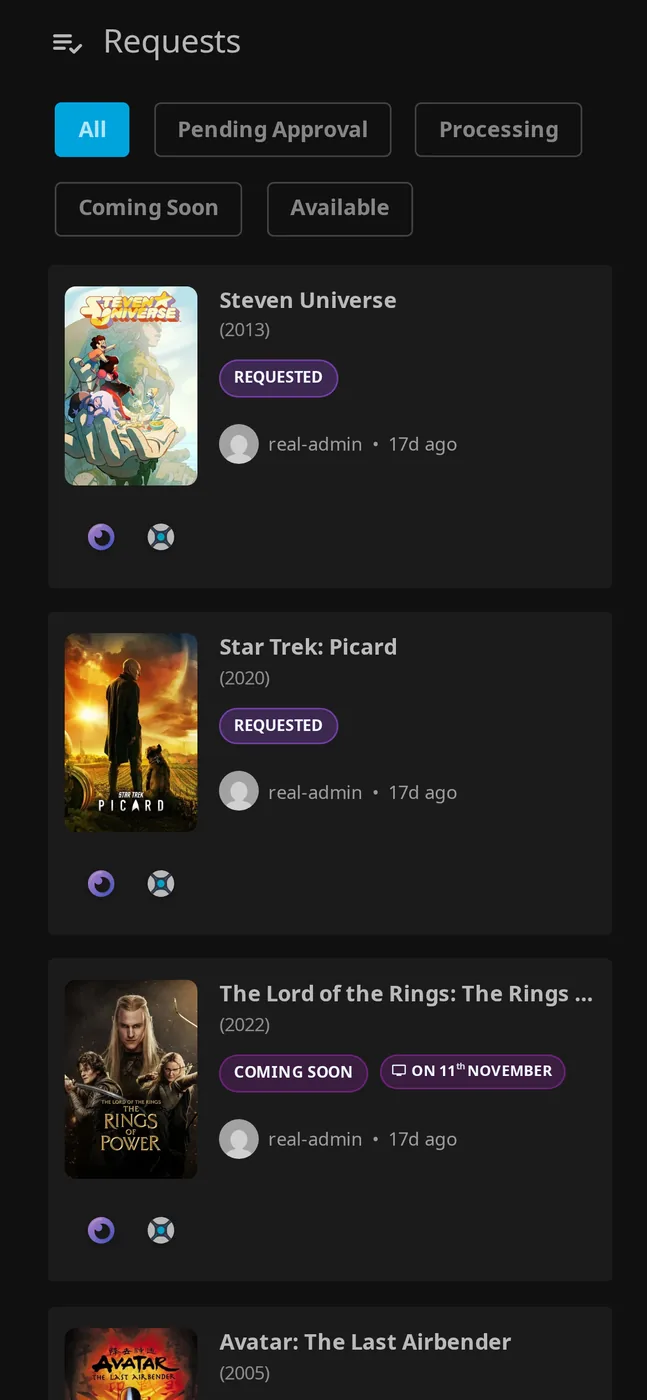
- Choose All, Pending Approval, Processing, Coming Soon, or Available.
- Use the pagination arrows to browse more cards.
- Follow a card's link to Seerr or an available Jellyfin item.
- If authorized, press Approve or Decline on a pending request.
- Press Remove request (the bin icon) and confirm to delete a request from Seerr. The media itself is not deleted.
How it works
Page size adjusts to the viewport and fits whole card rows. There is no Declined filter tab; declined cards can appear in All. The Downloads search control does not search requests or issues.
Linked ordinary users see their own requests. Linked Jellyfin administrators and Seerr accounts with ADMIN, REQUEST_VIEW, or MANAGE_REQUESTS can see all requests. Request cards show requester information and status. Authorized Jellyfin/Seerr administrators and MANAGE_REQUESTS users can press Approve or Decline on pending requests. Controls follow the raw pending request status even if some media is already available.
Remove request shows on your own requests in any status (pending, approved or completed), and on every request for Jellyfin administrators and Seerr ADMIN/MANAGE_REQUESTS users. JE checks who made the request and deletes it with the Seerr API key, so a requester can also remove an approved request, which Seerr alone only allows managers to do. Only the request record is deleted; files, Radarr/Sonarr entries and Seerr's availability stay as they are. To remove requests automatically once watched, see Auto Request Removal.
Coming Soon uses future movie release or TV air dates and displays countdowns. Processing excludes Coming Soon and orphaned requests; the client additionally excludes Partially Available entries. Processing/Coming Soon read at most 500 upstream requests before local pagination.
Orphaned means an eligible approved/processing request is older than ten minutes from creation and every relevant configured, enabled *arr instance successfully reports no matching title. Missing instances or failed checks do not establish orphaning. Orphaned cards remain in All and are excluded from Processing/Coming Soon.
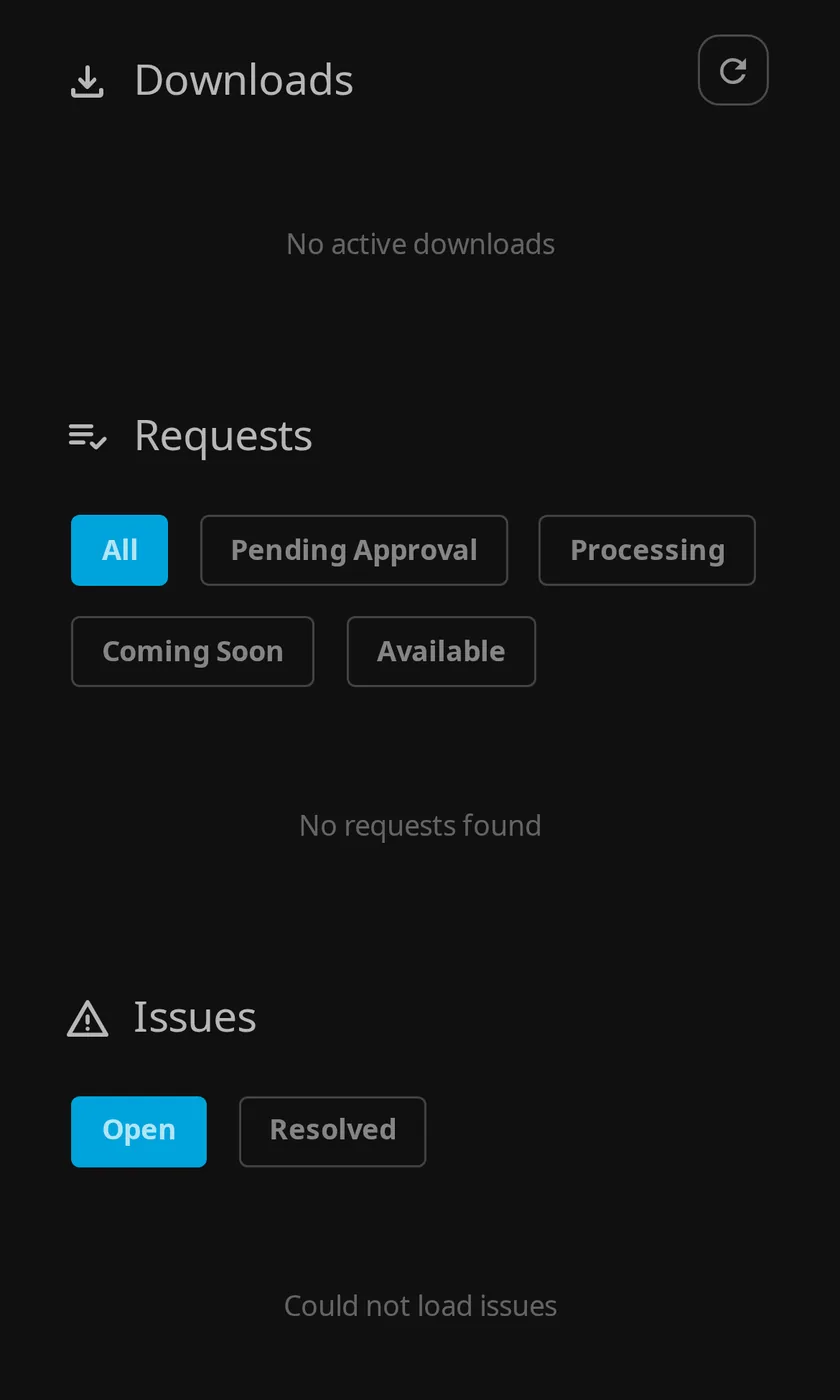
If your account has no visible requests, the section shows No requests found. Download progress, completion/import status, and paginated history use the same page. Their separate visibility/privacy controls are in Requests settings; see *arr features for their behavior.
Issues on the Requests page
Browse Seerr issues in Jellyfin when your account has viewing permission. Your parental policy also filters the results.
How to use:
- Choose Open or Resolved and use pagination to browse.
- Press an issue's eye button to open the report modal.
- Click its card to open the Jellyfin item when a library ID exists.
Admin setting under Pages → Requests Page; every option and default is in Seerr settings → Show Seerr Issues Section.
Details
Ordinary linked users need VIEW_ISSUES or MANAGE_ISSUES; linked Jellyfin/Seerr administrators bypass the local viewing check. Users without viewing permission cannot load issue data; the section shows Could not load issues, with a No permission to view issues toast for an HTTP 403 response. The modal lets you read existing reports/comments or submit another report when authorized. Manage issue status and conversations in Seerr.
Watchlist Sync
JE adds items between your Seerr and Jellyfin watchlists. You can sync in either direction; removing an item from one watchlist does not remove it from the other.
How to use:
- Enable the desired direction under Seerr → Watchlist and save.
- Adjust or run its task under Dashboard → Scheduled Tasks.
- To add requested media when library items arrive or change, also restart Jellyfin or run Jellyfin Enhanced Startup once after enabling it.
Admin settings (full reference):
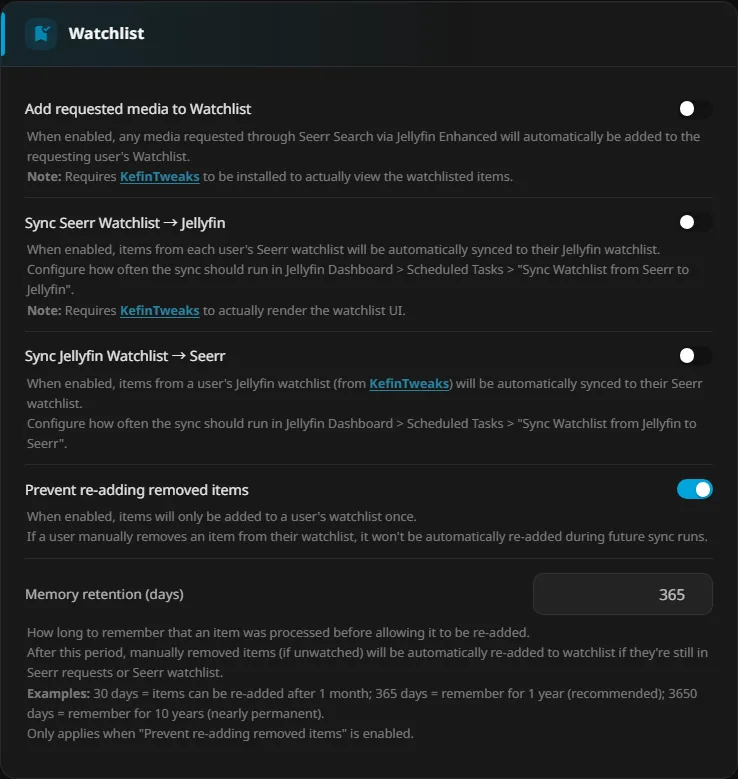
Every option and default: Seerr settings → Watchlist settings.
How it works
Jellyfin watchlisting sets the user's Likes value, displayed as a watchlist by the KefinTweaks plugin.
Seerr → Jellyfin
Bring Seerr watchlist entries into Jellyfin once they match items in the Jellyfin library.
How to use: Enable Sync Seerr Watchlist → Jellyfin. Sync Watchlist from Seerr to Jellyfin runs daily at 03:00 by default.
Requests are included only when Add requested media to Watchlist is also on. The event monitor is separate from this scheduled sync.
How it works
Incoming sync tries configured URLs until a user-list fetch succeeds, reads one upstream watchlist page per user, and examines up to 500 requests. The event monitor uses the first configured URL and examines up to 1000 requests. Both exclude blocked users and do not check watched status before setting Likes.
Jellyfin → Seerr
Bring Jellyfin movie and series watchlist entries into Seerr.
How to use: Enable Sync Jellyfin Watchlist → Seerr. Sync Watchlist from Jellyfin to Seerr runs daily at 03:30 by default.
How it works
It uses the first configured URL, linked accounts, and TMDB-identified movie/series watchlist items. It skips entries already on Seerr's watchlist and excludes blocked users. It never removes anything; see Watchlist Removal Sync below.
Watchlist Removal Sync
Copy removals between the two watchlists. Adding and removing are separate choices.
How to use: Pick an option under Removing items: Jellyfin decides (default) removes an item from Seerr when it leaves the Jellyfin watchlist; Seerr decides does the opposite; Both stay in sync copies a removal in either direction; Never copies none. Sync Watchlist Removals between Jellyfin and Seerr runs daily at 04:00 by default, after the two add syncs.
Watching an item counts as a removal, because KefinTweaks drops watched items from the Jellyfin watchlist. Turn on at least one adding option too; with none on, the removal sync does nothing.
How it works
After each pass the plugin remembers, per user, the items that were on both watchlists. An item from that list that is now missing from one side was removed there; an item on only one side that was never on both is a pending addition and is never deleted. The first run only records what is on both lists. If Seerr or a user's list cannot be read, that user is skipped. Items missing from the Jellyfin library are not treated as removals. The add syncs skip an item that was removed on the side whose removals are followed, so they do not put it back.
Retention and access limits
Re-addition prevention remembers processed items for a limited time.
Details
Processed-item memory is stored in processed-watchlist-items.json using processing timestamps, not removal dates. Incoming sync cleans expired entries when prevention is enabled. After expiry, a still-eligible item can be added again; watched items are not exempt from incoming addition. Scheduled library matching is not scoped to the user's library access, so review this automation separately from protected UI parental filtering.
Icon States
The Seerr search icon shows whether your connection and account link are working. An active icon does not itself grant request permission.
| Icon | State | Meaning |
|---|---|---|
 |
Active | Connected and linked. Tooltip: Seerr is active followed by Double-click to show only Seerr results, or Double-click to show all results in Seerr-only mode. |
|
Unlinked | Hue-shifted icon; tooltip User not found on Seerr. Check import/linkage and Blocked Users. |
|
Inactive | Grayscale icon; tooltip Seerr is not connected. Check integration and server connectivity. |
Troubleshooting
Connection Issues
Check the connection when the Seerr icon is inactive or links fail to open.
How to use:
- Verify Enable Seerr integration, URLs, and API key. Press Test in connection setup.
- If API calls work but external Seerr links fail, configure URL Mappings. Use an internal URL for API calls and a public mapping for browser links.
- For User not found on Seerr, check Seerr's Jellyfin connection, the stored Jellyfin user ID, and JE's Blocked Users selection. Use user import and Permission Audit.
How it works
Use the Jellyfin server/container's network context: a loopback address refers to that environment, not your browser's device. A public URL that requires an interactive proxy login may return HTML instead of API JSON.
Logs distinguish non-JSON, authentication, and Cloudflare failures and can include status, Content-Type, and cf-ray diagnostics. Container host names such as host.docker.internal/host.containers.internal can use allowed host mappings; literal link-local/metadata destinations remain blocked by the URL guard.
Identical usernames do not establish linkage. An upstream outage can also prevent user resolution.
Search Not Working
Check search settings and filters when results are missing or slow.
How to use:
- Check the icon's active tooltip, Show Seerr Results in Search, and the current query.
- Remove a trailing year filter to compare results.
- For slow results, check server-to-Seerr connectivity, upstream response time, and server logs/browser console.
Details
Library exclusion, Hidden Content, blocklisting, and parental policies can reduce the row. A loading/retry/continuation control can indicate filtered or failed pages, rather than an empty upstream catalog. Search waits for initial data. See Seamless Scrolling and Debug and caching.
Request Issues
Check account access and Seerr setup when a request fails or its status looks stale.
How to use:
- Check the linked account's media/quality-specific permissions, quota, Seerr Sonarr/Radarr configuration, and current request status.
- Fill required advanced choices and any TVDB match.
- For stale status, refresh the relevant page or dialog and inspect Seerr's queue.
- To help Seerr discover newly added library media, use Recently Added Sync to Seerr.
Details
Permission Audit checks selected permission gaps, but does not validate quotas or every request-specific permission.
Saving JE configuration clears Seerr server caches; other browser caches can persist. Triggering the recently-added scan does not finish a download/import or guarantee an immediate update.
TMDB API Issues
Ordinary Seerr search uses Seerr's TMDB access. Automatic movie requests, studio-produced series, and provider displays also need JE's shared TMDB API Key.
How to use: Test the key beside its input, then check server connectivity and logs. See installation troubleshooting for network and proxy problems.
Advanced Configuration
URL Mappings
Map the Jellyfin server address used by your client to a browser-accessible Seerr address. These mappings affect displayed links; proxy calls continue to use Seerr URL(s) (One per line).
How to use:
- Open Seerr → Seerr Connection Setup → Advanced URL Mappings.
- Enter one
jellyfin_url|seerr_urlpair per line. - Press Validate Mappings, then save.
Admin setting:
| Setting | Default | What it does |
|---|---|---|
| Seerr URL Mappings | Empty | Selects a browser-facing Seerr URL from the client server address. |
Details
https://jellyfin.example.com|https://seerr.example.com
http://192.168.1.10:8096|http://192.168.1.10:5055
https://example.com/jellyfin|https://example.com/seerr
Matching uses ApiClient.serverAddress() or the browser origin, ignores case and trailing slashes, requires equality rather than a prefix, and takes the first matching line. Without a match, external links use the first configured Seerr URL, which may differ from the URL that successfully answered a proxy request. See connection settings.
Auto-Request Settings
Server automations can request the next season or collection movie based on playback events. They use the playback user's linked Seerr account and Seerr's request authorization, without injected web controls.
How to use:
- Enable the desired feature under Seerr → Auto Season Requests or Auto Movie Requests.
- Save, then restart Jellyfin or run Jellyfin Enhanced Startup once to start monitoring playback.
Review automation access
These are server-wide settings without personal opt-out switches. Automatic movie/season requests bypass JE's parental-request checks and do not check the Blocked Users list. Review the accounts and permissions used for these automations separately.
Details
Automatic movie/season services send requests directly to Seerr and bypass the controller's parental-request gate and import-blocklist lookup.
Requested-media watchlist monitoring also initializes at startup when enabled, but does exclude blocked users.
Auto Season Request
Request the next numeric season as you approach the end of the current one.
How to use: Enable the automation and choose the remaining-episode threshold below. In a ten-episode season with threshold 2, episode 8 meets the threshold.
Admin settings (full reference):
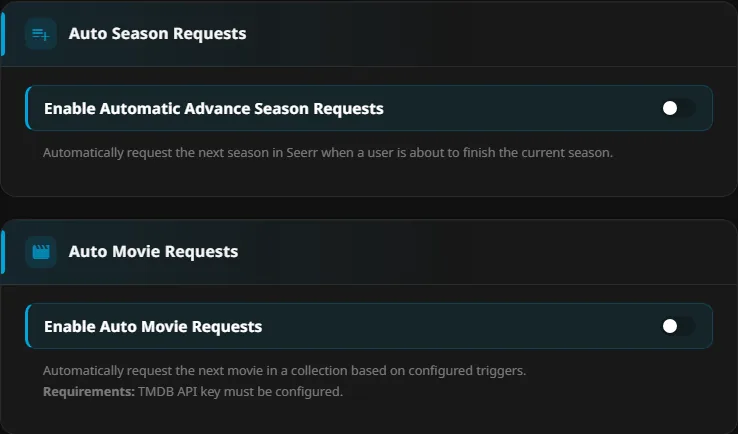
Every option and default: Seerr settings → Auto Season Requests.
How it works
Remaining episodes are the upstream season total minus the current episode number, clamped to zero.
Start detection requires playback at most two minutes in and below 5%; stop detection requires completion or at least 90%. The series needs a TMDB ID; counts are read through Seerr without a separate TMDB key. The next season must contain episodes and must not already be available/requested. Recent season requests are deduplicated across users for about an hour.
Auto Movie Request
Request the next collection movie when you play a movie from that collection.
Admin trigger settings; every option and default is in the complete trigger and destination reference.
How it works
JE considers the entry immediately after the watched movie in Seerr's returned collection parts. It does not locally sort that array or search farther ahead if that next entry is already available/pending/processing or skipped by release checking.
User/movie checks are throttled to about once per hour. Original copies Seerr request settings rather than the watched file's quality. Unusable original settings and an empty Custom configuration fall back to Default. The default Use default instead of 4K fallback behavior also falls back when original settings were 4K.
Auto Request Removal
Delete a request from Seerr once the person who asked for it has watched it.
How to use: Open Seerr → Auto Request Removal and enable Remove Watched Requests. The Remove watched requests from Seerr scheduled task does the removal once a day: a request goes on the first run after its requester has watched it.
Destructive: use with caution
A deleted request cannot be restored, and its history is gone from Seerr. If request quotas are enabled in Seerr, removing a request also gives that quota back to the user, because Seerr counts quota from the requests that still exist. The same applies to the Remove request button on the Requests page.
Admin settings; every option and default is in the full reference.
How it works
Only the request record is deleted. The media stays available in Seerr and in the Jellyfin library, and nothing is removed from Radarr/Sonarr. Pending, declined and failed requests are never removed.
Only the requester's own viewing counts. A movie counts once any library version is watched. A series request counts once every requested season is available in Seerr (for the request's quality, 4K or not), is present in the library, and every episode of it is watched.
Each request is judged on its own. When several people asked for the same title, every request is removed only after the person who made it has watched it, and removing one never touches the others. A series can have separate requests for different seasons, and each one is checked against its own seasons.
The task reads the whole Seerr request list before deleting anything and stops without changes if any page fails. Requests from users on the Blocked Users list are skipped. Deletes use the Seerr API key, so no Seerr permission is needed from the requester.