Enhanced settings
Use the Enhanced panel for your preferences, or Dashboard → Plugins → Jellyfin Enhanced for server features and new users' starting values. This page covers Enhanced; Tags & Badges and specialist settings pages cover their own controls. Defaults below are for plugin 12.12.0.0; your administrator may choose different starting values.
Enhanced Settings — User configuration
Enhanced Panel
Anyone can open the Enhanced panel to set their own preferences; no companion plugin is needed.
How to open it on desktop:
- In Jellyfin 12's Modern layout, open your avatar menu and choose Jellyfin Enhanced.
- If you have a sidebar, choose Enhanced Panel under Jellyfin Enhanced.
- In Jellyfin's user preferences menu, choose Jellyfin Enhanced - User Settings.
- Press ? outside an input or textarea. This works even when the administrator disables ordinary keyboard shortcuts.
How to open it on a phone:
- Open the navigation drawer and tap Enhanced Panel.
- Choose Jellyfin Enhanced in the Jellyfin 12 avatar menu, or Jellyfin Enhanced - User Settings in user preferences.
- During playback, reveal the controls and tap the tune icon titled Jellyfin Enhanced.
In mobile or TV web layouts, the player button appears beside the native settings button when those controls are available. Desktop web layouts hide it.
Use Search settings… to filter sections by their contents, then select a section. Matching Media Tags controls are also listed under the box by name: pick one (or press Enter for the first) to open its tab with the control focused. On a phone, the section select and search stay above the open section; the back-arrow button returns to the section list. Close the panel with ×, Esc, or ? outside editable fields; focus returns to where you opened it. While the panel is open, the page behind it is inert and focus stays inside the dialog. On desktop, you can drag the header to move it.
Make the panel bigger: in a browser window at least 900 pixels wide, choose Default, Large (90% of the window) or Fill (the whole window less a small margin) beside the × in the header, or drag the grip in the bottom-right corner, or the bottom edge. With the grip focused, the arrow keys change the size (hold Shift for bigger steps); a polite status announces the dimensions and the maximum size. The size is remembered per user in this browser and shrinks to fit a smaller window; Reset size appears after dragging or resizing with the arrow keys and returns to Default. The section list and the open section, including the Media Tags preview, use the extra room. Size controls are hidden below 900 pixels wide; the full-screen layout applies at the phone breakpoint (760 pixels and below).
Use a supported web client
The panel needs a client that runs Jellyfin Enhanced's injected web scripts. If your native client cannot run them, change your account's preferences through the web client. Available entry points depend on your web client's layout and controls.
How it works
The sections are Shortcuts, Playback Settings, Auto-Skip Settings, Subtitle Settings, Random Button Settings, UI Settings, Media Tags, Hidden Content, Spoiler Guard, Language Settings, and About. Shortcuts is hidden when the administrator disables shortcuts. Hidden Content and Spoiler Guard require their server features to be enabled.
On desktop, the panel restores your last-opened section. A new account starts at Shortcuts, or the first available section if shortcuts are disabled. At widths up to 760 pixels, the panel fills the screen and starts with the section list. Tap a section to open it.
The panel can close automatically when the pointer is outside it. The administrator controls the delay, initially 15 seconds.
Modern layout has a mobile drawer rather than a desktop sidebar. Legacy layout has the sidebar. Jellyfin's user preferences menu uses #/mypreferencesmenu.
Saving and syncing
Your changes save automatically to your account on the server. There is no personal Save button.
- Sign in with the same account on another browser or device to load your saved preferences.
- Reload an already-open client to load all changes made elsewhere.
- Follow any refresh message shown by a control.
Changing Custom Pause Screen or Disable Custom Styles asks you to refresh. Reload after first enabling Long Press for 2x Speed (β).
How it works
Opening the panel fetches fresh general settings. There is no live synchronization of every running feature. Many controls update the current client directly, including shortcut bindings, subtitle styling, and random-picker preferences. The first reload after enabling the speed gesture installs its listeners.
Each account has separate files on the Jellyfin server:
| File | What it stores |
|---|---|
settings.json |
General preferences. |
shortcuts.json |
Shortcut overrides. |
hidden-content.json |
Hidden Content preferences and hidden items. |
spoilerblur.json |
Spoiler Guard preferences and protected-title lists. |
They are stored under:
Browser storage still holds caches and local interface state. Language resolution has both a browser preference and a server preference. Catch Up dismissals stay in that browser. Those exceptions are explained below. Clearing caches does not replace your server-stored personal settings.
Shortcuts
Shortcuts let you navigate Jellyfin and control playback from your keyboard. Your keys start from the administrator's Keyboard configuration, and you can choose your own overrides.
- Open Shortcuts. Actions are grouped under Global and Player.
- Click or focus a binding and wait for Waiting….
- Press the new combination. A dot titled Modified by user marks your override.
While the editor is listening, Backspace restores the current administrator binding. Del or the adjacent disable button disables the action. Re-enabling also restores the administrator binding.
The stock bindings are below. Actions marked Player only work in the video player.
| Setting | Default | What it does |
|---|---|---|
| Open Search | / | Opens search and focuses it when available. |
| Go to Home | Shift+H | Opens Home. |
| Go to Dashboard | D | Opens the dashboard; Jellyfin permissions still apply. |
| Quick Connect | Q | Opens Quick Connect. |
| Play Random Item | R | Outside the player, clicks the dice button when available and opens a random item's details. |
| Cycle Aspect Ratio | A | Player. Cycles Auto → Cover → Fill. |
| Show Playback Info | I | Player. Toggles JE's statistics overlay. |
| Subtitle Menu | S | Player. Opens the subtitle menu. |
| Cycle Subtitle Tracks | C | Player. Cycles tracks, including Off. |
| Cycle Audio Tracks | V | Player. Cycles audio tracks, without an Off option. |
| Increase Playback Speed | + | Player. Steps up through 0.25×, 0.5×, 0.75×, 1×, 1.25×, 1.5×, 1.75× and 2×. |
| Decrease Playback Speed | - | Player. Steps down through those speeds. |
| Reset Playback Speed | R | Player. Returns to 1×. |
| Bookmark Current Time | B | Player. Opens Add Bookmark at the current position when Bookmarks is enabled. |
| Open Episode Preview | P | Player. Clicks the existing preview button; requires the separate InPlayerEpisodePreview plugin. |
| Skip Intro/Outro | O | Player. Skips the current intro or outro segment. |
| Step Back One Frame | , | Player. Pauses and seeks back one estimated frame. |
| Step Forward One Frame | . | Player. Pauses and seeks forward one estimated frame. |
| Decrease Subtitle Offset | ++left-bracket++ | Player. Shifts subtitles 0.1 s later (lowers the offset) and briefly shows Jellyfin's subtitle offset panel. |
| Increase Subtitle Offset | ++right-bracket++ | Player. Shifts subtitles 0.1 s earlier (raises the offset) and briefly shows Jellyfin's subtitle offset panel. |
| Sync Subtitles | Shift+S | Player. Opens or closes Subtitle Sync: choose the line you just heard to sync the subtitles, or search and jump to a line. |
| Jump to Last Position | Z | Player. Returns once to the position saved before your last seek. |
| Jump to % of video | 0–9 | Player. Seeks to 0%, 10%, … 90%. Can be disabled but not rebound. |
Ordinary shortcuts do not fire while an input or textarea is focused. See Enhanced features for the player tools.
Details
The editor rejects modifier-only presses, conflicting bindings, and reserved native player keys for player actions. Invalid combinations flash red and shake. Jump to % of video can be disabled but cannot be rebound.
Open Episode Preview clicks the existing InPlayerEpisodePreview button. Skip Intro/Outro seeks to the end of the current Media Segment, falling back to the visible skip button. Jump to Last Position consumes its saved target when used.
Frame stepping uses timestamp seeking. It falls back to 24 fps with a notice when frame-rate metadata is unavailable. Speed steps are 0.25×, 0.5×, 0.75×, 1×, 1.25×, 1.5×, 1.75×, and 2×.
Playback Settings
Choose what happens when you leave a video tab and what you see while a video is paused. These are per-user preferences.
Open Playback Settings and turn on the behavior you want.
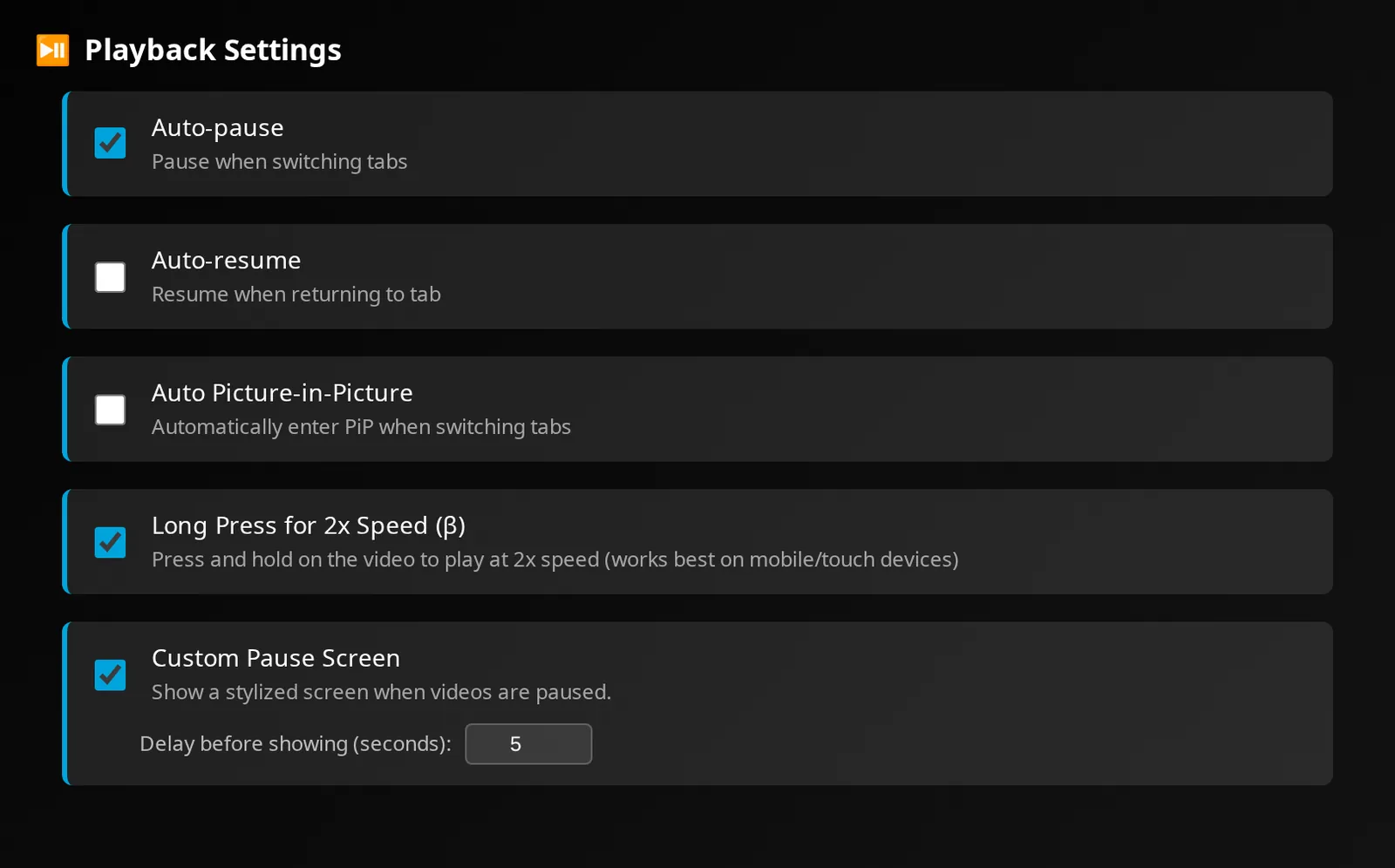
| Setting | Default | What it does |
|---|---|---|
| Auto-pause | On | Pauses a playing video when the browser tab becomes hidden. |
| Auto-resume | Off | Resumes on return if JE paused the video when you left. |
| Auto Picture-in-Picture | Off | Tries to open browser PiP when you leave the tab and closes PiP that JE opened when you return. |
| Long Press for 2x Speed (β) | Off | Hold the video for 500 ms for temporary 2× playback; release or cancel to restore the previous rate. Mouse and touch are supported. |
| Custom Pause Screen | On | Shows artwork and playback information after idle time while paused. Refresh after changing the toggle. |
| Delay before showing (seconds): | 5 | Sets the pause-screen idle delay, from 1–60 whole seconds. Updates the running pause screen immediately. |
On the pause screen, press Space/Enter or tap the background to resume. × dismisses the overlay for the rest of that pause without resuming. See Enhanced features for the pause screen and playback controls.
Keep playing in Picture-in-Picture
Turn Auto-pause off if you want continuous playback in PiP. Auto-pause and PiP can both run when you leave the tab. PiP needs browser support and an eligible video; the browser may refuse the request.
Details
Auto-resume does not resume a video you had already paused manually before leaving.
Reload after first enabling Long Press for 2x Speed (β). Moving more than ten pixels before the hold activates cancels it. Holding a paused video attempts to start playback.
Pause-screen artwork depends on the item's available images.
Auto-Skip Settings
Auto-skip lets you move past intros and outros during web playback. You can choose either type separately for your account.
Open Auto-Skip Settings and turn on the segment types you want to skip.
| Setting | Default | What it does |
|---|---|---|
| Automatically Skip Intro | Off | Seeks to the end of an Intro segment. |
| Automatically Skip Outro | Off | Seeks to the end of an Outro segment. |
Intro/outro data required
Auto-skip needs usable Intro/Outro segment data, commonly supplied by Intro Skipper. The panel says Depends on Intro-Skipper Plugin being available.
How it works
JE reads Jellyfin's Media Segments API. It does not need a visible or English-language skip button. Segments without start/end boundaries or shorter than one second are ignored. Failed segment retrieval or an ambiguous playing-item identity can leave auto-skip inactive. If you seek back into a skipped segment, you can watch it without immediately skipping again.
Direct play and HLS work best. Progressive transcoding may not have produced the target yet. These local seeks do not synchronize a SyncPlay group. Outro skipping seeks to the segment end; Jellyfin remains responsible for next-episode autoplay.
Subtitle Settings
Make text subtitles easier to read with your preferred colors, size, and position. These are per-user preferences for the web player.
- Open Subtitle Settings and choose a preset.
- Adjust the preview, or use the color and opacity controls.
- To use positioning, set Jellyfin's own subtitle appearance to Custom.
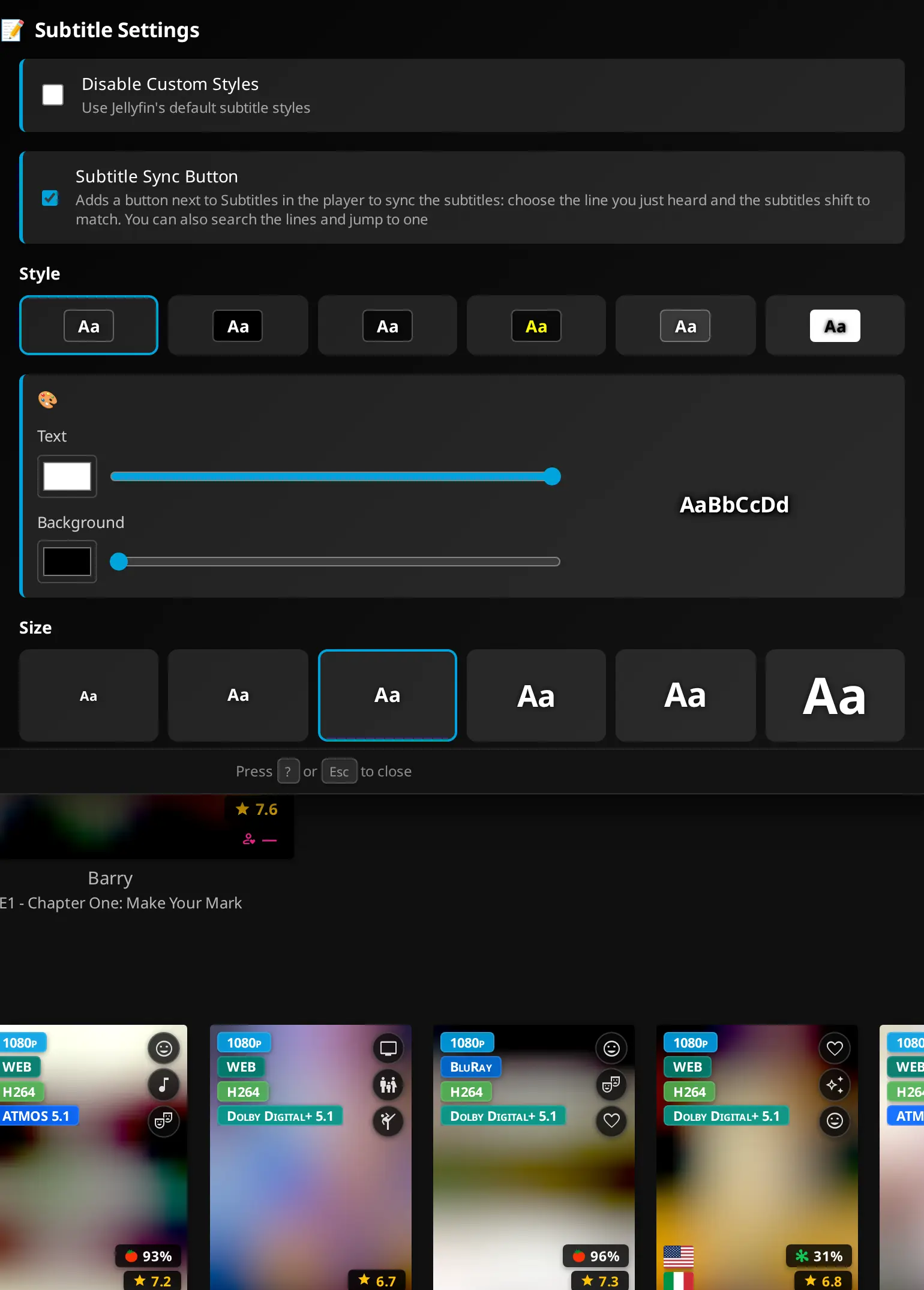
| Setting | Default | What it does |
|---|---|---|
| Disable Custom Styles | Off | Uses Jellyfin's subtitle styling instead of JE's overrides. Refresh after changing it. |
| Subtitle Sync Button | Off | Adds a button next to Subtitles in the player that syncs the subtitles to the line you just heard. Its list of lines can also be searched and jumped through. See Subtitle Sync. |
| Style | Clean White | Chooses Clean White, Classic Black Box, Netflix Style, Cinema Yellow, Soft Gray, or High Contrast. Choosing a style replaces custom text/background colors. |
| Text | Opaque white (#FFFFFFFF) |
Sets text color and opacity; the opacity slider runs from 0–255. |
| Background | Transparent (#00000000) |
Sets background color and opacity, also 0–255. |
| Size | Normal | Chooses Tiny, Small, Normal, Large, Extra Large, or Gigantic. |
| Font | Default | Chooses Default, Noto Sans, Sans Serif, Typewriter, or Roboto. |
| Text Effect | Auto | Chooses Auto, None, Shadow, Outline, or Outline + Shadow. Auto adds a shadow with the transparent preset or #00000000; a visible box, including a semi-transparent one, gets no Auto shadow. |
| Position | Horizontal 50%, vertical 85% for newly created settings | Click or drag the grid to move the subtitle stack. Both axes are limited to 2–98%. |
Subtitle formats
These controls style text subtitles, including the primary and secondary text tracks. They do not restyle ASS/SSA, PGS, VobSub, DVB, or subtitles burned into the video.
See Enhanced features for subtitle previews and rendering limits.
Details
The vertical position locates the subtitle stack's lower edge. The position reset icon sets horizontal 50%, vertical 95%. Missing-value client fallbacks also use 95% vertically.
Roboto uses Roboto Mono. Colors, fonts, and sizes also apply to native browser cues, though their box styling differs.
When you open the panel, the format warning checks the primary subtitle track of the first controllable playing session. Reopen after changing tracks. No warning does not guarantee that the format is supported.
Random Button Settings
The header's dice button helps you pick something to watch by opening a random item's details. It does not start playback automatically.
- Open Random Button Settings.
- Choose your per-user pool under Item Types and Random Source.
- Click the header dice button to pick an item.
| Setting | Default | What it does |
|---|---|---|
| Enable Random Button | On | Shows the header dice button. |
| Unwatched Only | Off | Restricts candidates to unplayed movies/episodes or series with unwatched episodes. |
| Movies | On | Includes movies. |
| Shows | On | Includes series, and episodes within containers. At least one item type must remain selected. |
| Use the playlist or collection I'm viewing | Off | Gives the current playlist/collection detail page priority over the pinned source. |
| Everywhere else, pick from | Whole library | Pins an accessible playlist or collection for other pages. This choice has no admin counterpart. |
How it works
With current-container selection enabled, a readable playlist or collection on the current detail page takes priority. Otherwise, JE tries your pinned source.
If none is pinned, JE uses the whole library. A missing or invalid pinned source also uses the library, with a notice. If a resolved container's sample has no eligible items, JE goes directly to the whole library with a notice, bypassing the pinned source. Candidate-query errors show an error toast instead.
Container queries use direct children; whole-library queries are recursive. Each query samples at most 100 randomly ordered items. An empty filtered sample does not prove the entire source has no eligible items.
UI Settings
Choose the extra information you see on item details and add removal buttons to home rows. These controls are per-user preferences.
Open UI Settings and turn on the options you want.
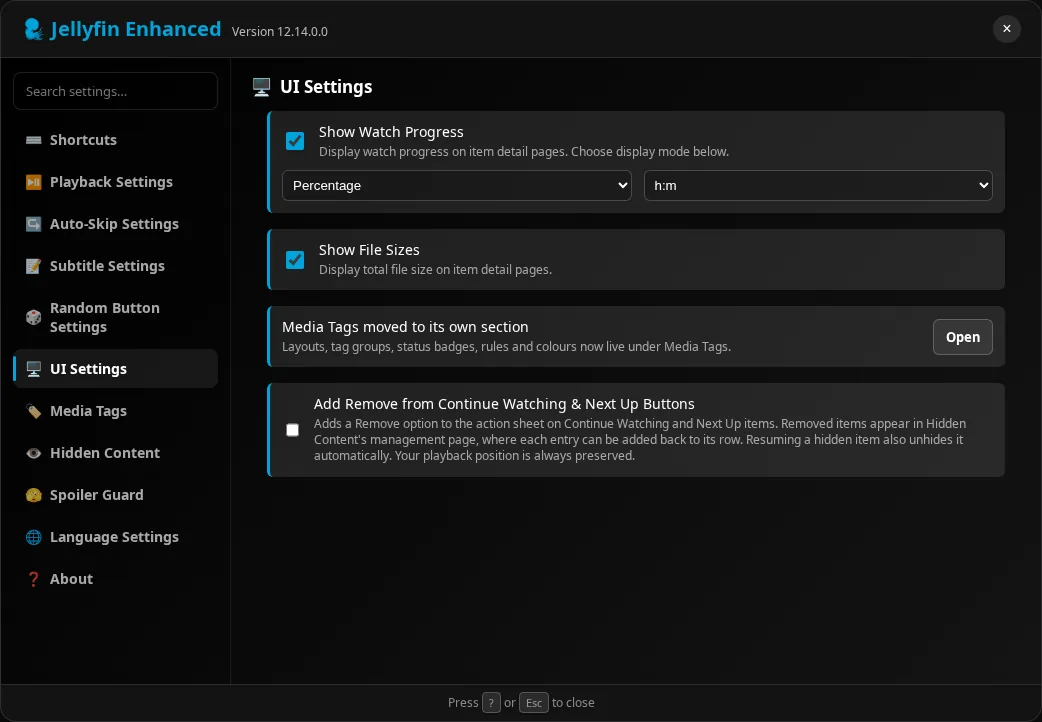
| Setting | Default | What it does |
|---|---|---|
| Show Watch Progress | Off | Adds watch progress to item details. |
| Percentage / Time Watched / Time Remaining | Percentage | Chooses how Show Watch Progress shows progress. |
h:m / y d:h:m |
h:m | Selects the time format for time-based progress displays. |
| Show File Sizes | Off | Shows total file size on item details. |
| Show Audio Languages | On | Audio language links on item details. |
| Add Remove from Continue Watching & Next Up Buttons | Off | Adds removal buttons to home rows and keeps your playback position. |
How it works
The progress-display selector beneath Show Watch Progress has no separate label.
Row removal can work without the full Hidden Content feature when the administrator enables Enable "Remove from Continue Watching". The relevant Filter Continue Watching / Filter Next Up preferences and Enable Content Hiding must also remain on for server filtering.
To review or manually restore removed entries, the administrator must enable Enable Hidden Content. In its management page:
- Use Add back to Continue Watching for a Continue Watching-only entry.
- Use Unhide for Next Up or combined entries.
Resuming clears Continue Watching-only hides. Combined hides retain their Next Up scope. Next Up-only and global hides remain until removed manually. See Content management.
Media Tags
Your poster tags: layout, tag groups, status badges, rules and locked items, and colour preset. A live preview beside the tabs (a strip below them on a phone) shows the result as you change it. Administrators set server defaults on the Media Tags admin tab.
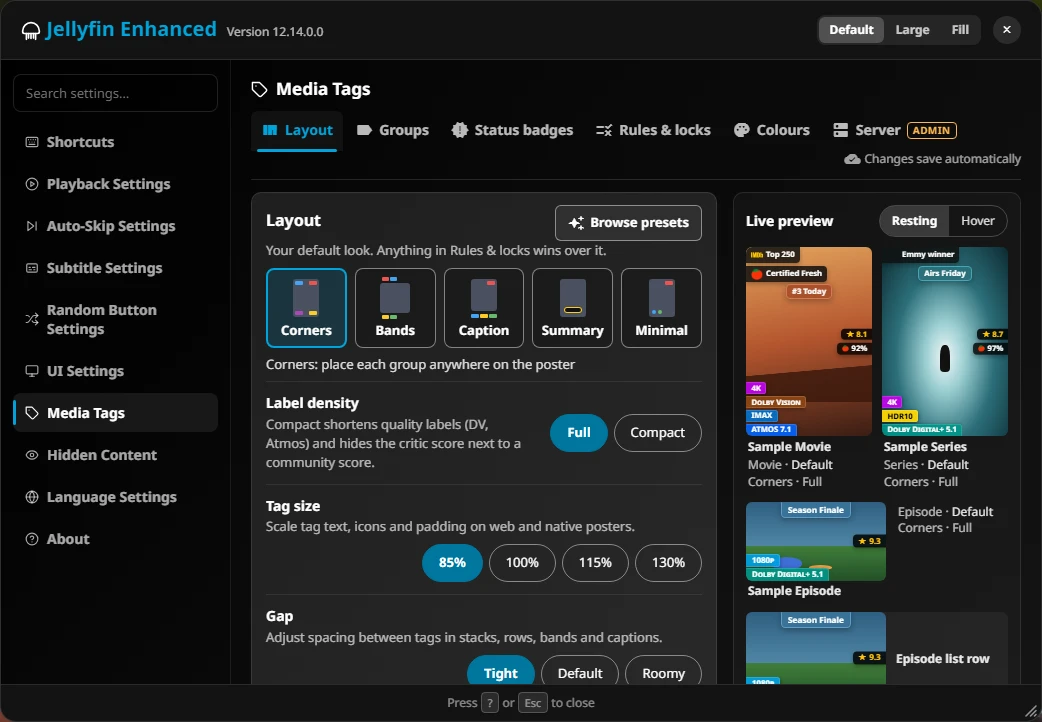
Each tab covers one job. The full setting reference for all of them is Tags & Badges.
- Layout: your layout tile, label density, tag size, gap, edge spacing, hide on hover, Native Poster Tags, People Tags, presets, import and export, and optional episode-thumbnail and list-row looks. See Layouts.
- Groups: priority order, each group's switch, position and limit, and what Quality and Language include. Follow server settings keeps following the administrator; any change you make stays yours. Reset to defaults restores the administrator's layout, positions, order and limits but keeps group switches and includes.
- Status badges: which badge families the Status group may show: Just Added, New releases, Trending, Schedule, Milestones, Series status, Leaving soon and Direct-play warning.
- Rules & locks: your own rules, the first enabled match decides a card's layout and density, and items you locked from their ⋮ menu. Locks always win. See Rules and locked items.
- Colours: your Tag Colours preset, shown only when the administrator allows personal presets.
- Server (administrators only): shortcuts to the admin tab's defaults, colours, tag cache and Native Poster Tags. See Import, export and presets for server-wide import and presets.
Hidden Content
Choose where your saved hidden items disappear and where hide buttons appear. This personal section appears only when the administrator enables Hidden Content.
- Open Hidden Content and choose the filters and buttons you want.
- Click an item's open-eye Hide button to hide it.
- Use Manage Hidden Content to review or restore entries and see your hidden-item count.
All controls below are per-user preferences. The matching admin defaults are under Pages → Hidden Content.
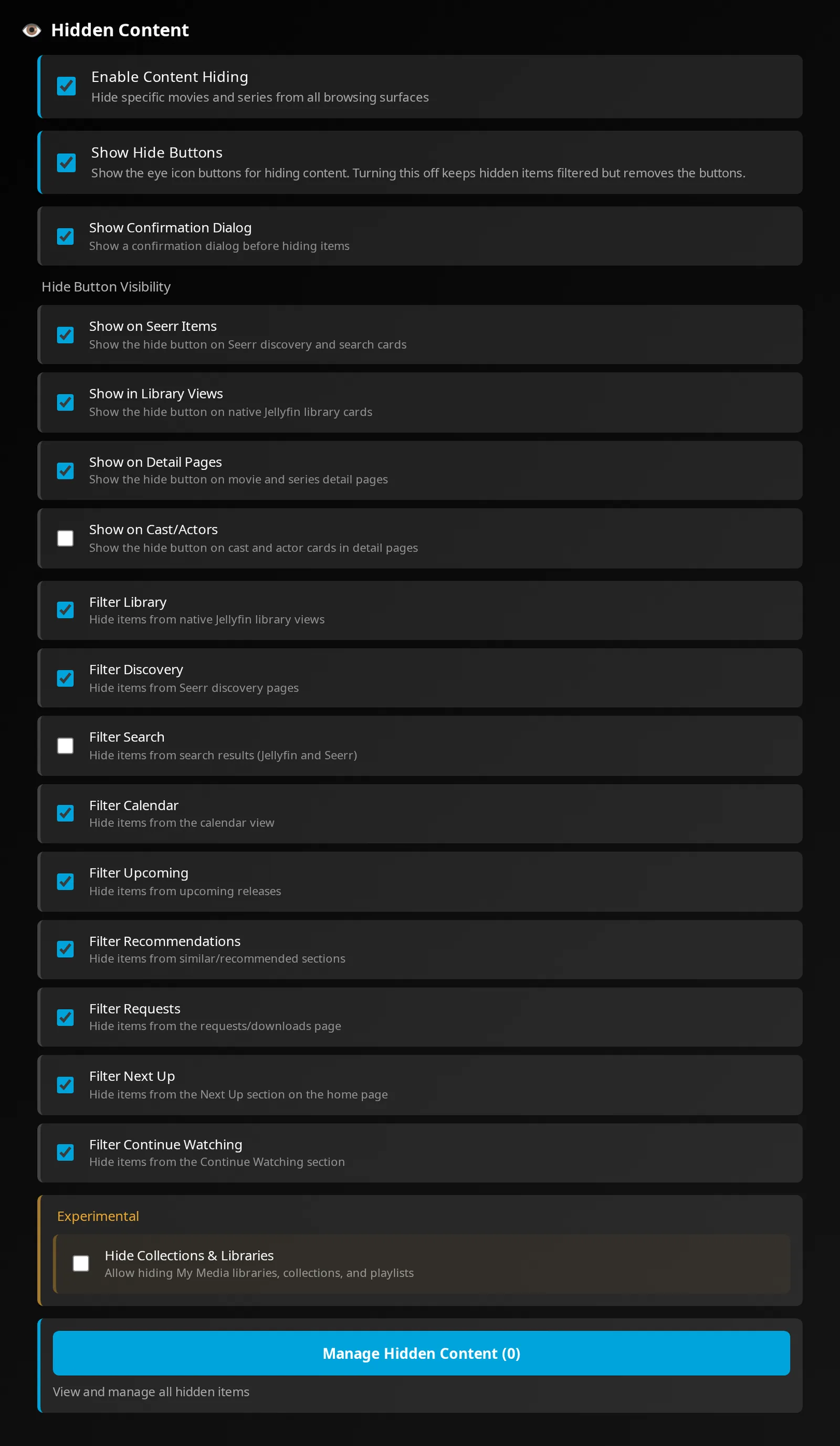
| Setting | Default | What it does |
|---|---|---|
| Enable Content Hiding | On | Enables filtering for your account while the server feature is available. Admin default: Hidden Content enabled by default. |
| Show Hide Buttons | On | Shows hide controls. Turning it off leaves enabled filters working. Admin default: Show "Hide" buttons by default. |
| Show Confirmation Dialog | On | Asks before hiding an item. Admin default: Show confirmation dialog before hiding. |
| Show on Seerr Items | On | Shows hide buttons on Seerr search/discovery cards. Admin default: Show "Hide" button on Seerr search results. |
| Show in Library Views | Off | Shows hide buttons on native library/home cards. Admin default: Show "Hide" button on library / home cards. |
| Show on Detail Pages | On | Shows hide controls on supported item detail pages. Admin default: Show "Hide" button on item details pages. |
| Show on Cast/Actors | Off | Shows hide controls on cast/actor cards and supports hiding people. Admin default: Show "Hide" button on cast / actor cards. |
| Filter Library | On | Filters native library browsing and supported related detail-page lists. Admin default: Filter Library & details pages. |
| Filter Discovery | On | Filters Seerr discovery. |
| Filter Search | Off | Filters Jellyfin and Seerr search results. Admin default: Filter Search results. |
| Filter Calendar | On | Filters the calendar. |
| Filter Upcoming | On | Filters upcoming episodes. Admin default: Filter Upcoming episodes. |
| Filter Recommendations | On | Filters suggestions and similar/recommended rows. Admin default: Filter Suggestions / recommendations. |
| Filter Requests | On | Filters the Requests page. Admin default: Filter Requests page. |
| Filter Next Up | On | Filters the Next Up home row. |
| Filter Continue Watching | On | Filters the Continue Watching home row. |
| Hide Collections & Libraries | Off | Experimental: also allows hiding libraries, collections, and playlists. Admin default: Allow hiding collections, libraries, and playlists (experimental). |
Note
Global hides apply across the surfaces whose filters you enable. Search remains visible by default. Hiding changes browsing results; it does not revoke direct access or prevent playback. Experimental container hiding can disrupt browsing.
Details
Button locations and surface filters are under Hide Button Visibility. The experimental control is under Experimental. These preferences are stored in hidden-content.json. See Content management for scope choices and limits.
Spoiler Guard
Choose which types of spoilers you want hidden. Your personal choices inherit the administrator's protection policy unless you opt out.
- Open Spoiler Guard when its server feature is enabled.
- Uncheck a category to opt out. Check it again to inherit the admin policy.
| Setting | Default | What it does |
|---|---|---|
| TV show descriptions | Checked; inherit admin policy | Hides protected show descriptions. |
| Episode descriptions | Checked; inherit admin policy | Hides protected episode descriptions. |
| Episode titles | Checked; inherit admin policy | Replaces protected episode titles. |
| Chapter names | Checked; inherit admin policy | Hides protected chapter names. |
| Cast list | Checked; inherit admin policy | Hides protected cast information. |
| Ratings | Checked; inherit admin policy | Hides protected community/critic ratings. |
| Air date | Checked; inherit admin policy | Hides protected air dates. |
| Taglines | Checked; inherit admin policy | Hides protected taglines. |
| Tags | Checked; inherit admin policy | Hides protected metadata tags. |
| Reviews | Checked; inherit admin policy | Hides reviews in the protected web interface. |
| Seek previews | Checked; inherit admin policy | Hides trickplay thumbnails while seeking through protected unwatched episodes and movies. |
| Advanced per-category reveals | Checked; inherit admin policy | Uses the admin's enabled advanced reveals; unchecking restores stricter uniform protection. |
| Don't ask me to confirm when turning Spoiler Guard off | Off | Skips the disable-confirmation dialog. |
See Spoiler Guard settings for the admin controls and full protection rules.
Details
Category rows appear only when the administrator enables that category. Advanced per-category reveals appears only when advanced mode is enabled. These per-user preferences are stored in spoilerblur.json.
Language Settings
Choose the language of JE's interface. This does not set your audio or subtitle language.
- Open Language Settings and choose Display Language.
- Wait about 1.5 seconds for the page to reload.
| Setting | Default | What it does |
|---|---|---|
| Display Language | Auto | Uses Jellyfin's resolved document language, or lets you choose a JE translation. New accounts start from the administrator's Default UI Language. |
To clear this browser's JE translations, click Clear Translation Cache. The page reloads after about two seconds and keeps your feature preferences and language choice. See Other settings for server cache controls.
How it works
Changing Display Language saves the server preference and this browser's user-language key. An existing browser language key takes priority during translation loading. Changing the preference on another device does not automatically replace it. Choose the desired language in this browser if it continues to use an older choice.
Clear Translation Cache removes this browser's JE translation-cache entries. It differs from the server's Refresh Translation Cache scheduled task, which signals invalidation on clients' next load. Clearing does not guarantee a newer translation: bundled translations are tried first.
About
Check About to see your installed plugin version. This section has no settings.
Choose Release Notes to fetch the latest GitHub release, or Contribute to open the project repository.
Details
Release Notes needs browser access to GitHub. The latest release may differ from your installed version.
Enhanced Settings — Admin configuration
Feature Toggles
Use the admin configuration page to turn server features on and set starting preferences for users. You can search across tabs to find a control.
- Open Dashboard → Plugins → Jellyfin Enhanced.
- Select the appropriate tab, or use Search settings... to find controls across tabs. Clear the search to restore normal navigation.
- Change the controls and click Save Settings.
- Refresh affected web clients to load the new configuration.
Descriptions shows or hides explanations. Section jumps, previews, and navigation do not save edits; watch the unsaved indicator before leaving.
How it works
The tabs are Overview, Display, Media Tags, Elsewhere & Reviews, Playback, Pages, Extras, Keyboard, Services, Seerr, *arr, Admin, Credits, and Docs. The sidebar groups them and lists each tab's cards (for Media Tags, its sections) underneath. The Media Tags tab saves each change as you make it, so it has no Save Settings; Save Settings on the other tabs never changes a Media Tags setting. See Tags & badges.
Some server effects happen immediately. Page integrations can have additional requirements, described below.
Overview contains Service Status, Optional Dependencies, Features, and Quick Actions. Status/feature cards take you to their configuration. Re-test all service connections runs service checks. Connection and URL-mapping tests are also available in their integration sections. Clear all client tag caches is a cache action, described in Tags & Badges.
What's new in v{version}: or What's new since you last checked: links to newly detected settings, with New in v{version} badges and release links. Dismiss acknowledges the shared server baseline; it does not enable features. Undismissed additions keep their first-detected version across releases.
A fresh installation establishes the current baseline. Existing plugin data can trigger the bundled 12.2.0.0 baseline when no acknowledgment exists. This is settings discovery rather than a complete release history.
Server defaults and overwriting personal settings
Admin Display/Playback preferences generally supply starting values when a user settings file is missing. Existing personal values take precedence; ordinary Save Settings does not keep enforcing those defaults.
To change existing users, a setting that users also hold personally (marked with a small people icon) shows a banner in its card when you change it. Apply the above copies only the listed settings to every user. Apply all plugin settings replaces all personal preferences with the admin values.
To replace all existing preferences from the Overview instead:
- Set and save the intended defaults.
- Choose Overview → Quick Actions → Apply all plugin settings to every user.
- Confirm the action.
Warning
This action replaces personal customizations. Users must refresh and reapply choices they want to keep. It also resets personal-only values such as custom subtitle colors/position, the pinned random source, and last-opened section.
For the broader storage and backup reference, see Settings overview.
How it works
Server feature switches, such as Enable Hidden Content, control availability independently of a user's saved choice. Disabled child controls need their parent feature enabled.
After confirmation, the overwrite action saves the current form and synchronizes managed Custom Tabs entries. It replaces general settings for users with known JE data folders. It resets Hidden Content preferences while keeping hidden items. It also resets existing Spoiler Guard preferences to inherit the admin policy while keeping protected-title lists. Shortcut overrides in shortcuts.json remain.
In this version, the overwrite path resets watch-progress mode/time format to Percentage/h:m, even if the corresponding admin defaults differ.
Display defaults
Choose the starting information new users see on item details. Users can override these admin preferences in UI Settings.
Open Display → UI Preferences and set the starting values:
| Setting | Default | What it does |
|---|---|---|
| Show watch progress | Off | Starts Show Watch Progress enabled for new users. |
| Watch Progress Default | Percentage | Starts the personal display at Percentage, Time Watched, or Time Remaining. |
| Watch Progress Time Format | h:m | Starts the personal time format at h:m or yd:h:m. |
| Show file sizes | Off | Starts Show File Sizes enabled. |
| Show available audio languages on item detail page | On | Starts Show Audio Languages enabled; users override it in UI Settings. |
| Enable "Remove from Continue Watching" | Off | Starts Add Remove from Continue Watching & Next Up Buttons enabled. |
Under Display → Icons & Theme, these are server settings with no personal-panel counterpart:
| Setting | Default | What it does |
|---|---|---|
| Use Icons in UI | On | Uses icons in JE's interface. |
| Icon Style | Emoji | Chooses Emoji, Lucide Icons, or Material UI Icons. |
Under Display → Default Language, choose the starting interface language:
| Setting | Default | What it does |
|---|---|---|
| Default UI Language | System Default | Supplies the initial personal Display Language. Users can choose their own language or Auto. |
Display → Spoiler Guard is covered by Spoiler Guard settings. Display → Awards and MDBList Ratings are covered by Other settings.
Playback defaults
Set starting playback preferences for your users, including tab switching, auto-skip, and subtitles. Users can override the personal preferences in Playback Settings, Auto-Skip Settings, and Subtitle Settings.
Open Playback → Player Behaviour to set these starting preferences. The playback-start rating badge is a server setting with no personal toggle.
| Setting | Default | What it does |
|---|---|---|
| Auto-pause on tab switch | On | Starts personal Auto-pause enabled. |
| Auto-resume on tab switch | Off | Starts personal Auto-resume enabled. |
| Auto Picture-in-Picture on tab switch | Off | Starts personal Auto Picture-in-Picture enabled. Browser restrictions still apply. |
| Long press/hold for 2x speed β | Off | Starts personal Long Press for 2x Speed (β) enabled. Supports mouse and touch. |
| Enable Custom Pause Screen | On | Starts personal Custom Pause Screen enabled. |
| Show Age Rating When Playback Starts | Off | Shows the official age rating, up to three recognized advisory tags and up to three genres for five seconds when playback starts. No personal-panel toggle. |
Player rating chips have a separate admin server control under Media Tags → Groups → Rating:
| Setting | Default | What it does |
|---|---|---|
| Show Rating in Video Player | On | Adds community/critic rating chips beside the player's time information. Uses the server setting and has no personal-panel toggle. |
Under Playback → Auto-Skip, choose starting preferences for Auto-Skip Settings:
| Setting | Default | What it does |
|---|---|---|
| Auto-skip Intro | Off | Starts Automatically Skip Intro enabled. Requires usable Intro segment data. |
| Auto-skip Outro | Off | Starts Automatically Skip Outro enabled. Requires usable Outro segment data. |
Under Playback → Subtitles, choose starting preferences for Subtitle Settings:
| Setting | Default | What it does |
|---|---|---|
| Disable Custom Subtitle Styles by default | Off | Starts Disable Custom Styles enabled. Users can override it. |
| Show Subtitle Sync Button in the Player | Off | Starts Subtitle Sync Button enabled. Users can override it. |
| Default Subtitle Style | Clean White | Supplies the initial Style. |
| Default Subtitle Size | Normal | Supplies the initial Size. |
| Default Subtitle Font | Default | Supplies the initial Font. |
| Default Subtitle Text Effect | Auto | Supplies the initial Text Effect. |
See Subtitle Settings for choices and format limits.
Under Playback → Shortcuts Panel & Toast Timing, set these server timings. Use Preview autoclose and Preview toast to try them:
| Setting | Default | What it does |
|---|---|---|
| Shortcuts Panel Autoclose Delay (ms) | 15000 | Sets how long the Enhanced panel stays open with the pointer outside it. |
| Toast Notification Duration (ms) | 1500 | Sets JE toast duration. |
Details
Show Age Rating When Playback Starts shows the official rating, up to three recognized advisory tags, and up to three genres for five seconds when playback starts. Episodes can fall back to series metadata.
There is no admin form input for the pause-screen delay. Its server configuration default is five seconds; users have Delay before showing (seconds):. Custom subtitle colors and position also have no admin form inputs.
Random button defaults
Set the dice button's starting pool for new users. Users can override all five preferences in Random Button Settings.
Choose the starting values:
| Setting | Default | What it does |
|---|---|---|
| Enable Random Button | On | Starts the header dice button enabled. |
| Show unwatched only | Off | Starts Unwatched Only enabled. |
| Include movies | On | Starts Movies selected. |
| Include shows | On | Starts Shows selected. |
| Scope to the current playlist or collection | Off | Starts Use the playlist or collection I'm viewing enabled. |
Users choose their own pinned source; no admin control sets it. See Random Button Settings for source priority and sampling limits.
Keyboard configuration
Set the server's keyboard bindings, which users inherit until they choose personal overrides. You can also disable ordinary JE shortcuts.
- Open Keyboard → Keyboard Shortcuts.
- Click a key and press a combination. Del disables the server binding; Backspace restores its stock key.
- Save your admin edits.
| Setting | Default | What it does |
|---|---|---|
| Disable Keyboard Shortcuts | Off | Disables ordinary JE shortcuts and hides the personal Shortcuts section. You can still open the panel with ?. |
The editable action labels and stock keys match the Shortcuts table, except Jump to % of video, which is not in the admin recorder.
Details
Personal overrides remain in effect until users reset them in their own editor. Personal Backspace restores the saved administrator binding, which may differ from the stock key.
Page entry points
Enable the page, choose its placement, and click Save Settings. Bookmarks, Hidden Content, Activity, Leaving Soon, and Catch Up controls are listed below. Follow JE Pages & Tabs for native Home links, Plugin Pages registration, and automatic or manual Custom Tabs setup.
Bookmarks
Bookmarks save positions within videos so you can return to them later. The bookmark library lets you manage those saved positions.
- Under Pages → Bookmarks, enable the server feature and choose an entry point.
- Create a bookmark in the player or with Bookmark Current Time.
These are admin server settings. There is no personal bookmark master toggle in the Enhanced panel.
| Setting | Default | What it does |
|---|---|---|
| Enable Bookmarks Feature | On | Enables bookmark tools and management. |
| Add Bookmarks as a native Home tab | Off | Adds the built-in Bookmarks Home tab. |
| Use Plugin Pages for Bookmarks Library | Off | Exposes the bookmark library through Plugin Pages. |
| Use Custom Tabs for Bookmarks | Off | Enables the bookmark library's Custom Tabs embed. |
| Add the Custom Tabs entry for me | Off | Creates the matching managed Custom Tabs entry on save. |
Custom Tabs is optional. See Smart Bookmarks for editing, timeline markers, and management.
Details
Bookmark data is saved per account on the server in bookmark.json. The interface has no export/import operation.
Hidden Content administration
Enable Hidden Content so users can manage their own hidden lists. When allowed, administrators can also inspect and edit other users' lists.
- Open Pages → Hidden Content.
- Enable the server feature and choose page access; expand Admin Controls to set administrator access to other users' hidden content.
- Under More Settings, set the starting personal preferences.
Admin server settings:
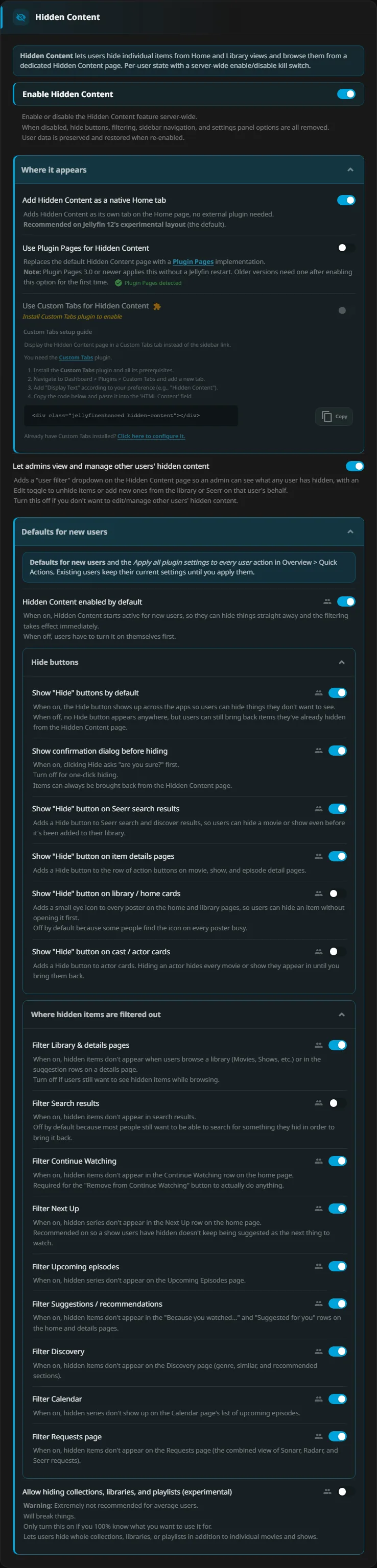
| Setting | Default | What it does |
|---|---|---|
| Enable Hidden Content | Off | Enables Hidden Content, its management page, and its personal panel section. |
| Add Hidden Content as a native Home tab | Off | Adds the built-in Hidden Content Home tab. |
| Use Plugin Pages for Hidden Content | Off | Exposes the page through Plugin Pages. |
| Use Custom Tabs for Hidden Content | Off | Enables its Custom Tabs embed. |
| Add the Custom Tabs entry for me | Off | Creates the matching managed Custom Tabs entry on save. |
| Let admins view and manage other users' hidden content | On | Adds another-user selection to management. Viewing another account starts read-only; Edit enables changes on its behalf. Turning it off disables both viewing and editing. |
Under More Settings, these admin values supply starting values for the matching personal Hidden Content controls. Saving new defaults leaves existing personal copies intact.
| Setting | Default | What it does |
|---|---|---|
| Hidden Content enabled by default | On | Sets Enable Content Hiding. |
| Show "Hide" buttons by default | On | Sets Show Hide Buttons. |
| Show confirmation dialog before hiding | On | Sets Show Confirmation Dialog. |
| Show "Hide" button on Seerr search results | On | Sets Show on Seerr Items. |
| Show "Hide" button on item details pages | On | Sets Show on Detail Pages. |
| Show "Hide" button on library / home cards | Off | Sets Show in Library Views. |
| Show "Hide" button on cast / actor cards | Off | Sets Show on Cast/Actors. |
| Filter Library & details pages | On | Sets Filter Library. |
| Filter Search results | Off | Sets Filter Search. |
| Filter Continue Watching | On | Sets Filter Continue Watching. |
| Filter Next Up | On | Sets Filter Next Up. |
| Filter Upcoming episodes | On | Sets Filter Upcoming. |
| Filter Suggestions / recommendations | On | Sets Filter Recommendations. |
| Filter Discovery | On | Sets Filter Discovery. |
| Filter Calendar | On | Sets Filter Calendar. |
| Filter Requests page | On | Sets Filter Requests. |
| Allow hiding collections, libraries, and playlists (experimental) | Off | Sets Hide Collections & Libraries. Experimental container hiding can disrupt browsing. |
Details
The server master defaults to Off even though personal hiding defaults to On. The personal controls and browsing limits are separate from the row-removal preference in Display → UI Preferences.
Activity Feed
Activity shows watching history, favorites, and reviews, with an optional live-stream section. You can open titles or artwork to view their details.
- Enable the feature under Pages → Activity Feed and configure an entry point.
- Open Activity and browse Active Streams, Watch History, and Reviews. Favorites share Reviews.
- Use Refresh to reload stored activity. Partial watches show progress; completed watches use completion wording.
All settings below are admin server settings, with no personal-panel counterparts.
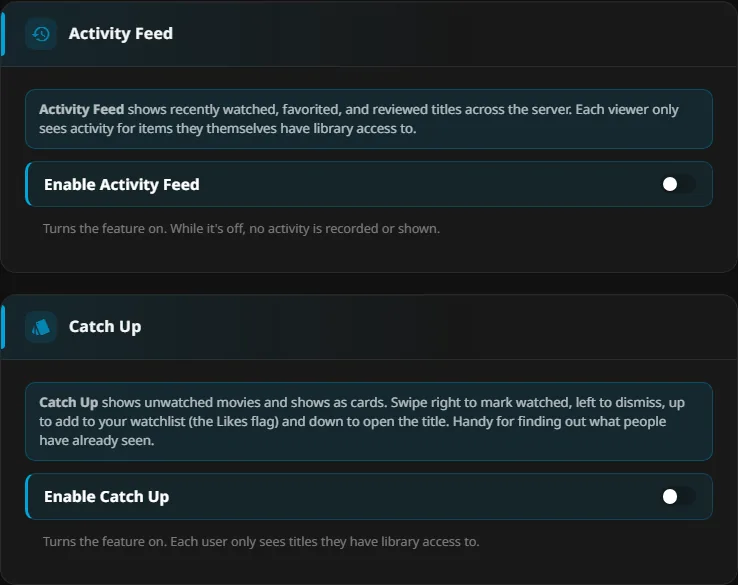 The disabled Use Plugin Pages and Use Custom Tabs controls require their companion plugins.
| Setting | Default | What it does |
|---|---|---|
| Enable Activity Feed | Off | Enables the feed and its watched/favorite collection. Turning it off retains saved activity. |
| Show recently watched | On | Collects and shows qualifying stopped or completed playback. |
| Show recently favorited | On | Collects and shows favorites. Unfavoriting removes the saved entry. |
| Show recently reviewed | On | Includes reviews from the current User Reviews store. |
| Non-admins only see their own activity | Off | Regular users only see their own watched, favorited and reviewed entries; administrators still see everyone. |
| Show Active Streams section | On | Adds live sessions when the separate Active Streams feature and viewer permissions allow them. |
| Add Activity as a native Home tab | Off | Adds the built-in Activity Home tab. |
| Use Plugin Pages | Off | Exposes Activity through Plugin Pages. |
| Use Custom Tabs | Off | Enables the Activity Custom Tabs embed. |
| Add the Custom Tabs entry for me | Off | Creates the matching managed Custom Tabs entry on save. |
For the live section, also configure these admin server settings under Extras → Active Streams:
| Setting | Default | What it does |
|---|---|---|
| Active Streams Header Widget | Off | Enables the header widget and live-session data used by the feed. |
| Show widget to non-admins | Off | Permits authenticated non-admins to read live sessions. |
Stored watched/favorite/review entries respect viewer library access. Active Streams has separate access rules and can show sessions for items outside a viewer's library access. See Other settings for the widget's full behavior.
How it works
Show recently watched collects playback stopped at a position of at least 5% of known runtime, plus playback Jellyfin reports completed. The 5% threshold measures stopped playback position, not time spent watching.
The usual request returns up to 50 merged entries with no UI pagination. Watched/favorite storage in activity.json is capped at 500 entries. Rewatches update the timestamp while retaining maximum progress and completion.
Elsewhere & Reviews → User Reviews → Hide reviews from hidden users and Hide reviews from disabled users both default to On. They also filter activity authors, with admin/self exceptions. User Reviews runs independently. Disabling Activity Feed stops watched/favorite collection, but reviews written while it is off can appear when the feed returns. See Elsewhere & Reviews Settings for those shared review controls.
Active Streams Header Widget enables the Active Streams data endpoint as well as the header widget. The feed's live section refreshes every 15 seconds while the document is visible. Stored history does not use that polling. The header widget refreshes on initialization, opening, and manual refresh.
Leaving Soon
The Leaving Soon page lists everything the removal tool that is on (Maintainerr or Reclaimerr) will remove, with the days left. Everyone sees the items they can access, soonest first, and can filter Movies and Shows. It needs a removal tool set up first.
- Set up and turn on a removal tool in the *arr tab (the Maintainerr or Reclaimerr card).
- Enable the page under Pages → Leaving Soon and configure an entry point.
- Open Leaving Soon. Click a poster or title to open the item.
What each person gets:
- Everyone: the list, with a chip for the day it leaves (Leaves in 5d, Leaves tomorrow, Leaves today, or Leaving soon when no date is known). With Reclaimerr, their own removal requests and whether each is waiting, approved or denied.
- Administrators: Keep and Change removal date (Postpone with Maintainerr) on each card, the same actions as the item menu, and with Reclaimerr the waiting removal requests as cards (poster, title, who asked with their Jellyfin name and avatar, and their note) with Approve and Deny. Approve asks you to confirm and when to delete: Use Reclaimerr's grace period (the delay set in its General settings; none by default, so right away, and with its default setting the files are deleted and the Radarr or Sonarr entry is kept unmonitored), Delete now, or Choose a date, which Reclaimerr then deletes on and the Leaving Soon page lists like any scheduled deletion. An approved request whose deletion failed, is blocked or is held back by playback stays on the page with the reason, and one that is scheduled shows its day; Deny keeps the title and needs no confirmation. Reclaimerr records the plugin's token as the reviewer, so the note names the administrator who approved or denied it in Jellyfin.
All settings below are admin server settings.
| Setting | Default | What it does |
|---|---|---|
| Enable the Leaving Soon page | Off | Turns the page on. It lists nothing until a removal tool is set up. |
| Add Leaving Soon as a native Home tab | Off | Adds the built-in Leaving Soon Home tab. |
| Use Plugin Pages | Off | Exposes the page through Plugin Pages. |
| Use Custom Tabs | Off | Enables the Leaving Soon Custom Tabs embed (<div class="jellyfinenhanced leavingsoon"></div>). |
| Add the Custom Tabs entry for me | Off | Creates the matching managed Custom Tabs entry on save. |
The page reads the server's last read of the removal tool (the Leaving soon card's refresh interval) and reloads itself every five minutes and after any Keep or date change made from the item menu or the page. See API reference for the leaving-soon routes.
Catch Up
Catch Up gives you swipeable cards for unwatched movies and shows. Use them to mark items watched, dismiss them, add them to your watchlist, or open their details.
- Enable the feature under Pages → Catch Up and configure an entry point.
- Open Catch Up and choose Movies or Shows.
- Swipe right to mark watched, left to dismiss, up to add to the watchlist, or down to open details. Buttons and arrow keys provide the same actions.
- Press Backspace to rewind when an undo is available.
All settings below are admin server settings.
| Setting | Default | What it does |
|---|---|---|
| Enable Catch Up | Off | Enables decks of unwatched items accessible to each user. |
| Add Catch Up as a native Home tab | Off | Adds the built-in Catch Up Home tab. |
| Use Plugin Pages | Off | Exposes Catch Up through Plugin Pages. |
| Use Custom Tabs | Off | Enables the Catch Up Custom Tabs embed. |
| Add the Custom Tabs entry for me | Off | Creates the matching managed Custom Tabs entry on save. |
| Record Catch Up activity | On | Saves reported actions for administrators while Catch Up is enabled. Turning it off stops new records; existing history remains readable. |
Dismissals stay in this browser for your account, separate from server-synced Hidden Content. Reloading keeps them. Clear their browser storage or use an available rewind to reverse them.
Administrators can open Activity to view Feed or Summary, even with recording disabled. Use All users, Search titles, and action chips to filter Feed; those filters do not affect Summary. Refresh reloads the selected view and Hide closes it.
See Enhanced features for the full gesture workflow and API reference for event routes.
How it works
The watchlist uses Jellyfin's Likes flag. Decks sample random batches of 40 items, excluding dismissed, already-seen, and imageless cards. They do not sort newest first. Nothing more to show here. can mean a batch produced no eligible new cards.
A show's season picker appears only with at least two regular seasons; specials are excluded. Shows with fewer regular seasons are marked watched directly.
The selected deck mode is remembered locally for the browser. Switching decks or restarting resets the queue, seen set, and undo history.
The open admin activity panel refreshes every ten seconds and docks at widths of at least 1100 pixels. Narrower screens use a dialog.
Logs contain open, undo, and failed actions as well as swipes. They are client-reported actions, not proof of viewing. Feed requests up to 300 matching events. Summary counts distinct surviving user/title actions not marked failed, removes recorded undos, and lists up to 15 top titles per action.
The server retains catchup-log.jsonl and catchup-log.1.jsonl in the plugin configuration folder. It rotates before the next append once the live file exceeds 5 MiB.
Tags: Quality, Genre, Language, Rating, Age Rating, Status, Awards, Logos, Custom, People
Tag settings (quality, language, rating scopes, custom rules, people and review badges, hover behavior, Tag Styles) are covered in Tags & Badges.
Custom tag rules
Media Tags → Groups → Custom (the configuration page's Media Tags tab) turns Jellyfin tags and collections into poster chips: up to 20 rules of match type, name, label and optional icon, plus Enable Custom Tags and its Position as defaults for users. Colour the labels under Tag Styles → Custom. See Custom Tags.
Configuration
For personal tag choices, open Media Tags. Administrators use the configuration page's Media Tags tab. See Tags & Badges for exact labels, defaults, and configuration instructions.
Status Tags badge groups
Under Media Tags → Status badges, the eight personal switches are Just Added, New releases (New Movie / New Series / New Episode), Trending, Schedule (Airing Today / Airs / Returns / Coming Soon), Milestones (New Season / Premiere / Finale / Complete Season), Series status (Returning / Ended / Cancelled), Leaving soon (Maintainerr or leaving collections) and Direct-play warning (Transcode / Won't direct play, web only). The first five default on; the last three off. The administrator sets the Leaving soon source (Maintainerr URL and API key, or existing collection names, and how often it is read) in the Status badges section of the Media Tags admin tab; see Leaving soon and Direct-play warning. Administrators set starting defaults and the two shared day windows in the Status badges section of that tab. Finale and series schedule enrichment require a TMDB key; Jellyfin date badges work without one. Compact density shortens long milestone labels. See Status Tags for sources and first-match priority by card type.
Logo Tags
The Logos row on the Groups tab of Media Tags turns the group on (off by default) and sets its position and Show up to. What the logo shows is the administrator's choice under Media Tags → Groups → Logos: Movies show (streaming service, studio or no logo), Series show (network, streaming service or no logo), Streaming region and Logos per title (1 or 2). Logos need the TMDB API key for images; without one, names are shown. See Logo Tags.
Server-Side Tag Cache
Server cache settings, library exclusions, browser fallback persistence, Clear All Client Caches, and Media Tags → Server → Rebuild Server Tag Cache are covered in Tags & Badges.
Audio Language Tags
The controls under Display → Audio Language Tags and the Sync Audio Language Tags to Jellyfin task are covered in Tags & Badges.
Native Poster Tags (Experimental)
The admin Media Tags tab's controls and personal Show Tags in Native Clients (Experimental) are covered in Tags & Badges, including eligible clients, exclusions, and refresh requirements.
Settings in other areas
Use these references for settings owned by other feature areas:
- Seerr and Pages → Seerr Recommendations Page: Seerr settings.
- *arr, Pages → Calendar Page, and the download parts of Pages → Requests Page: *arr settings. Request controls are also covered in Seerr settings.
- Elsewhere, TMDB Reviews, Release Dates, and User Reviews: Elsewhere & Reviews Settings. Written reviews have no separate personal review-tag switch.
- Display → Spoiler Guard: Spoiler Guard settings.
- Display → Awards / MDBList Ratings, other Extras options, and Admin maintenance, analytics, developer, and cache controls: Other settings.
Documentation in the dashboard
Read the hosted documentation from the dashboard's Docs tab. This tab has no enable switch.
Open Docs to load Documentation from the GitHub Pages site, or choose Open in new tab.
Details
The tab needs connectivity from your browser; it is not an offline copy bundled with the plugin. It loads the document when first opened and retains it when you switch tabs.
If no iframe load event arrives within eight seconds, a fallback message and link replace it. Open in new tab is always an alternative.
Awards poster group
Media Tags → Groups → Awards enables chart and winner chips, with the usual position, priority and cap controls (default two). Existing users start off. Administrators first enable Awards under Display → Media Tags → Awards Tags, choose ribbons, configure the two MDBList lists and a freshness interval (24 hours), and run Refresh Awards Tags. IMDb/Letterboxd charts and Certified Fresh require the server MDBList key; Wikidata Oscar/Emmy wins do not. Native posters follow the same group preference. See Awards Tags.
Quality stream display
In Media Tags → Groups → Quality, the Sound, Video codec and HDR display modes independently choose Highest only (the unchanged default) or All distinct values. Minimum resolution to show filters resolution chips below Off / 720p / 1080p / 4K; Hide SDR removes SDR exposed by All HDR mode. Each field offers Server default; Follow server settings also restores these five overrides and the technical category switches/orders. Explicit choices stay personal even if they equal the server defaults. Administrator defaults live on the dedicated Media Tags → Groups → Quality page. The Quality group limit and Compact labels apply to the resulting chips, including the existing layout overflow count. See quality display and aggregation.
Technical poster facts
Media Tags → Groups → Quality → Include adds Runtime, Aspect ratio and Frame rate, all off initially, with the usual stacking-order controls. The administrator sets their new-user defaults on the Media Tags admin tab, Groups → Quality. Full/Compact density changes duration and ratio labels. Media Tags → Status badges → Scenes is also off initially and allows Post-credits/Mid-credits movie badges once the administrator enables the family and configures TMDB. Language subtitle chips automatically use SDH for hearing-impaired tracks when Include → Subtitles is on; no extra language switch is required. See Tags & badges.
The Media Tags group editor hides Show up to for Status and Age rating, and for Logos when the administrator allows only one logo. Other groups keep their limit control.
Changing Quality includes or display modes in Media Tags keeps the dialog frame and preview in place, preserving the inner pane scroll and the changed control's focus.
In Compact quality labels, AC-3 is DD 5.1 and E-AC-3 is DD+ 5.1; Full shows Dolby Digital 5.1 / Dolby Digital+ 5.1. Flush edge styling includes overflow tabs and keeps styled Rating/Awards rings inside the chip on inward sides. Single-chip limits remain effective presentation limits; valid saved caps round-trip unchanged.
Series and season quality policies preserve version-0 audio labels in Highest and All modes, including preferred-language summaries. Editing an unrelated preference leaves the audio vocabulary unchanged.
In the Corners tag layout, left-centre and right-centre groups use the available poster width, sharing it when both sides are occupied. The first chip remains visible even on a narrow poster; long labels use an ellipsis, and +N counts later chips.
When a first chip needs an ellipsis in Corners, only its text shrinks: Custom icons, rating logos and the chip’s height and inward Flush borders stay in place. Awards and Language poster links use the same constraint on their inner chip.
Media Tags live previews react to each sample’s pointer hover or keyboard focus. Hover pins every sample for touch comparison; Resting releases that pin. Tag sizes show percentage values. Language code, CC/SDH and Dual/Multi chips follow the Language Tag Styles colours, including Poster artwork colours.