Seerr Permission Audit
Check whether your Jellyfin users are linked to Seerr and have the permissions needed for enabled JE features. The audit helps you find account and access problems before users try to request media.
Overview
The audit checks account linkage and selected permission gaps. It does not show a complete inventory of each account's permissions.
Administrator check
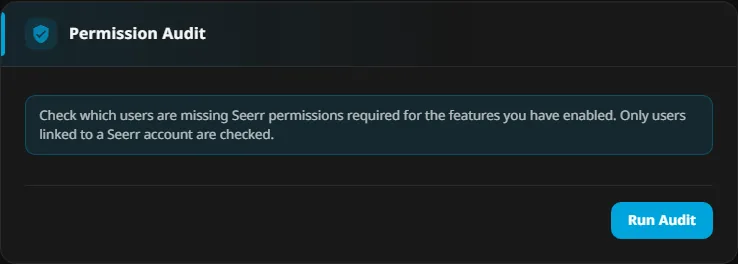
Run Audit is a read-only administrator action. It does not change accounts, settings, or permissions, and never imports users. There is no persistent audit setting.
Where to find it
Run the check from JE's Seerr settings.
How to use: Open Dashboard → Plugins → Jellyfin Enhanced → Seerr → Permission Audit, then press Run Audit.
Quick steps
Use the audit after connecting Seerr or changing feature access.
How to use:
- Configure and enable Seerr with saved URLs and API key. Use Test under Seerr Connection Setup to check connectivity with the entered credentials.
- Save changes to feature switches and Blocked Users.
- Open Seerr → Permission Audit, press Run Audit, and wait.
- Review missing-permission cards against your intended access policy. Adjust permissions in Seerr, or use user import if an account is genuinely missing.
- Run the audit again after changes, then verify the relevant request/issue workflow as that user.
Save before auditing
Run Audit uses the saved server configuration. It does not save pending form changes. Many users or failed upstream addresses can make the check slow.
How it works
The audit checks Jellyfin users against Seerr's stored account links. It honors Blocked Users.
How it works
The audit iterates Jellyfin users and attempts to resolve each account using Seerr's stored jellyfinUserId. It bypasses JE's user lookup cache and explicitly disables automatic import for the audit, even when automatic import is enabled elsewhere.
User lookup reads the first take=1000 users from each attempted Seerr URL. Large Seerr user lists can therefore leave a valid account unresolved.
Interpreting results
Each result tells you whether an account was linked and whether the selected checks passed.
How to use: Review Not linked and Permissions Missing cards, then check the limits below before treating OK as proof of access.
| Result | What it means | What to do |
|---|---|---|
| Not linked | No Seerr account was resolved. | Check logs before assuming an import is needed. |
| Permissions Missing | A linked account fails one or more checks below. The card lists those selected gaps, rather than every permission held. | Review the gaps against your intended access policy. |
| OK | Linkage and the checks performed passed. | Verify the relevant workflow as that user. |
Details
Not linked can mean an absent account, a JE-blocked user, an upstream HTTP failure, an exception, or an unexpected response shape.
In mixed results, passing users appear in a collapsed list. If everyone passes, the UI shows an all-OK summary without individual names.
Checks performed
The enabled features determine which permissions the audit checks. A linked Seerr administrator passes automatically.
How to use: Expand the table to see which saved feature switches caused a warning. Feature switches are admin settings documented in Seerr settings; the defaults below come from JE's server configuration.
How it works
These checks apply to linked accounts without Seerr ADMIN.
| Check | When checked | Passing Seerr permission |
|---|---|---|
| Request capability | Every linked non-Seerr-admin account | Any of REQUEST, REQUEST_MOVIE, REQUEST_TV |
| 4K movies | Enable 4K Requests is on (default off) | REQUEST_4K or REQUEST_4K_MOVIE |
| 4K series | Enable 4K TV Requests is on (default off) | REQUEST_4K or REQUEST_4K_TV |
| Advanced options | Show advanced request options is on (default off) and request capability is present | Specifically REQUEST_ADVANCED |
| Other users' requests | Enable Requests Page is on (default off) | REQUEST_VIEW or MANAGE_REQUESTS |
| Create issues | Show "Report Issue" button on items is on (default off) | CREATE_ISSUES or MANAGE_ISSUES |
| Issue indicator | Show open issue indicator is on (default off) | VIEW_ISSUES or MANAGE_ISSUES |
Own requests may be enough
An own-requests-only warning can be intentional. Ordinary linked users can still use the Requests page for their own requests without permission to view other users' requests. Grant broader access only if that is your intended policy.
Limits of an OK result
An OK result confirms only the checks performed. It does not validate quotas, Sonarr/Radarr setup, parental policy, or every media/quality-specific permission.
How to use: Test the request or issue workflow as the user after reviewing the audit.
Details
Passing the generic request check with movie-only permission does not prove TV request access.
The advanced-options audit specifically checks REQUEST_ADVANCED. Actual advanced-option authorization also accepts MANAGE_REQUESTS and linked Jellyfin/Seerr administrators, so the audit can warn about a user whose advanced options work.
More generally, the audit does not apply the linked Jellyfin-administrator bypass used by actual proxy permission checks. It evaluates the linked Seerr account's permissions.
Show Seerr Issues Section does not independently activate an audit check. An OK result does not prove a user can read that section: ordinary linked users still need VIEW_ISSUES or MANAGE_ISSUES. See issue permissions.
Troubleshooting & notes
A failed account lookup can look like a missing account. Check the connection and account link before importing again.
How to use:
- For Not linked, inspect JE's preceding warning/error log lines.
- Check Blocked Users and the stored Jellyfin ID. Matching usernames are insufficient.
- If import is needed, use Import Users Now. This saves configuration and performs a separate action that imports accounts. See import prerequisites, throttling, and email conflicts.
How it works
The administrator endpoint is GET /JellyfinEnhanced/jellyseerr/permission-audit. It rejects non-admins and returns HTTP 503 if the saved integration is disabled or URLs/key are missing. It uses saved credentials, unlike Test, which uses entered form values.
An unreachable Seerr server, a reverse proxy returning HTML, or a response-shape mismatch can look like a missing account. A working connection test does not prove every user's linkage.
Bypassing the user lookup cache makes this audit fresher than a cached account check. It does not clear all browser caches or guarantee every upstream state is current. Saving JE configuration clears its Seerr server caches. See Debug and caching and connection troubleshooting.